


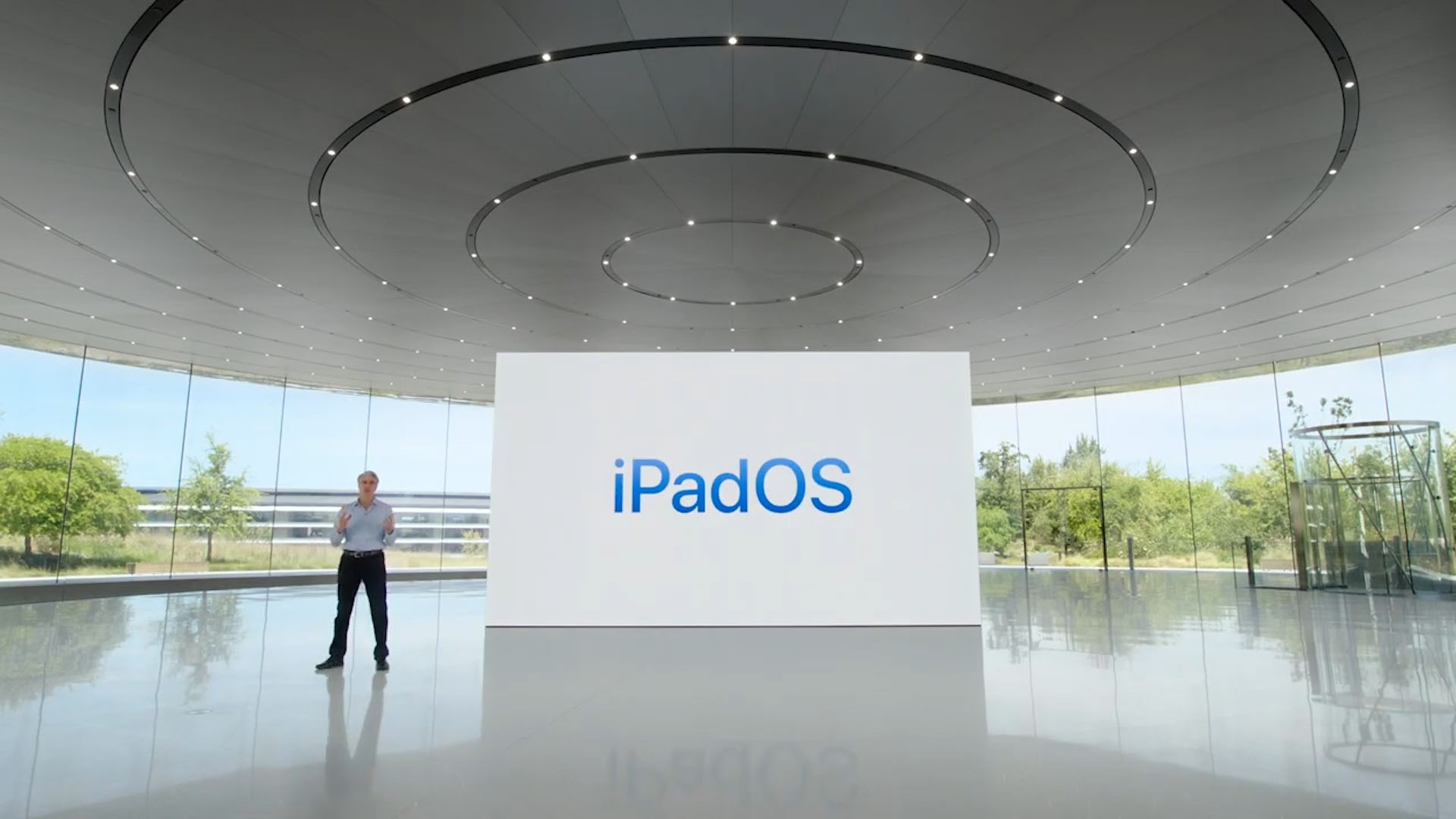

During WWDC 2022, we were shown what’s new with iPad OS 16. However, I find it strategic that Apple placed the iPad OS 16 way at the end of the announcement – after iOS 16, macOS Ventura, and everything in between. That, I think, is mostly because of how iPad OS 16 is a combination of iOS 16 and macOS Ventura.
We’re using the iPad OS 16 Beta 1 on the 5th generation iPad Air with the M1 chip to showcase all of the features. There might be some bugs here and there, and everything shown in this video may still change before iPad OS 16 is released to the public.
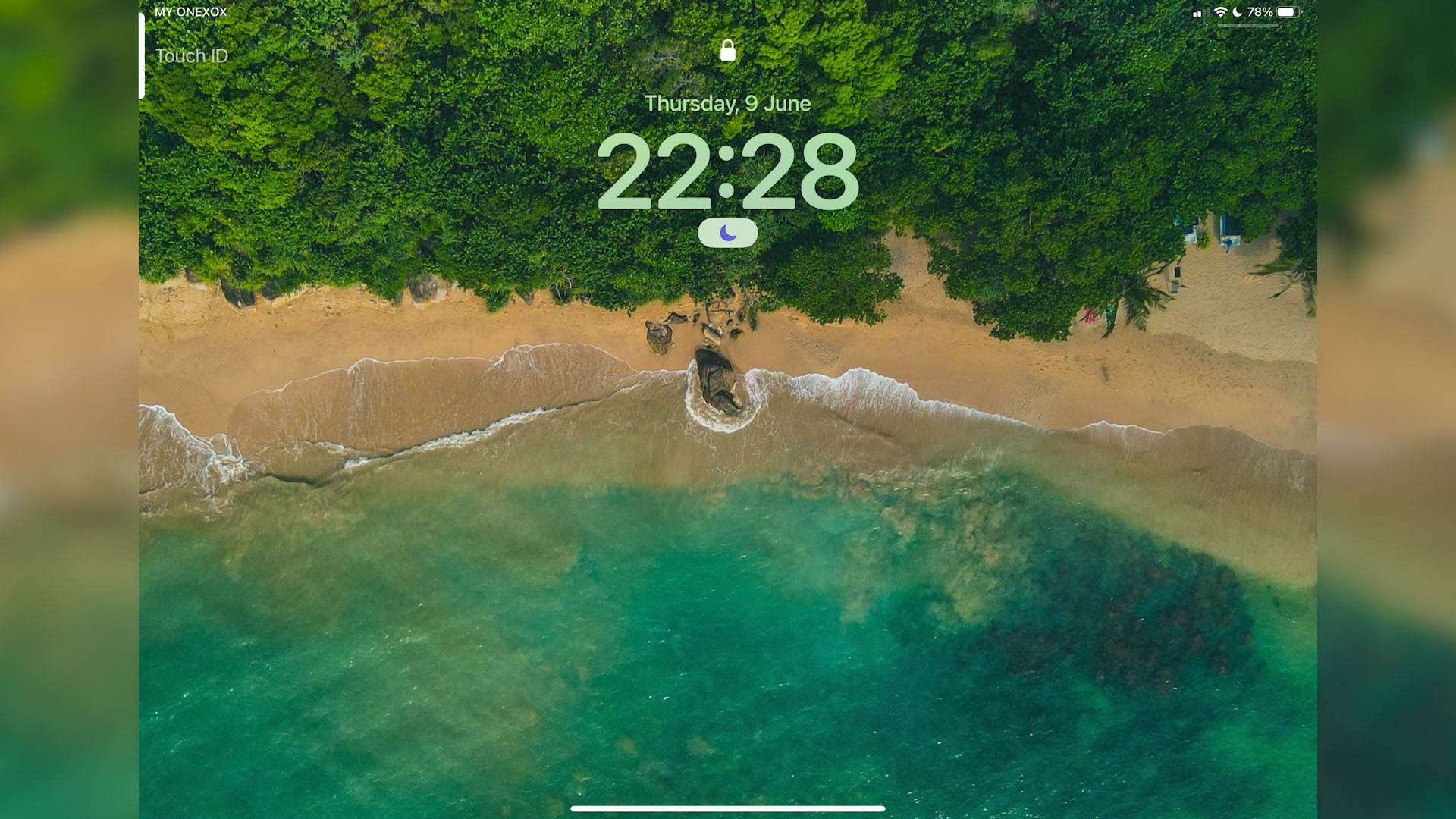
I want to quickly highlight that iPad OS 16 doesn’t get the new customizable lock screen that iOS 16 gets. I don’t know why, but we do get a new font for the time on the lock screen. So I guess that’s better than nothing?
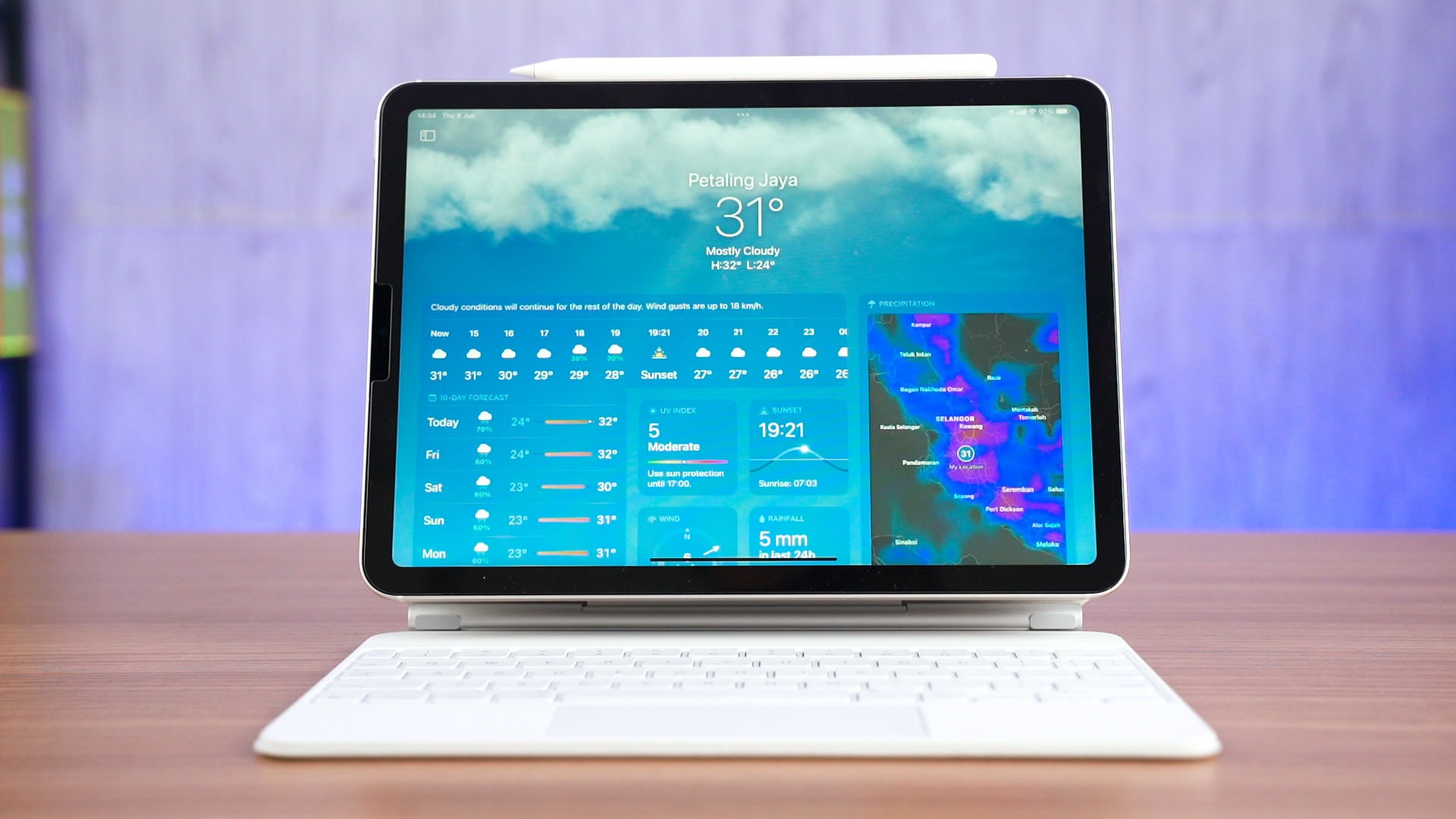
Also, the Weather app looks absolutely stunning on this larger screen.
Now, let’s talk about our top 5 favorite new features.
1. Files
I think in a way, the new Files app on the iPadOS 16 is becoming more like Finder on macOS. We can now view the information of each item – like the size of a file or an entire folder, or even rename the extension of a file too.
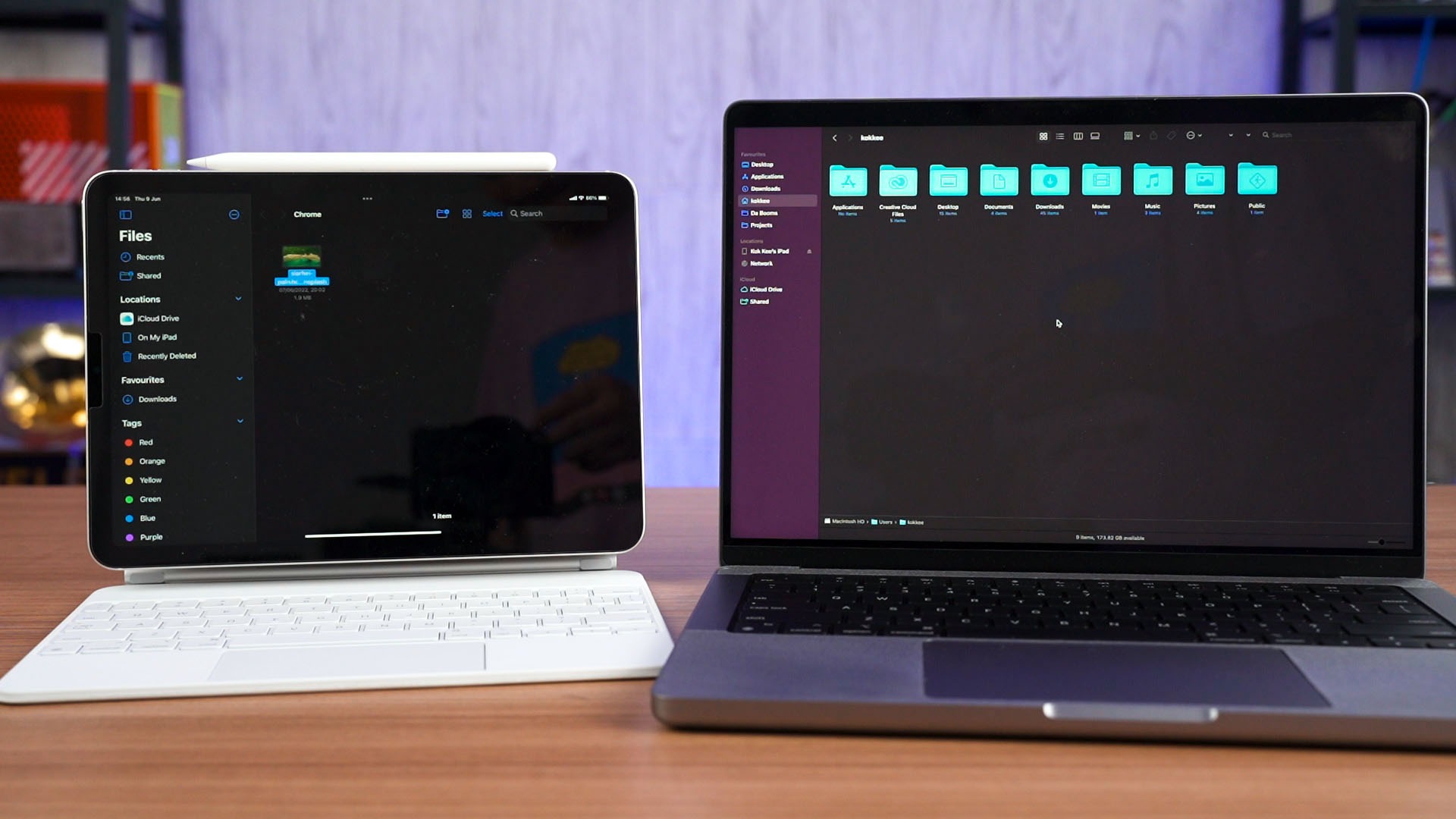
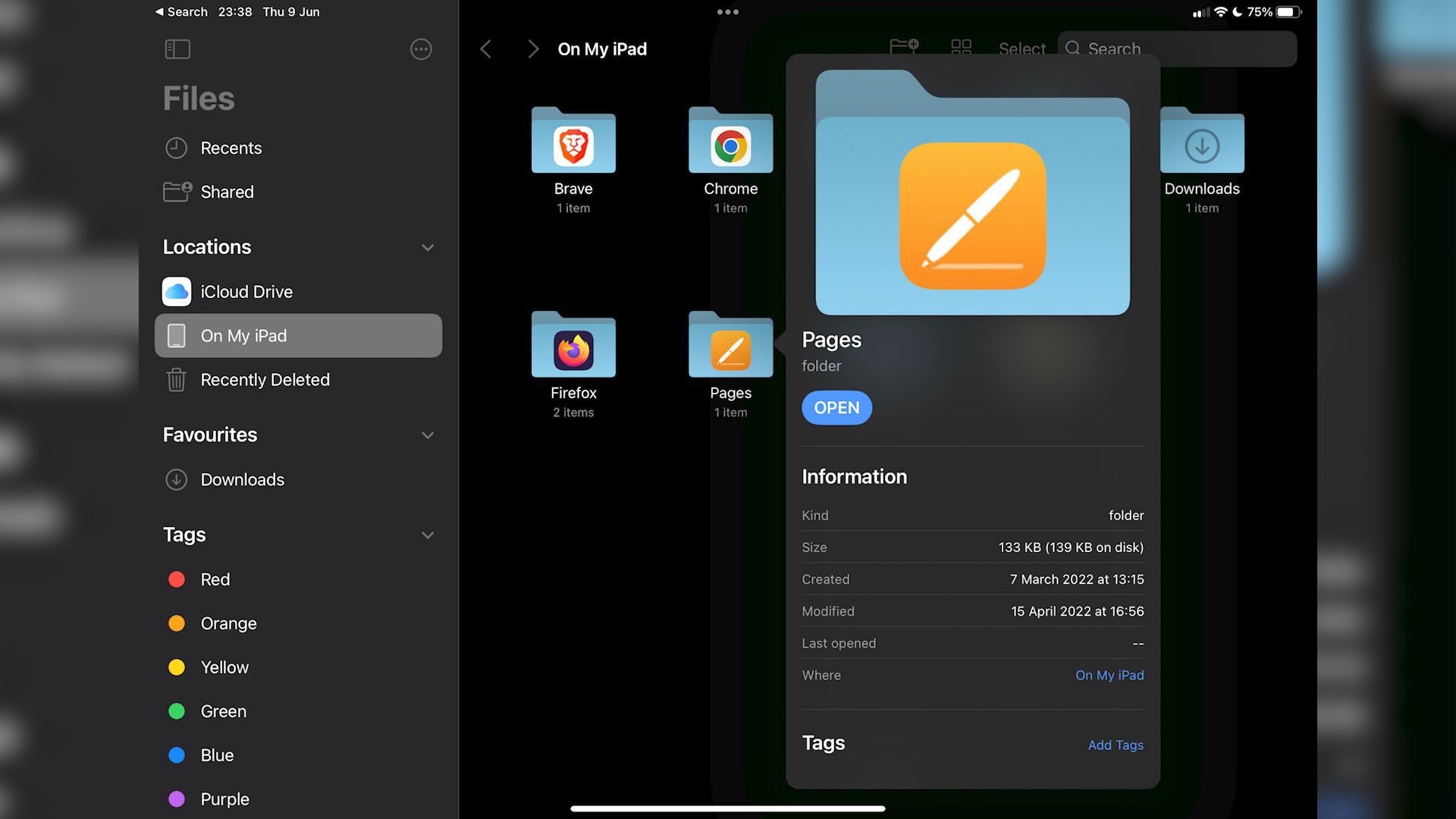
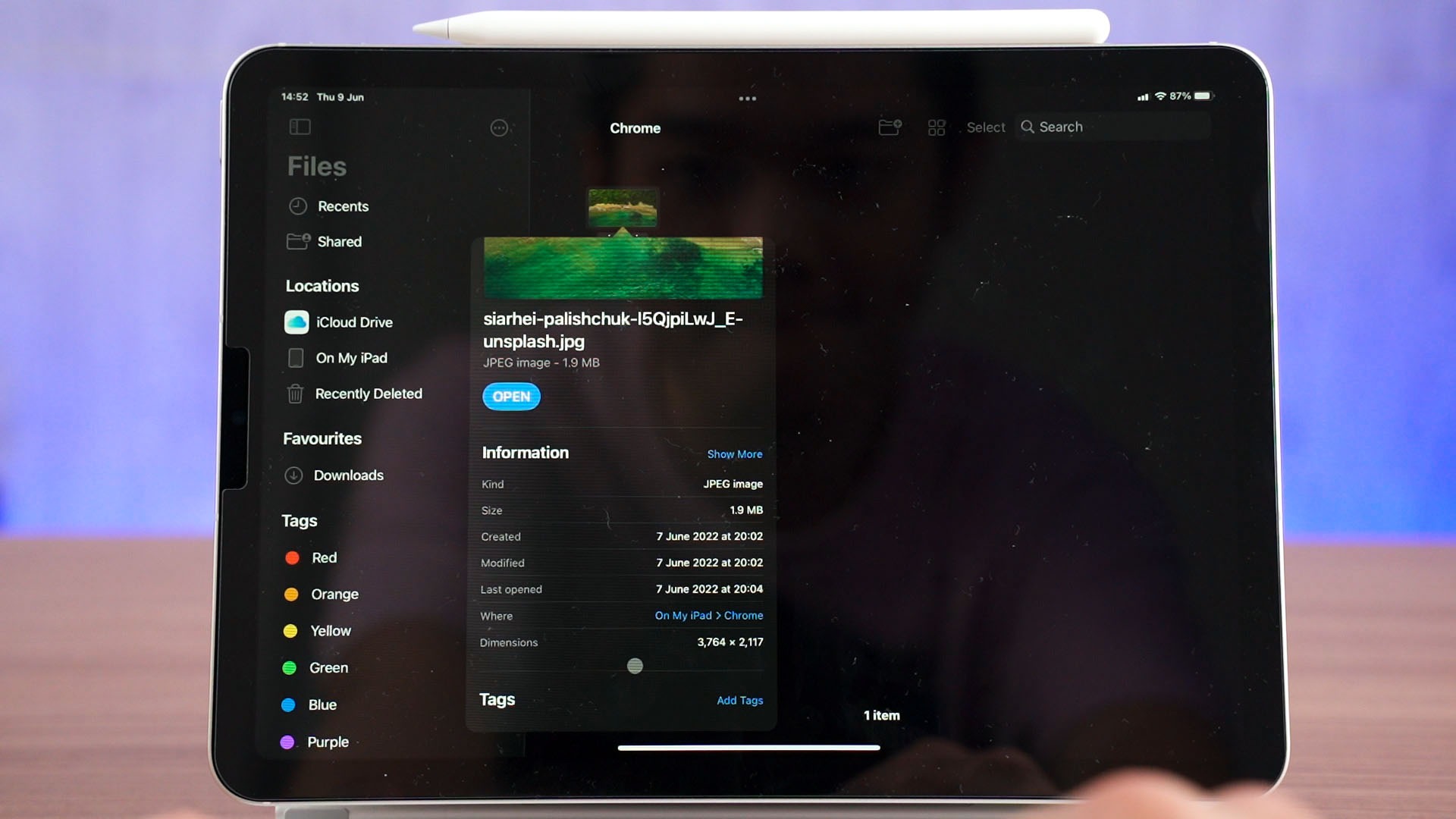
All this can be done on the iPadOS 16’s Files itself – and keyboard shortcuts from macOS carries over too. For example, hitting enter Command + I to bring up the information window, then hitting enter to rename, so on and so forth.
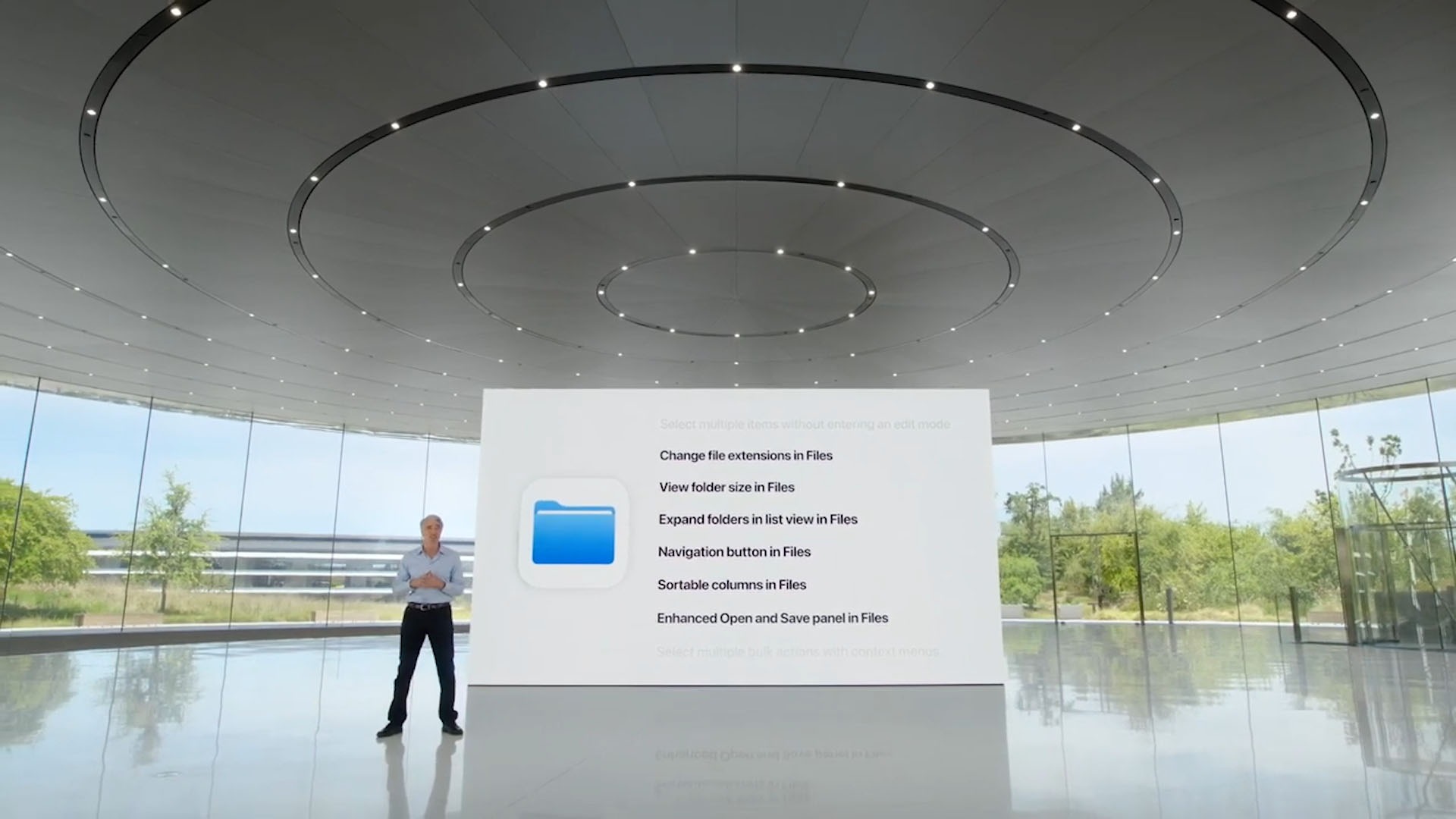
I’m really appreciative of Apple’s decision to keep the keyboard shortcuts consistent across different operating systems. I mean, I instinctively used all the keyboard shortcuts that I used on macOS because the Files app on iPadOS 16 looks exactly like Finder on macOS!
2. Stage Manager
Hoo boy, I think this is a big feature update for many people, and the main reason why I installed iPadOS 16 Beta 1 was that I wanted to try this feature for myself.
To enable this feature, we have to swipe down and go into the Command Center, and there we can see a new icon. Tap on it, and Stage Manager is enabled.
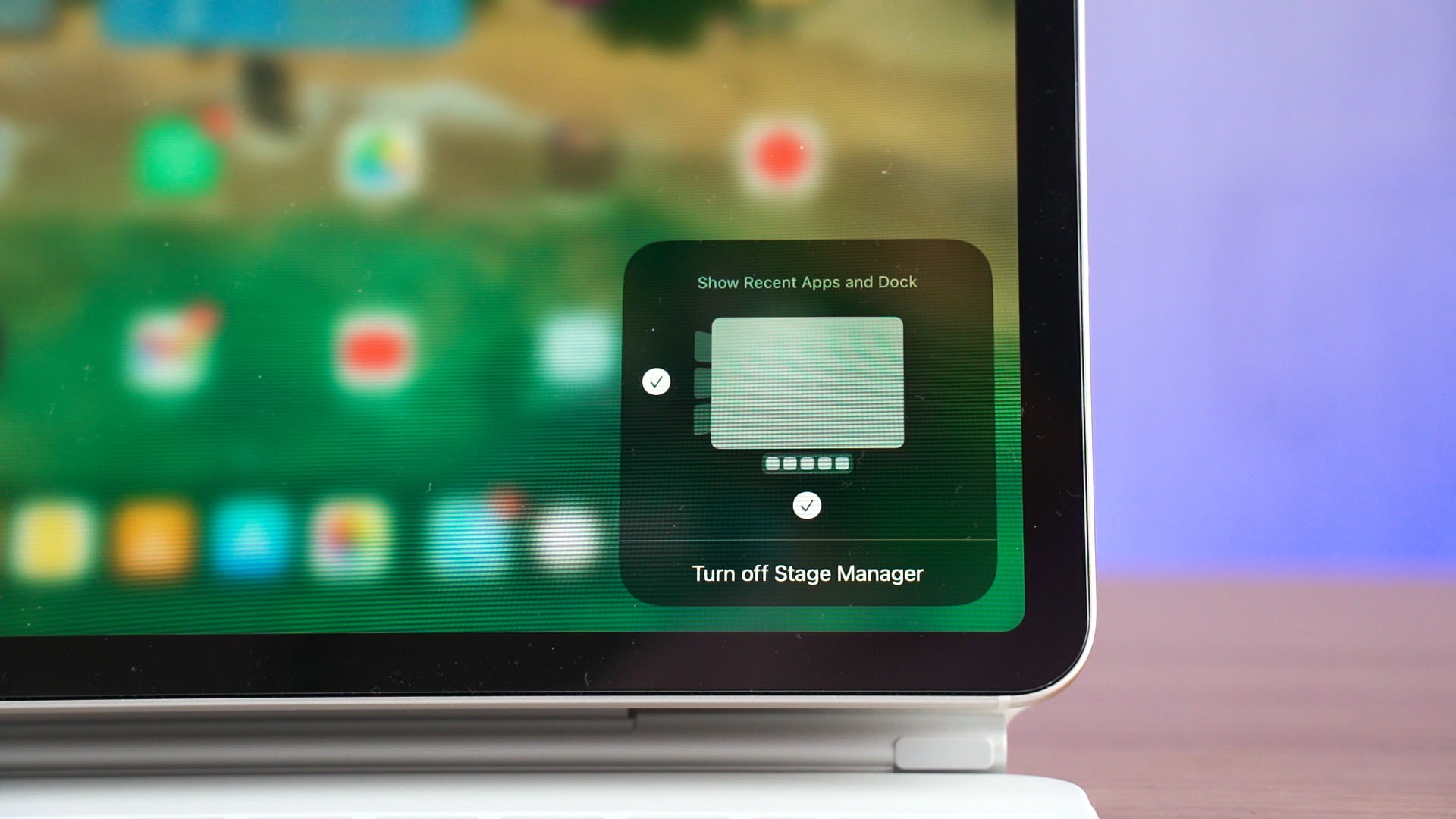
Granted, I think this Apple made this feature for keyboard/mouse users only because most of the interface do not work with touch. Again, things might change when the final version of iPadOS 16 comes out – but we’re using what we have now.
Once Stage Manager is enabled, the home screen looks like nothing happened. However, once we open up an app, the app itself is constrained in a window and the multitasking menu jumps to the side instead.
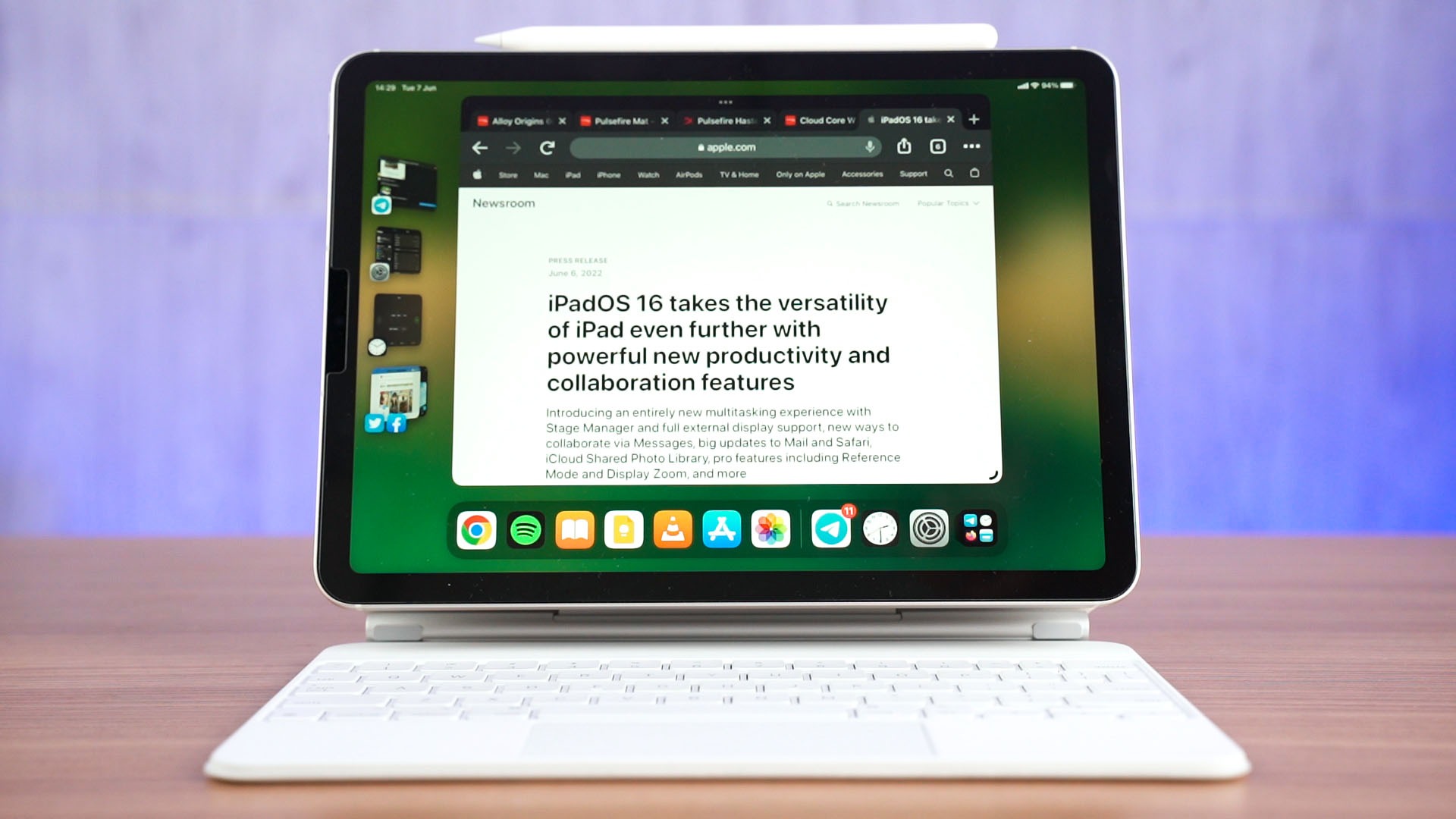
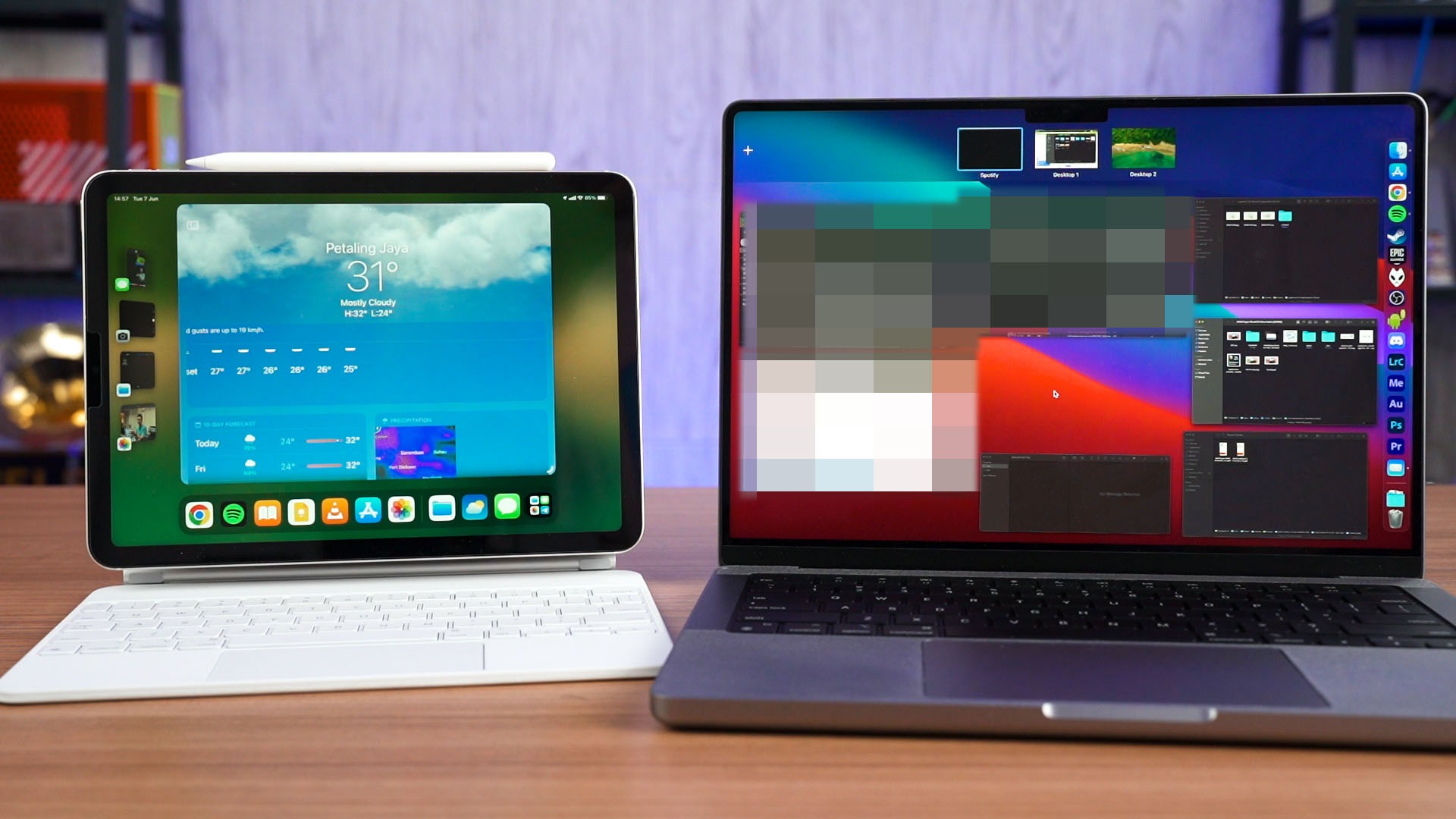
In a way, this kinda sorta feels like Spaces on macOS where we can have multiple “desktops” at once and jump around each of them depending on how we arrange the apps. I’ll have to explain more about this Stage Manager to show you the similarities.
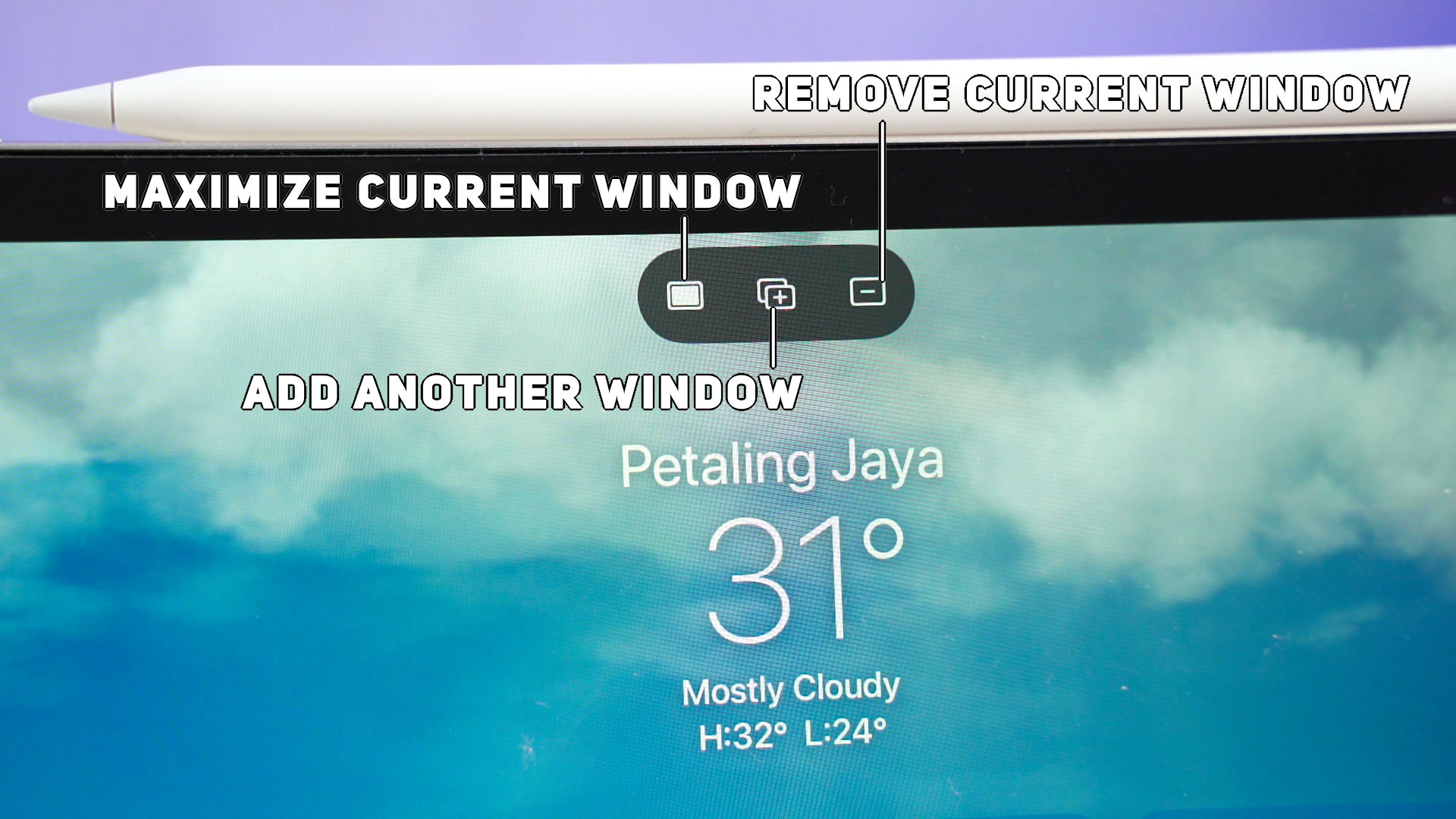
The top menu button that was meant for split-screen now presents us with 3 different options to control the windows. Do we want to add or remove that particular window from this space? Or do we want this window to maximize? We can also drag apps from the side into the current space too. Then, we can change to another space by just tapping at the side.
But, that’s not all. Each individual window in a space can also be resized. see this little outline at the bottom corners? We can drag it to resize the window according to how we like – if the app is made for iPads, that is.
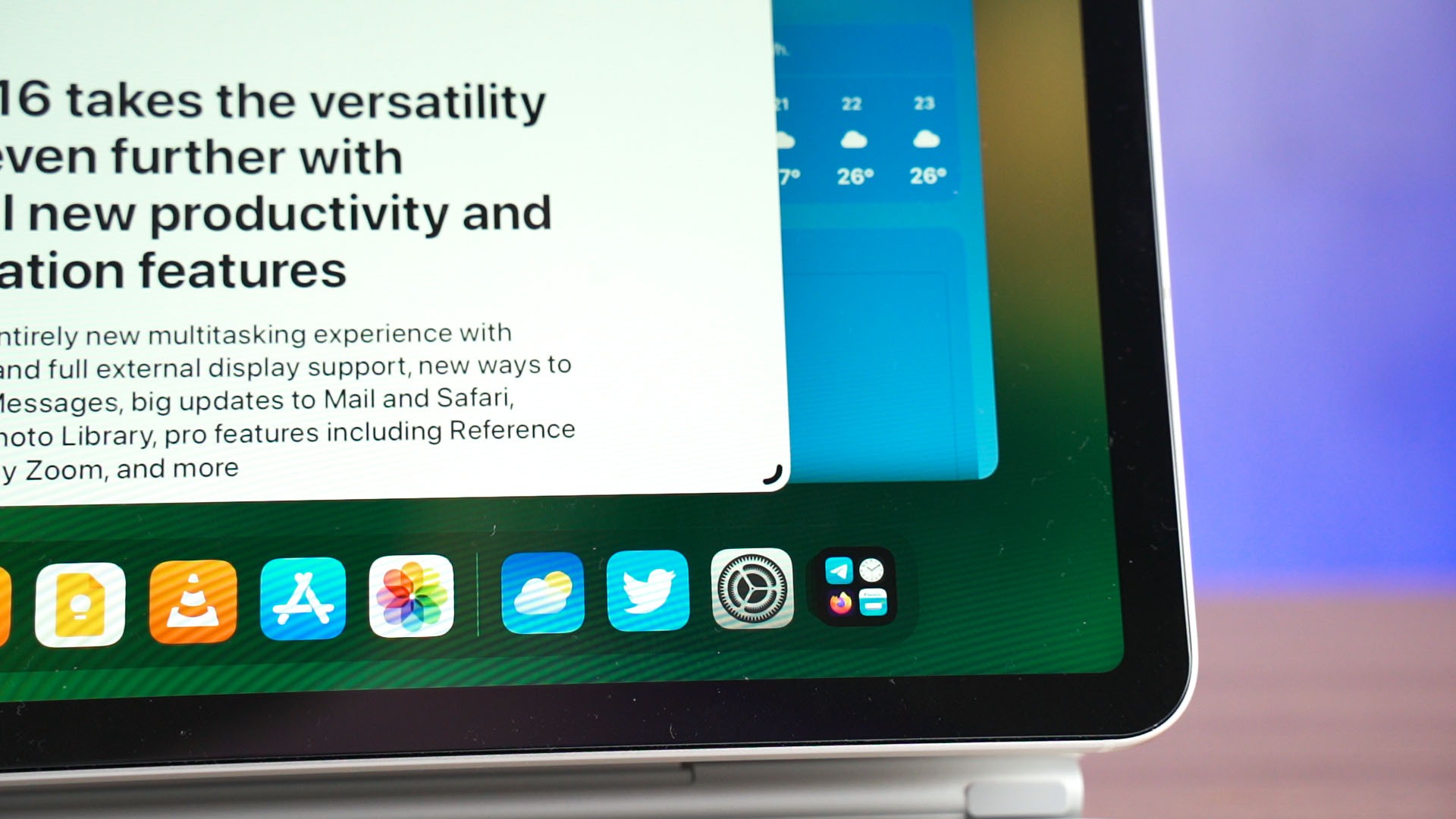
The window resizing also feels kinda weird since it snaps into certain sizes when it reaches the edges of the screen, and the dock also automatically hides itself. I mean, that kinda makes the app shortcut bar at the bottom of the iPadOS something like macOS’s dock no? The sidebar hides too, by the way. And we’ll need to use the mouse cursor to tickle it out.
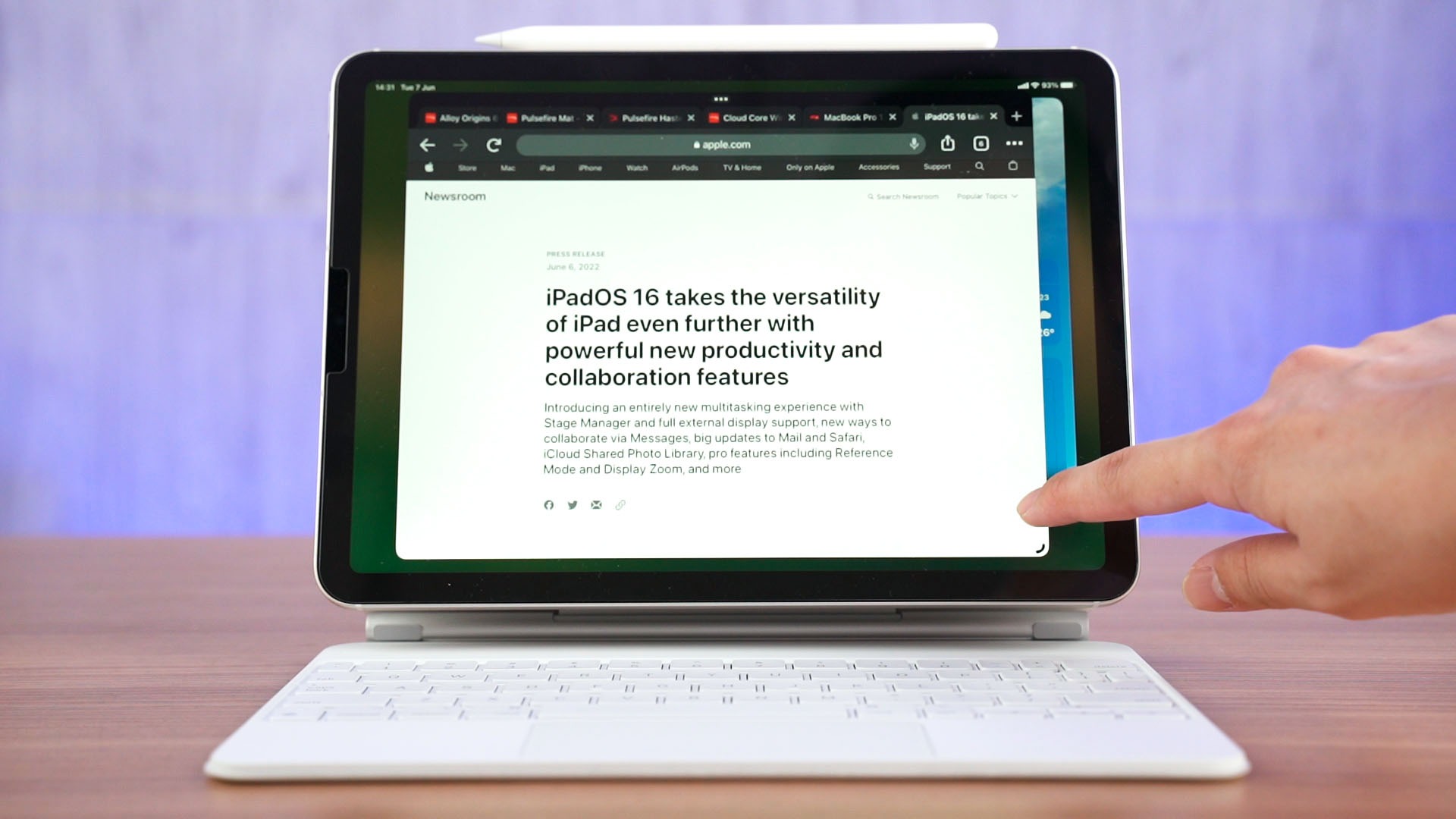
But after spending some time with the Stage Manager, it feels weird. I still prefer the split screen app that I’ve been using before this – but maybe Stage Manager needs some time to grow on me. We’ll revisit this later on our “laptop replacement” video.

3. External monitor support
Look, proper external monitor support! This feature actually goes hand-in-hand with Stage Manager. Usually, if we connect an iPad to an external monitor, it’ll just mirror the display. But now with iPadOS 16, once we connect an external monitor and the Apple Magic Keyboard, it’ll automatically transform into an extended display.
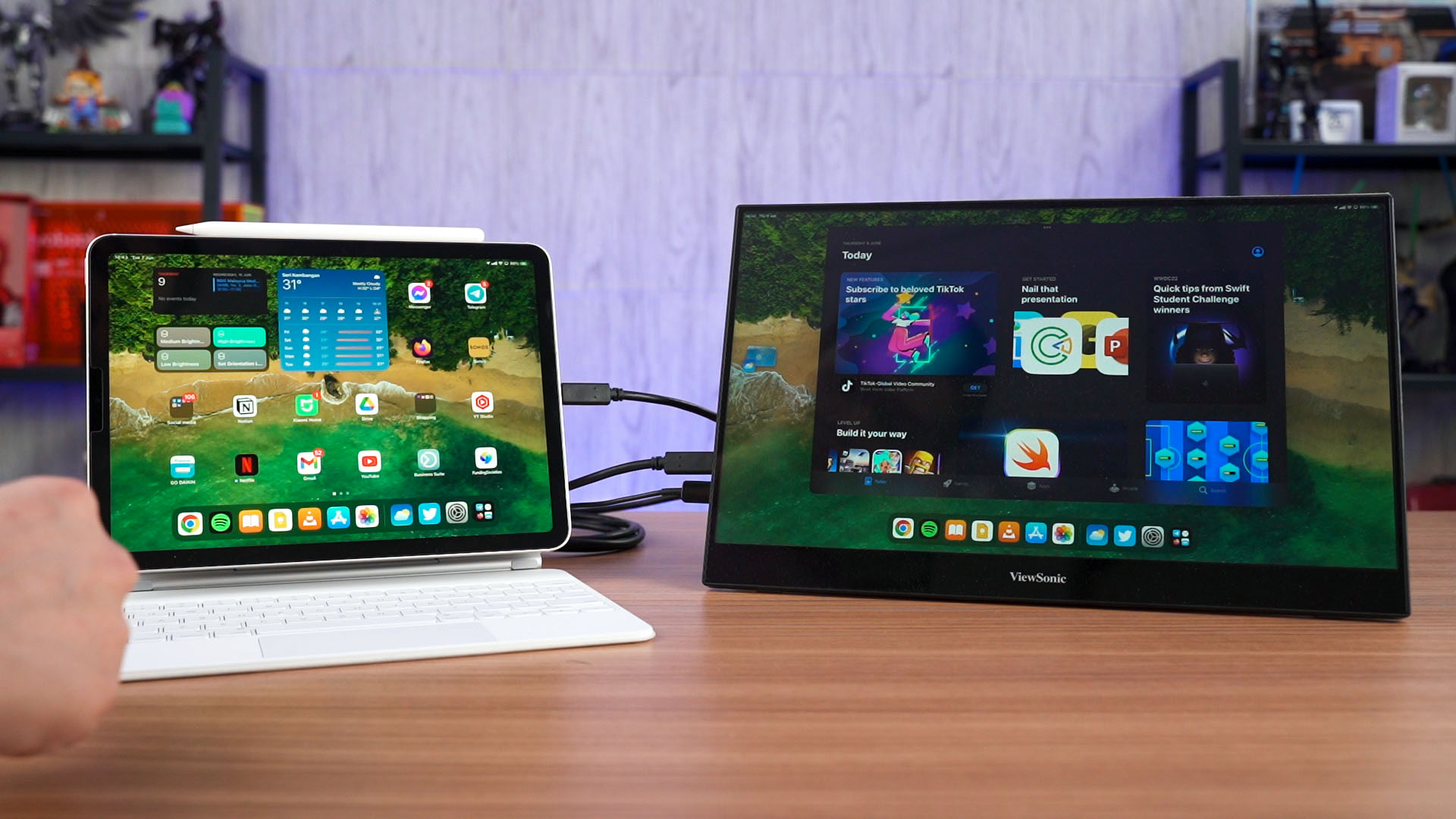
Granted, the external monitor enters Stage Manager mode whether you like it or not. Still, it works – and I’m not complaining. This actually gives me a reason to carry my portable external monitor around with me while traveling.
However, I found a few peculiar traits that you might want to know – firstly, the iPadOS 16 only supports the standard 16:9 aspect ratio; and secondly – it doesn’t support any touch inputs, even when we connected the iPad Air to our touchscreen external monitor.
4. Live Text
Next up – Live Text. I absolutely love this feature. On macOS, we can already preview images and select texts that are on the image, then copy it to the clipboard. It saves me a lot of trouble and I don’t have to retype the string of characters that I want to lift off the image.
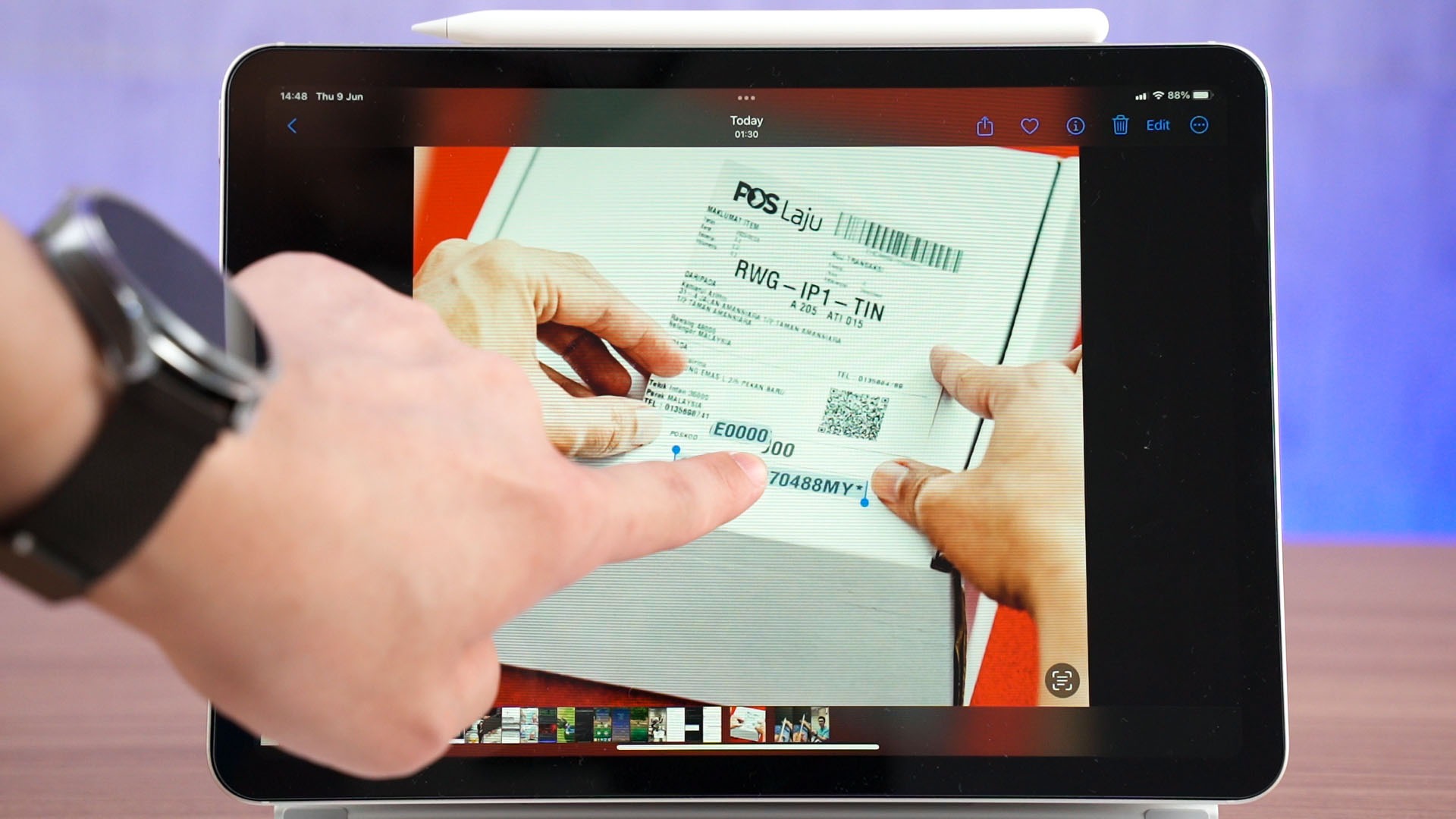
On iPadOS 16, that feature is built-in to the Photos app. For example, someone took a photo of this delivery consignment note and I want to copy the tracking number only. Traditionally, we’ll have to retype it too – but with the Live Text feature, I can just long-press and lift the text up.
I can even press this button here and it automatically highlights what texts can be copied directly. This is just a big quality of live improvement.
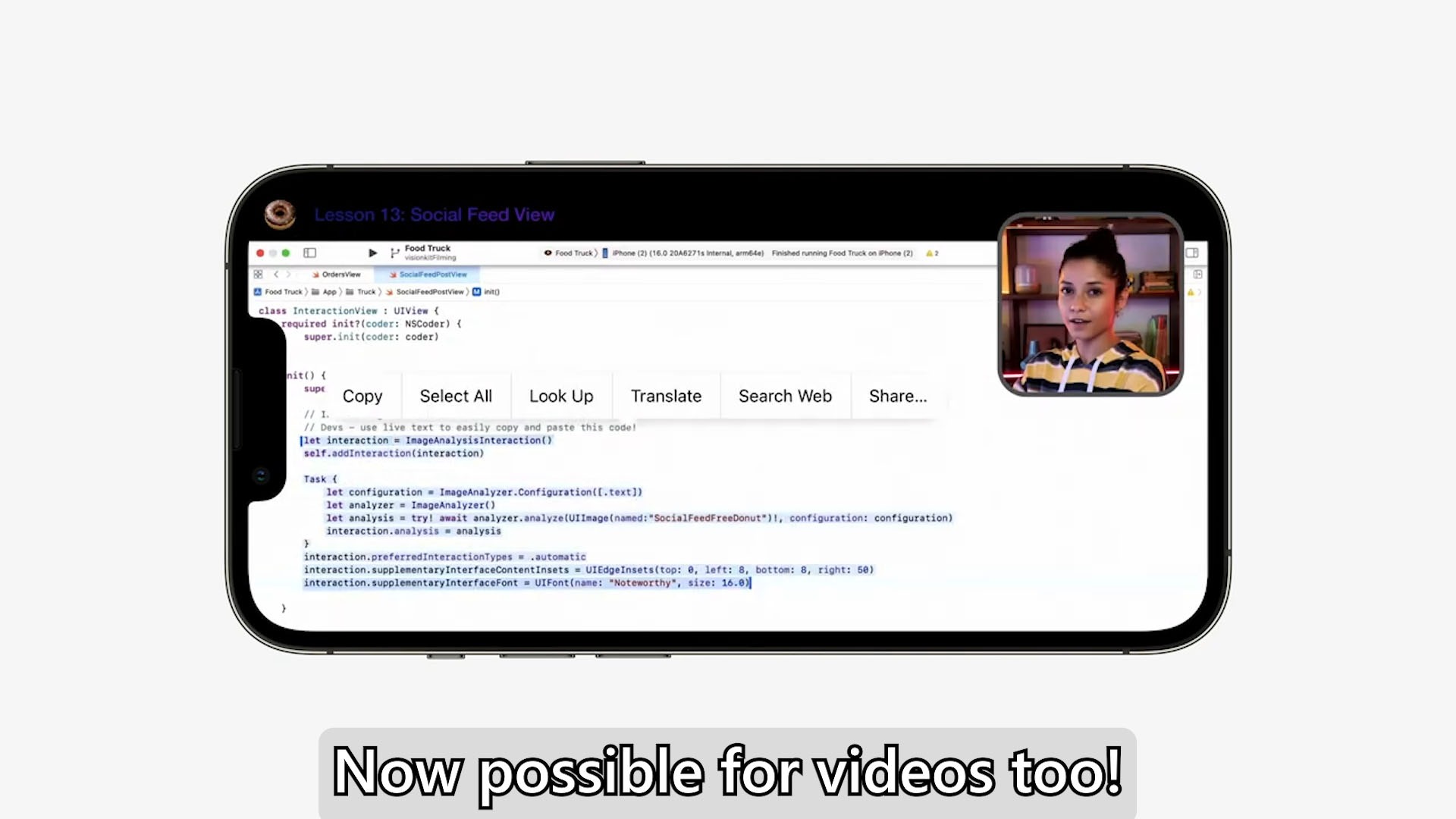
And now, this feature also works with videos!
5. Visual Look Up
Technically, this feature is also a similar to Live text, but it’s for images instead. Take this picture for example. I can directly long-press the subject and lift it out of the image. I honestly can’t stop thinking about the endless potential about this feature. I frequently take pictures with our camera and then use Photoshop to crop the subject out from the background.
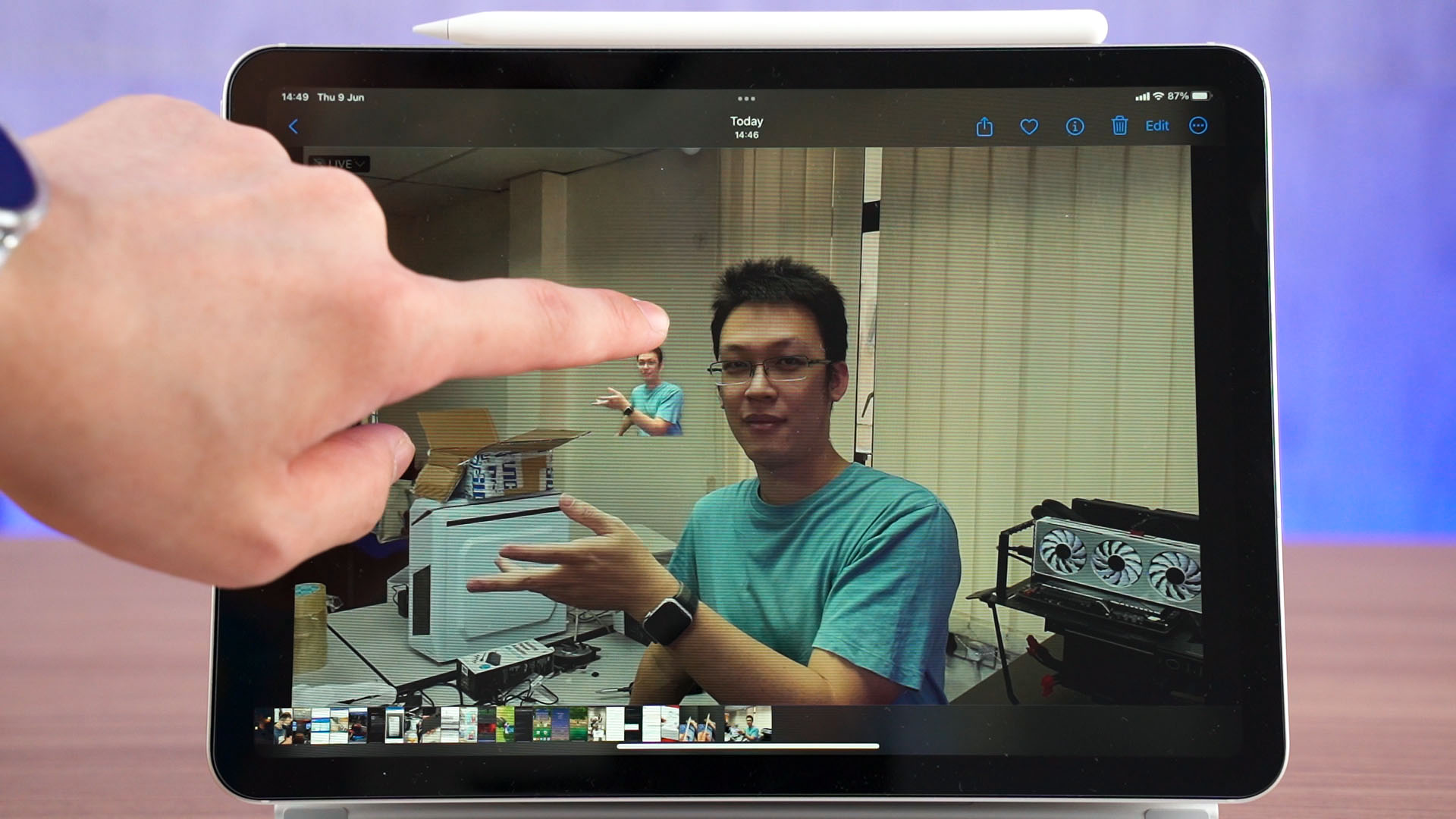
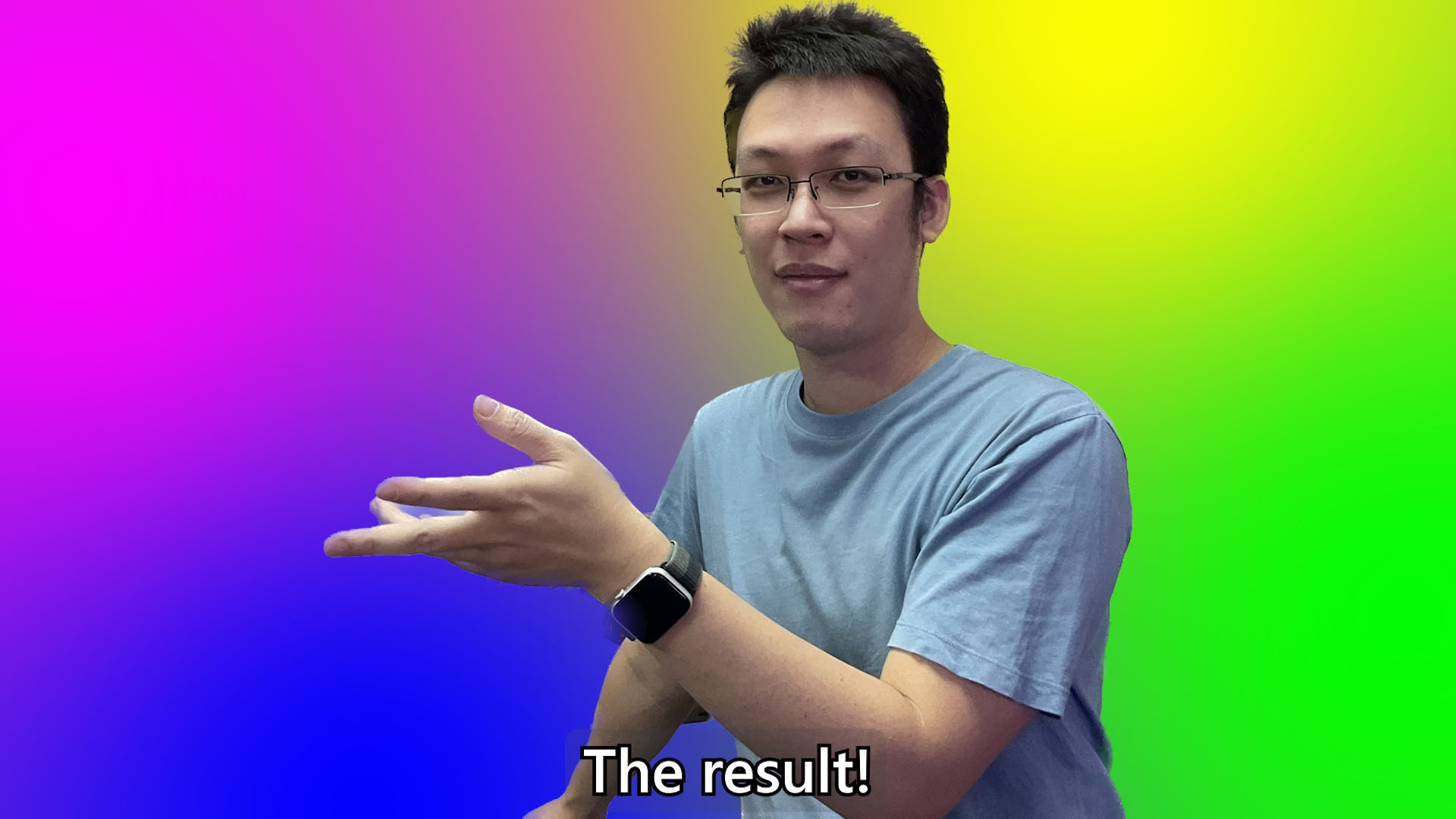
However, with the feature, I can directly lift it off the background! It may not be perfect, but I can take the picture at a bigger aperture to isolate the background even further so that the algorithm can detect its edges more accurately.
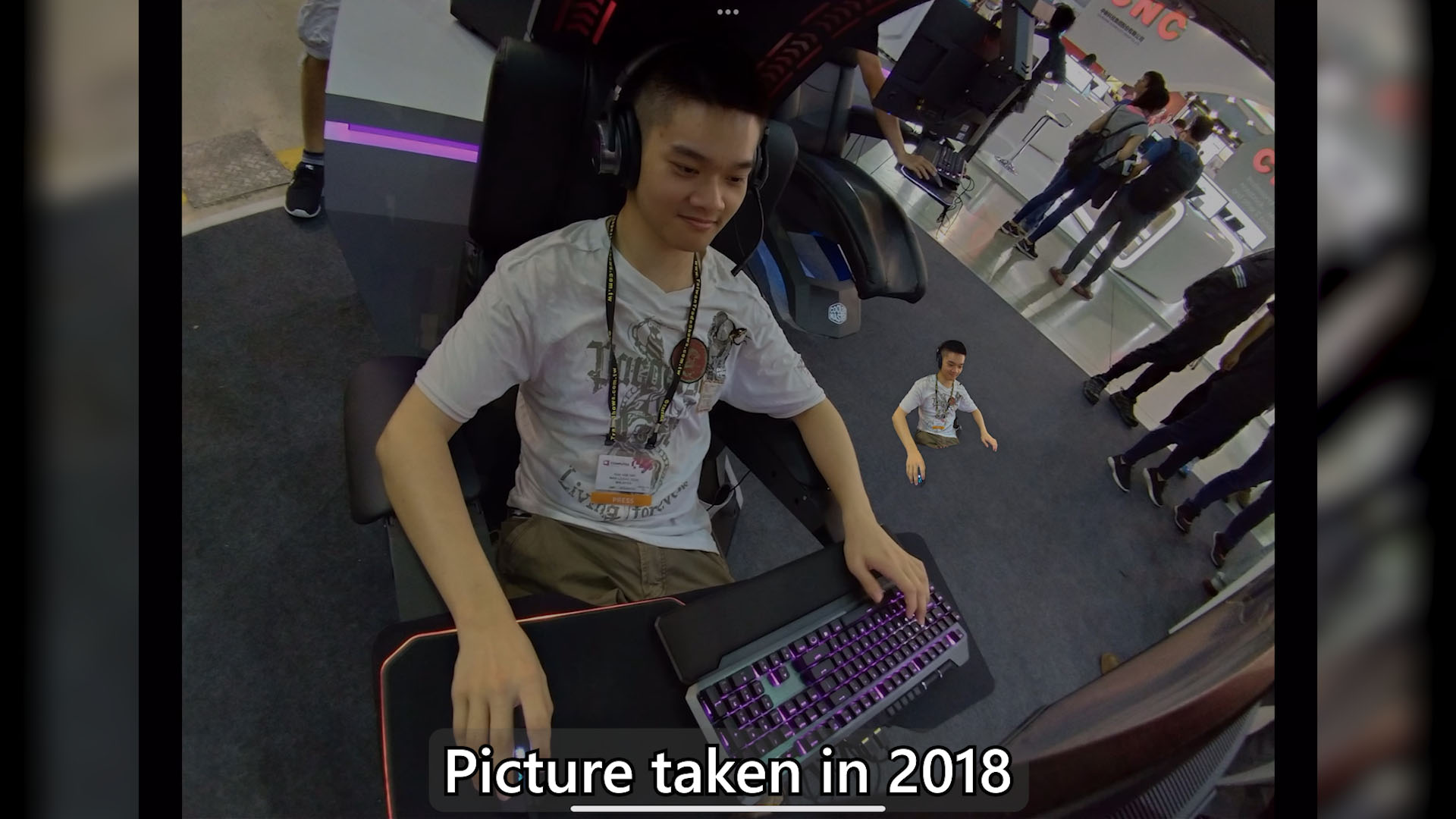
Again, it’s about convenience – and I think I’m going to use this feature a lot. It works with super old pictures too, by the way.
And those are my top 5 favorite features on iPadOS 16. Most of the features that we’ve talked about here are also available on either iOS 16 or macOS Ventura too. So what do you think about Apple’s announcements during WWDC 2022? What’s your new favorite feature? Let us know down in the comments section below – and do subscribe as we’ll talk about using the iPad Air as my “laptop replacement” in the next video. We’ll see you there!
Like our Facebook Page here at NasiLemakTech.com for more news and in-depth reviews! Also, join our Facebook Group for insightful information and memes!
Subscribe to our YouTube channel too!