



If you’re aiming for the best cs2 settings for smoother fights, better target identification, and a reduced chance for saying, “I swear I shot first,” then you should begin with video and latency settings before you go into anything related to cosmetics. Playing Counter Strike 2 can be amazing with a consistent frame time, low input lag, and consistent visibility across all maps, especially if you’re serious about climbing and exploring options like CS2 Boosting to accelerate your competitive progress.
This guide gives you a strong baseline for most PCs, then shows where personal preference matters so you can fine tuning without breaking your muscle memory.
The Best FPS and Graphic Settings for CS2
This guide gives you a strong baseline for most PCs, then shows where personal preference matters so you can fine tuning without breaking your muscle memory.
These are the best cs2 video settings for most players who care about performance and readability in a competitive game. Don’t get stuck trying to max all the settings, you want clean edges, clear player models, and stable frames.
Video Settings
– Display mode fullscreen (use it if you can)
– Display mode: Fullscreen
– Aspect ratio: 16:9 to start
– Resolution: your monitor’s native resolution if your PC can hold stable FPS, otherwise a lower resolution like 1680×1050 can help
– Refresh rate: set to your monitor’s maximum
If you prefer stretched resolution (usually 4:3), it can make models look wider, but you also see less on the sides. It’s viable, just make sure you actually like how it feels before committing.
Advanced Video Settings
Following are the settings that you need to make changes to, based on the given settings as a guide:
– “Boost Player Contrast” should be enabled.
– “Vertical Sync” should be disabled as it causes input lag.
– “4x MSAA” should be chosen as the multisampling anti-aliasing mode.
– “Medium” should be chosen as the global shadow quality as it is necessary to not lose any of the beneficial data.
– “Dynamic Shadows” should be enabled for all.
– “Anisotropic 4x” or “Anisotropic 16” should be chosen as the texture filtering mode.
– “Low” should be chosen as the shader detail.
– “Low” should be chosen as the particle detail.
– “Ambient Occlusion” should be disabled as it causes a significant hit on the performance of the game.
– “Quality” should be chosen as the high dynamic range if your frames per second are already high.
– “Quality” should be chosen as the high dynamic range quality.
– “FidelityFX Super Resolution” should be disabled for sharpness.
– “Uncap” should be chosen for frames per second.
As a side note: “highest quality” settings are nice to have, but not really necessary for Counter-Strike. Clarity and consistency are what win the rounds.
Best Launch Options For CS2
Options for launch are not magic, although they can prevent weird behavior and a stable game.
– Avoid weird launch options unless you know what they do
– If stutters in debug, try removing old launch options from CS:GO days
– If trying to get max fps, try to avoid overlays
If the game starts and stutters within the first ten seconds of gameplay, give shaders a chance by reinstalling the driver and try the game again on the same map and same path to compare apples to apples.
Best CS2 Pro Player Settings
A lot of “pro settings” are just safe defaults plus years of habit. The real takeaway is consistency.
Crosshair
There is no universal best crosshair settings cs2, but it should be something you can see on bright walls, dark corners, and through utilities.
A good starting crosshair setting:
– Static crosshair
– Bright color, contrasting most of the maps
– Outline, in case it gets lost in muzzle flashes
If you want a quick fix, you can copy one of the Best CS2 Crosshair Codes Used by Pros and modify it from there, but don’t change it every day!
Viewmodel

Viewmodel is personal preference, but the idea is the same: make sure your gun doesn’t get in the way.
If you like the screen clean, you can try the disabled viewmodel position style and stick with it for a while.
A Few Useful Game Settings Pros Commonly Use
These won’t really improve your aiming, but might be useful for reducing some friction:
– Menu number keys: enabled if you want quick and consistent buys
– Display network connection issues: enabled so that you can detect packet loss
– Friends lobby default permissions: set to ‘invite only’ so that you won’t get randoms in your lobby
– Animated Avatars: disabled if they’re too distracting in menus
You might also notice some players disable things like predict head shot effects, body shot effects, and predict kill ragdolls for various reasons. If your screen is too cluttered with effects during fights, you might want to disable those.
Best Nvidia & AMD Settings for CS2
The biggest in-game win on many systems is nvidia reflex low latency.
NVIDIA Reflex
– nvidia reflex low latency: Enabled (try Enabled + Boost only if your GPU is often near 95-99% usage)
This can help smooth out responsiveness in Counter Strike 2 without you having to sacrifice much image quality.
GPU Scaling for Stretched
If you are playing 4:3 stretched, check your scaling mode:
– scaling mode: Fullscreen for stretched
– If you want black bars, try aspect scaling instead
Driver Control Panel Basics
For NVIDIA or AMD drivers, the safest settings are:
– Don’t force AA in the driver
– “Application controlled” is your safest bet for most settings
– Don’t enable sharpening unless you are certain it helps you track heads
Stability is more important than constant tweaking.
Best Mouse Settings for CS2
Mouse setup is where “best settings” is not an expression used universally. Nevertheless, there are some settings that will almost always prove useful:
– disable mouse acceleration in windows and in-game
– mouse acceleration: Off
– mouse’s polling rate: 1000 Hz if stable, otherwise 500 Hz
– polling rate: set this to how your system handles this setting without jitter
– mouse sensitivity: set this to a value that you can handle under stress, not just in aim maps
When you are used to a high sensitivity, try dropping it slightly each day for a week before making a large adjustment all at once. A large number of gamers find themselves within a range of “best sensitivity” by focusing on this rather than speed.
Best CS2 Resolution
Start at 1080p/16:9 if you’re unsure of what to start at. It’s probably the easiest to see and read on the minimap.
When to change it:
– If you’re not holding stable frames, try reducing the resolution before nuking all settings
– If you like the old look of Counter-Strike, try 4:3 with stretch or black bars and try sticking to it for a few sessions
Also, make sure that Windows and your game are actually utilizing your refresh rate. If your refresh rate isn’t being utilized, everything will be slow even if your FPS counter looks pretty.
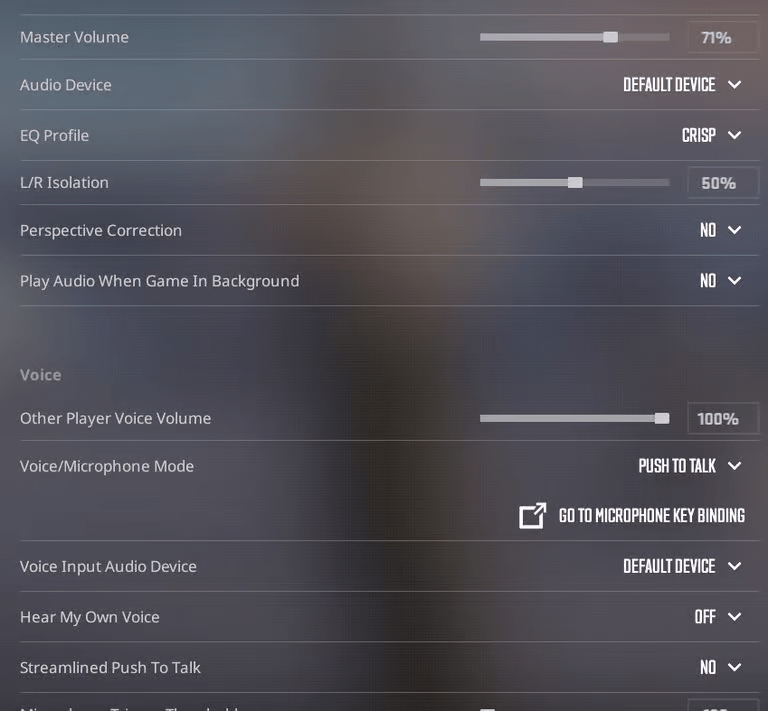
Best CS2 Audio Settings
Audio settings are an underrated aspect of the game Counter Strike. Proper audio settings can allow you to read pushes, rotations, and spacing without guessing. For more competitive guides and performance tips, you can also check Eloboss for additional insights.
Recommended Audio Settings:
– EQ Profile: Choose ‘Crisp’ as it is the most popular one
– Perspective Correction: Choose ‘On’ for this one, although if it doesn’t feel right, then it is better to turn it off and try again
– Voice: Choose ‘Push to Talk’ only
If you are playing mostly by yourself, then it is better to have the ‘Sound Mute Enemy Team’ only if you are tilted by chat.
Best CS2 Radar Settings
Your radar should give fast, readable info without making you squint.
A solid baseline for best radar settings cs2:
– Radar centers the player: Yes
– Radar is rotating: Yes
– Radar map zoom: around 0.60 as a starting point
– Increase HUD radar size until you can read it in peripheral vision
If you play with a consistent stack, also pay attention to team id readability and team positions on the HUD. The less time you spend decoding icons, the more time you spend aiming.
Like our Facebook Page here at NasiLemakTech.com for more news and in-depth reviews! Also, join our Facebook Group for insightful information and memes!
Subscribe to our YouTube channel too!