



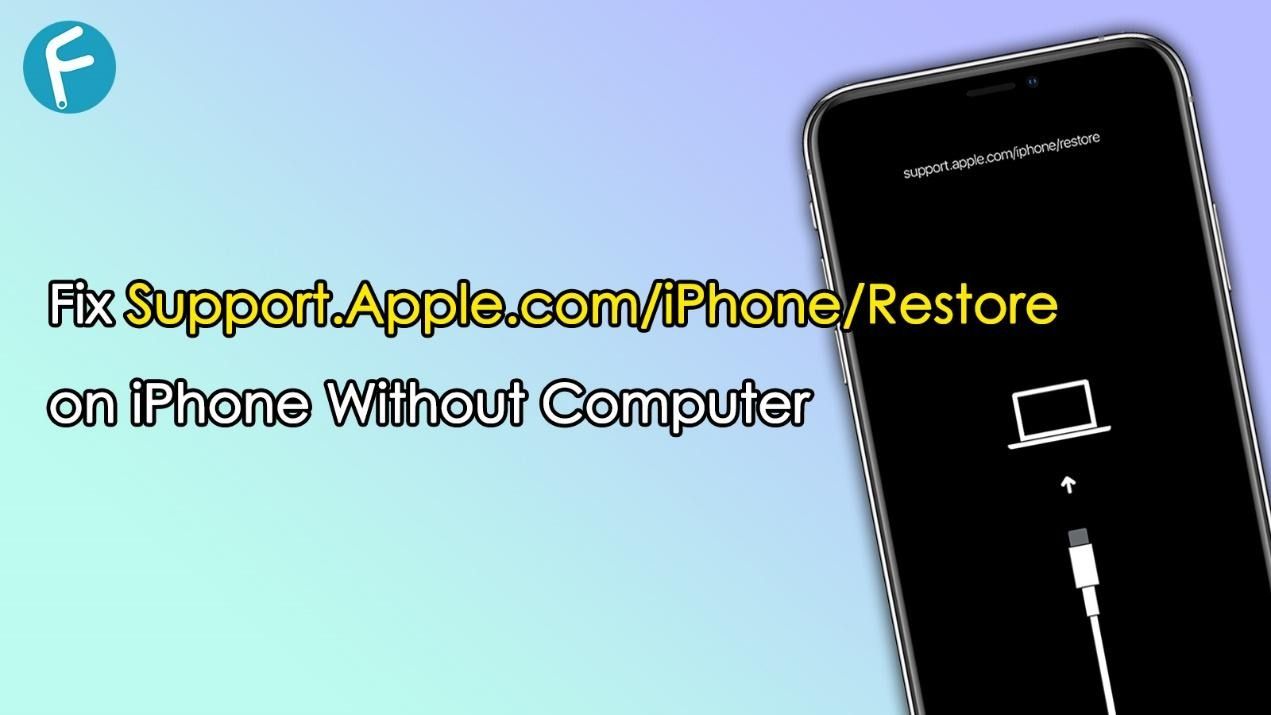

The support.apple.com/iphone/restore screen is Apple’s “restore” or “recovery mode” prompt. It often appears when iOS cannot boot normally, when an update fails, or when the system detects a problem that requires recovery. Stuck on support.apple.com/iphone/restore screen can feel alarming, especially if you do not have a computer nearby.
This guide explains why your iPhone shows support.apple.com/iphone/restore, how to fix it without a computer, and what to do if the iPhone remains stuck on that screen, including iOS system recovery and restore options.
Part 1: Why Does My Phone Say support.apple.com/iphone/restore?
Your iPhone is typically stuck on support.apple.com/iphone/restore for one of these reasons:
- Failed iOS update: If an iOS update was interrupted (low battery, weak Wi‑Fi, not enough storage), the system may fail to start properly.
- Software crash or corruption: A severe system crash, buggy app behavior, or corrupted system files can force the phone into recovery mode.
- Storage full: When storage is extremely low, iOS may become unstable, causing boot issues.
- Interrupted restore or transfer: If you were restoring from iCloud, transferring data, or setting up the phone and the process was disrupted, the system may not complete boot.
- Hardware-related problems (less common): A faulty cable, port issues, or internal hardware damage can contribute, but most cases are software-related.
The next steps help you narrow down the cause by trying safe fixes first.
Part 2: How to Fix support.apple.com/iphone/restore without Computer
If you do not have access to a Mac or PC, your options are more limited, but you can still try the most common no computer solutions.
Method 1: Force Restart Your iPhone
A force restart refreshes the iPhone’s system processes and can break it out of recovery mode if the issue is temporary.
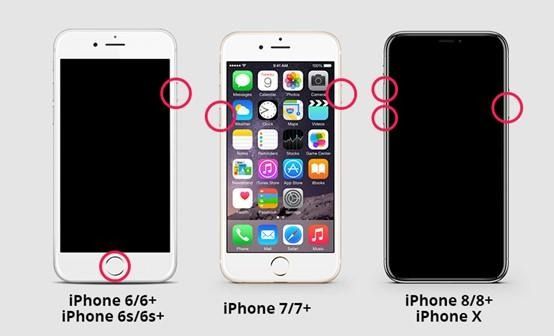
For iPhone 8 and newer models:
1. Press and quickly release Volume Up.
2. Press and quickly release Volume Down.
3. Press and hold the Side button until the Apple logo appears.
For iPhone 7 / 7 Plus:
1. Press and hold Volume Down + Side button together.
2. Keep holding until you see the Apple logo.
For iPhone 6s and earlier models:
1. Press and hold Home + Power (Top/Side) together.
2. Keep holding until the Apple logo appears.
If your iPhone boots normally after this, monitor it for a day. If it returns to the restore screen, the system may be unstable and need deeper repair.
Method 2: Use an Original Cable
If your iPhone shows the support.apple.com/iphone/restore screen, the issue may not always be software-related. In many cases, a faulty USB cable or blocked port can interrupt the connection process and prevent your device from restoring properly.
Here is what to check:
- Check the charging port and clean it carefully with a dry, wooden toothpick. Avoid liquids or anything that could damage the pins.
- Try a different cable. Always use an Apple-certified cable. A worn cable can charge but still fail to transfer data reliably.
- Use a different power adapter and wall outlet to avoid adapter issues.
- Connect the iPhone directly to the computer’s USB port. Avoid USB hubs or adapters as they can cause disconnects during updates/restores.
Part 3: Effective Ways to Fix iPhone Stuck on support.apple.com/iphone/restore
If the iPhone is still stuck on the support.apple.com/iphone/restore screen, you may need a repair or restore process. Some options keep data, while others erase it.
Method 3: Use an iOS System Repair Tool (Keep Data)
If you want a higher chance of fixing the restore screen issue without losing your data, a dedicated iOS repair utility is often the most practical approach. The best option is TunesKit iOS System Recovery, which is designed to resolve over 150 common iOS system problems, including iPhone stuck on support.apple.com/iphone/restore, iOS update/restore failures, iPhone green screen.
How to fix support.apple.com/iphone/restore using TunesKit iOS System Recovery:
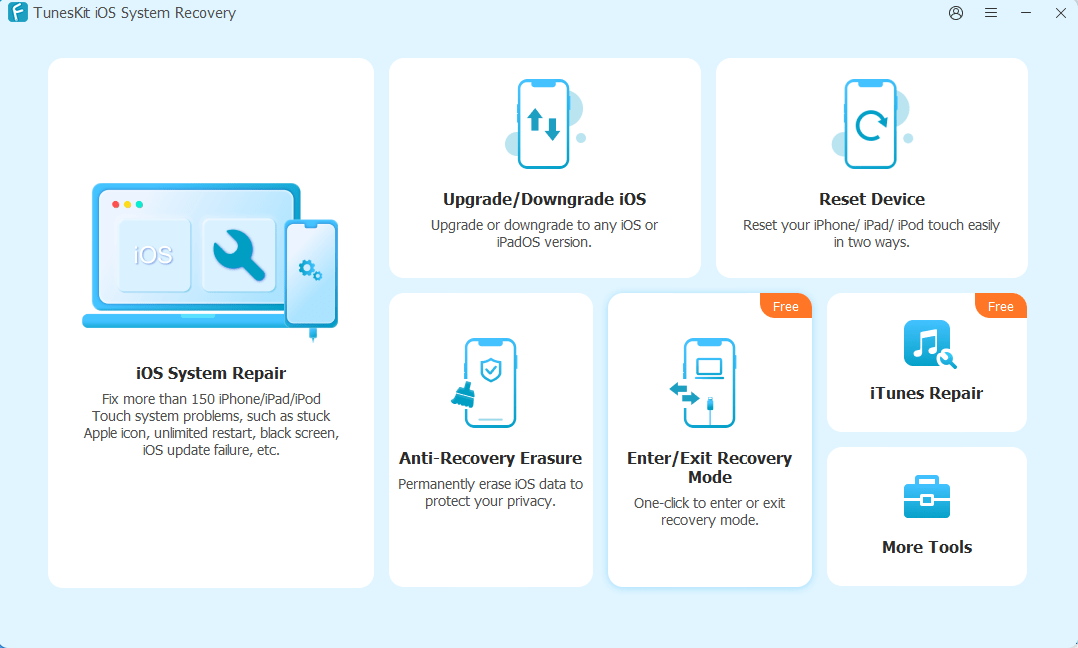
Step 1: Download and install TunesKit iOS System Recovery on your Windows PC or Mac. Launch the program and connect your iPhone using a certified Lightning/USB‑C cable. On the main screen, choose iOS System Repair.
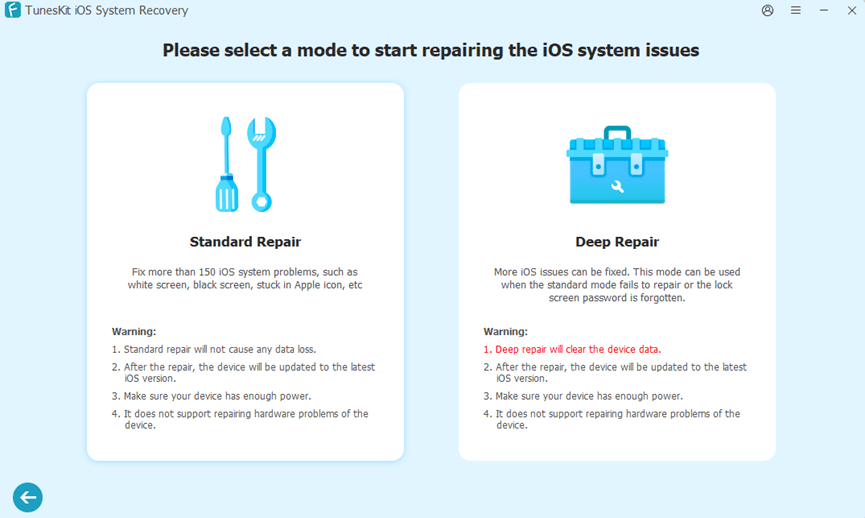
Step 2: Select Standard Repair. This mode is intended to repair iOS while keeping your data.
Step 3: Confirm your device model and choose the suggested firmware package, then click Download.
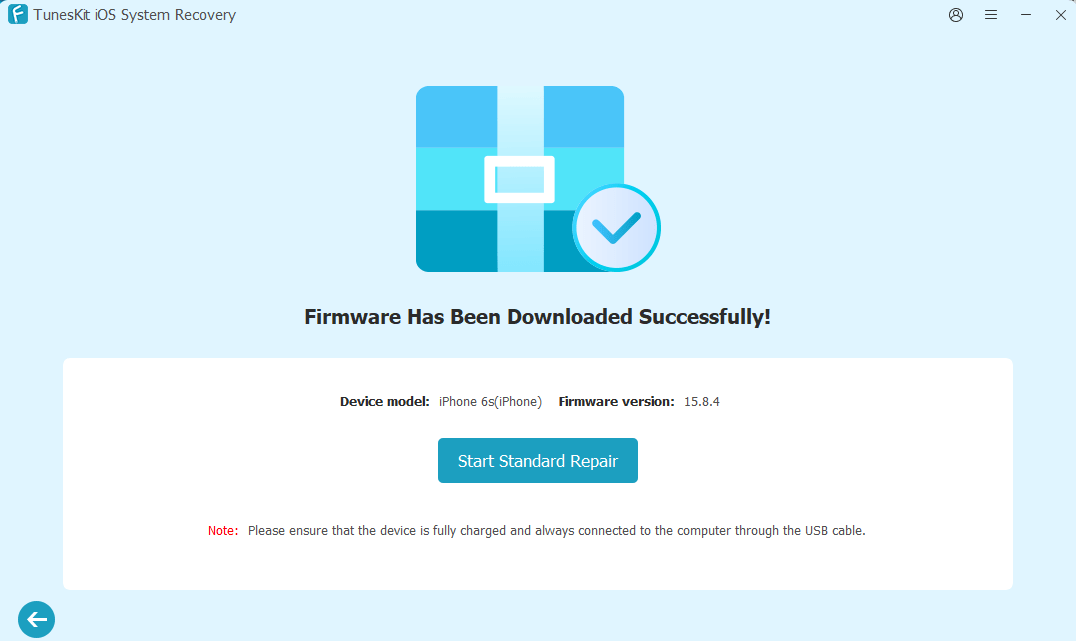
Step 4: After the firmware downloads, click Start Standard Repair to begin fixing iOS. Keep your computer on and do not disconnect the iPhone during repair. Wait for the process to complete. Your iPhone should restart automatically and exit the restore screen.
If Standard Repair does not work, you can choose Deep Repair option, but this mode will cause data loss. Make sure you have backed up your phone before proceeding.
Method 4: Restore iPhone via iTunes or Finder (Data Loss)
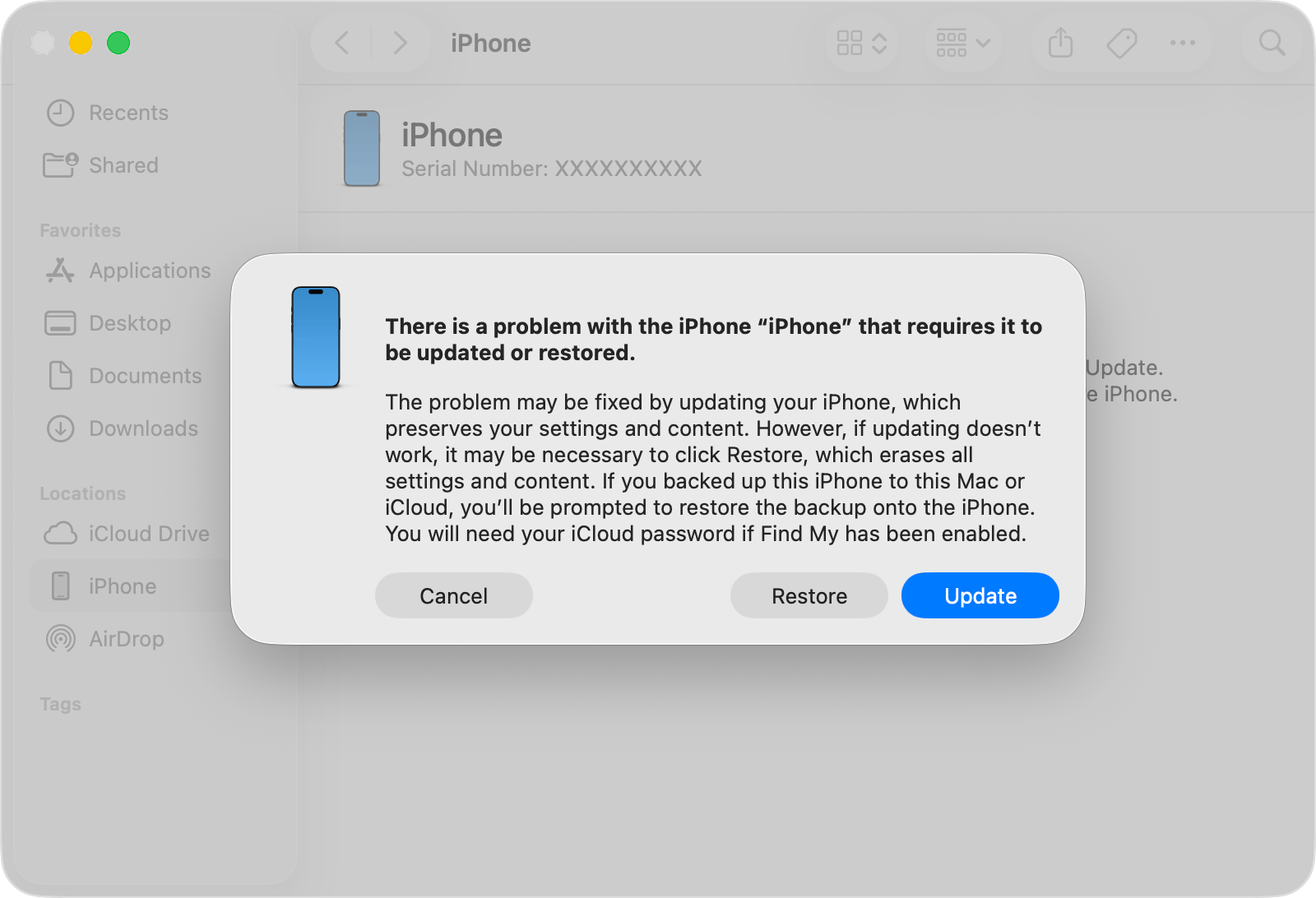
Restoring iPhone via iTunes or Finder is Apple’s official approach. This method typically causes data loss, make sure you have a backup in iCloud or on your computer.
General steps:
- Connect your iPhone to the computer using a reliable cable.
- Open Finder or iTunes and locate your iPhone.
- Choose Update first if available, this will reinstall iOS without erasing data.
- If Update fails, choose Restore.
After restoring, you can sign in with your Apple ID and restore from an iCloud backup if one exists.
Method 5: Update iTunes on Your Computer
If iTunes is outdated, the restore or update process may fail or the iPhone may not be recognized properly. Updating iTunes can remove compatibility issues.
- On Windows, update through the Microsoft Store (if installed from there) or download the latest version from Apple.
- On Mac, use Finder on newer macOS, or open the App Store to update.
Method 6: Contact Apple Support
If the iPhone continues to show support.apple.com/iphone/restore even after multiple attempts, contact Apple Support. This is especially important if:
- Your iPhone will not be detected by a computer
- You suspect water damage or hardware issues
- You repeatedly get error codes during restore
- The device is under warranty or AppleCare+
Apple can run diagnostics, confirm whether it is a hardware fault, and provide safe repair options.
FAQs about support.apple.com/iphone/restore
- Does support.apple.com/iphone/restore mean my iPhone is broken?
Not necessarily. It usually indicates that iOS cannot boot normally and needs recovery steps. Many iPhones recover with a force restart or software repair.
- Will restoring erase my data?
A full restore usually erases data on the iPhone. If you have an iCloud backup, you can often recover most data afterward. Use a system repair tool like TunesKit to keep your data.
- Why does my iPhone keep going back to the restore screen?
Repeated returns often indicate a failed update, corrupted iOS files, low storage issues, or a deeper system problem that needs repair or restore.
Conclusion
iPhone stuck on support.apple.com/iphone/restore screen can be stressful, but it is often fixable. If you need to fix iPhone restore screen without computer, start with a force restart, since it is safe and fast. If the phone remains stuck, the most reliable next steps involve either an iOS system repair tool like TunesKit that may keep your data or an official Finder/iTunes restore, which commonly causes data loss. When all else fails, Apple Support is the safest path.
Like our Facebook Page here at NasiLemakTech.com for more news and in-depth reviews! Also, join our Facebook Group for insightful information and memes!
Subscribe to our YouTube channel too!