


Moving to an iPhone is simple until you realize your Android phone still holds years of photos, contacts, messages, videos, and other files. The good news is that setup does not always have to be the end of the process. This guide explains transfer data from Android to iPhone 18 Pro after setup using two routes. One is designed for an iPhone that is already configured, while the other uses Apple’s Move to iOS process and requires you to start the iPhone setup. The right choice depends on whether keeping your iPhone content matters to you.
Part 1. Can You Transfer Data from Android to iPhone 18 Pro after Setup?
Yes, you can transfer supported data after the iPhone 18 Pro has already been set up. If your iPhone is already in use, Tenorshare iCareFone iTransGo is an option for moving supported content without requiring a factory reset. This can be useful when you have already signed in to apps, changed settings, or saved new content on the iPhone.
For users searching for a way to transfer data from Android to iPhone after setup, the key difference is whether the method works with an active iPhone 18 Pro. Apple’s Move to iOS is built around the initial setup flow. Apple states that when setup is already complete, you need to erase the iPhone and start again to use that migration route.
Part 2. Which after-Setup Transfer Method Should You Choose?
The best option depends on how much you care about keeping your iPhone setup. If you have already customized your iPhone 18 Pro and don’t want to lose any of it, a tool that doesn’t require a reset is the choice. If you are okay with wiping the device and beginning again Apples official app is an option. Here is a quick comparison to help you decide how to transfer data from Android to iPhone:
| Feature | iCareFone iTransGo | Move to iOS |
| Works after iPhone setup | Yes | No (requires reset) |
| Keeps existing iPhone data | Yes | No, device is erased |
| Data types supported | Contacts, photos, videos, messages, and more | Contacts, messages, photos, and a few app types |
| Connection method | USB cable, direct phone-to-phone | Wi-Fi, during initial setup only |
| Best for | Users who already finished setup | Users starting setup from scratch |
Part 3. Two Ways to Transfer Data from Android to iPhone 18 Pro after Setup
When deciding how to transfer data from android to iPhone after setup, both routes move information from Android to iPhone. They handle the target device differently. Method 1 is intended for an iPhone that is already configured and does not require starting setup. Method 2 uses Apple’s migration flow, so the iPhone has to be erased before the transfer begins.
Method 1: Transfer Data from Android to iPhone 18 Pro after Setup without Reset
Tenorshare iCareFone iTransGo is a phone‑to‑phone transfer tool that is made for this situation. Before you start the steps, here are the reasons why Tenorshare iCareFone iTransGo is worth using:
- No Reset Needed: You do not need to reset your phone to factory settings, and your iPhone 18 Pro will stay exactly as you have it.
- Direct Phone-to-phone Transfer: Tenorshare iCareFone iTransGo can move data directly from one phone to another using a USB cable without needing cloud storage or Wi‑Fi.
- Multi Data Types Support: Tenorshare iCareFone iTransGo can transfer types of data such as contacts, photos, videos, and messages in one go.
If you want to transfer data from Android to iPhone after setup without reset, Tenorshare iCareFone iTransGo is the choice because it keeps your apps, accounts, and personal settings unchanged while adding your Android content on top.
Steps to transfer using iTransGo:
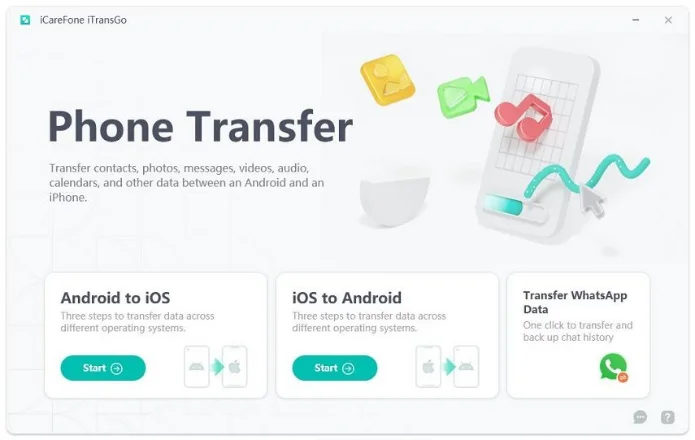
- Download and install iCareFone iTransGo on your computer, then launch the program.
- Connect both phones to the computer using USB cables: your Android phone and your iPhone 18 Pro.
- Make sure your Android phone is set as the source and your iPhone 18 Pro as the destination. Use the swap icon if the order is reversed.
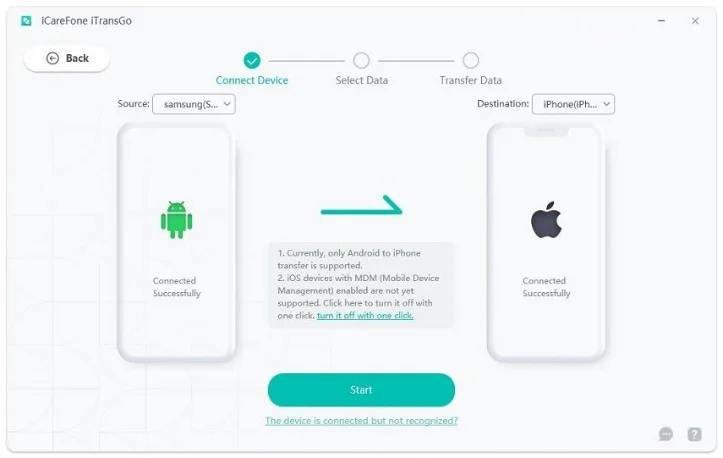
- Make sure your Android phone is set as the source and your iPhone 18 Pro as the destination. Use the swap icon if the order is reversed.
- Select the data types you want to move, such as contacts, photos, videos, or messages.
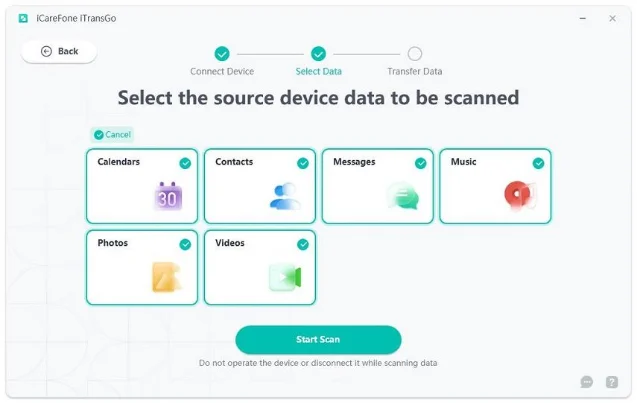
- Click “Transfer” and wait for the process to finish. Keep both devices connected until it completes.
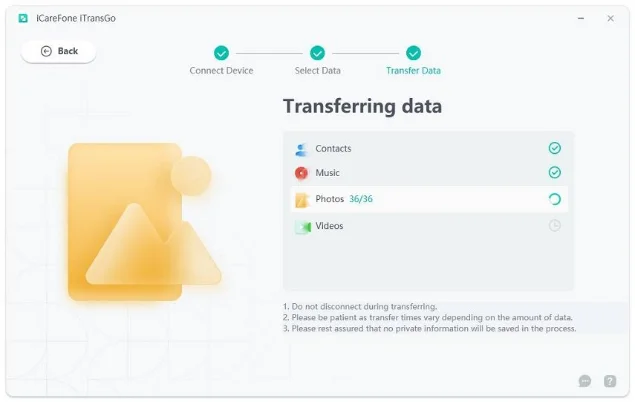
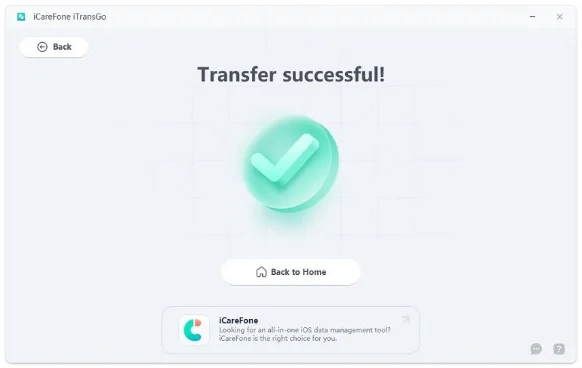
Limitation: Both devices need to stay connected to the computer via USB for the entire transfer, and supported data types can vary slightly depending on the Android manufacturer and OS version.
Method 2: Transfer Data from Android to iPhone 18 Pro with Move to iOS
Apple’s Move to iOS app does not work if the iPhone 18 Pro has already been set up. It only functions during the first-time setup on the iPhone. This means you must erase your iPhone 18 Pro and start the setup process again from the start for this method to work.
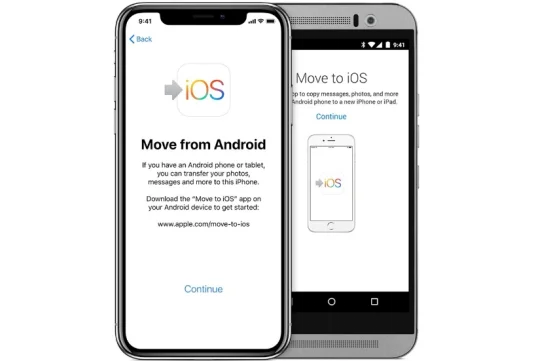
Steps to transfer using Move to iOS:
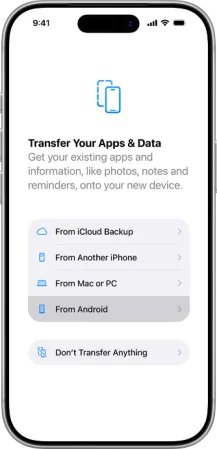
- Erase your iPhone 18 Pro by going into Settings, choosing “General”, and selecting “Reset”> “Erase All Content and Settings.” After the phone restarts, begin the setup process over again until you reach the “Apps & Data” screen.
- On the iPhone 18 Pro, tap “Move Data from Android.” Then open the Move to iOS app on your Android phone.
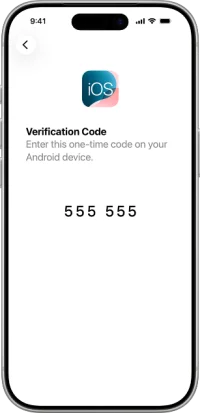
- A six-digit code will appear on your iPhone. Enter that code into the Move to iOS app on your Android device to connect both phones.
- On the Android phone, choose the data you want to transfer to your new iPhone, such as contacts, messages, photos, and more. Wait for the progress bar on your iPhone to complete before moving on.
Limitation: This method erases everything on the iPhone 18 Pro. Any apps, settings, or data already saved will be lost. It only works during the setup, so make sure you are ready to start fresh.
FAQs
1. Can I Transfer Data from Android to iPhone 18 Pro after Setup without Resetting?
Yes. Apple’s Move to iOS only works during setup. Still, tools like iCareFone iTransGo connect Android and iPhone directly through USB, letting you move data whenever you want without erasing anything already on your iPhone 18 Pro.
2. Does Move to iOS Work after iPhone Setup?
No. Move to iOS is only available on the “Apps & Data” screen during setup. Once your iPhone 18 Pro is activated and past that screen, you’d need to erase it and start setup to use this tool.
3. What Data Can iCareFone iTransGo Transfer?
iTransGo supports data types such as contacts, photos, videos, and messages between Android and iPhone. The list can vary depending on the Android device manufacturer and software version.
4. Will a Factory Reset Delete the Data Already on My iPhone?
Yes, resetting the iPhone 18 Pro to use Move to iOS erases everything on the device, including apps, settings, and files. That’s why a reset-free tool is an option if you want to save your current setup.
5. Can Transferred Data Be Merged with Existing iPhone Content?
With iTransGo, transferred data is added alongside your existing content rather than replacing it since no reset is involved. With Move to iOS, there’s no “existing content” to merge with, as the device is erased before the transfer starts.
Conclusion
There are more ways to Transfer Data from Android to iPhone 18 Pro after Setup and the right choice depends on your requirements. If keeping your iPhone setup and existing content matters to you, iCareFone iTransGo is the more convenient option. If you don’t mind erasing your device and starting fresh, Move to iOS remains the Apple alternative. Choose the method that fits your needs and get your Android data onto your iPhone 18 Pro today.
Like our Facebook Page here at NasiLemakTech.com for more news and in-depth reviews! Also, join our Facebook Group for insightful information and memes!
Subscribe to our YouTube channel too!