




There are plenty of times when streaming music isn’t the most convenient option. Maybe you’re taking a long flight, going somewhere with poor reception, commuting through an area with unreliable service, or simply trying to avoid using too much mobile data. In situations like these, having your favorite Apple Music songs available offline can be really useful.
The good news is that Apple Music already includes a built-in download feature for subscribers. You can save songs, albums, and playlists for offline playback and listen to them later without an internet connection.
But what if you want to keep your music in a more flexible format or organize your Apple Music collection on your computer? In that case, there are other approaches worth considering.
This guide covers both options, including how to download Apple Music for offline listening with the Apple Music app and how a tool like ViWizard Apple Music Converter can be used when you need more control over your downloaded music.
Method 1: Download Apple Music for Offline Listening
The easiest way to listen to Apple Music offline is to use the download feature built into the app. It doesn’t require any additional software.
On iPhone or Android
Open the Apple Music app and sign in with your Apple Account. Find the song, album, or playlist you want, add it to your library if necessary, and tap the Download button.
Once the download is complete, you can play the music without an internet connection. It’s a convenient option when you’re traveling, commuting, or trying to save mobile data.
On Mac or Windows
Open the Apple Music app on your computer and sign in. Find the music you want to save, add it to your library, and click Download.
The downloaded content will then be available for offline playback through the Apple Music app.
What Are the Limitations of Apple Music Downloads?
Although the official download feature works well, it is primarily designed for offline playback inside the Apple Music app.
For example, downloaded Apple Music tracks aren’t necessarily ordinary audio files that you can freely move between different devices or players. If you remove the download, the music remains in your library but requires an internet connection to play again.
This can become inconvenient if you want to organize a long-term personal music archive, play music with a different media player, or keep commonly supported audio files on a computer or external storage.
That’s where a dedicated converter can be useful.
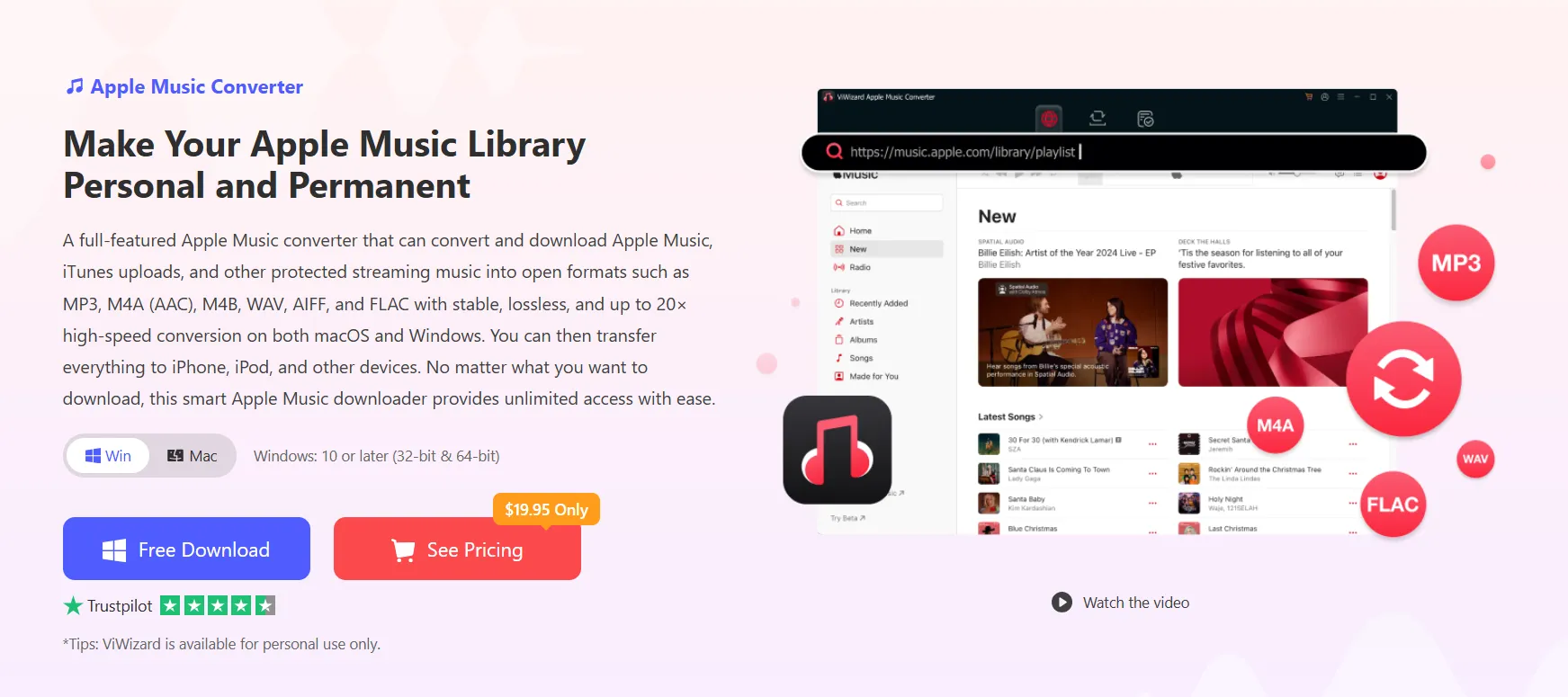
Method 2: Download Apple Music with ViWizard Apple Music Converter
ViWizard Apple Music Converter is designed for users who want to convert Apple Music songs into more widely supported audio formats. It works with an integrated Apple Music Web Player, allowing users to access their Apple Music library and catalog directly within the application.
Instead of keeping your downloads limited to the Apple Music app, ViWizard can convert selected songs, albums, and playlists into formats such as MP3, M4A, M4B, WAV, AIFF, and FLAC.
This can be useful if you want to keep a personal offline collection on your computer or use your converted files with compatible media players and devices.
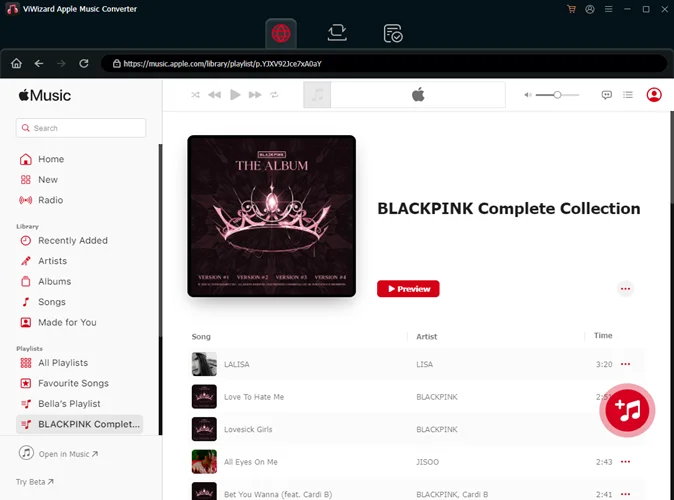
Step 1: Open ViWizard and Sign In
Install and launch ViWizard Apple Music Converter on your Windows PC or Mac.
Sign in with your Apple Account so that the software can access your Apple Music library and catalog. The built-in web player makes it possible to browse your music without constantly switching between different applications.
Step 2: Choose an Output Format
Before downloading your music, open the settings and select an output format.
For everyday listening and broad device compatibility, MP3 is a practical choice. If you want to retain higher-quality audio, you can choose formats such as FLAC or WAV instead.
ViWizard also allows you to customize settings such as bitrate, sample rate, channel, file naming, and output location. According to its current product information, MP3 output can reach up to 320 kbps, while supported lossless options provide additional flexibility for users who care about audio quality.
Step 3: Select Songs, Albums, or Playlists
Browse your Apple Music library or use the built-in Apple Music Web Player to find the content you want to save.
Click the + button to add individual songs, complete albums, or playlists to the conversion list. Batch selection makes it easier to prepare a larger offline music collection without processing every song individually.
Step 4: Download and Convert
Once you’ve selected your music and configured the output settings, click Convert.
ViWizard will process the selected Apple Music tracks and save the resulting audio files to your chosen folder. The software also preserves important metadata such as song titles, artists, albums, and genres, which can make a large offline collection much easier to organize.
Which Method Should You Use?
If you simply want to listen to Apple Music when you don’t have an internet connection, the official Apple Music download feature is probably all you need. It is straightforward and works across supported Apple Music devices.
On the other hand, if you’re looking for greater flexibility with your personal music collection, ViWizard Apple Music Converter offers additional control over file formats, output settings, storage locations, and library organization.
It can also be useful when you want to keep a local copy of music for personal listening rather than relying entirely on downloads managed by the Apple Music app.
Final Thoughts
Downloading Apple Music for offline listening doesn’t have to be complicated. For everyday offline playback, you can simply add your favorite music to your Apple Music library and use the built-in download option.
For users who want more flexibility, ViWizard Apple Music Converter provides a straightforward way to convert Apple Music songs, albums, and playlists into common audio formats such as MP3, M4A, WAV, and FLAC. With batch conversion, customizable output settings, and metadata preservation, it can make managing a personal offline music collection much easier.
Like our Facebook Page here at NasiLemakTech.com for more news and in-depth reviews! Also, join our Facebook Group for insightful information and memes!
Subscribe to our YouTube channel too!