





I have been cleaning up Windows machines for friends, family, and my own home office for more than a decade, and if there is one lesson that never changes, it is this: the built-in Windows uninstaller barely scratches the surface. Every fresh laptop I unbox arrives loaded with trial software, toolbars, and pre-installed apps I never asked for, and every program I install seems to leave behind registry clutter long after I remove it. This year I spent several weeks testing uninstaller for Windows tools on three different machines, and one program consistently outperformed the rest: IObit Uninstaller 16.
In this article I am sharing exactly what I tested, what I found in the interface, and why I now recommend IObit Uninstaller to anyone who wants a genuinely clean PC. I am writing this from hands-on experience, not a spec sheet, so every screenshot below comes directly from my own test runs.
Why the Default Windows Uninstaller Falls Short
The Windows Settings app lets you remove programs one at a time, but it does nothing about the leftovers. After you uninstall a program the normal way, registry entries, cache folders, and configuration files usually stay behind. Over months and years, these leftovers pile up and quietly slow down the system. I wanted a tool that could handle the removal and the cleanup in a single pass, which is exactly the gap IObit Uninstaller is built to fill.
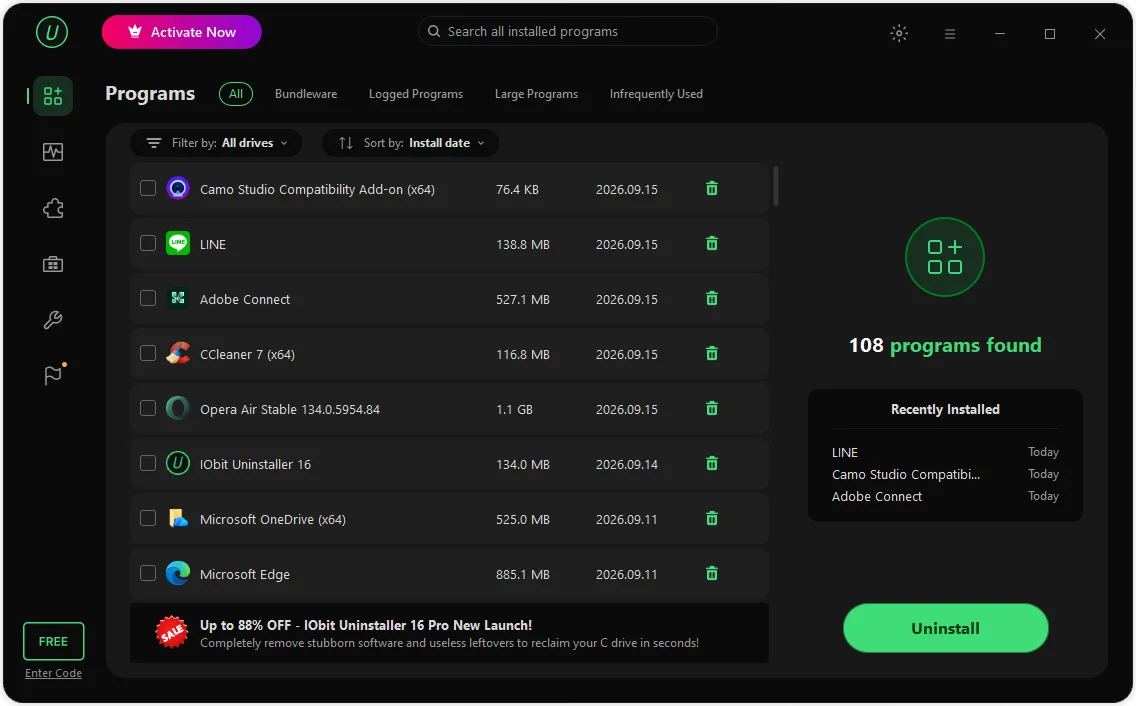
The first thing I noticed when I opened the program was how complete the inventory was. My test machine had 108 installed programs, and every one of them appeared instantly with its size, install date, and a one-click uninstall icon. There is also a sidebar showing recently installed software, which is a nice touch if you are trying to track down what changed on your system recently.
Uninstalling Programs Cleanly
Launch IObit Uninstaller 16, I picked three programs I no longer used—a web conferencing tool, a social utility, and a browser—and selected them together using the checkboxes. The right-hand panel immediately showed the combined size and install dates for both, which made it easy to confirm I was removing the right software before committing.
Clicking Uninstall triggered a real-time progress window that processed each program one at a time, showing exactly which item was being removed and how much space it would free. This transparency matters. Too many uninstallers just show a spinning wheel with no indication of what is actually happening.
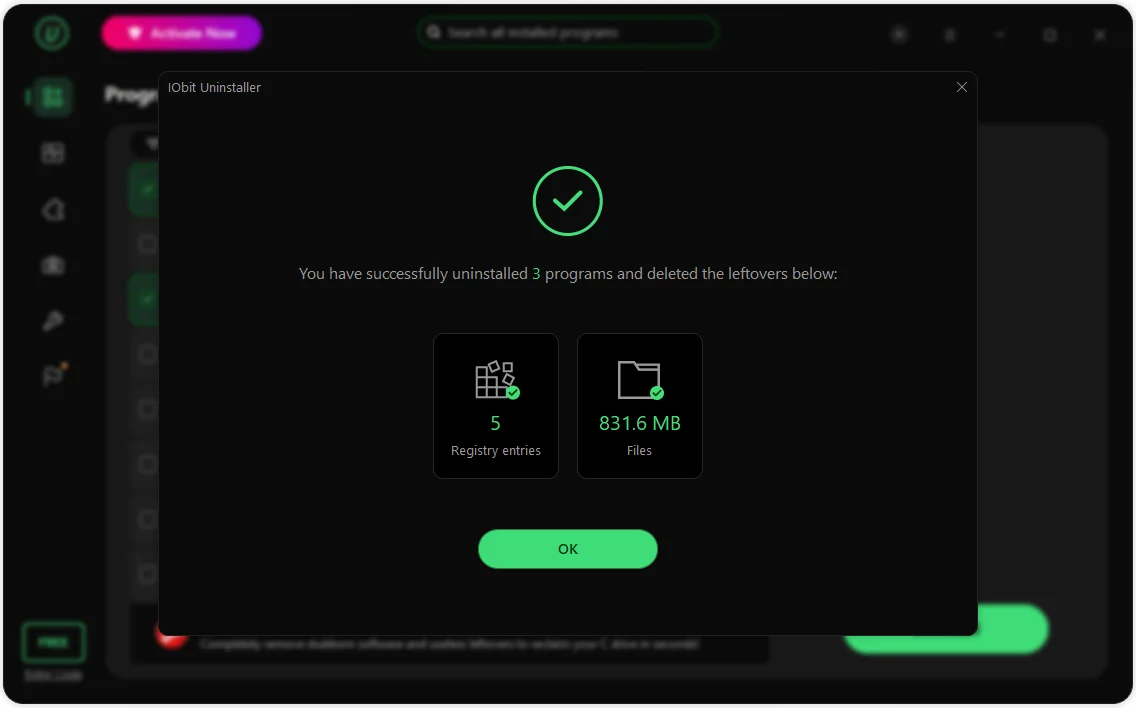
Once the removal finished, the program did not just say done and close. It reported that it had removed 5 registry entries and 831.6 MB of leftover files that the native Windows uninstaller would have left behind. That single result is the clearest demonstration I have seen of why a dedicated uninstaller for Windows is worth using instead of the built-in tool.
Removing Pre-Installed Bloatware
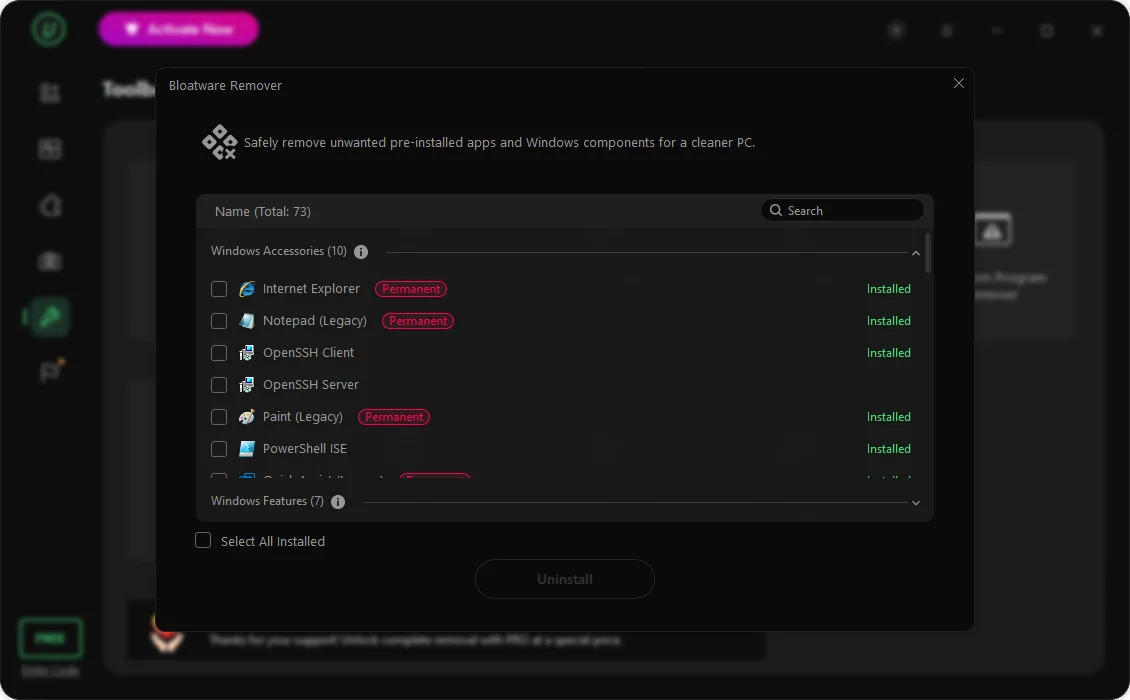
The feature that ultimately sold me on this tool was the Bloatware Remover inside the Toolbox. New Windows installations, and especially OEM laptops, ship with a surprising amount of software you never chose to install. The Bloatware Remover scanned my system and found 73 removable items, organized into categories like Windows Accessories and Windows Features.
What impressed me here was the safety labeling. Components that are permanent parts of Windows, like core accessories, are clearly flagged so you do not accidentally break your system while cleaning it up. That balance between thoroughness and caution is something I have not seen done as well in competing tools.
Scanning for Software Health Issues
Beyond individual uninstalls, IObit Uninstaller 16 includes a Software Health module that scans the entire system for accumulated problems. I ran a full scan expecting a short list, but I was wrong.
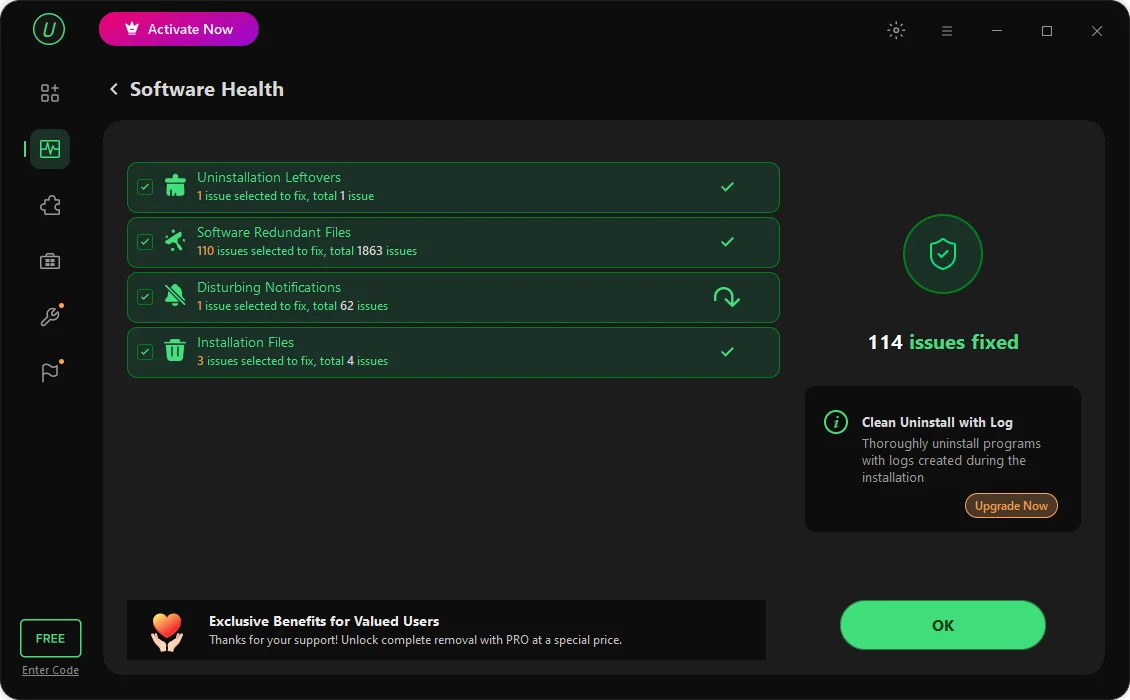
The scan flagged 116 issues across my test machine, including old uninstallation leftovers, thousands of redundant temp files from software I had already removed, and dozens of disturbing notification permissions I had forgotten I granted. I could select exactly which categories to fix, which I appreciated because it kept me in control rather than letting the tool make decisions for me.
After fixing the selected items, the summary screen confirmed 114 issues resolved, with a small icon showing that disturbing notifications were still being processed in the background. The interface stayed responsive throughout, and nothing required a restart to take effect.
Force Uninstall for Stubborn Programs
Every experienced PC user eventually runs into a program that refuses to uninstall the normal way, usually because its uninstaller is broken or missing entirely. This is where most free tools give up, but IObit Uninstaller includes a dedicated Force Uninstall+ feature for exactly this scenario.
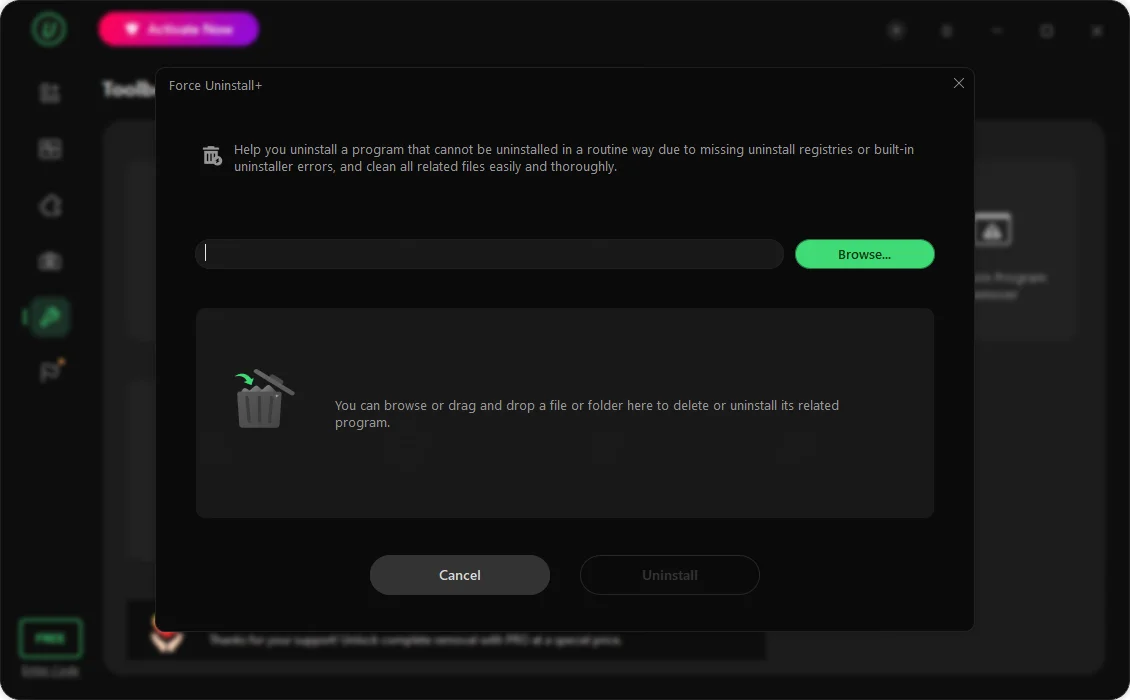
You simply browse to the folder of the stubborn application or drag it into the window, and the tool identifies and removes the related files and registry traces. I tested this on an old design tool that Windows Settings could no longer even list properly, and it cleared out completely without me having to manually dig through the registry editor.
My Final Verdict
After weeks of daily use across multiple machines, I keep coming back to the same conclusion. If you want a single application that uninstalls programs completely, removes leftover files and registry clutter, force-removes stubborn software, and strips out factory bloatware, this is the tool to install. I have tried several alternatives over the years, and none of them combined this level of thoroughness with an interface this easy to navigate.
For anyone serious about keeping a Windows PC clean and fast in 2026, I recommend downloading IObit Uninstaller directly from the official site and running a full Software Health scan on your first launch. It is, in my experience, the most complete uninstaller for Windows available today.
Like our Facebook Page here at NasiLemakTech.com for more news and in-depth reviews! Also, join our Facebook Group for insightful information and memes!
Subscribe to our YouTube channel too!