Motorola moto360 has been the most wanted Android Wear device since it was first teased during Google I/O. It is primarily due to its very simple and clean design of the watch itself. It resembles what a watch should be with its round construction and the first of its kind to hand round watch face at the time. Now, we have the second gen of the device and it is better than the predecessor is. Here we’ll dive down to see if the device can live up to the expectation being one of the best Android Wear device now.
Packaging
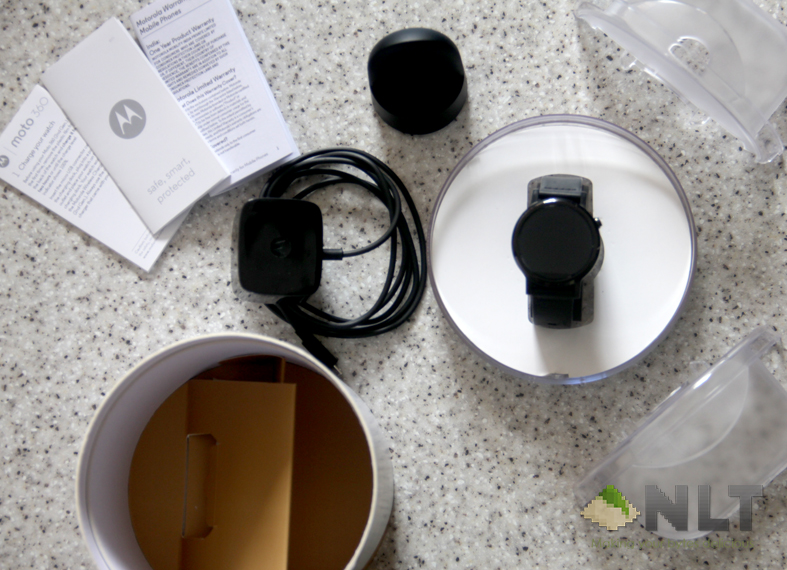
The almost round smartwatch presented with a definitely round box. The box is rather simple, showing the device itself straight up and totally differentiable in glance of an eye. Around the box, Motorola includes the spec sheets of the device itself and what the box contained.
Inside, you’ll get your charging cable with the moto360 wireless charging dock. Weirdly enough, the charging cable is attached to the 3-pin plug, unlike what you usually get with run the mill devices, a detachable one. Motorola also kind enough to include a guide sheet for those who use Android Wear for the first time.
Build
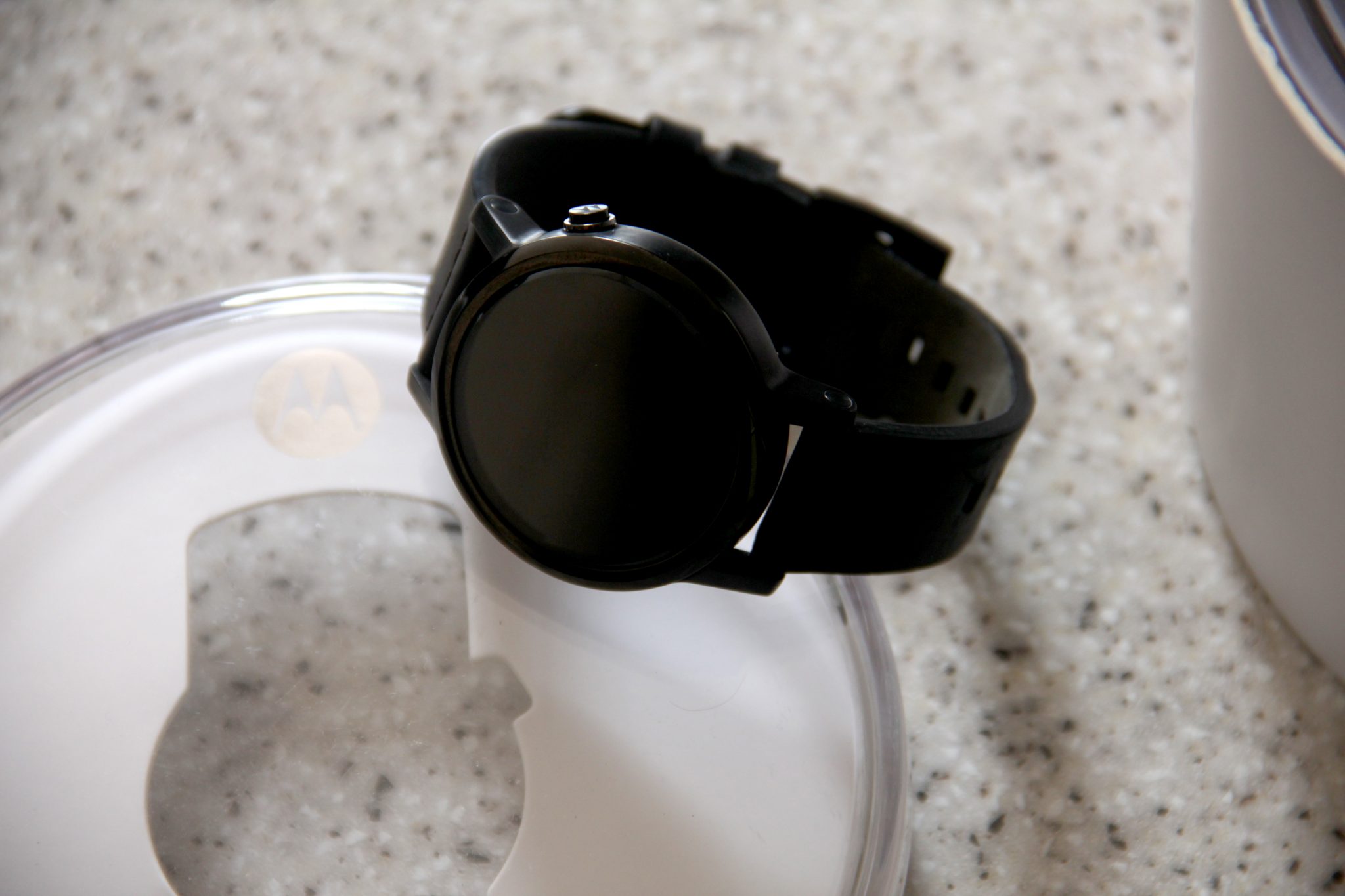
Overall, the build of the moto360 is amazing. While watch body feels premium (it is indeed priced at premium), the watchband that they included doesn’t live up to the expectation. The watch body is made with a high-grade stainless steel made it feel solid when wearing it. Although it is solid, it’s very light. You won’t notice the difference if you’re use to heavy watch like the G-Shock.
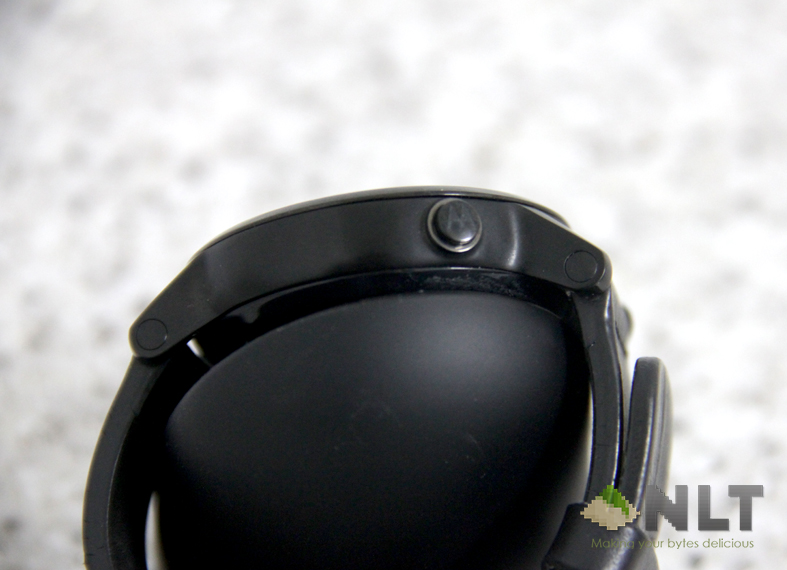
The watch bezel is thin. It is among the thinnest bezel I ever see on a smartwatch to date. However, the disadvantage of the thin bezel resorted the moto360 to have somewhat of “flat tire” at the bottom of the screen to accommodate its proximity sensor. Around the watch, you’ll only notice there’s only one button available, functioning solely as home button. Behind, the moto360 sports a heart rate sensor that you usually get on smartwatch at this price range.
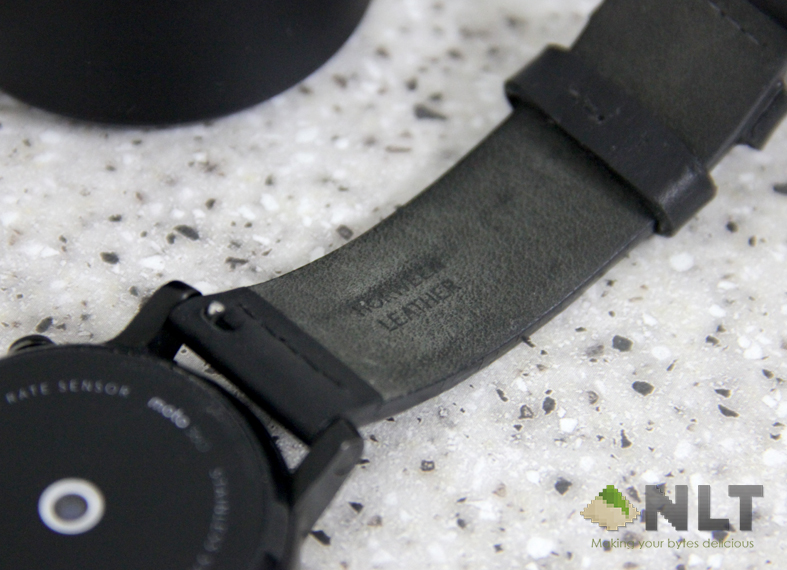
The leather band is indeed nice to wear, but it shows its wear & tear rather fast. In a week, the marks where you twist to lock the band shows a very prominent wear marks. Over the time, it’s worse. A few weeks with the devices, the band looks like I’ve been use it for months. The leather is indeed soft on hand, but it is soft to handle the wear & tear too. This is primarily due to the Horween leather that Motorola uses mostly on their devices.
Specifications
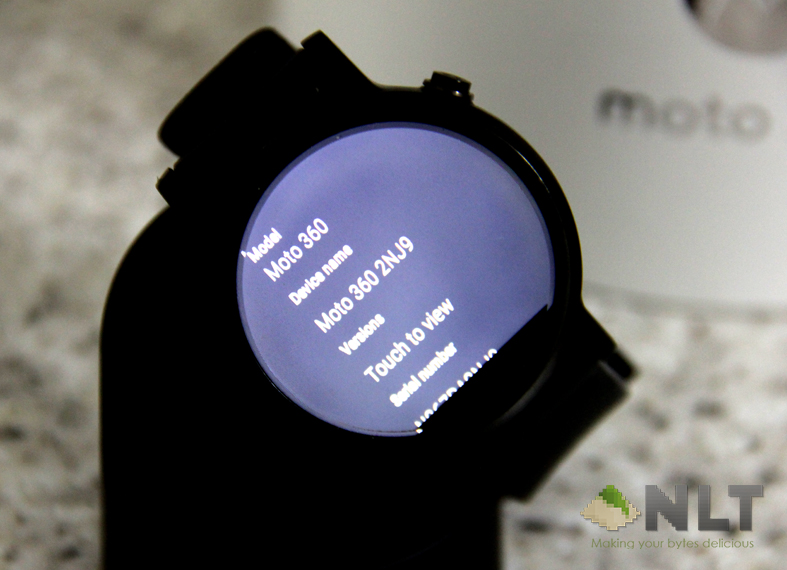
Under the hood, the moto360 had a bump in its specs sheet. Long gone the Texas Instrument OMAP SoC on the previous gen, the new moto360 equipped with a significantly better SoC, the Qualcomm Snapdragon 400. Although, it is not much different in firepower, the new SoC should handle the power consumption a tad bit better that the TI OMAP. With the Snapdragon 400, the new moto360 now have its own GPU, the Adreno 305, which improves the fluidity of the UI animation.
As far as specs improvement, that’s all that Motorola added onto the new moto360. The on-board storage stays the same as the previous gen at 4GB, as well as the 512MB RAM. I do wish that Motorola bump the RAM a little higher, given the state of Android overall UI is now rich in animations. However, I barely notice any lags or stutters when I was using the device.
Motorola do however add addition Wi-Fi chip onto the devices. I’m not sure if it’ll gives any benefit to the watch itself. The device should able to use the data you used on your phone, including when if your phone is connected to Wi-Fi hotspot. Else, it’ll revert to your mobile data if you’re not. Having its not Wi-Fi connection is quite pointless, because Android Wear is quite useless on its own.
Display
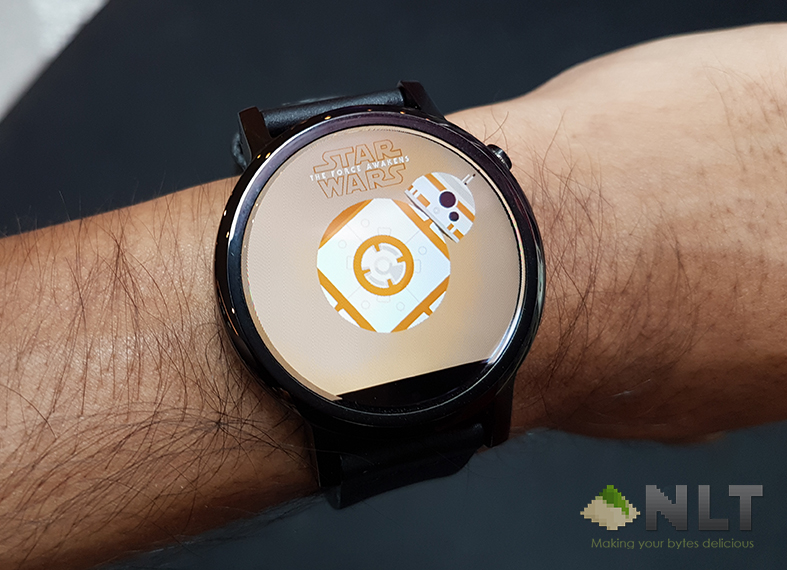
One think I love the most about the moto360 is its display. It is sharp and vivid. Although the display pixel density isn’t as high as the Samsung Gear S2, it is still far superior to its predecessor with its higher PPI. However, like the previous gen moto360, you’re missing portion of the display (XX pixels to be exact) due to the sensors located at the bottom of the display. The display somewhat resembles a flat-tire, in a way good for the device itself due to card style notifications at the bottom of the watch face.
Software
Android Wear is rather familiar territory in smartwatch sector. If iOS users require Apple Watch OS for their iPhone, Android users require Android Wear. It should the only direct competition to the Apple Watch competition, but made for Android devices, to working wonderfully with one. Nevertheless, it doesn’t seem to do the job all that well.
Android Wear was made with a card concept like the Google Now. Cards are made square, thus the usage of the cards on a circular shape device is inappropriate to say the least. Unlike Tizen OS, Android Wear doesn’t really utilised the round display all that well. The dependencies on the card-based notifications often leads to missing content thanks to the circular shape of the display.
Let me be honest. This is my first ever Android Wear device that I have my hands on. To be honest, I’m not actually excited to use it from the first time I tried it at the moto360 launch. However, I’ve use a tons of smartwatch before. Ranging from the good ol’ Pebble, the new updated Pebble, Samsung’s Gear S2 as well as the mediocre honor Z1. Using the Android Wear doesn’t really psyched me as I hope it would be given its hype with the moto360 concept.
Applications
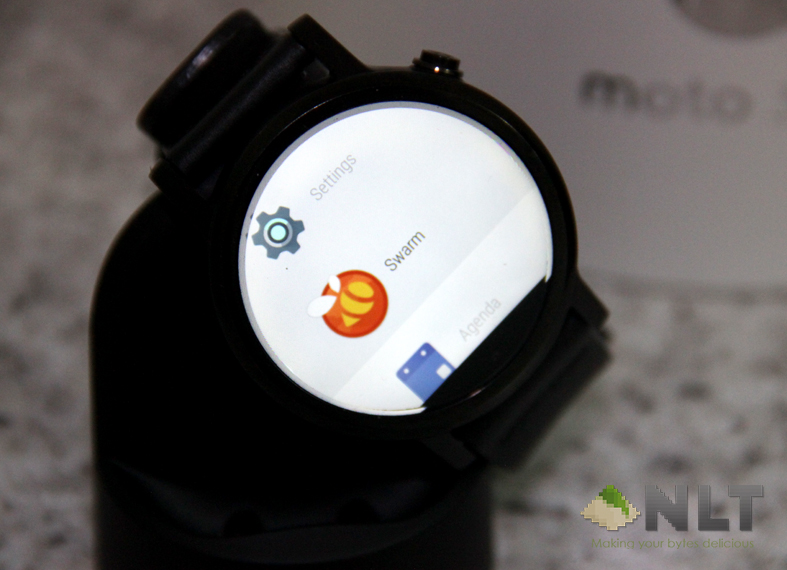
First, you’ll need Android Wear app installed on your phone to fully utilise the watch. Specifically, on moto360, you have the option to install another app called Moto Connect. The Android Wear app will establish connection between your phone and the watch, including all the settings that you can configure for the watch via the app itself. However, if you wanted to customise your watch face like adding additional background image, you’ll need to get the Moto Connect app. Most of the watch face customisation will be done on the Moto Connect app rather than the Wear app. You’ll have the option to do so via the watch itself too in case you’re not that keen to bloat your phone with unnecessary additional apps.
Android Wear in general doesn’t have independent apps. All the Wear apps are synced from what you have on your device. It’s not exactly a watch version like you got on Apple Watch nor will it works like one, rather a simplified version with its core functionality. Note that not all the apps on your phone will be on your watch too, only those apps that supports it. For me, I have some apps that are synced like Swarm, Shazam etc. The one think I find annoying on the watch is that I don’t have the ability to remove any apps that I don’t want. The watch itself preloaded with some of the Moto apps like Moto Body and few more.
In the Wear app, you able to set multiple things like your calendar notifications, apps that you wanted to block from buzzing your watch for notifications, or even mute your phone while it is connected to the watch. I tried it and it does keep your phone silent the whole time it is connected, but if you take off your watch while it’s still connected, you might not noticed the incoming notifications afterwards.
However, there are plenty of apps that I find missing from the watch itself. For example, although you can get notifications from your agenda that you’re having during the car, there’s not option to view the calendar as a whole. You can to whip out your phone in order to check that. This probably how Android Wear works in general, but I do hope in the future, Motorola could add additional app for this as they do with the Moto Body.
Watch Face
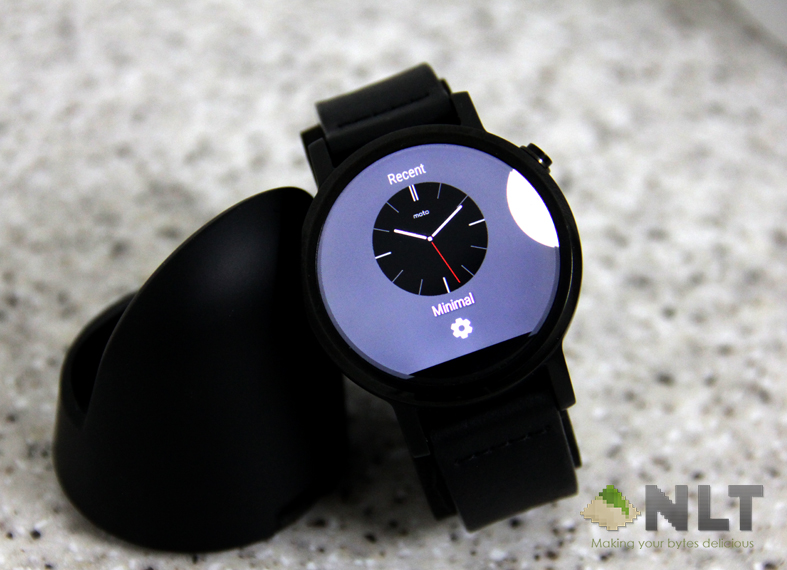
Android Wear has plenty of options of watch faces. The moto360 itself has been preloaded with pretty decent list of classic looking watch faces. From minimal looking, to the complex with multiple dials analogue watch faces. You can opt for digital as well as sports type watch faces too. On the preloaded watch faces, one watch face allow you to add your own background with customisable dials.
If that’s not customised enough for you, you can make your own watch face easily with third party app. You don’t really need any programming knowledge, as you should on the Pebble. It is pretty much design and upload to create one. There’s a couple of option for you to choose from. The one I’m familiar with is Mr Time Maker. It’s simple and pretty straightforward. Design your own background and dials, upload and use them. There are other options aside from this one, but some third party apps, you’ll have to pay to use them.
Notifications
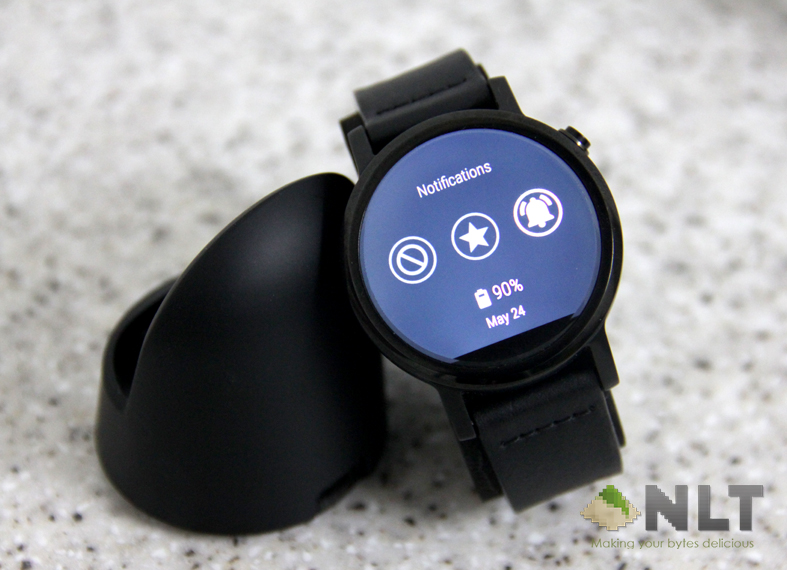
As I mentioned earlier, the Android Wear revolved around the cards UI as you usually get from Google Now. For its notification panels, it works the same way. You get the same notifications panel at appear on your phones. It works the same way as the notifications you get on your phone too. You will have the action option when you swipe left on the notification itself.
Being an Android Wear OS, some applications only gives your notification on your watch. As example in moto360, the Moto Body or Google Fit app occasionally remind you on how many steps have you taken on that particular day. At some point, these notifications can be a nuisance. However, if you wanted to disable them, you can do so with the Android Wear app in your phone.
Navigation
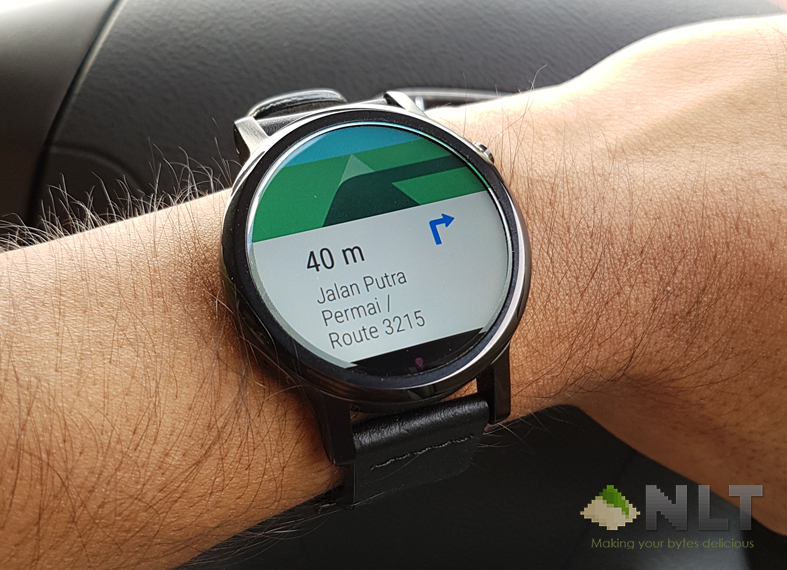
The one thing that I like the most on the moto360 is the navigation option. Being an Android-centric user, you’re bound to Google apps. As for navigation, you probably use the Google Maps if not Waze, which also Google’s. On the Android Wear, the Google Maps is integrated into the OS itself and if you use it often, it’ll benefit you as Android Wear user as well.
When you’re navigating around using the Google Maps, you could get updates on when to turn on you watch as well. It will be show on a card UI that if enabled, showed on the half bottom part of the watch faces. With this card UI, you don’t need to check your phone anymore if there’s turn to take or how far ahead the turn is. You can just quickly look on your watch and it’ll be shown there. However, there are not much details as it will be in the Google Maps app, but it’ll still help a little.
Gesture Control
Having a card based UI, Android Wear have a pretty limited control function. It’s also one of the reason the watch only have one button, the home button. Everything on the device is navigated via swiping up, down, left and right. In most cases, these controls can be done via gesture. The gyroscope fitted in the device will detect your wrist movement, enabling you to navigate throughout the UI without having you to even touch the display. It is quite astounding and sometimes helpful when you’re in a pinch of a situation.
You only can navigate yourself thought the notification card piles with the gesture control. You won’t have the option to go through the menu with it. It’ll come in handy at times, but it doesn’t make moto360 to be a touchless device. However, like typical Android Wear device, you can still use your voice to do something that are not accessible via the gesture control, but as I said, it is still pretty limited.
Battery
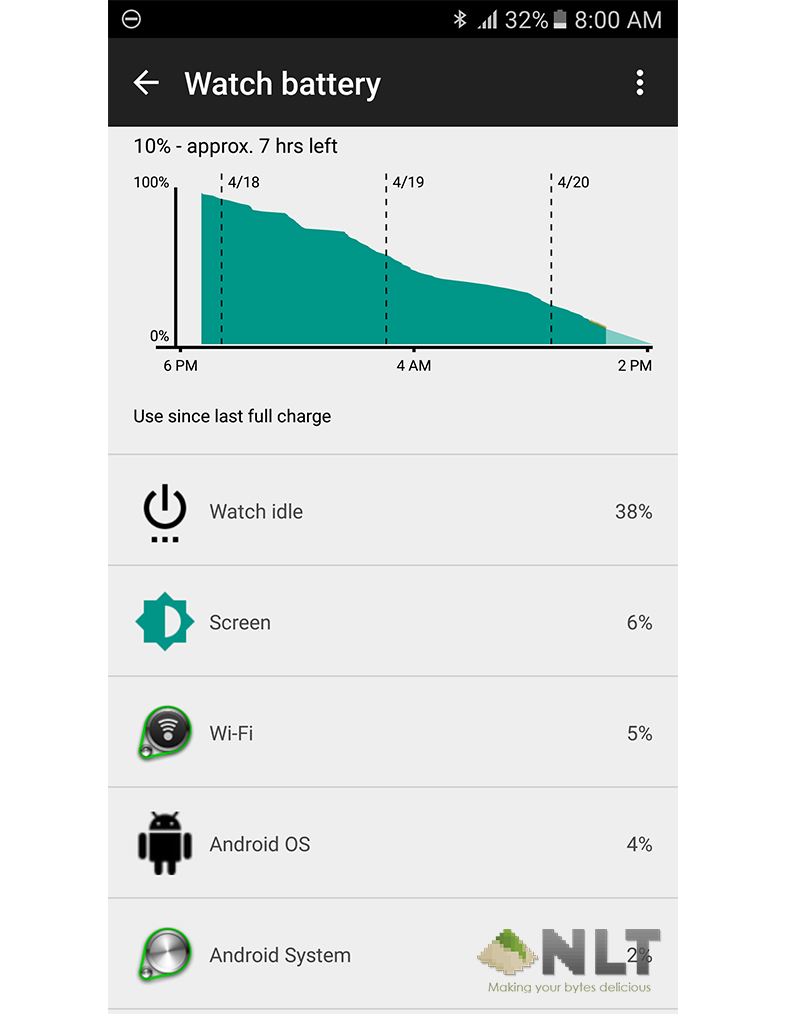
Moto360 battery is not that great, but it isn’t disappointing either. It’s just like other smartwatch in the market (with exception of Pebble), it last roughly 1.5 to 2 days. At most, you can get while conserving the notifications and what not is about 2.5 days. However, what’s the point of having a smartwatch if you disabled the smart features? It totally defeat the purpose of having one.
I disabled the always-on display when I was reviewing the watch. For me, I don’t need it to always show what time is it. If I wanted to check the time, the display with pop-up automatically. Moreover, if I enabled the always-on display, it will drain the battery unnecessarily, which not really a good idea due to its mediocre battery life.
The moto360 has its own battery saver mode thanks to Android Wear OS. However, I have no option to enable it unless the watch battery reach its red mark (15% as usual). You only have option to enable the battery saver mode when the battery is low enough. This could be troublesome for some if they’re out for a few days without the charging dock. You will not be able to switch on the battery saver mode while it’s above 15%.
The charging dock comes with the moto360 is very slick. It’s convenient at some point; however, it can be a hassle to. The charging rate for the moto360 is average. Based on my usage, I can charge about 30% in under half hour. Although it is not much, that additional 30% should be enough to last a day out. This is where the hassle comes in. At a time, I forgot to charge the moto360 at night, and I ended up having to charge it in my car. It’s quite a hassle to bring the charging dock with you when you’re out traveling, rather than a small charging pack like the one with honor Z1.
Conclusion
In my opinion, the price tag that Motorola gave for the moto360 justified on how well the device is. Everything on the moto360 is top notch. And for that kudos to Motorola for making such fine smartwatch. Aside from the Android Wear part, the watch holds up to what it should be. It looks very elegant, at affordable price range. Not a single part of the moto360 looks cheap. Although the leather band could be improved for much sturdier type, it still feel nice wrapping your wrist. In addition, if you’re not a fan, you can always change it to any type of band; leather, steel or even PVC rubber.
If I wanted a smartwatch, this could be one of it. Personally, I’d prefer the Samsung Gear S2 for its much better round-centric software. But if I wanted to go for a classic look, the moto360 would be my first choice. If you’re planning to get one, you can always get one at Lazada for RM 1399.
Like our Facebook Page here at NasiLemakTech.com for more news and in-depth reviews! Also, join our Facebook Group for insightful information and memes!
Subscribe to our YouTube channel too!