
















Creating a home entertainment setup involves more than choosing a television or purchasing a streaming device. The way different components connect can influence picture quality, sound output, navigation, and the overall viewing experience. Whether someone wants to watch movies on a large television, enjoy surround sound through a home theater receiver, or project content onto a wall-sized screen, understanding the basic connections makes installation much easier. A little planning before connecting the equipment can also help prevent common compatibility problems.
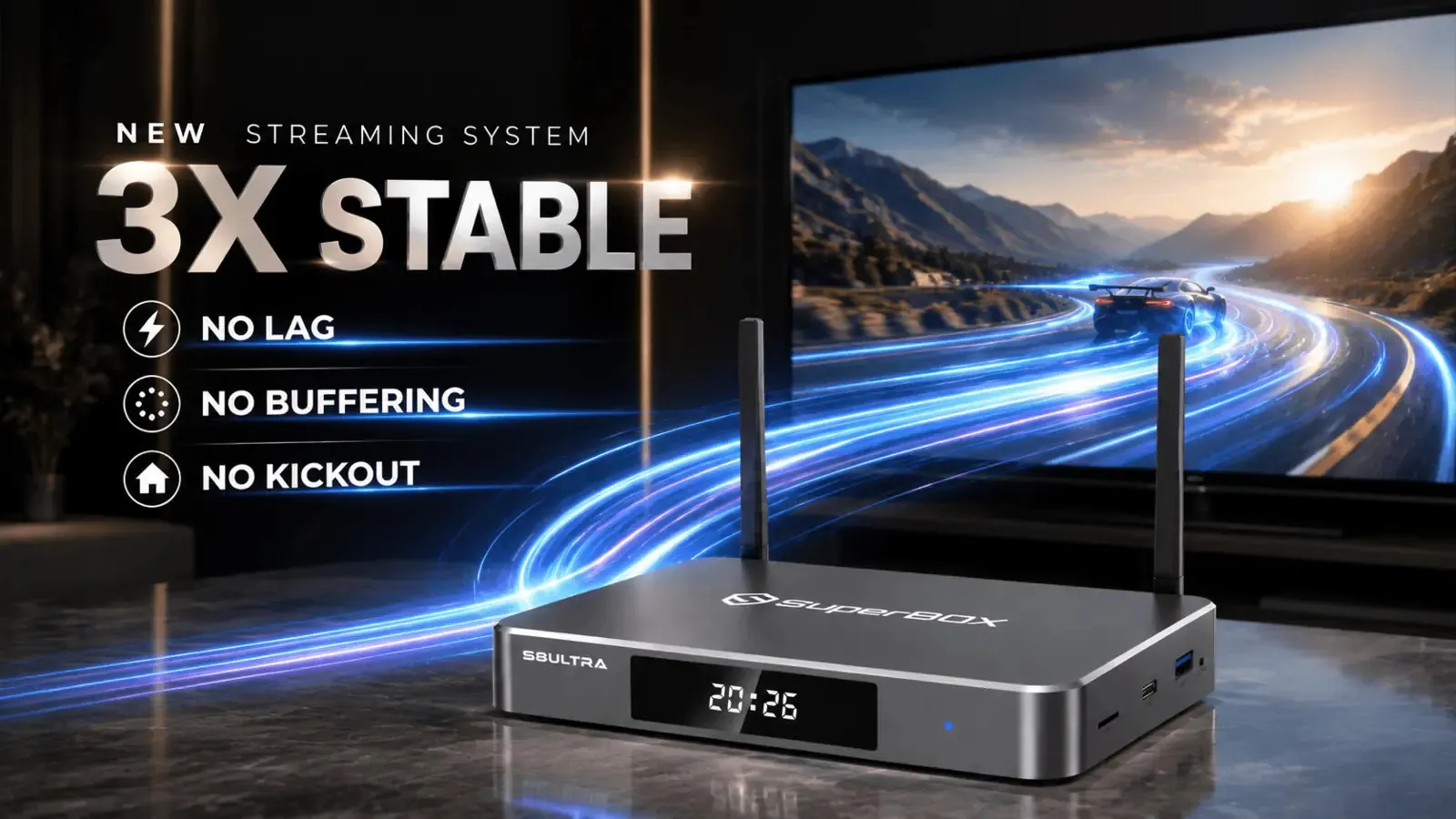
The SuperBox S8 Ultra is designed for users who want a convenient home entertainment experience. It connects to a compatible television, allowing users to explore available streaming options. Its features and storage capacity make it important to compare it with other streaming box models. For the best experience, consider your internet speed and TV compatibility before purchasing. Choosing the right setup can help make everyday home entertainment more enjoyable.
Understanding the Equipment Before Connecting
Before starting installation, identify the main components in the entertainment setup. These may include a streaming box, television, home theater receiver, soundbar, projector, HDMI cables, and network equipment. Each component has a specific role, and knowing which device handles video and audio helps simplify the connection process. Checking the available ports on every component first can prevent unnecessary cable purchases and reduce the likelihood of connecting equipment to an incompatible input.
HDMI is commonly used to transmit digital video and audio between compatible devices. A streaming box can usually connect directly to a television or projector through an available HDMI input. When a home theater receiver is involved, the connection arrangement may change depending on the receiver’s capabilities and the desired sound configuration.
It is also worth checking the power requirements and physical placement of each component. Streaming devices need a suitable power source, while receivers and projectors may require additional space for ventilation. Avoid positioning equipment where cables become stretched, ventilation openings are blocked, or accidental movement could disconnect a plug.
Connecting a Streaming Box Directly to a Television
For a straightforward setup, connect the streaming box to an available HDMI input on the television. Connect the device to its power supply, switch on the television, and select the corresponding HDMI source using the TV remote. Once the device’s startup screen appears, follow the on-screen instructions to complete the initial configuration. This arrangement is often the easiest starting point because the television handles the video display and usually provides the audio output through its built-in speakers.
After the home screen appears, connect the streaming box to the internet using its supported network options. A wireless connection may be convenient when the router is in another room, while Ethernet can provide a wired alternative when a suitable cable connection is available. Follow the device’s setup instructions to join the network and complete any required software configuration. A reliable connection is important because online video quality depends partly on available bandwidth and network stability.
Integrating a Home Theater Receiver or Soundbar
A home theater receiver can connect several entertainment components and send audio to compatible speakers. In a common arrangement, the streaming box connects to an HDMI input on the receiver, while the receiver’s HDMI output connects to the television. This allows the receiver to handle supported audio formats while forwarding the video signal to the display. The exact arrangement depends on the receiver’s inputs, output capabilities, and compatibility with the other equipment.
Some households may prefer connecting the streaming box directly to the television and sending audio separately to a soundbar or receiver. Depending on the equipment, this may use HDMI ARC, HDMI eARC, optical audio, or another supported connection. ARC and eARC are television audio-return features that allow compatible audio to travel from the television to an external sound system over HDMI.
After making the connections, review the audio settings on the streaming box, television, and receiver. Start with a basic audio configuration that all connected devices support, then test the sound before enabling optional formats. If audio disappears or becomes inconsistent, temporarily simplify the connection and test each component separately.
Using a Projector for a Larger Viewing Experience
A projector can turn a suitable room into a large-screen entertainment space, making it an appealing option for movie nights, presentations, or shared viewing. Most setups require a projector with a compatible HDMI input, along with enough space to position the projector at the required distance from the screen or wall. The streaming box connects to the projector in much the same way it connects to a television, provided the projector supports the necessary video signal.
Before installation, check the projector’s supported resolution and refresh rates. A streaming device may advertise video decoding capabilities that exceed what a particular projector can display, so the actual picture depends on the capabilities of the connected equipment. If the projector does not recognize the signal, try selecting a compatible output resolution through the device’s available settings, using another HDMI cable, or testing a different input if one is available.
Exploring the SuperBox S8 Ultra
The SuperBox S8 Ultra offers a combination of storage, connectivity, and viewing features for households building a flexible entertainment setup. Its listed specifications include 128GB of eMMC storage, 4GB of DDR RAM, Android 12.0, dual-band Wi-Fi 6 support, Gigabit Ethernet, and Bluetooth 5.2. It also supports H.265 video decoding up to 6K at 60 frames per second. Actual output quality depends on the connected display, supported settings, source material, and application capabilities.
For a television-based installation, the S8 Ultra connects through HDMI and can use a compatible network connection to access supported applications. Households may choose Wi-Fi when cable routing is inconvenient or Ethernet when a wired network is more practical. Its 128GB storage capacity also provides more internal space for compatible applications and related data than the 64GB configuration available on the S8 Max.
The S8 Ultra also lists Picture-in-Picture, Full Multi-View, recording, parental controls, and seven-day Time Shift features. These capabilities may be useful for households that want more than a basic single-program viewing arrangement, but functionality depends on supported applications and content. Before relying on a particular feature, review the product information and relevant application requirements.
Comparing the S8 Ultra and S8 Max for Different Rooms
Choosing between two streaming boxes becomes easier when the decision is based on how the equipment will be used. The S8 Ultra provides 128GB of internal storage, while the superbox s8 max offers 64GB. Both models are listed with 4GB of DDR memory and Full Multi-View functionality. For households that install several compatible applications or want more storage headroom, the Ultra’s larger capacity may be attractive.

Room layout can also influence the buying decision, although the display itself does not necessarily require a higher storage capacity. Someone connecting a box to a living-room television may prioritize convenient navigation and a familiar setup, while a dedicated home theater user may focus on compatible video output, network stability, and audio integration. Neither model automatically improves the capabilities of an external television or projector beyond what the display and connection support.
Improving Network Stability and Picture Quality
A reliable internet connection is essential when streaming online video. If the router is far from the entertainment area, wireless signal strength may be affected by walls, interference, and other connected devices. Positioning the router more effectively or using Ethernet where practical can help improve consistency.
Picture quality also depends on the relationship between the streaming source, device output, HDMI connection, and display. A television or projector cannot show detail beyond its own supported capabilities, even when the connected streaming box can decode higher-resolution video. For the most reliable results, begin with compatible display settings and test actual content.
Applications and internet services can impose their own bandwidth requirements, and network congestion may affect playback during busy periods. If video repeatedly buffers, test the connection, pause other bandwidth-heavy activities, and compare performance at another time. Updating software according to the manufacturer’s instructions may also resolve certain compatibility issues.
Troubleshooting Common Connection Problems
A blank screen is one of the most common issues during installation, but it does not necessarily mean that the streaming box is defective. Check the power connection, HDMI cable, selected input, and display settings in a logical order. If possible, connect the box directly to a television to determine whether a receiver or projector is contributing to the problem. Testing one connection at a time can narrow down the cause without requiring a complete system reset.
Audio problems may arise when a receiver, soundbar, television, and streaming box use incompatible settings. Confirm that the selected input matches the cable connection and that the volume is turned up on the intended audio device. If the system uses HDMI ARC or eARC, check that the compatible ports and required settings are enabled. When troubleshooting a complex arrangement, temporarily return to a simpler connection to establish whether the basic picture and sound work correctly.
Like our Facebook Page here at NasiLemakTech.com for more news and in-depth reviews! Also, join our Facebook Group for insightful information and memes!
Subscribe to our YouTube channel too!