












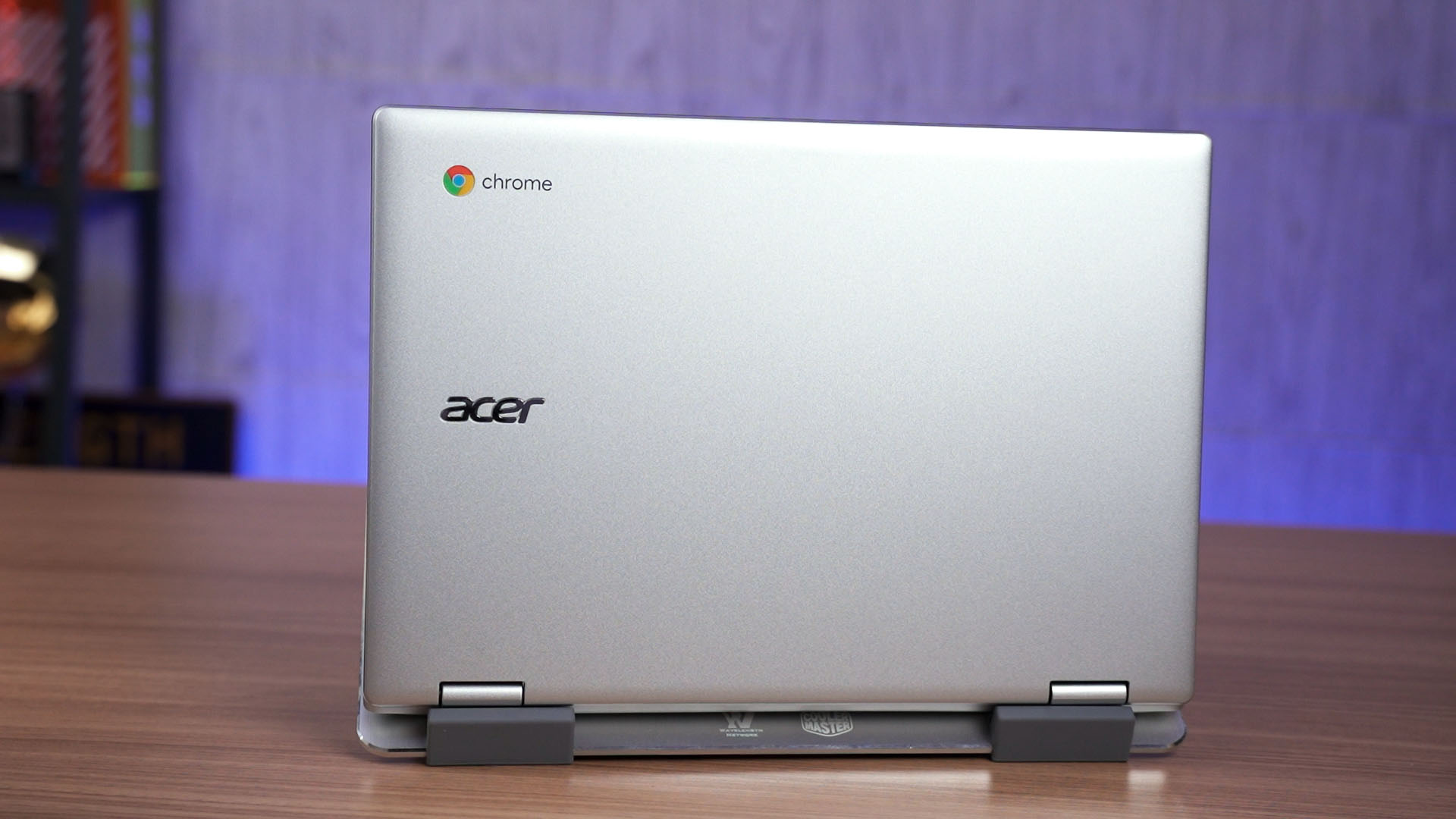
Chrome OS has been in the market for a decade now and yet this laptop marks my first time actually using Chrome OS. Throughout my weeks with this device, I have gone through such an eye-opening experience that I want to share with you by making this dedicated video about Chrome OS. So, let’s begin.
So Chrome OS is already more than 10 years old at this point in time. I’m surprised that Google is still keeping this product alive. And as the name suggests, Chrome OS revolves mainly around the Chrome browser.
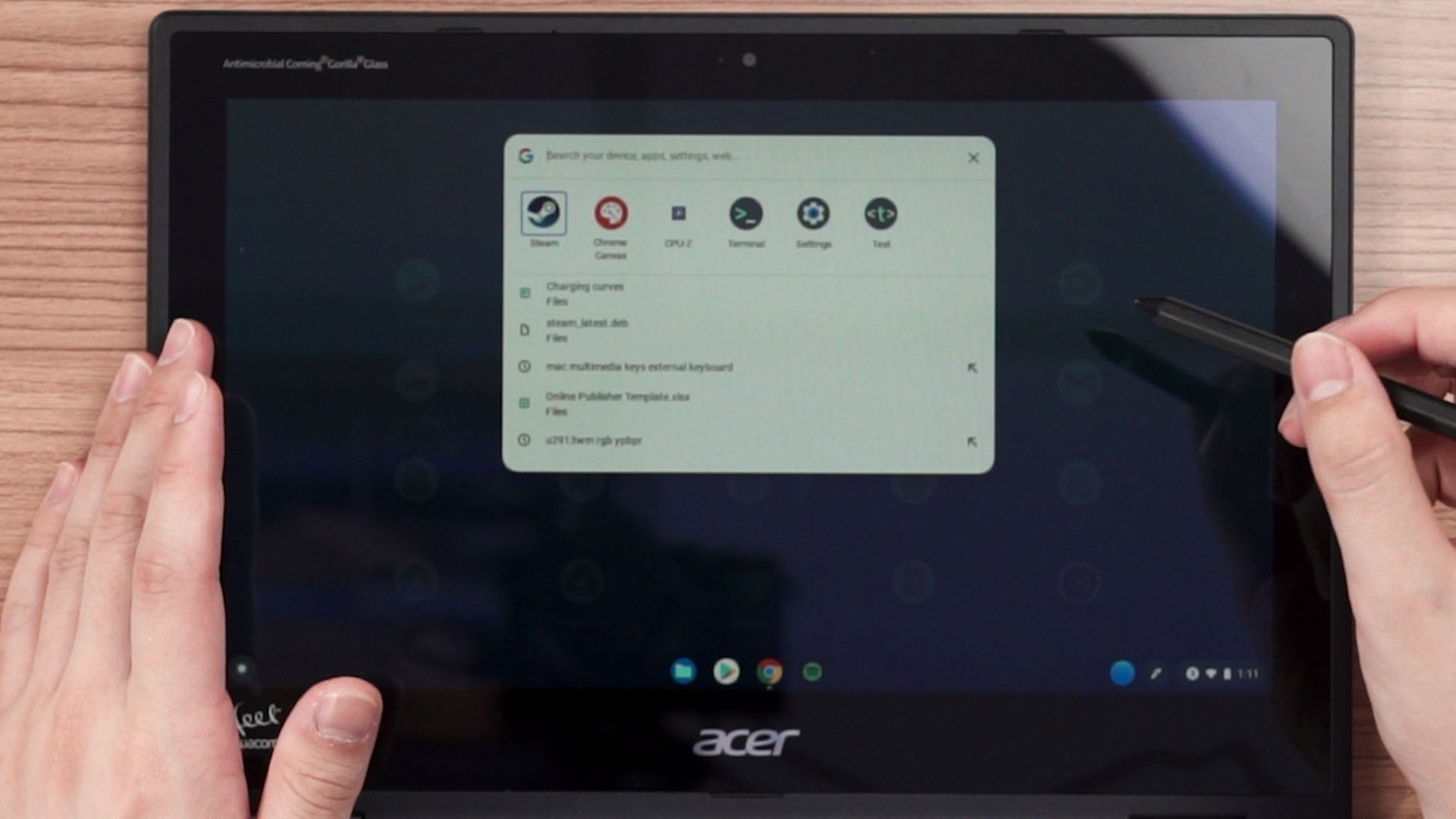
However, I think that is because of how the operating system was designed with touchscreens in mind, the interface works really well here. The bar at the bottom – Chrome calls it the “shelf” – is essentially the same as Windows with the “start menu” button at the left corner, active or pinned apps at the center, and system stuff at the right corner.
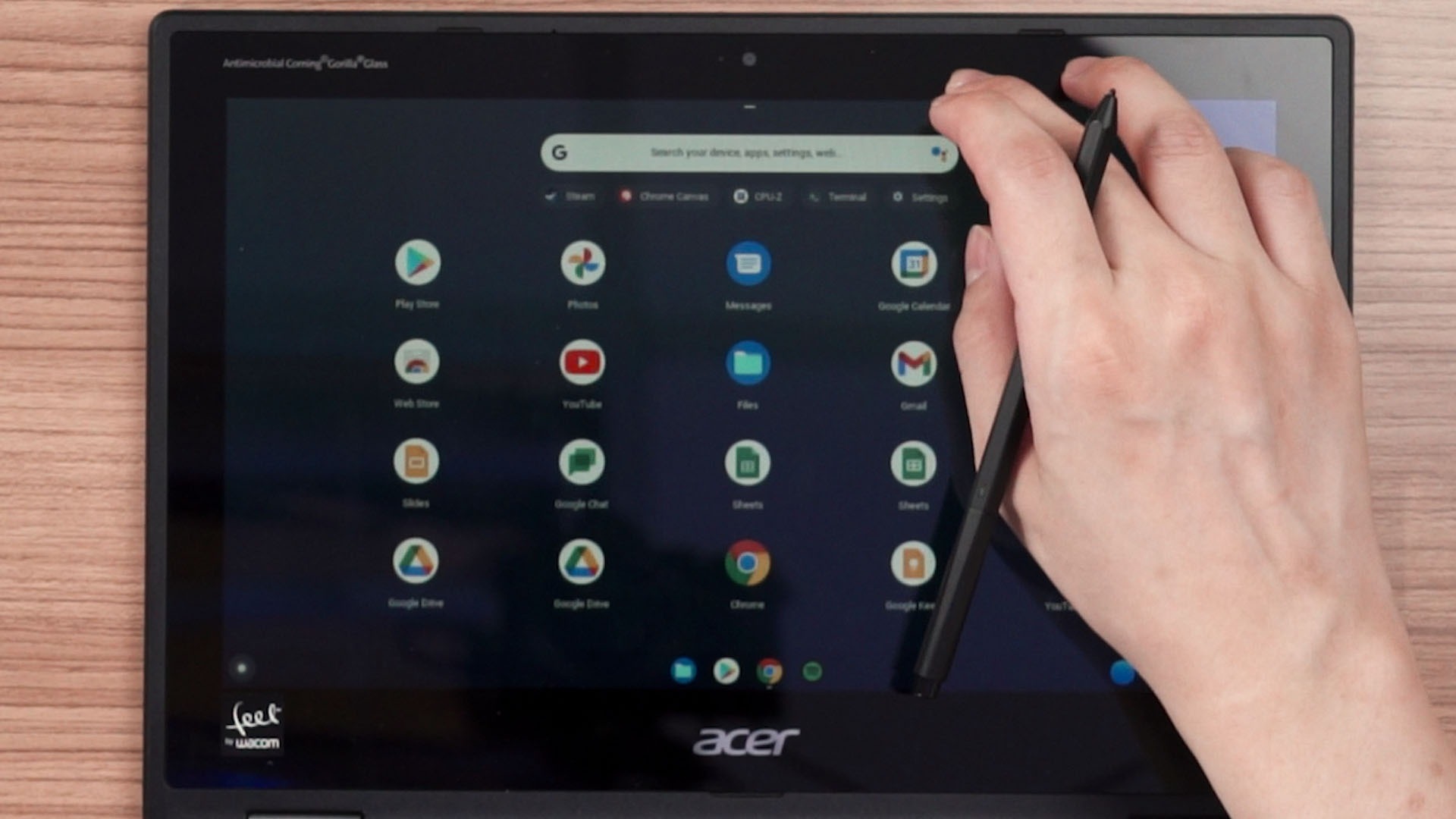
But, the entire bar is interactable either via mouse or touch. The entire app drawer can be dragged upwards to reveal the entire app drawer and the search bar. That search bar can be used to search the web via Google search, system settings, or even apps. You can even press the “search” button and the “shelf” goes up halfway like this.
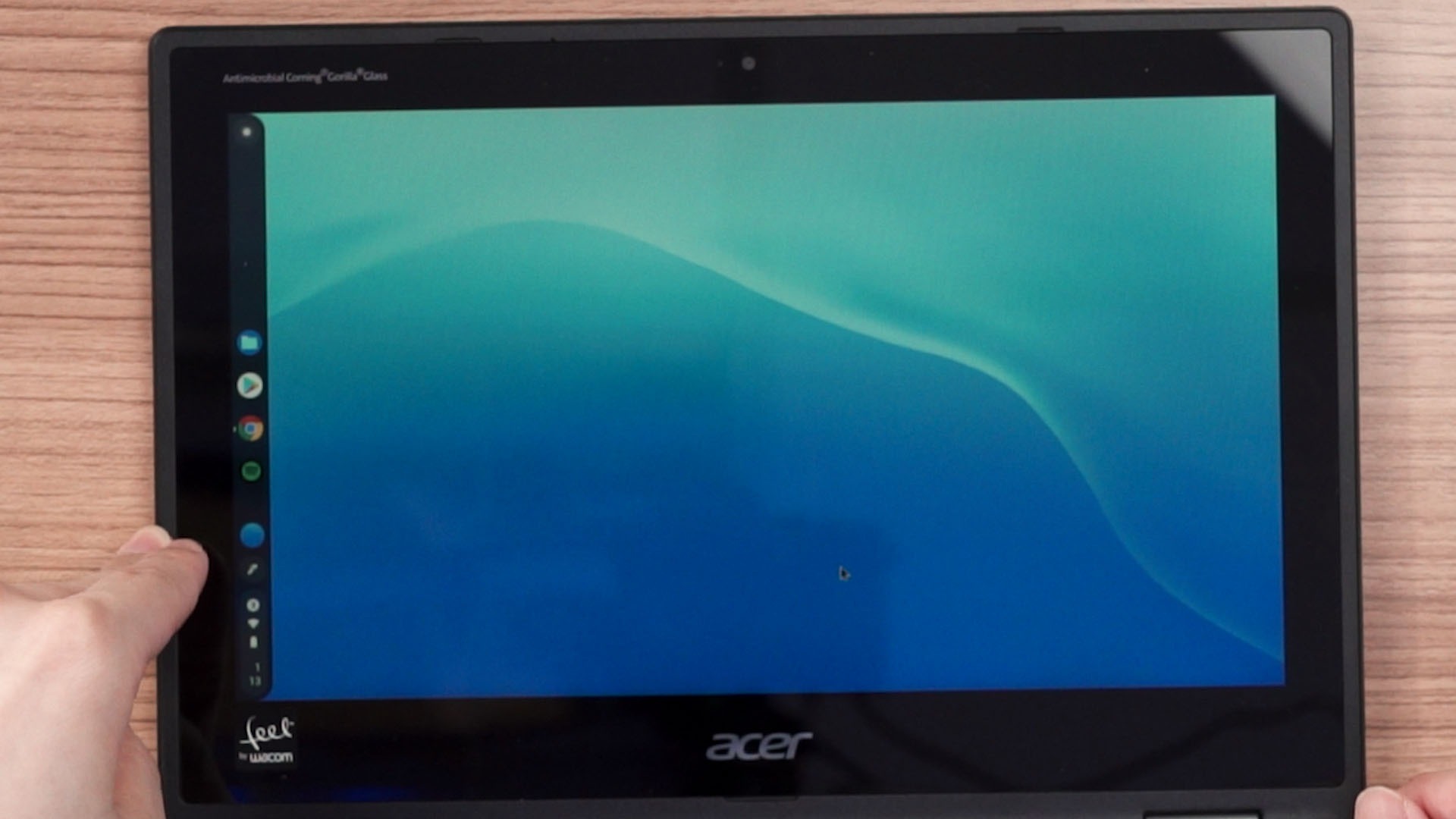
That entire shelf can also be moved to the left or right side – something that cannot be done on Windows 11 – but the drag gesture doesn’t work anymore. You can still tab on the “start” button though.

There is also some touch gestures too. Switching between Chrome tabs can be done by using 3-finger gesture going left and right, and there’s a highlight that moves from one tab to another. To switch between applications, it can be done by 3-finger gesture going up and down. You can even open multiple desktops!

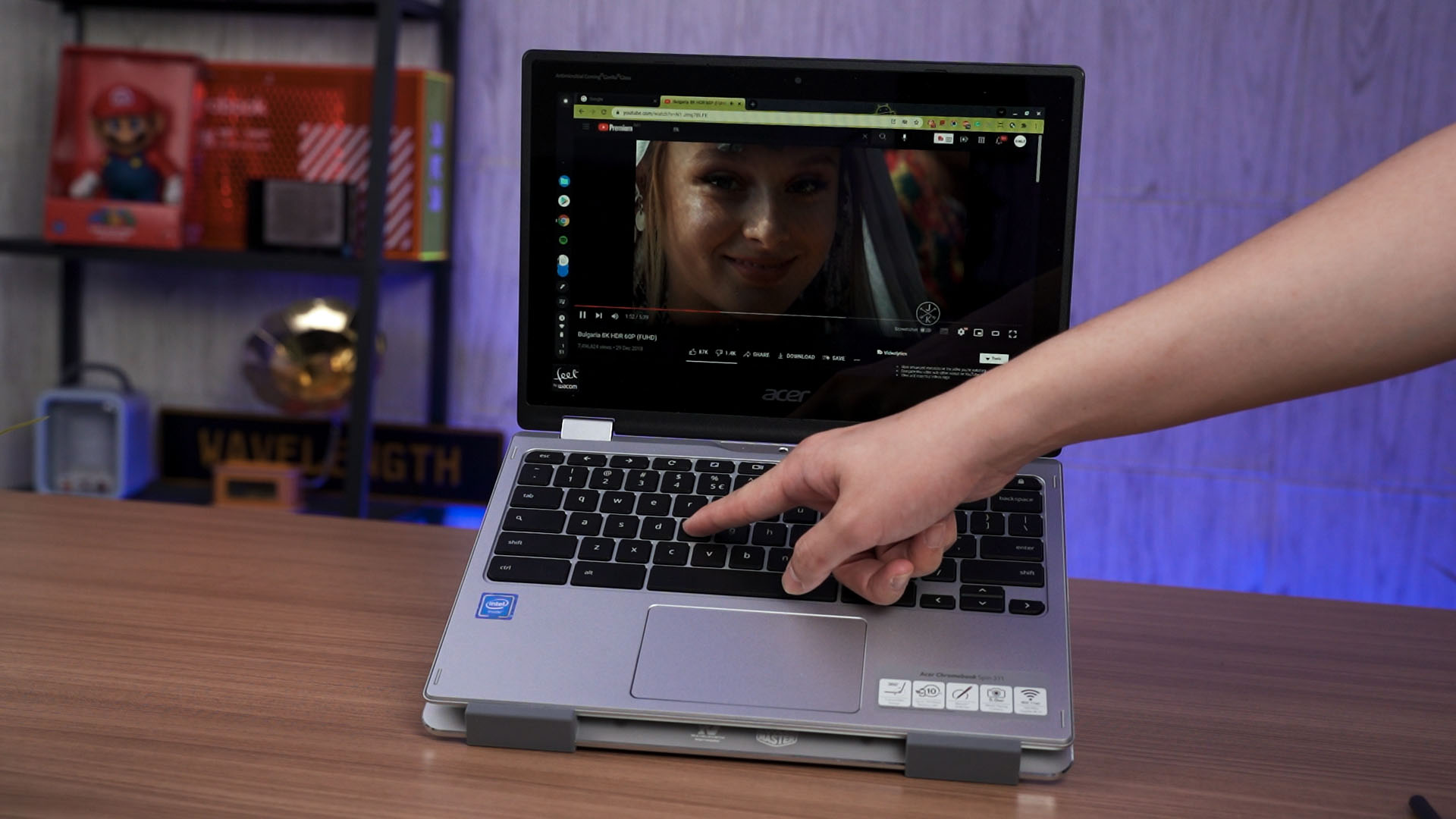
But… keyboard shortcuts are funky. It doesn’t have the F1 to F12 keys, it doesn’t have any key between CTRL and ALT key, it doesn’t have caps lock too. But, in place of that caps lock button is where the supposed “search” key is.
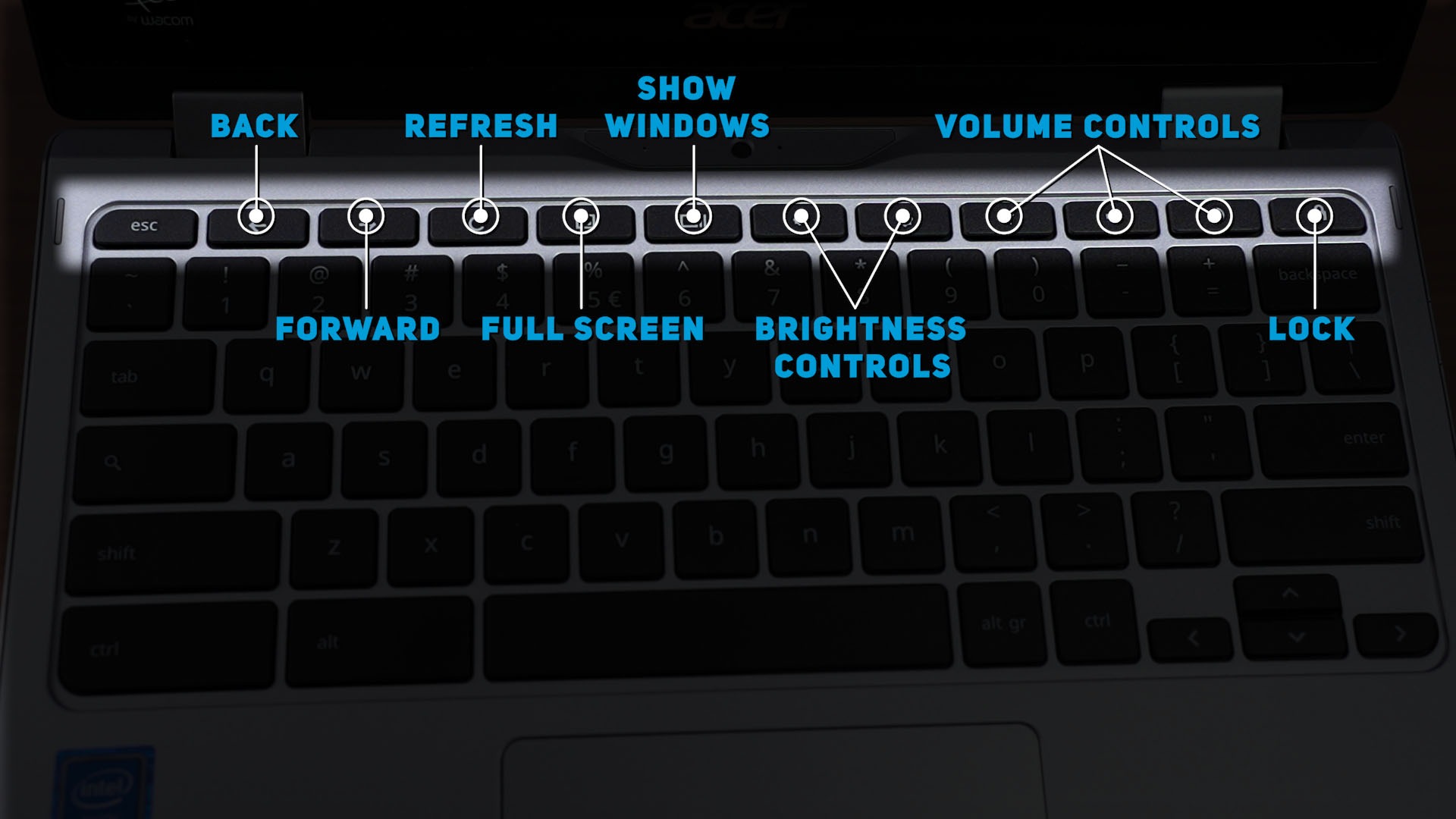
That also means the keyboard shortcuts are totally different. Taking screenshot is by pressing CTRL + Shift + this whatever button is supposed to be F5. Chrome OS also has the clipboard manager feature built-in, which can be invoked by pressing search + V.
And oh – switching between tablet and laptop mode is quick, snappy, and much faster than Windows as well.
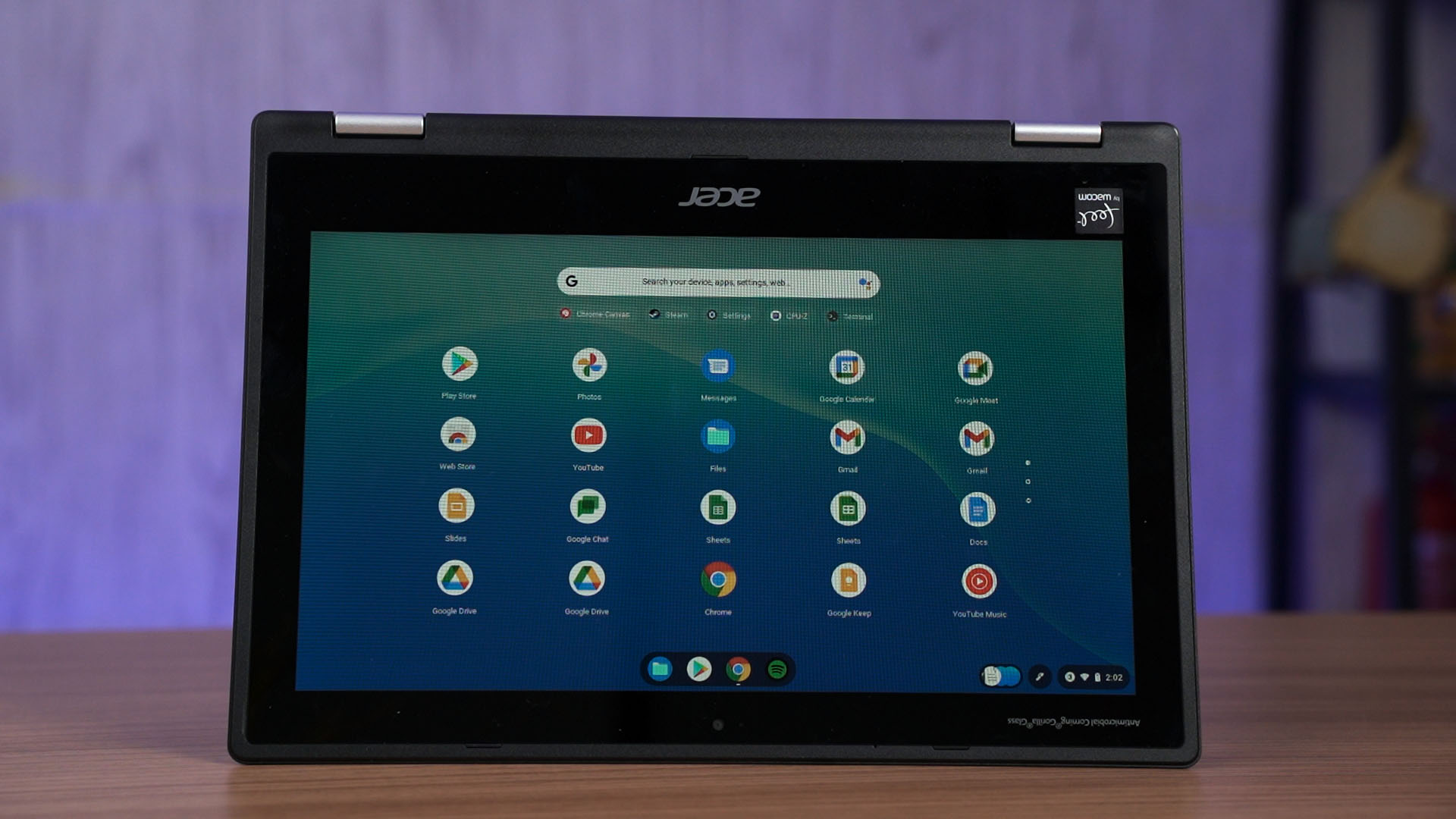
But if I gotta be honest with you, the entire Chrome OS experience is very different when compared to Android tablets with desktop mode – like Samsung DeX for example. Firstly, this is the full-fledged Chrome browser that we can find on Windows, Macs, or Linux operating systems. All Chrome extensions work – especially since some of the Chrome extensions I have are used for work too.
The file manager on Chrome OS is actually decent enough too. There’s a downloads folder for everything that we downloaded – obviously, and another dedicated Google Drive path for cloud storage.
Overall, I really like how Chrome OS works. Most of the time, I’m just writing scripts for reviews like this or replying to your comments in our videos – I’m pretty much living on the browser anyway, so Chrome OS is perfect for that use case.
Combined with how efficient and snappy Chrome OS is, I can get so much work done and the battery barely decreases. This is just an amazing operating system. I just wish it can be installed easily on more devices.
Installing Chrome OS is… tricky
You see, Chrome OS runs without any issues on a laptop like this that is only equipped with an Intel Celeron N4100 chip. Because of how lightweight Chrome OS is, such a low-specced laptop works amazingly well on this operating system. If I were to install Windows on this laptop, it’ll just not be a good time. Take the ASUS Vivobook 13 Slate OLED for example.

My biggest complaint is not having dark mode. Seriously Google, it’s 2022. Gimme a system-wide dark mode.
So if Chrome OS is so great, can we just download it and install on any devices that we have? Well, not really. I thought that is how we install Chrome OS at first. Turned out, it’s not as simple as installing Windows or Linux distros.
I Googled around how to install Chrome OS to any PCs and I found out that it’s pretty much not particularly legal to do so.
Okay, so let’s step back a little. Chrome OS is based on Chromium OS. Chromium OS serves as the base, whereby it is free and open-source for everyone to use. Chrome OS on the other hand, is built on top of Chromium OS and includes some extras on top.
For example, you get the full-fledged Chrome browser in Chrome OS so that you can sign in to your Google account and sync all your data. You can even access the entire Google Play Store on Chrome OS!
And for the privilege of all of these Google services to be built-in into Chrome OS, we essentially have to pay for it. We essentially already paid the price in the Chromebook’s price tag.
This situation is the same with Chrome OS vs Chromium OS, and Android Open Source Project (AOSP) vs. the full-fledged Android with Google Mobile Services.
Are there other Chrome OS distros – like Linux?
Not particularly. Chrome OS isn’t exactly a “famous” OS. There is one special case called Neverware – a company that developed a Chromium distro called CloudReady. I think CloudReady is more like a service that converts all your PCs and Macs into Chromium OS and with Google services but without the Google Play Store.
Also as a fun fact, Google acquired Neverware too.
So the Neverware CloudReady seems like the best way to try out Chrome OS, right?
Depending on your use case, the Google Play Store may or may not be useful for you. For me, I do find the ability to install some random apps like X-plore file manager so I can transfer files via FTP with my other devices, or even the native Netflix app so I can download shows to watch offline.
Another alternative to install Chrome OS
There is only one other Chromium OS distro but it doesn’t have any Google-related services, and that is the Chinese-developed Fyde OS. But other than that, Neverware CloudReady is your best bet.
But at the end of our review of the ASUS Vivobook 13 Slate OLED, we said that we’re going to install Chrome OS into it and try it out – why isn’t that device running CloudReady? That is because of driver issues. Both WiFi and Brightness control do not work yet – so we’ll have to put that project aside for now.
Where to buy a Chromebook? (Affiliate links)
Like our Facebook Page here at NasiLemakTech.com for more news and in-depth reviews! Also, join our Facebook Group for insightful information and memes!
Subscribe to our YouTube channel too!