




Studies have shown that having two monitors can drastically increase our productivity. This is true for our work too – as I personally use two monitors and that synergizes the experience.
However, we can only be as productive as our eyes allow us to be. Imagine that we need to stare at our screens for 5 more hours but our eyes are just too tired and it hurts to keep our eyes open for more than 5 seconds. Due to the nature of our work, we stare at our screens for the majority of our waking hours – and I can attest to that statement too.
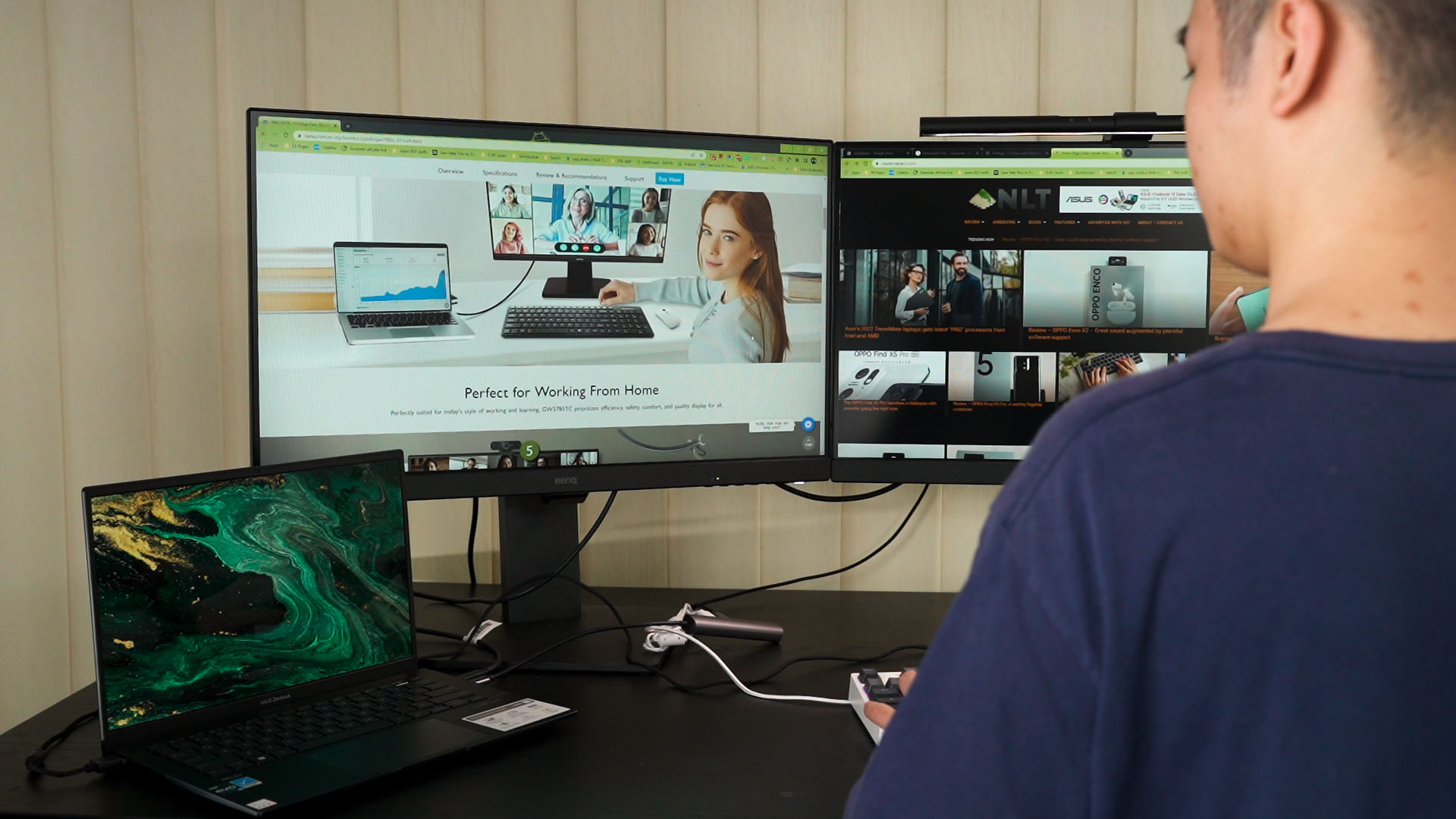
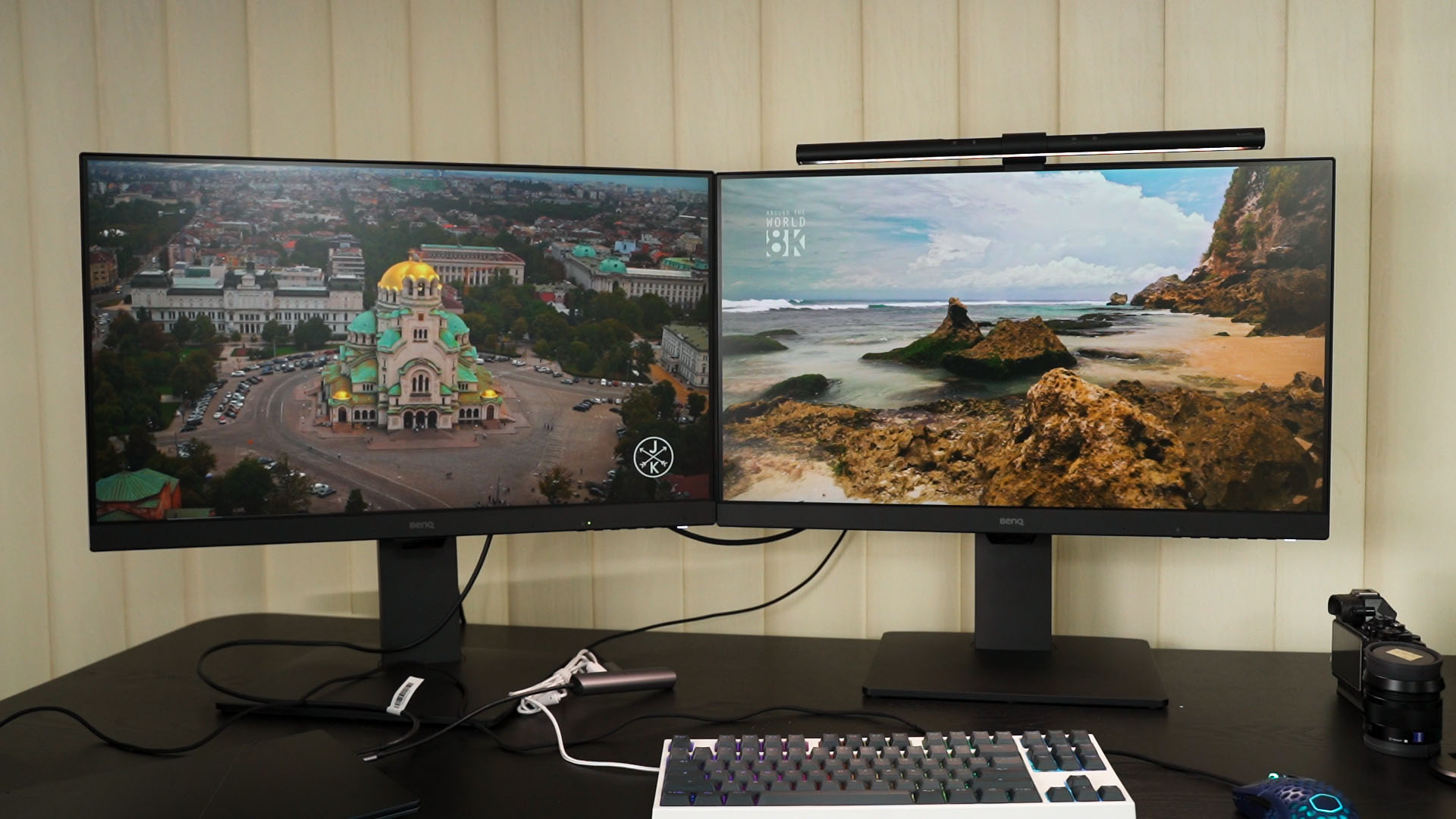
So in today’s article, we have the BenQ GW2785TC monitor with us – two of them, actually. I have been testing out this monitor for quite some time already and the reason why we’re doing this video is that there are a lot of features built into this monitor that help reduce eye fatigue – so let me share my experience with you.
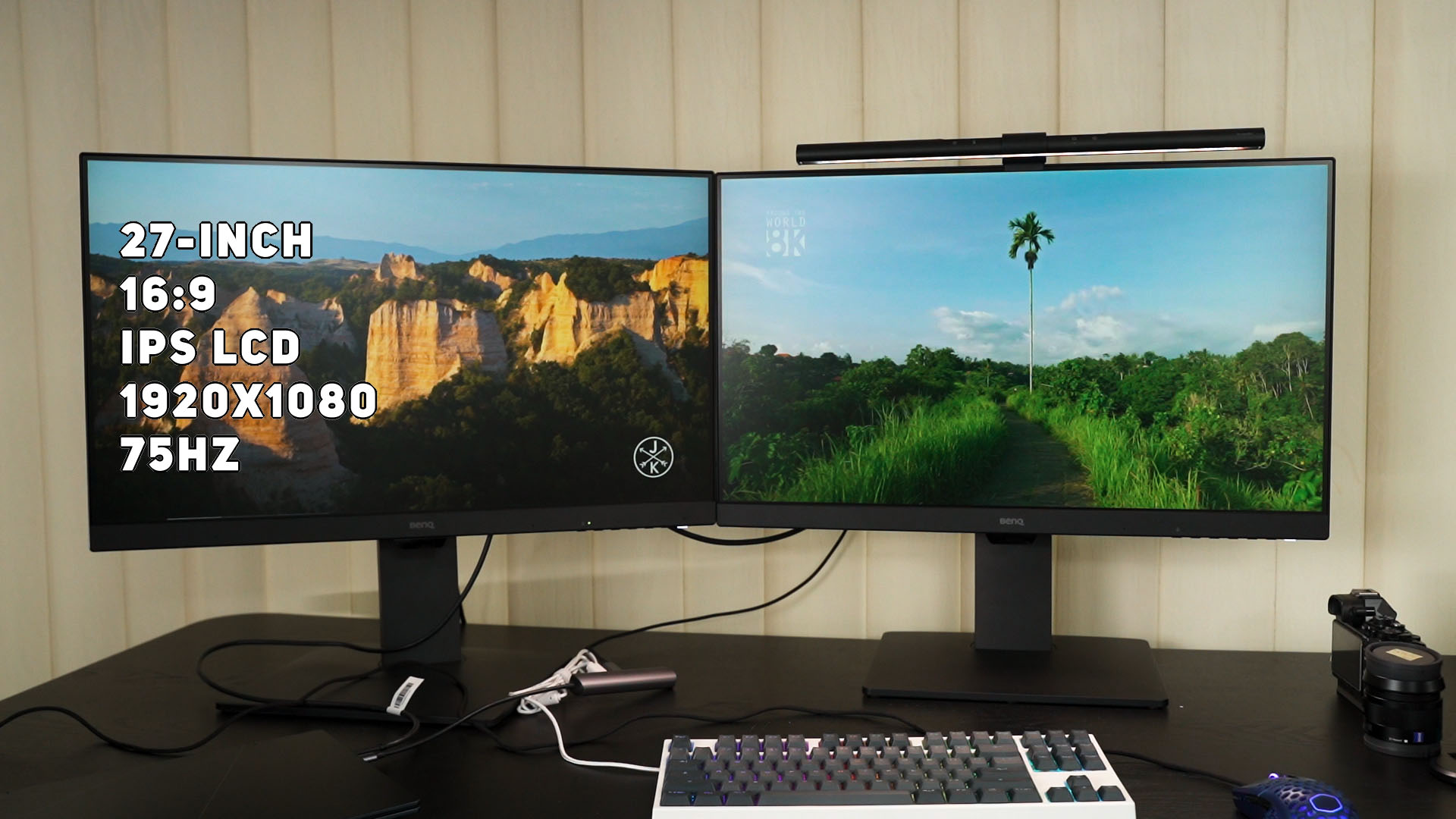
Let’s first go through a quick spec rundown. The BenQ GW2785TC is fairly simple. It is a 27-inch monitor with IPS LCD, with 1080p resolution and 75Hz refresh rate.
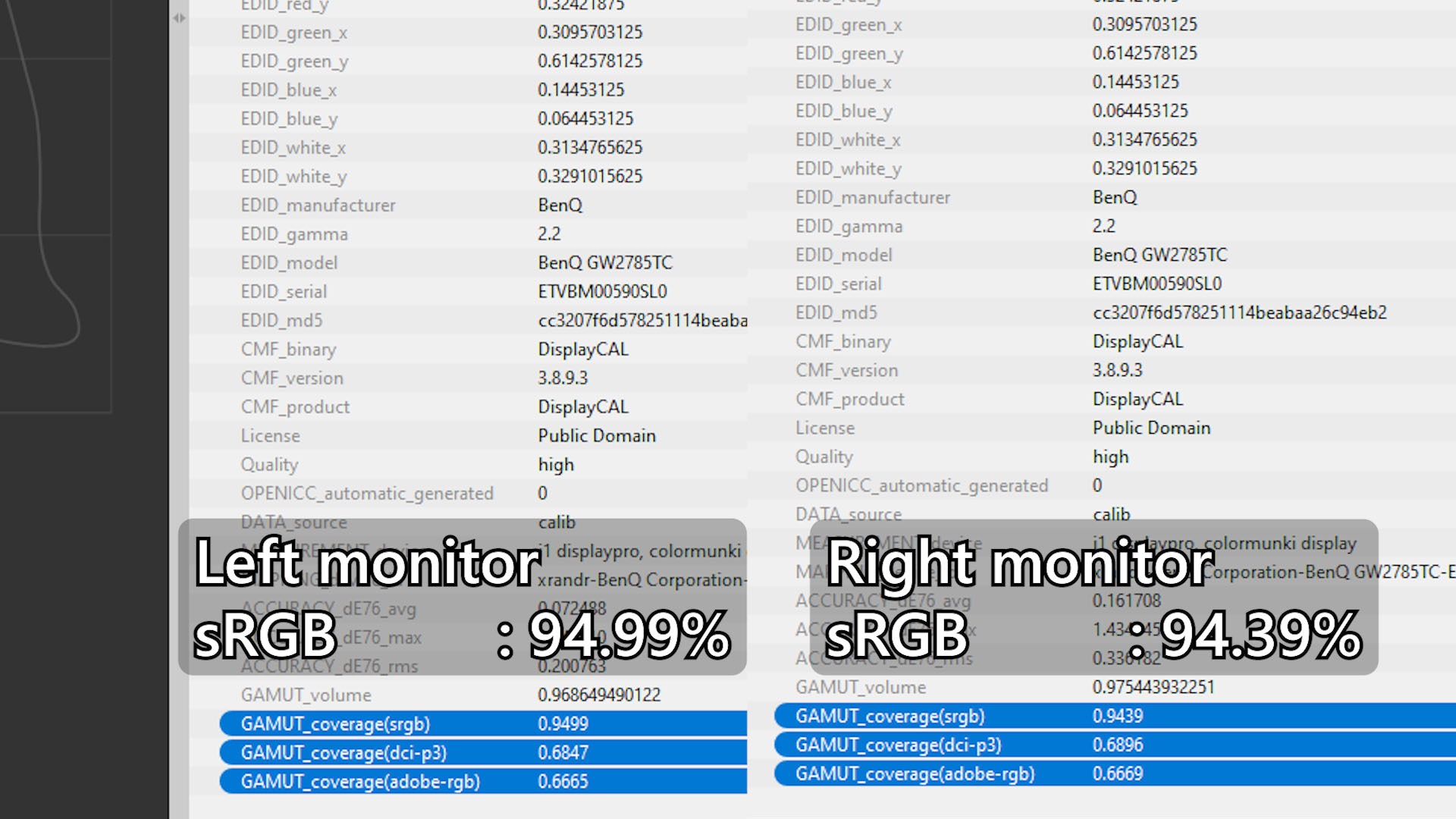
Since these two monitors are the same model, the color accuracy of these two monitors should be the same. So, I took out our colorimeter to test out the colors of these two monitors – and true enough, they’re very similar to each other.
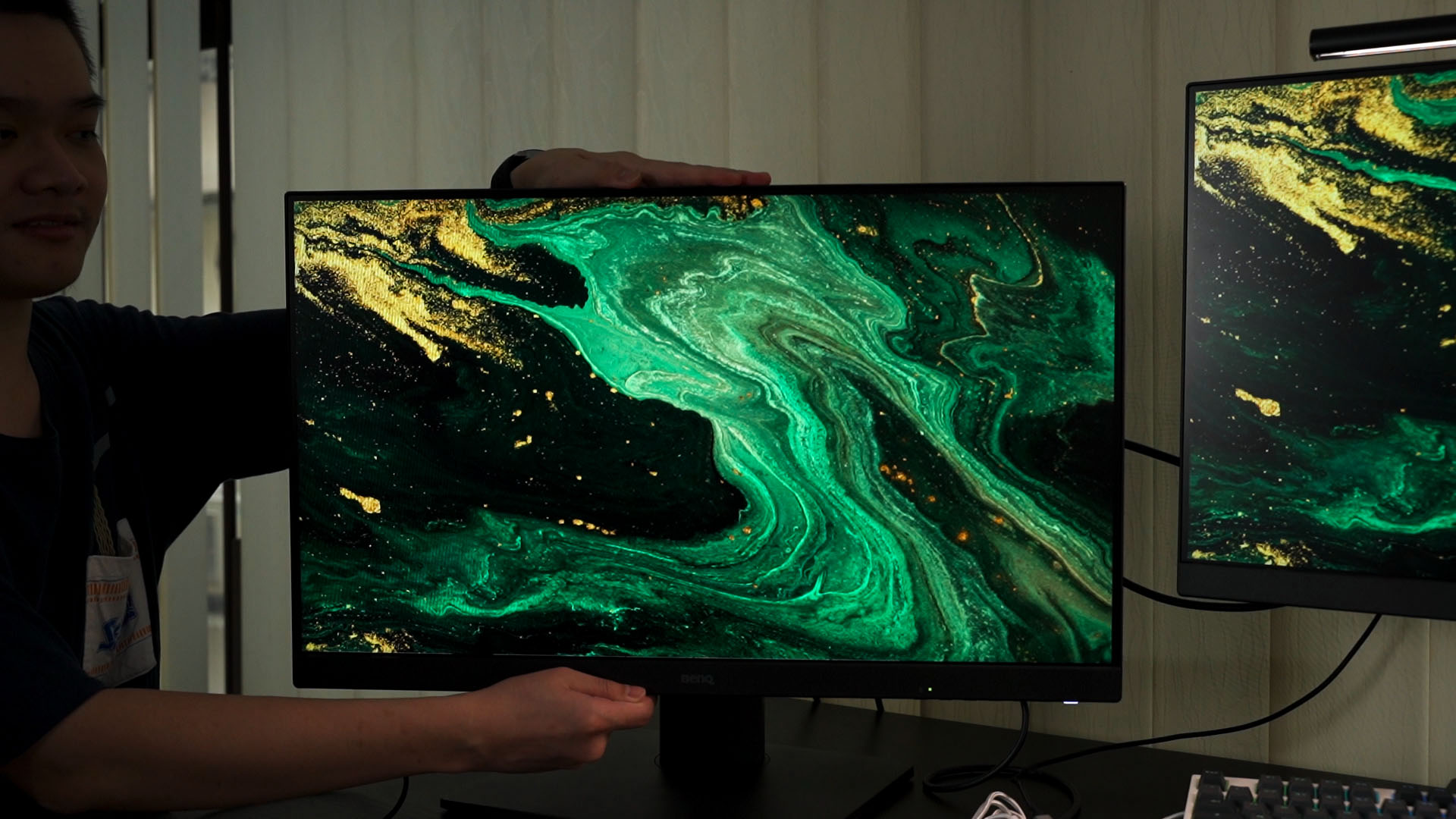
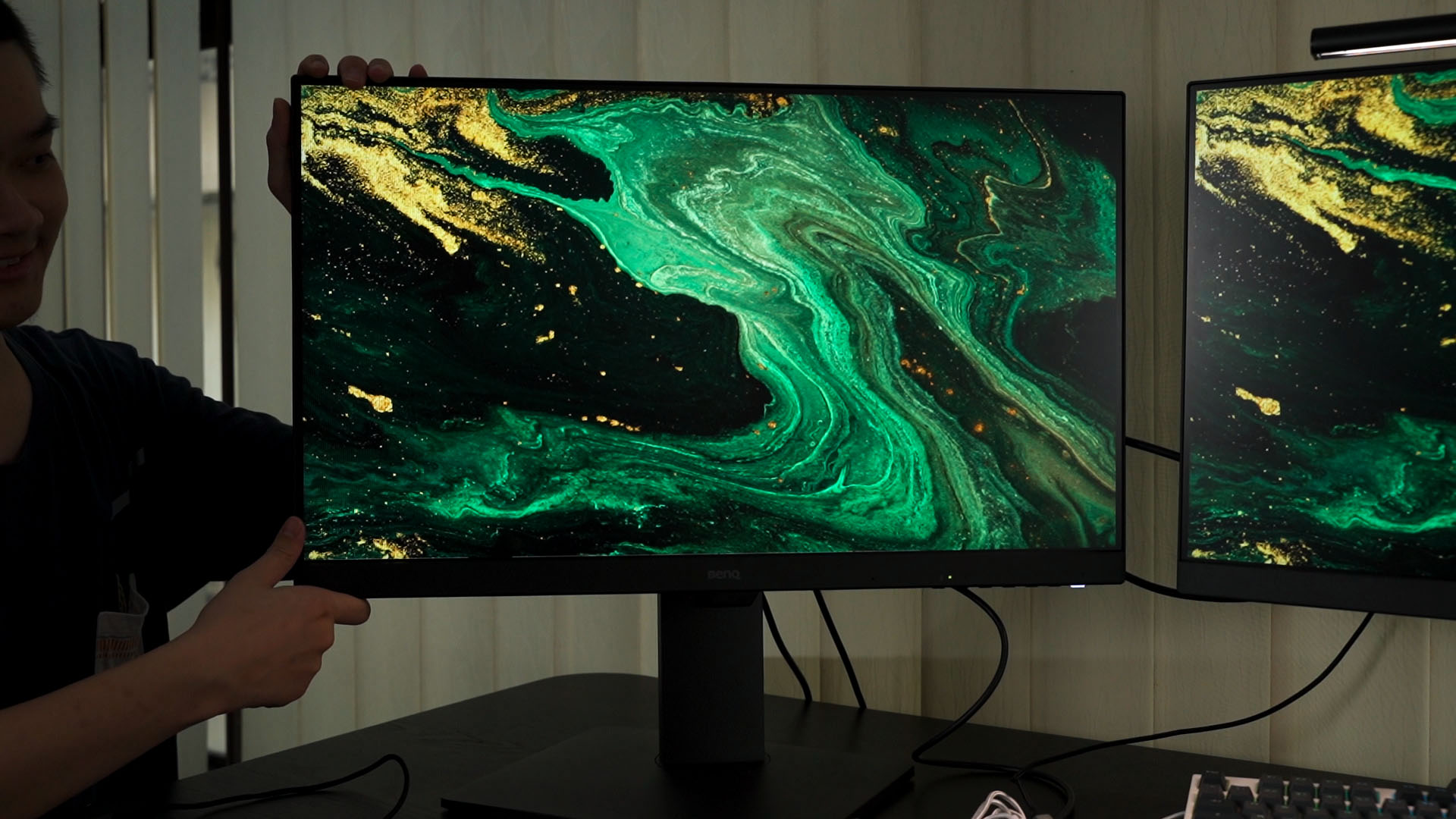
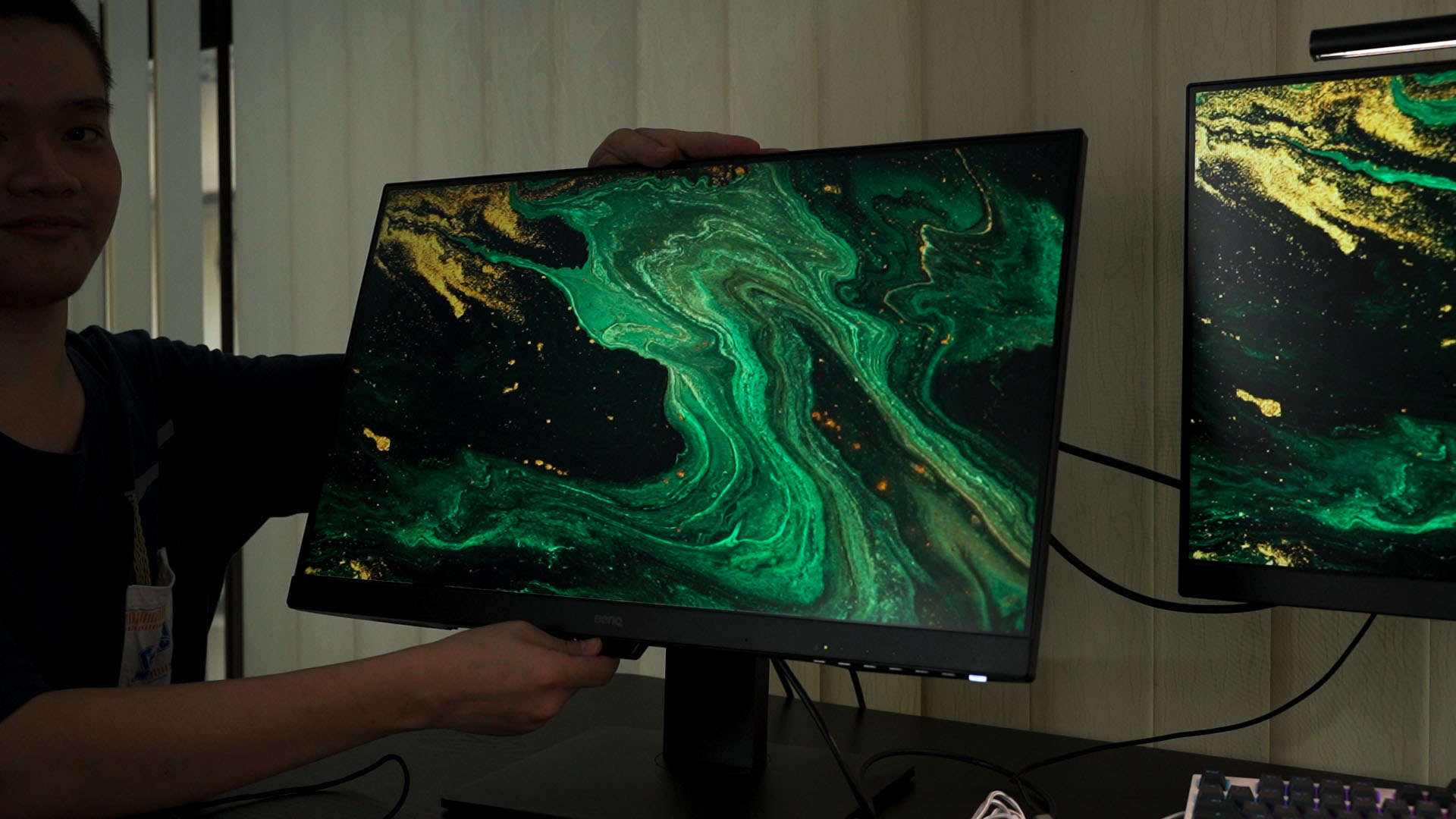
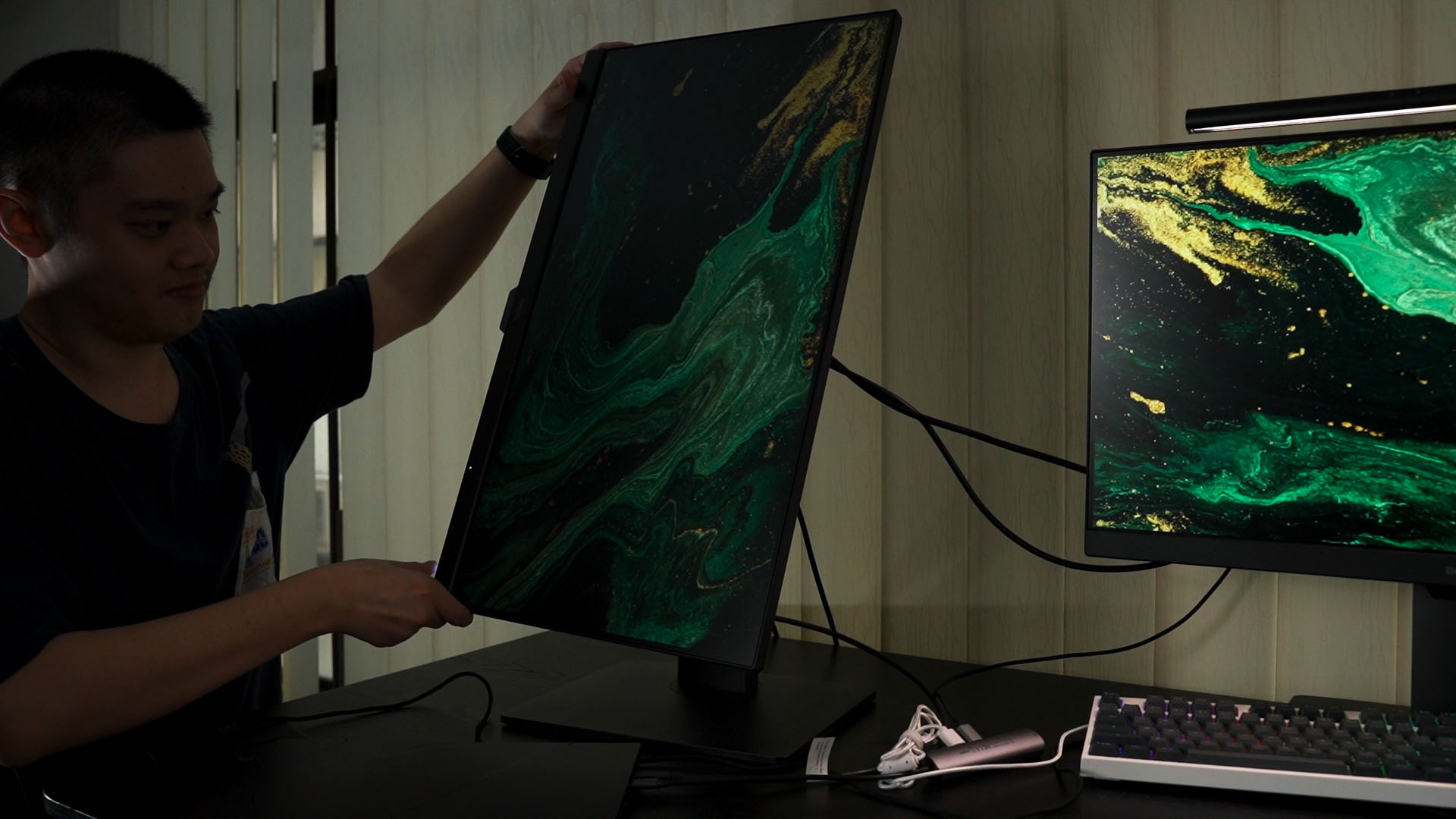
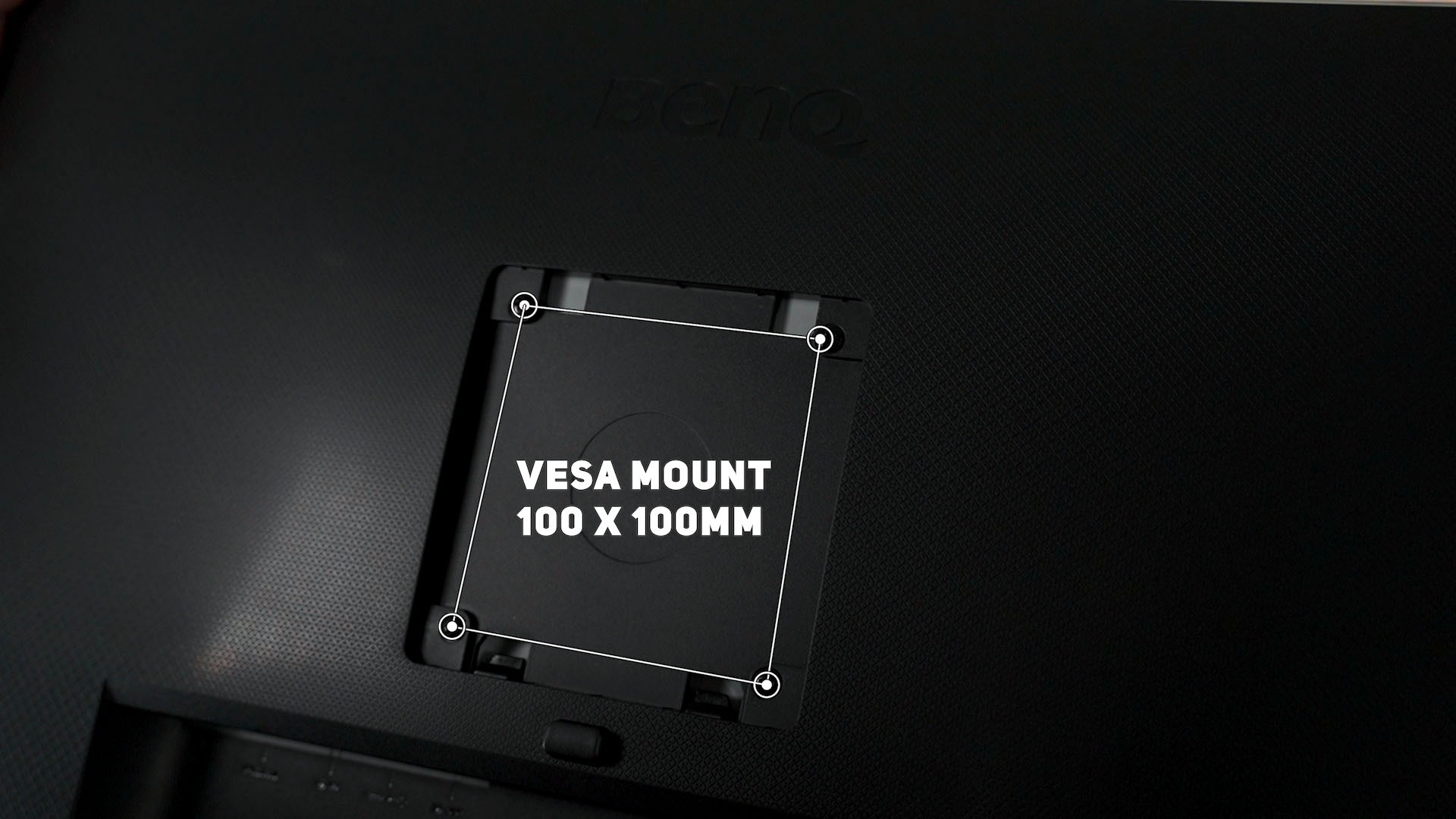
Keeping in line with BenQ’s motto of improving our health while using our computers, this BenQ GW2785TC monitor also has a fantastic monitor stand included in the box – it can go up and down, tilt, pivot, and even rotate. If you want to use monitor arms, then go on ahead – this monitor also supports 100x100mm VESA mount.
The ports here are rather simple – but I want to highlight two things. First, there is a USB-C port with DisplayPort Alt Mode that also supports USB Power Delivery – or USB-PD for short – at up to 60W of power. That means we can charge the laptop while using the monitor at the same time, with just a single cable.
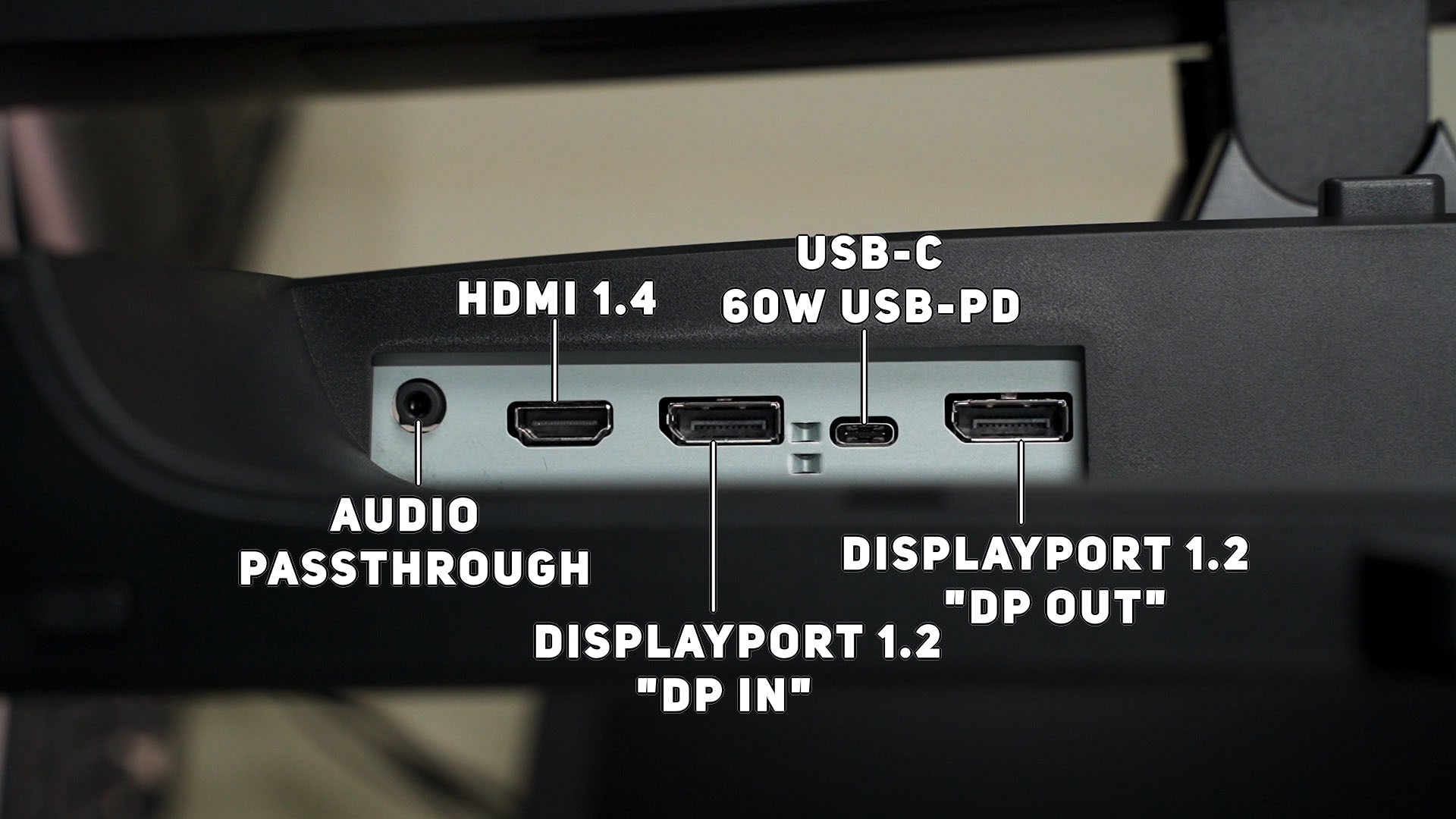
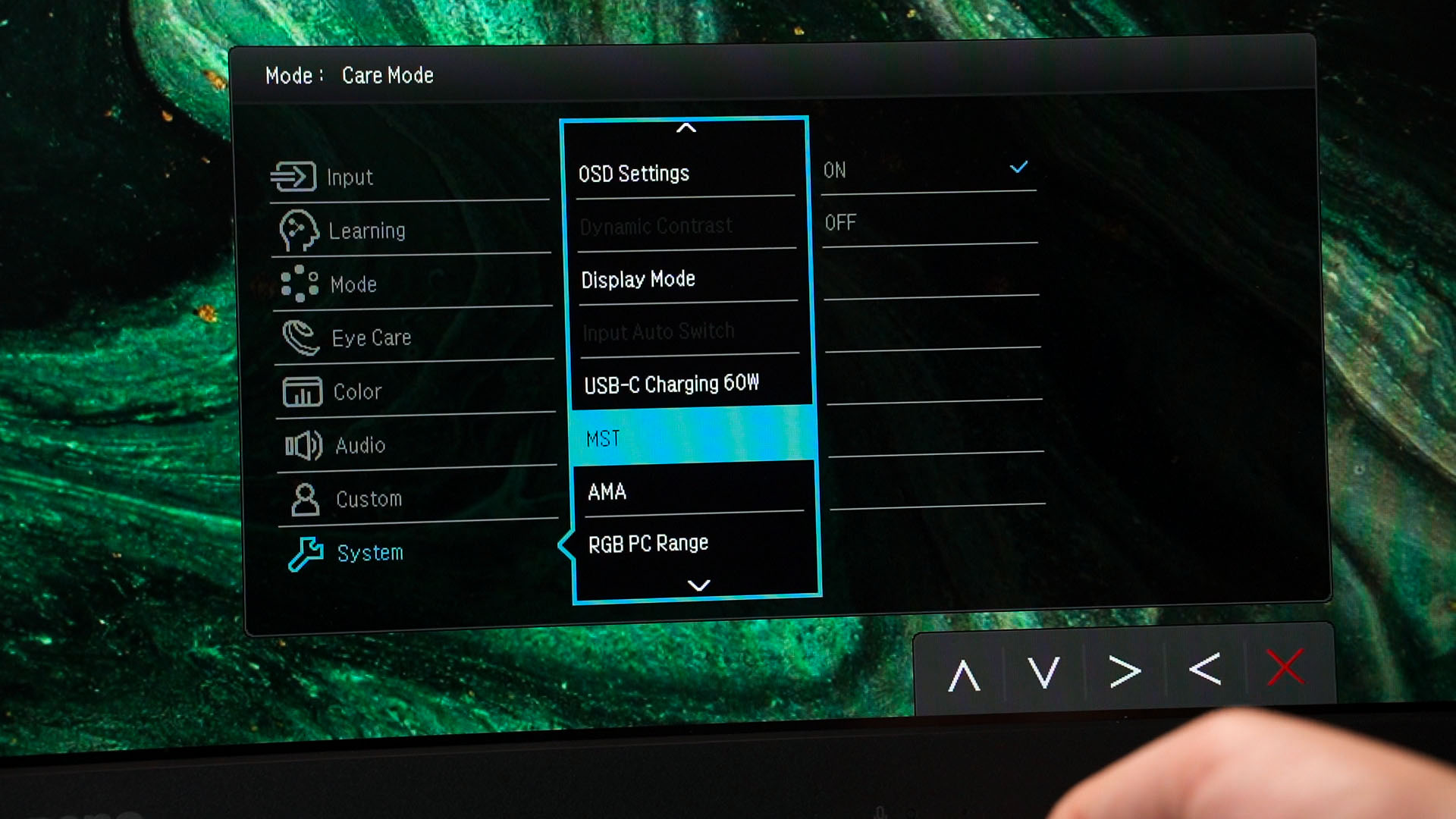
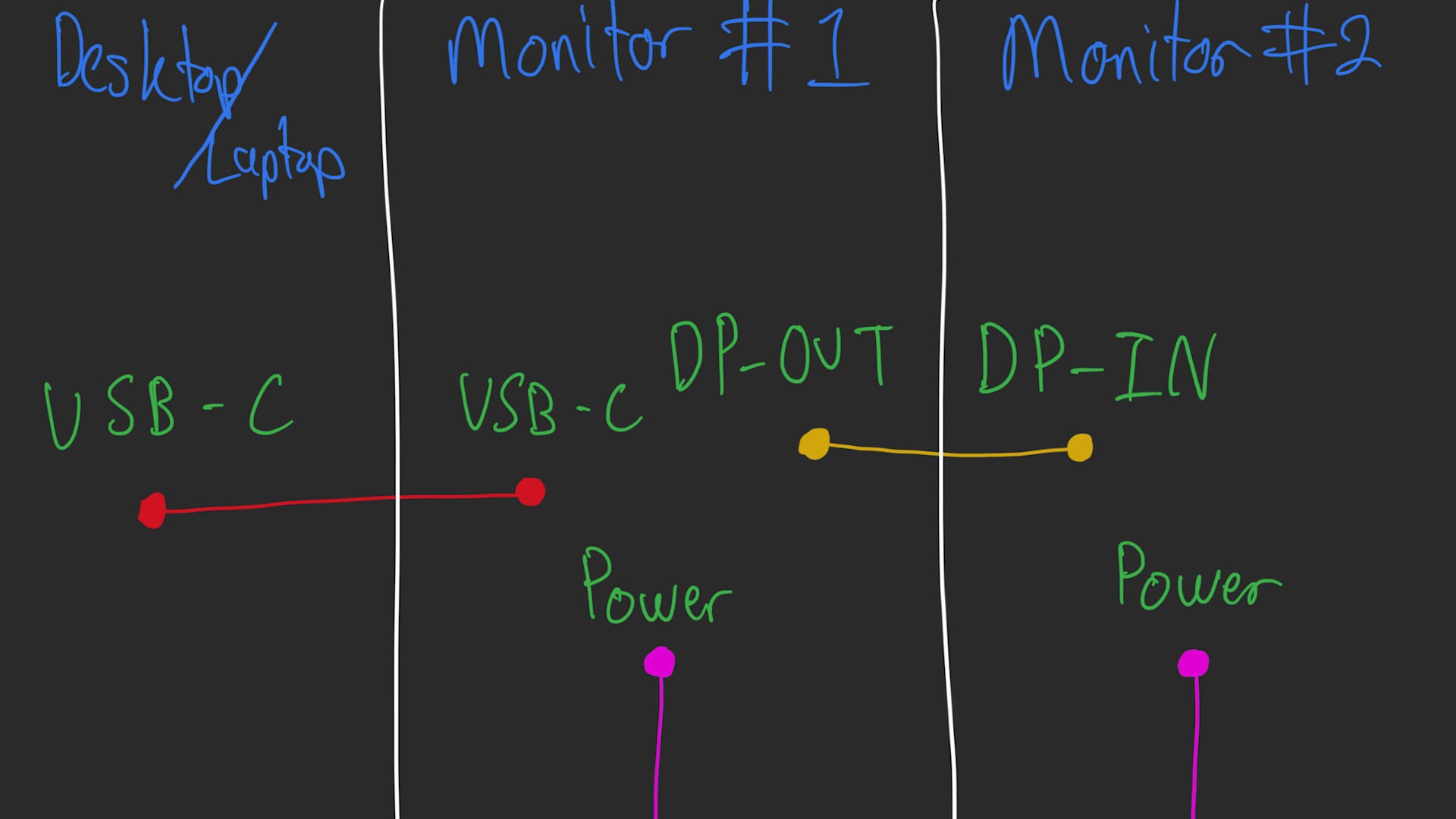
Secondly, is the presence of a “DisplayPort in” and a “DisplayPort out” port. We can connect a DisplayPort cable from one monitor’s DP into another monitor’s DP out and then enable MST on the monitors to use both monitors by connecting a single cable. This is called daisy-chaining.
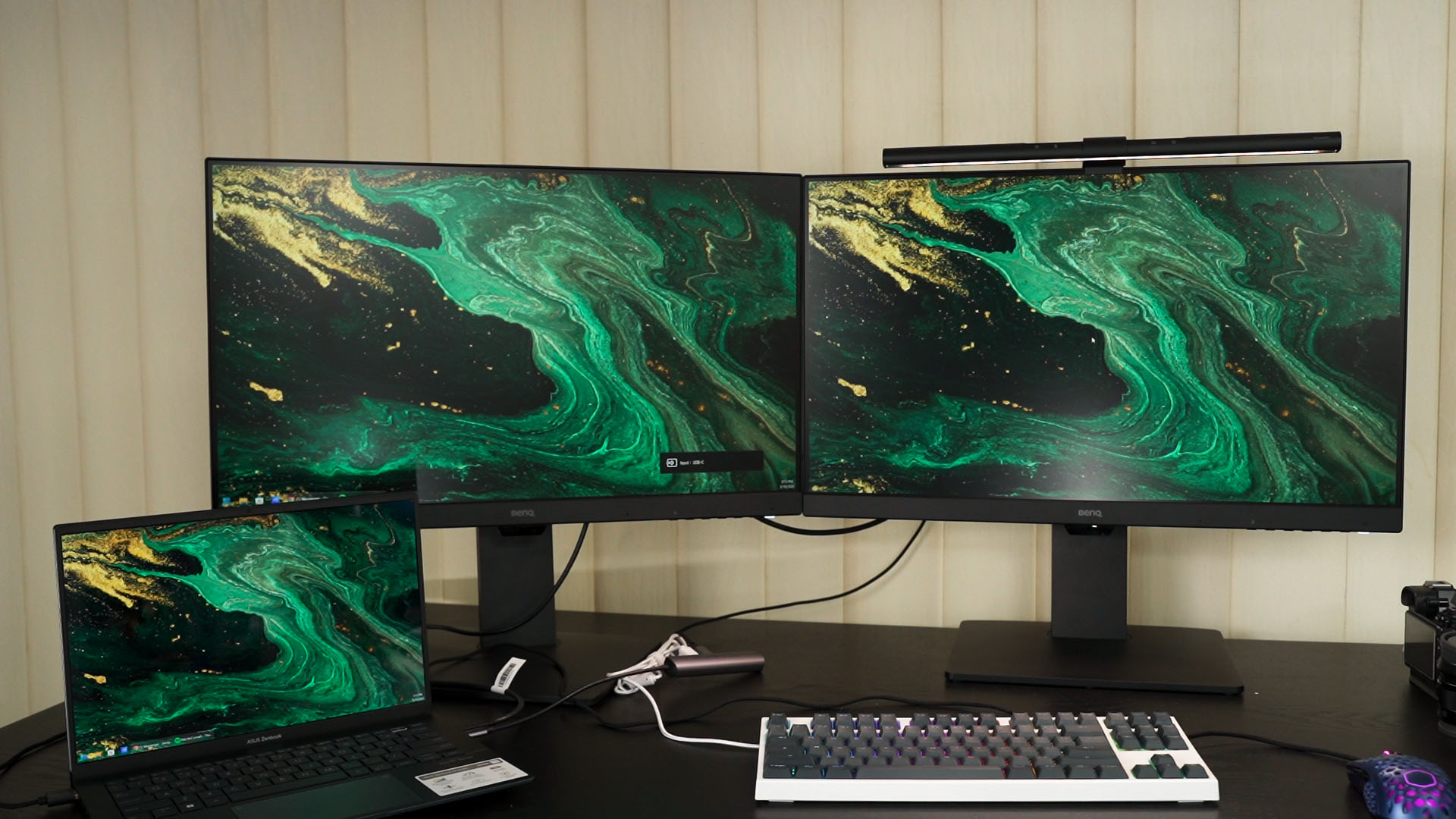
If you want to replicate our setup here, then it’s simple. I have drawn a simple diagram of what cable goes where. It’s truly convenient since a single cable is all I need to connect for the two displays to light up.
To those with a sharp eye, I’m sure you realize there is a little reverse notch at the bottom of this monitor. This is where we’ll have to talk about the Eye-Care technology. There are a lot of individual technologies that are within the Eye-Care umbrella, so here’s a quick summary of those features. While I think all of these technologies are important, I’m only going to highlight a few as I personally use these features.
Firstly, the Brightness Intelligence, or B.I. for short. In short, what B.I. does is to automatically adjust the brightness of your monitor according to the brightness of its surrounding. For example – your room is bathed in sunlight during the day, then your monitor needs higher brightness to combat that sunlight so that we can actually see the screen properly. However, when the night falls, that room will be lit up by incandescent lights and we’ll also have to lower the monitor’s brightness so that we don’t get blinded by it.
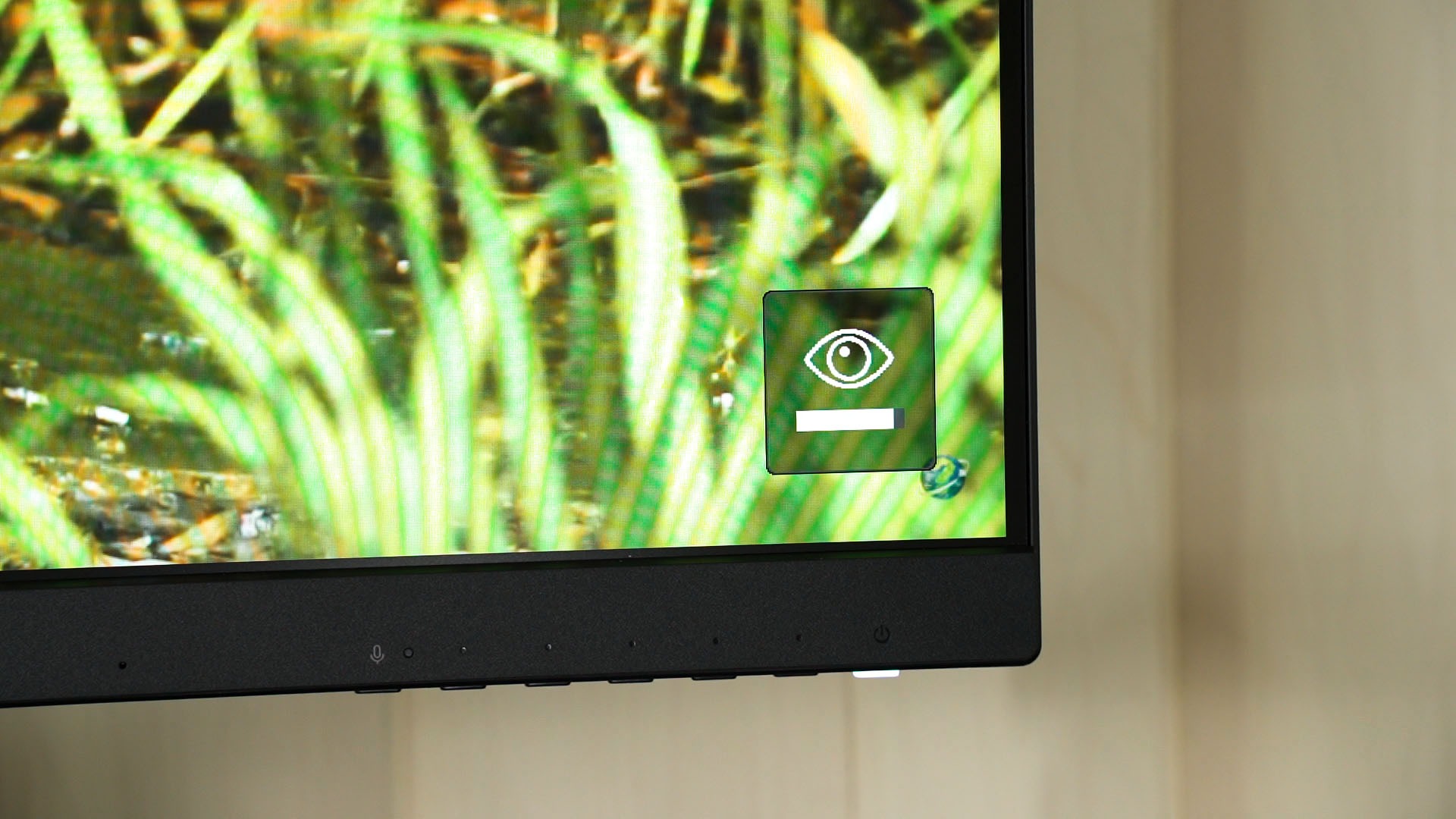
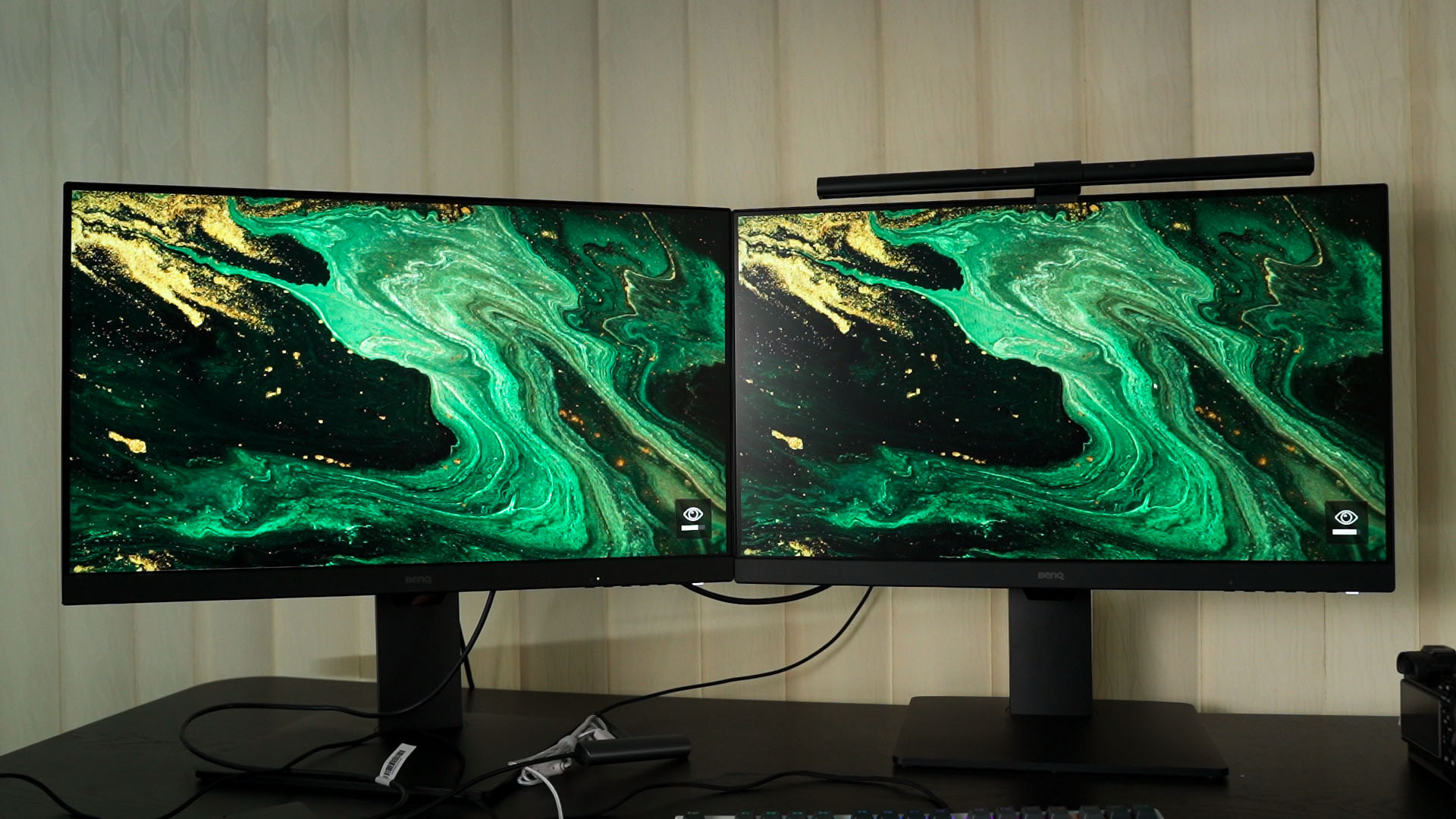
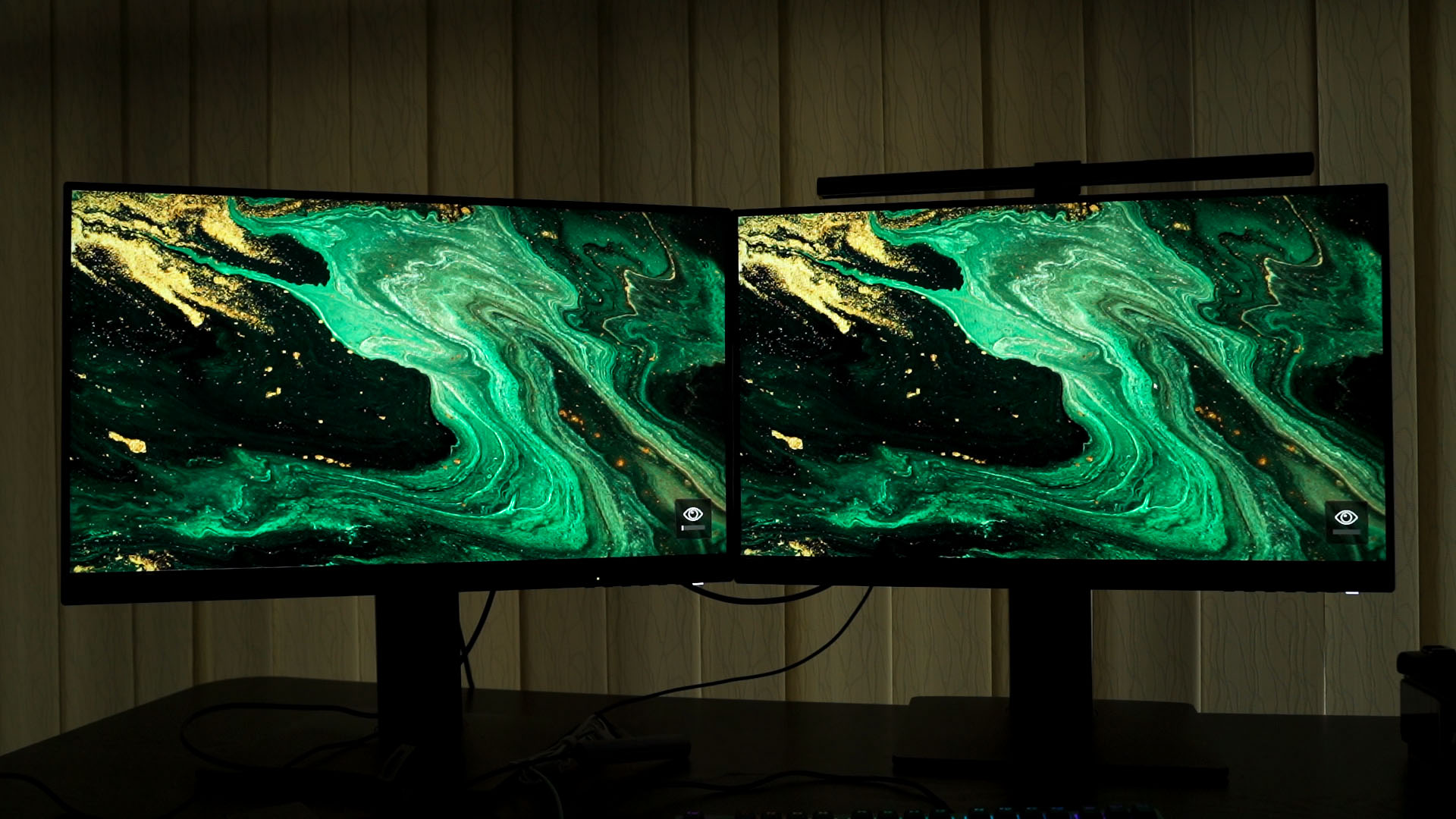
Technically, B.I. works like our phone’s auto-brightness feature. It’s just that monitors usually do not have this sensor and we’ll have to manually fiddle around the OSD menu to adjust the brightness.
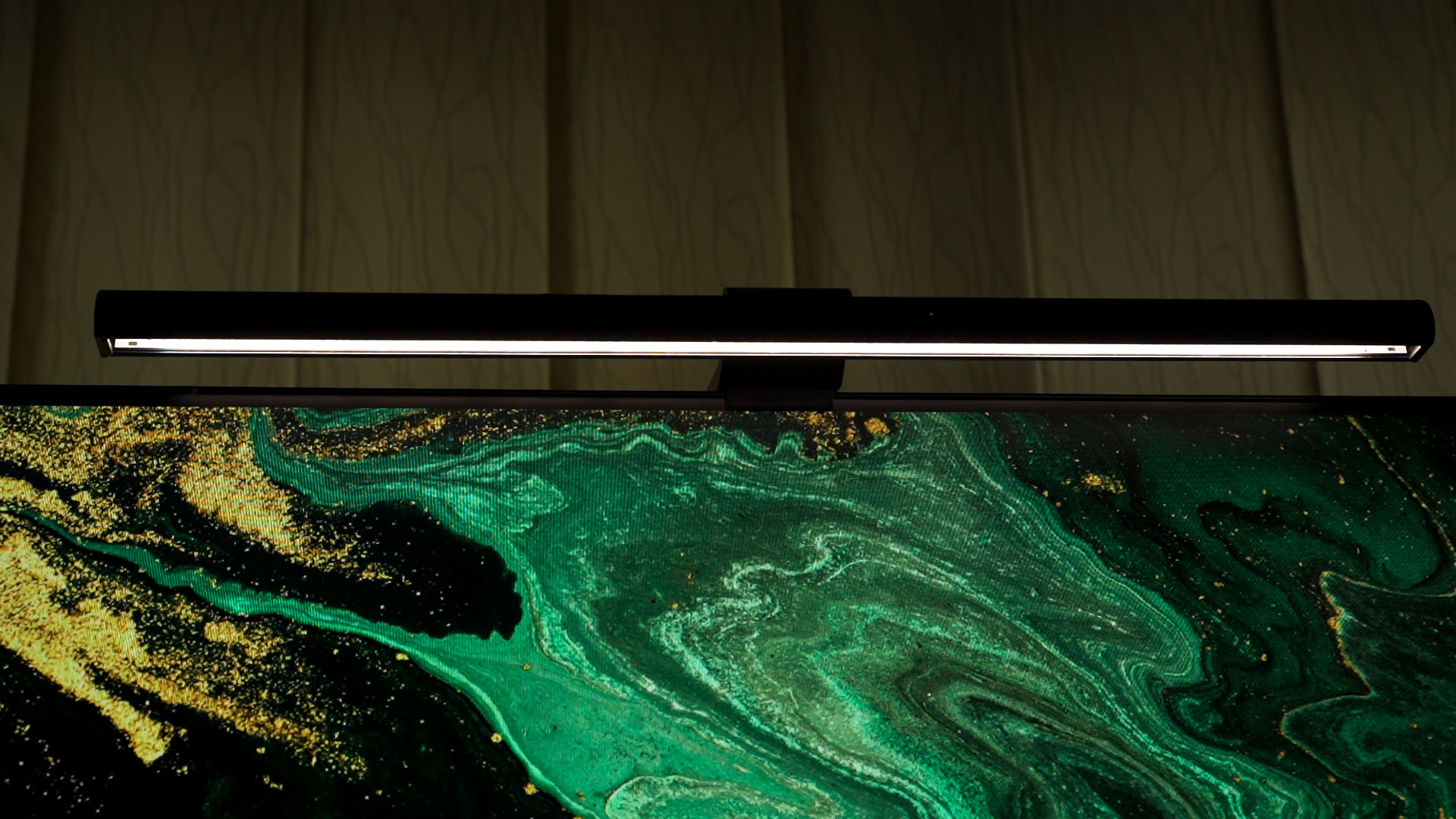
By the way, we are also using the BenQ ScreenBar e-reading lamp in our setup here. I’ve always wanted to try this product out for a long time because I want to see what effect it brings – and now I am a firm believer that a high-quality screen lightbar like this is important. For my setup – even at home, it illuminates the surroundings so that my eyes aren’t irritated.
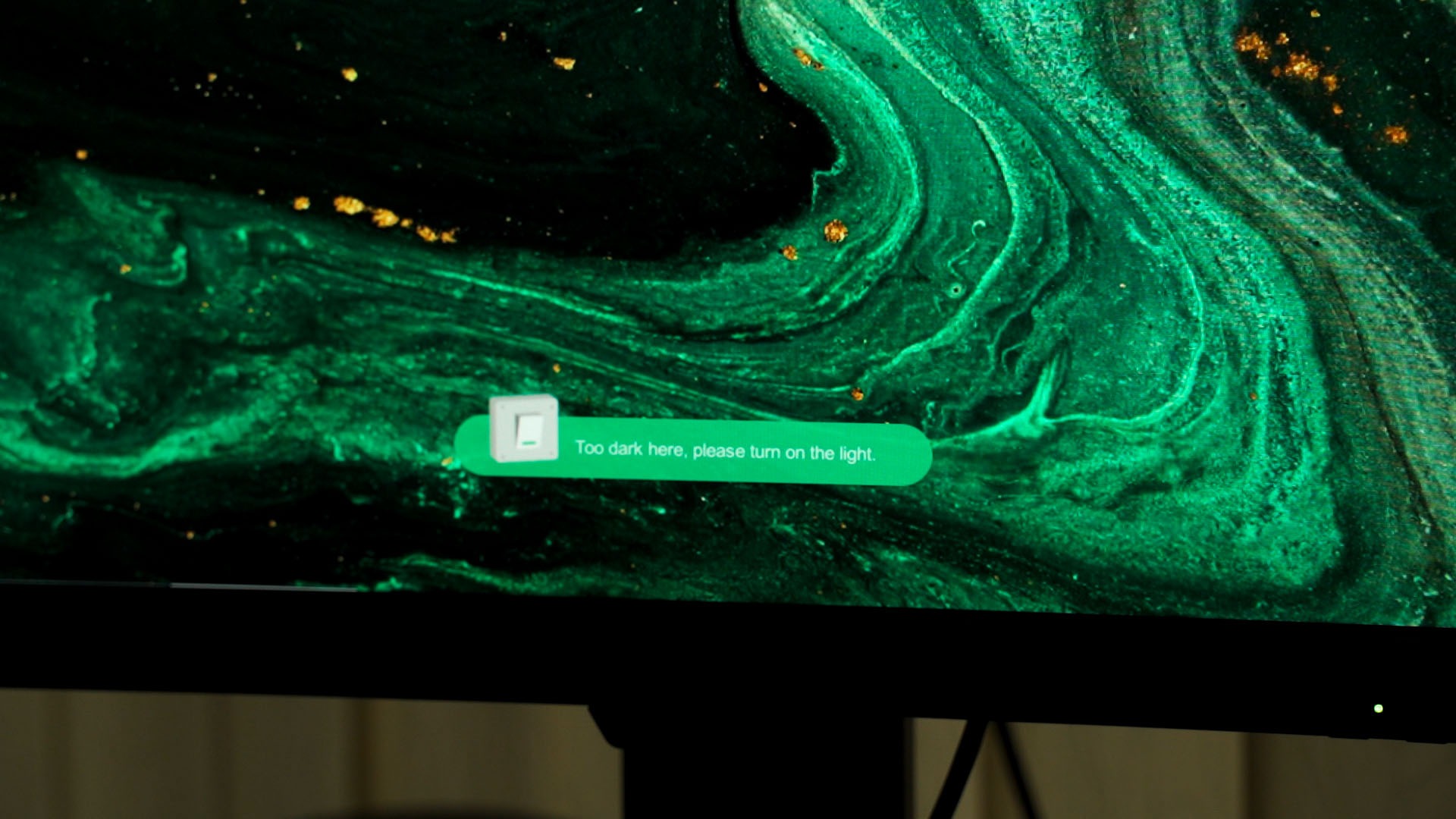
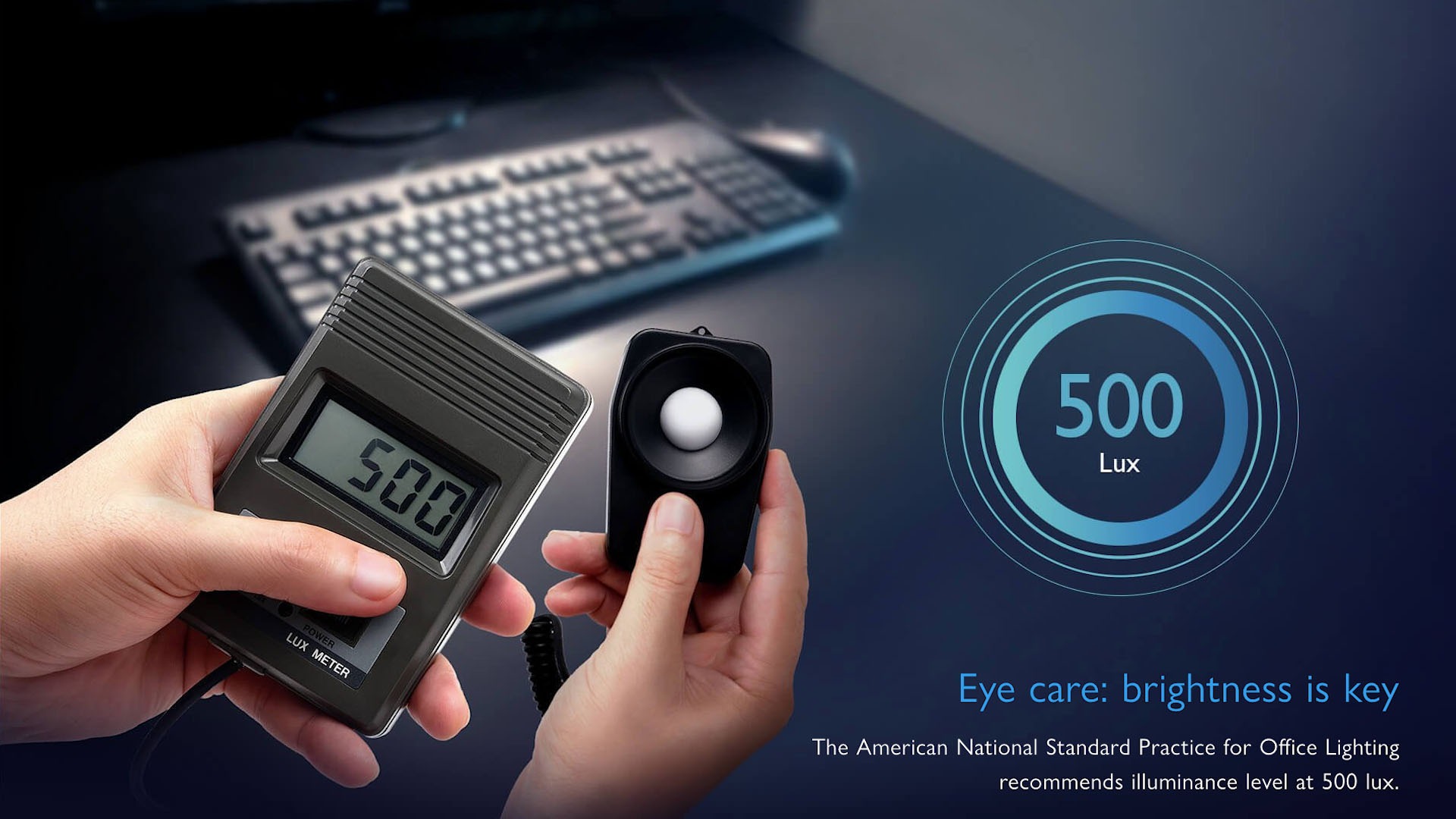
I have tried using my desktop in complete darkness with and without the BenQ ScreenBar, and I can say for sure that having a ScreenBar turned on really changed my overall experience. According to the American National Standard Practice for Office Lighting, they recommend illuminance level at 500 lux.
Then comes the Flicker-Free technology. It’s technically just a fancy term for the word “DC-dimming”. So usually, monitor brightness isn’t actually adjusting the brightness of the monitor but instead is the backlight flickering on and off quickly and our brains perceive it as a certain level of brightness.
However, the flickering can cause fatigue to our eyes and some people can even see the flickering happening – and that is where DC-dimming comes to play. It literally just adjusts the voltage level to increase or decrease the brightness of the screen – so there is zero flickering.
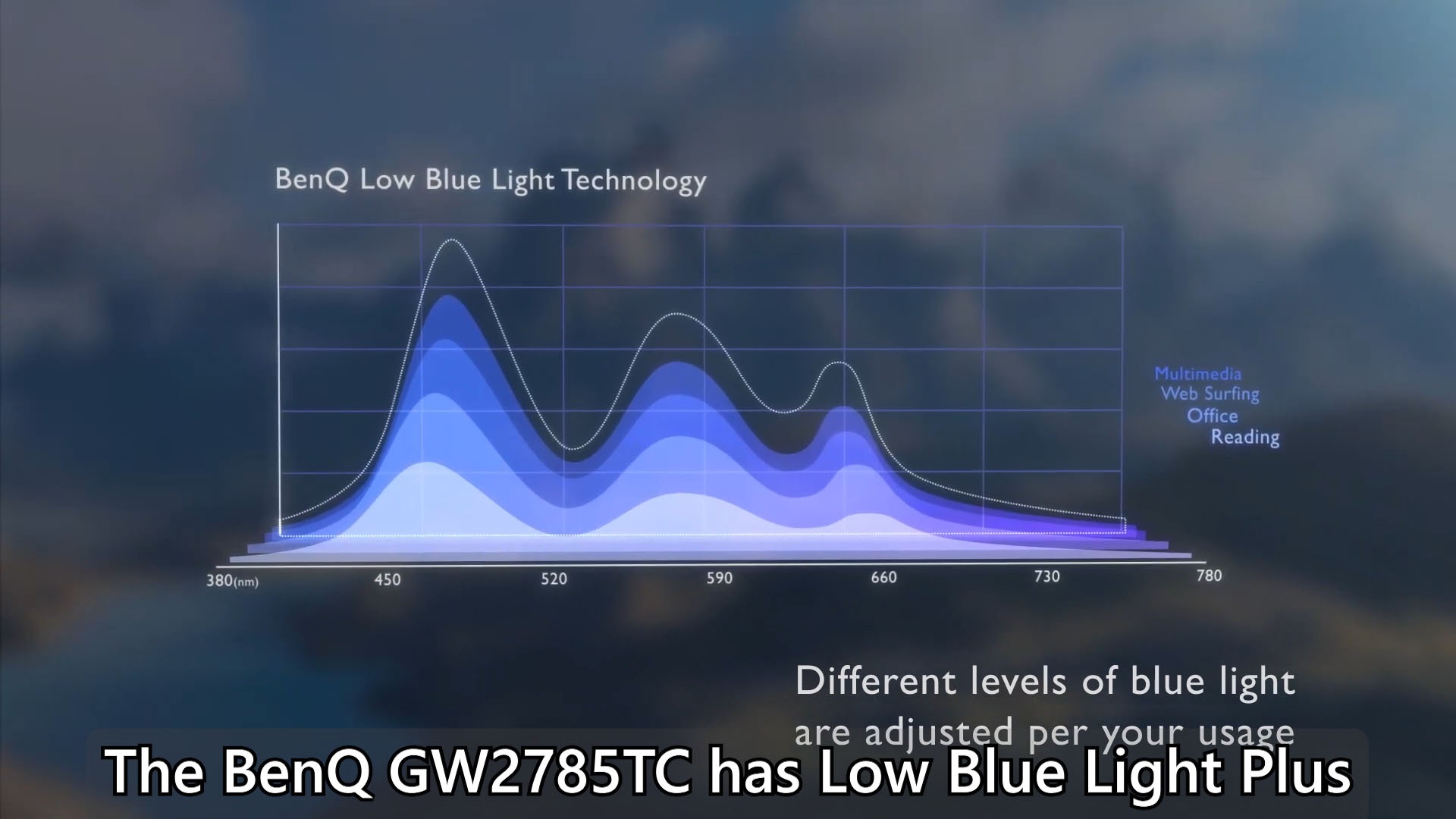
Of course, the BenQ GW2785TC also has Low Blue Light Plus Technology. It does what says it does – cut down on blue light. If you believe that helps, then you can use it too since it’s built-in to this monitor.
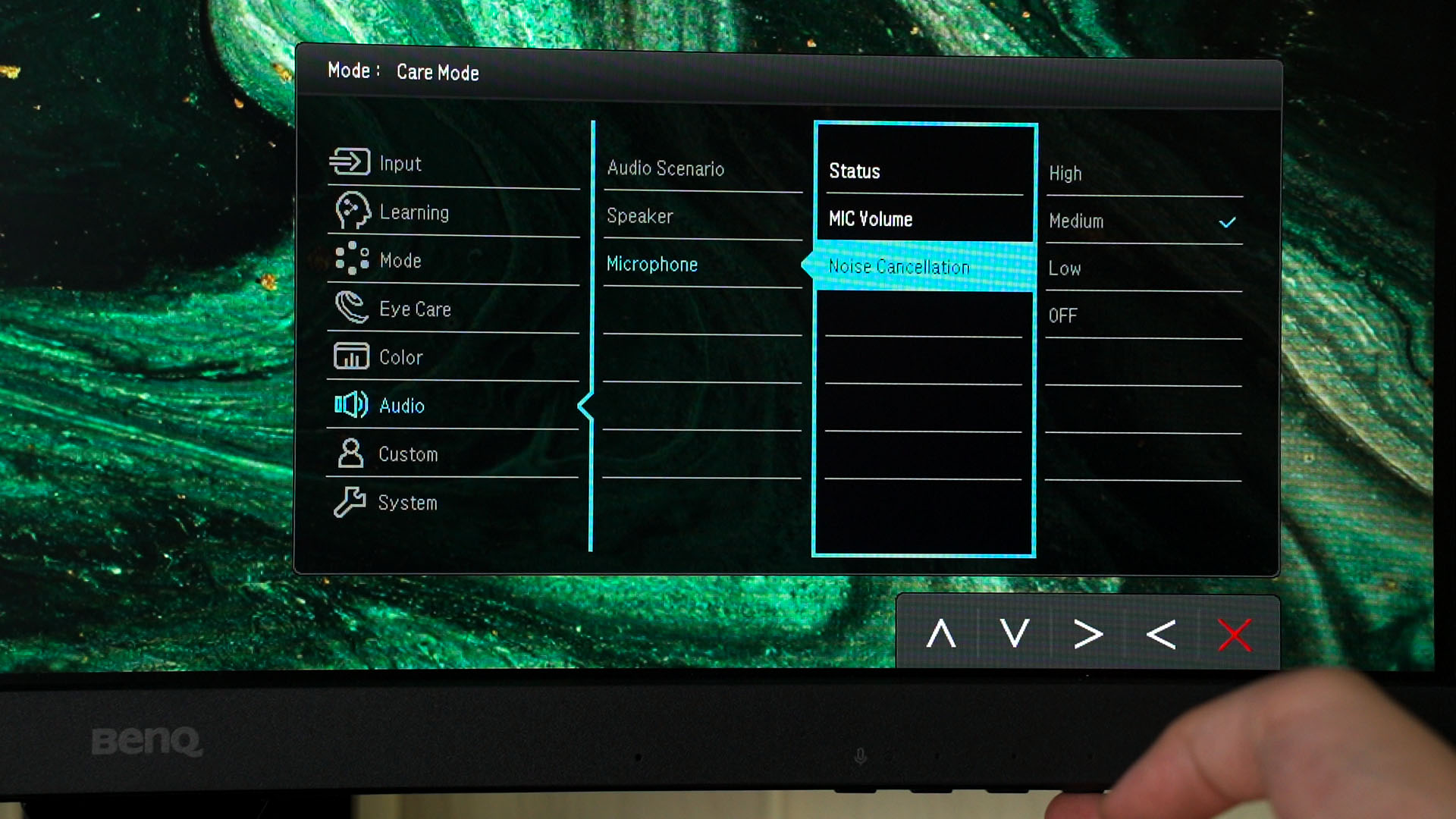
By the way, this BenQ GW2785TC also has a built-in microphone with noise cancellation too. We can adjust its mic volume and noise cancellation strength via the OSD menu. If you want to quickly mute the mic, then there is also a dedicated button too.
And speaking of the OSD menu, let’s talk about the color modes available on this monitor. I have also installed the BenQ Eye-CareU software so that I can easily manage all of the monitor’s settings without touching the monitor.
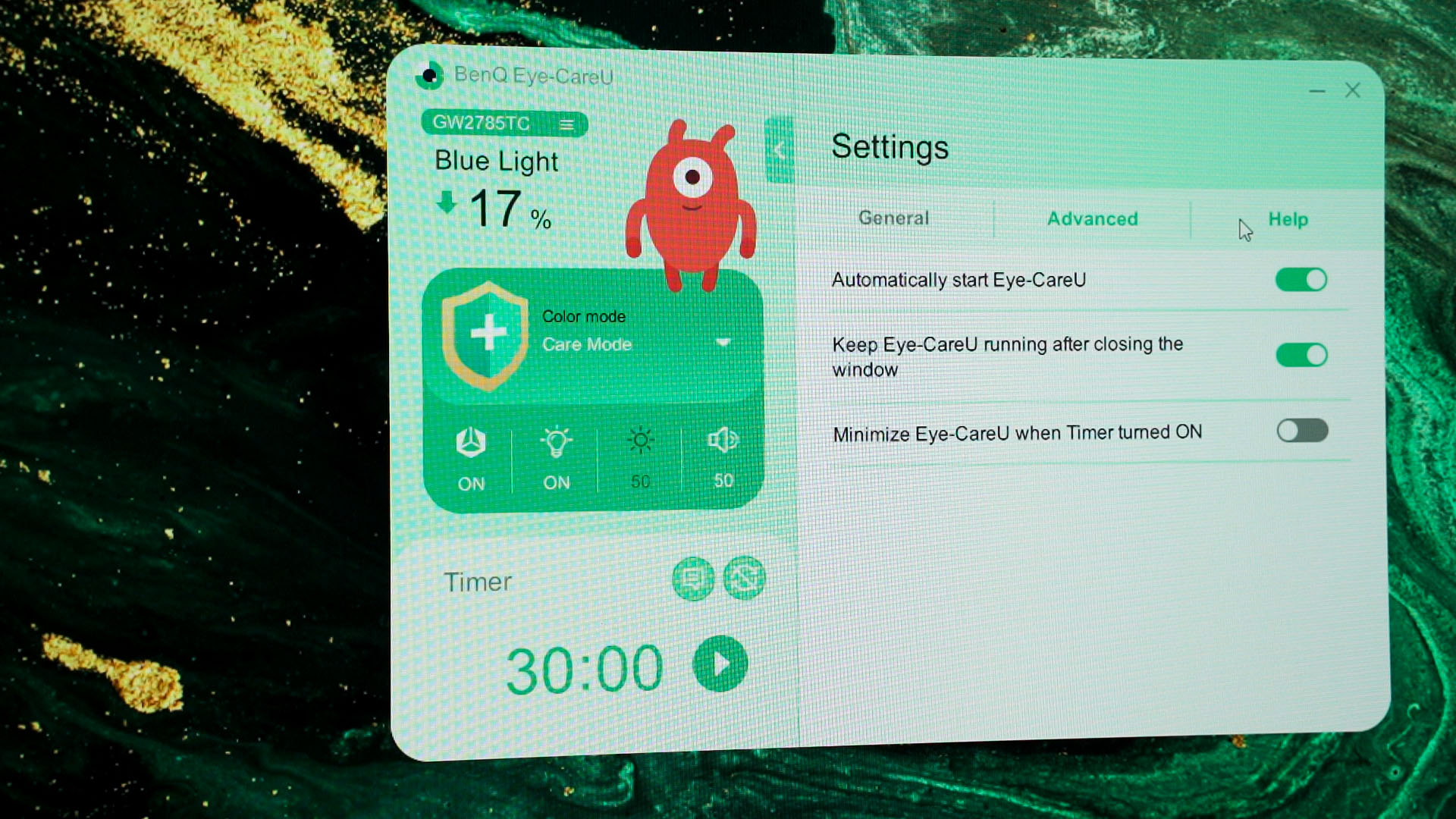
Looking at the software, we have a bunch of color modes available – so let’s go through all of them.
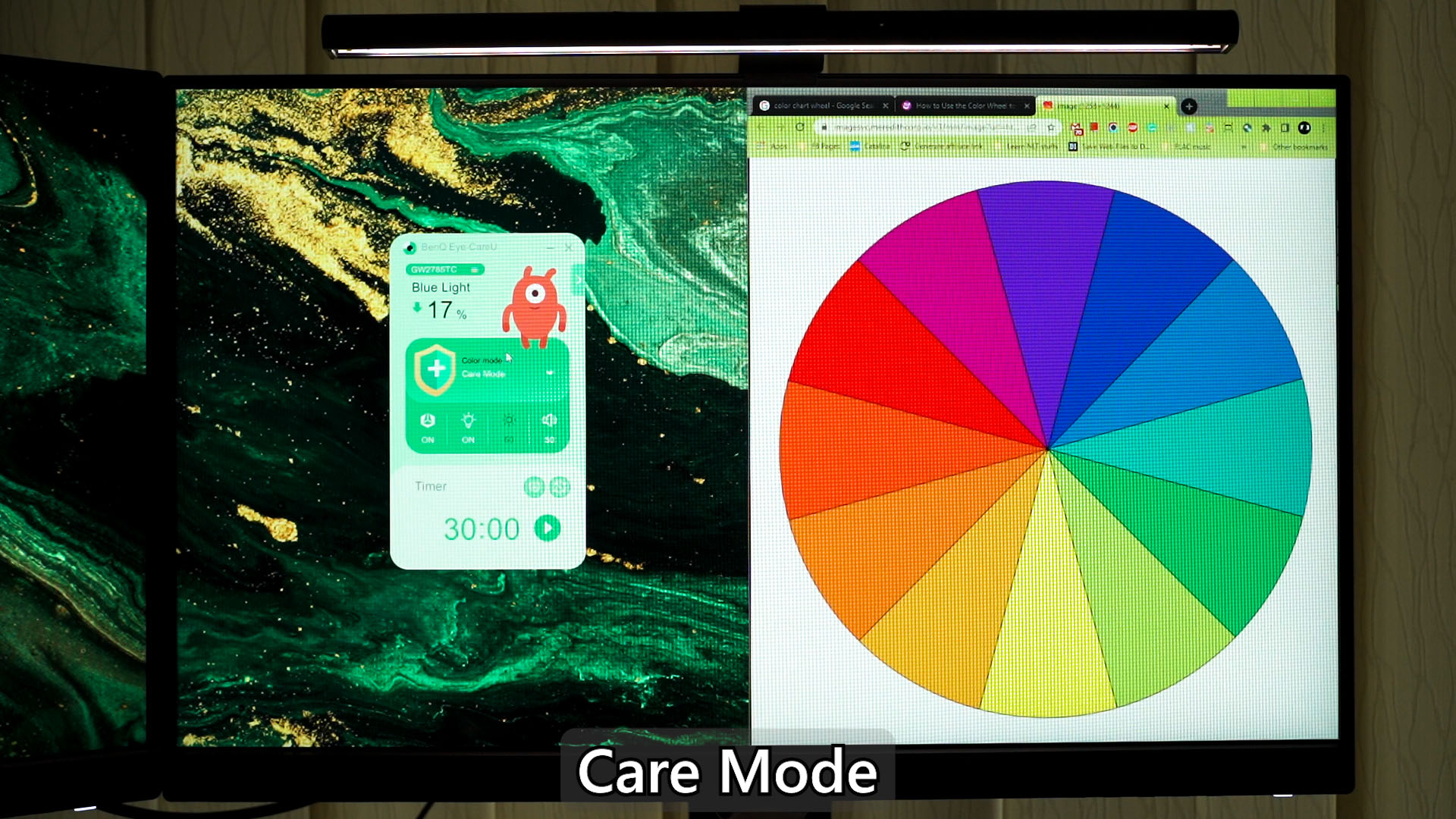
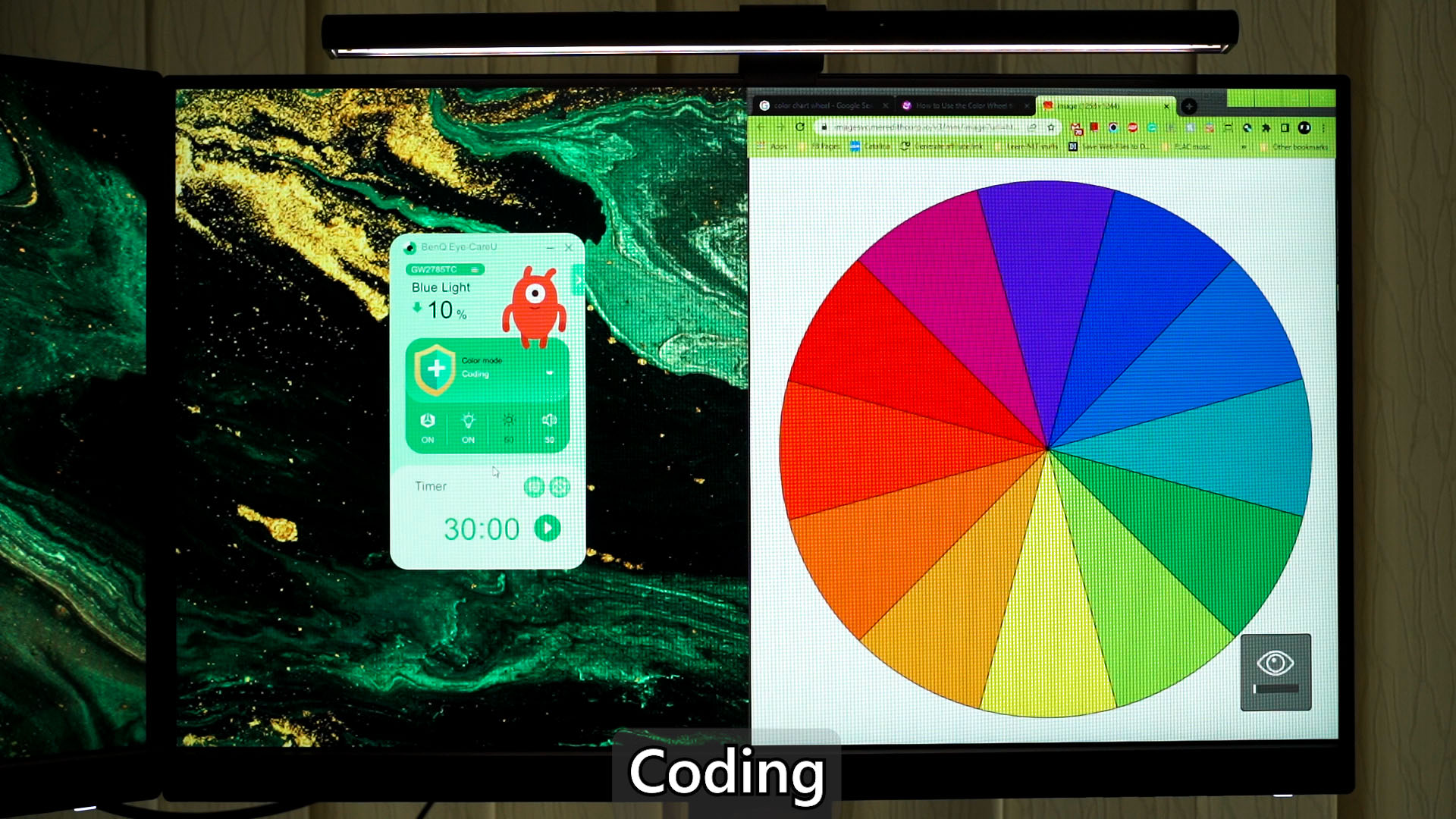
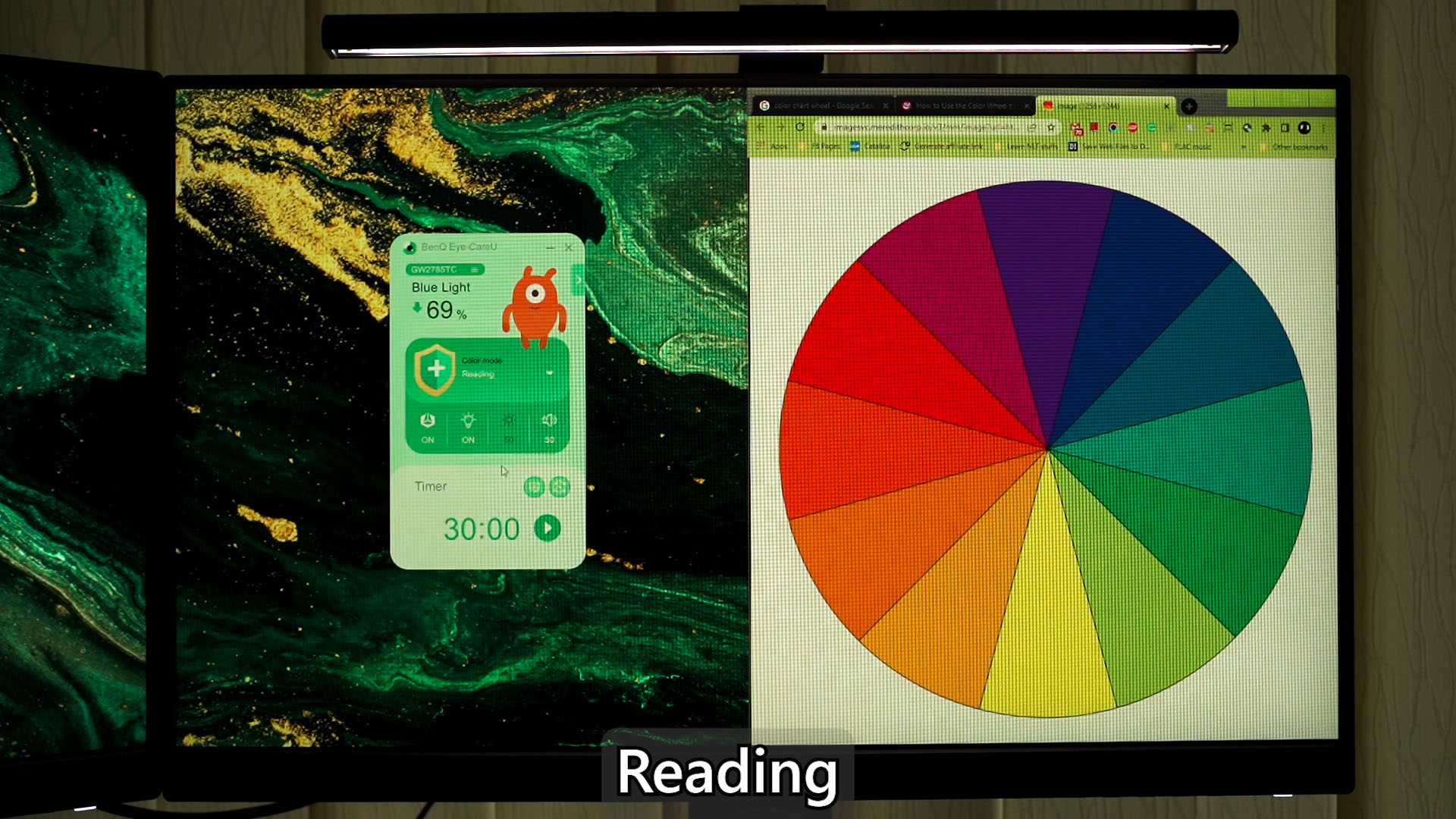
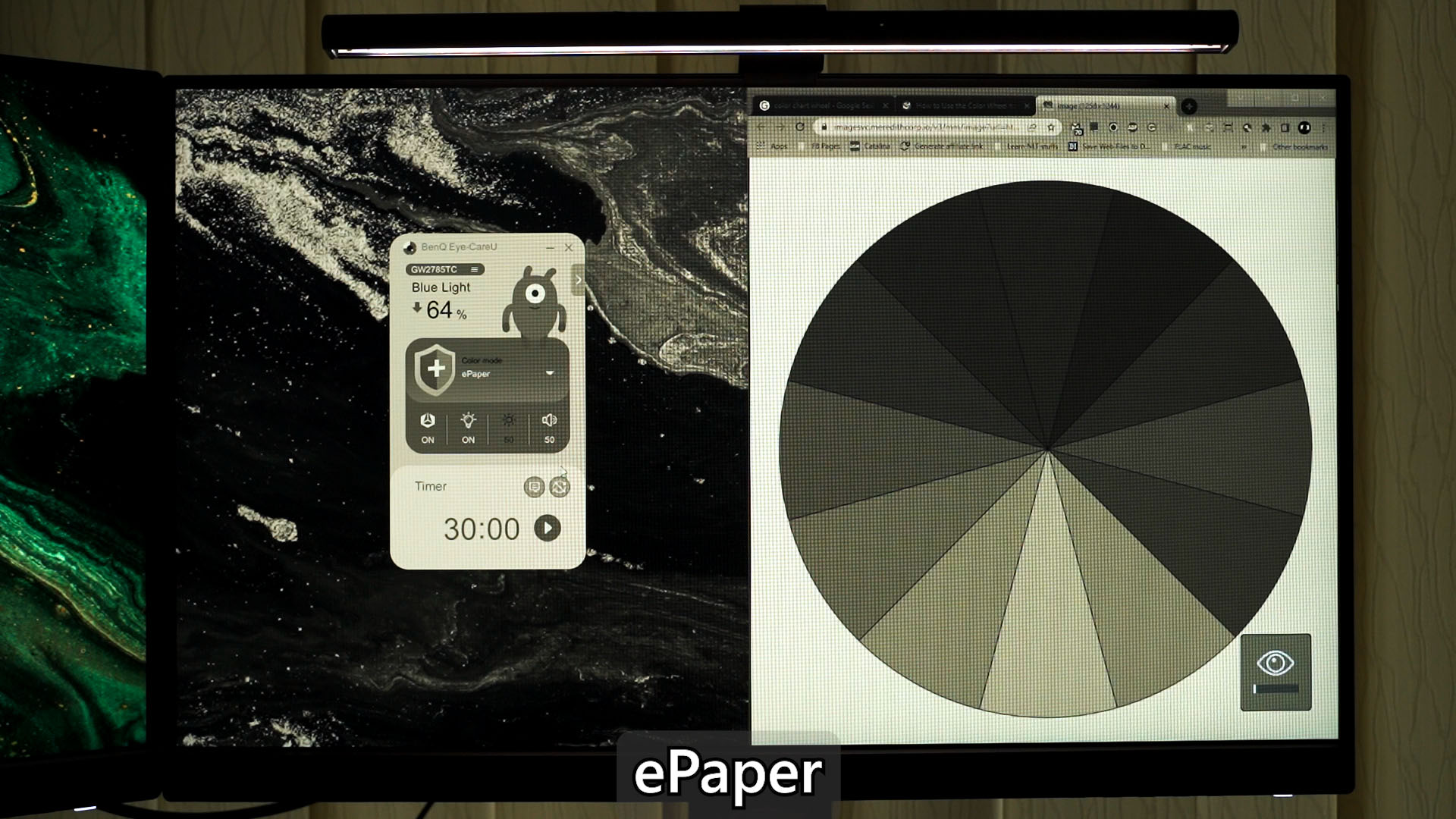
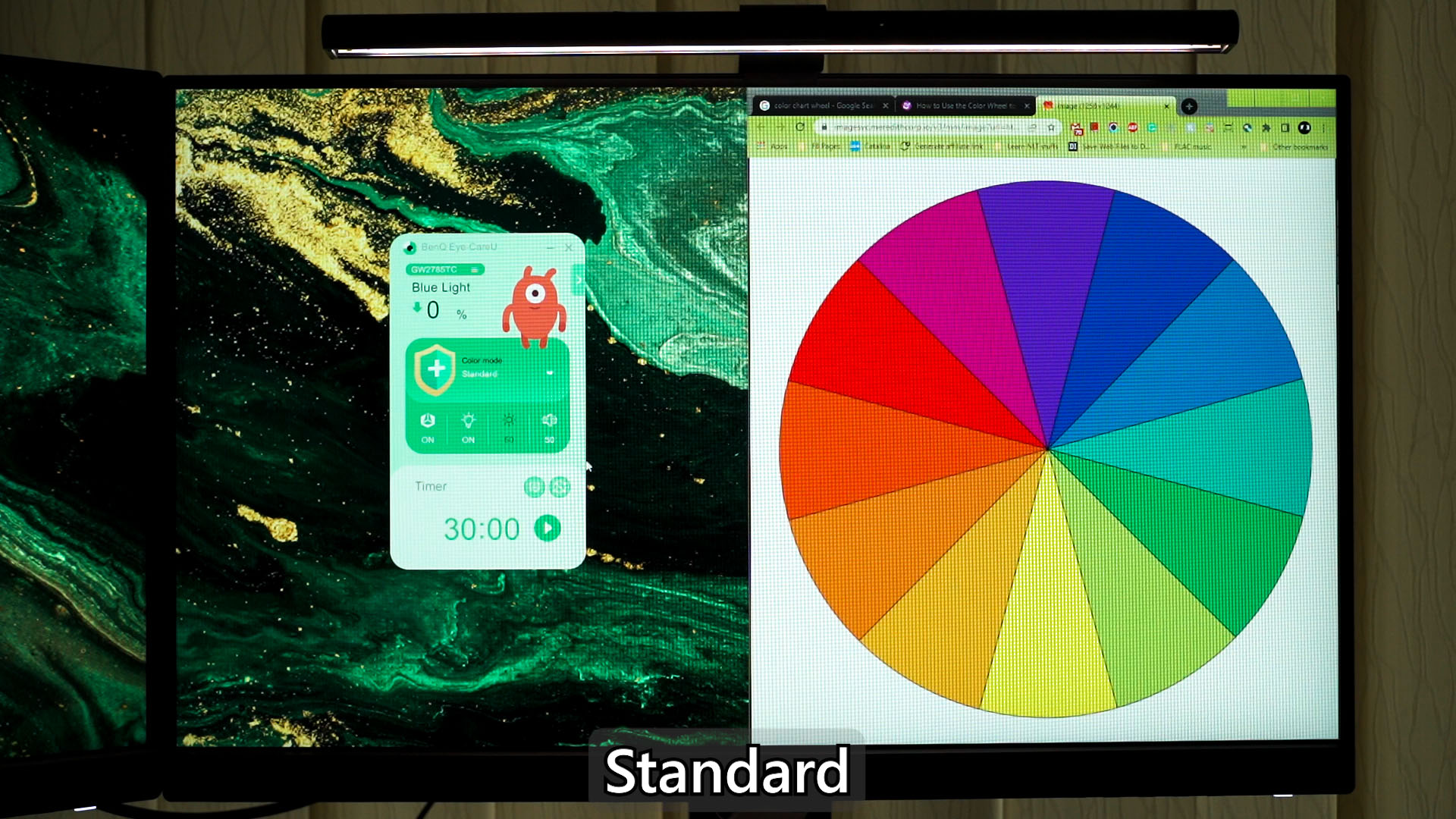
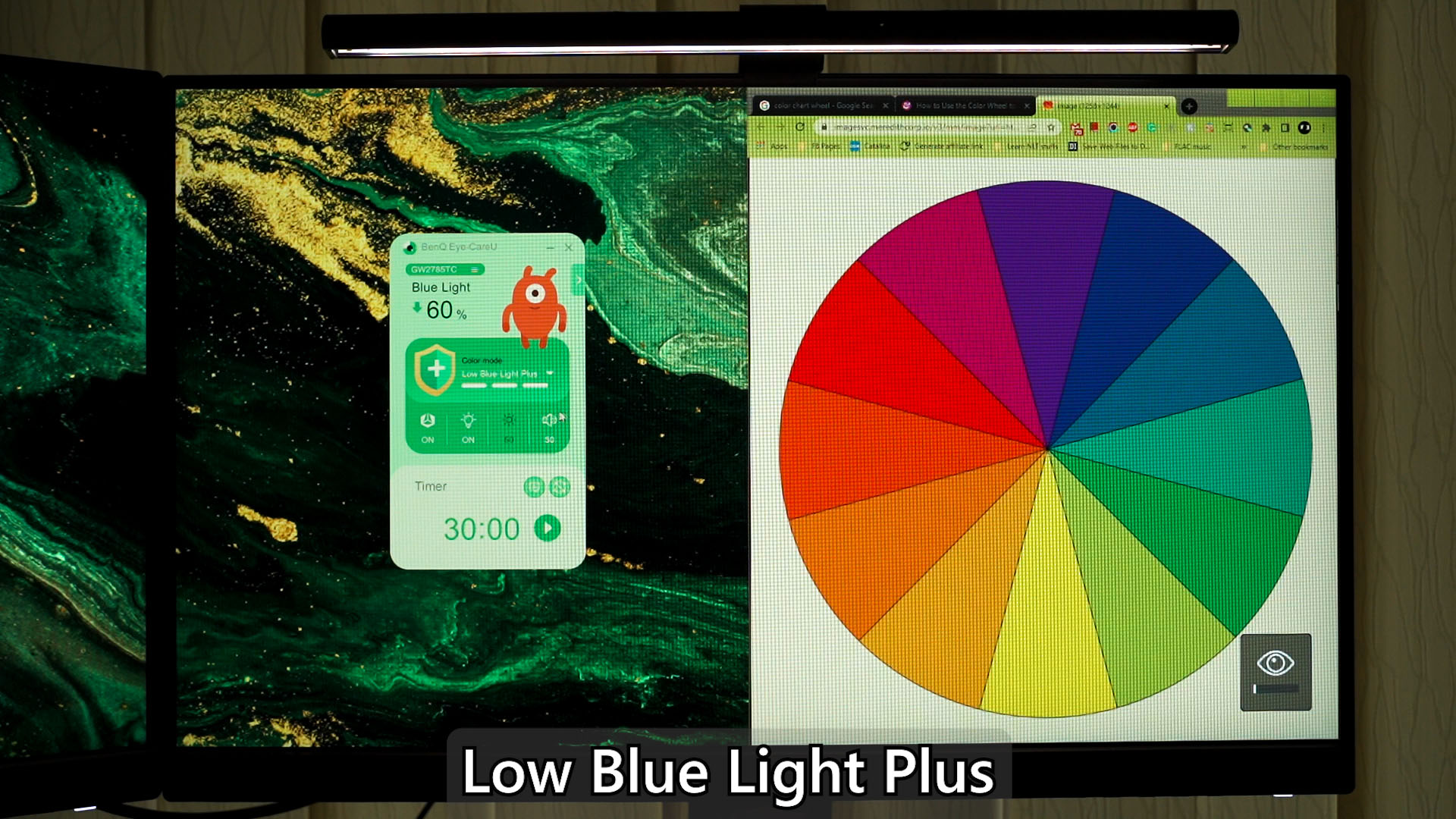
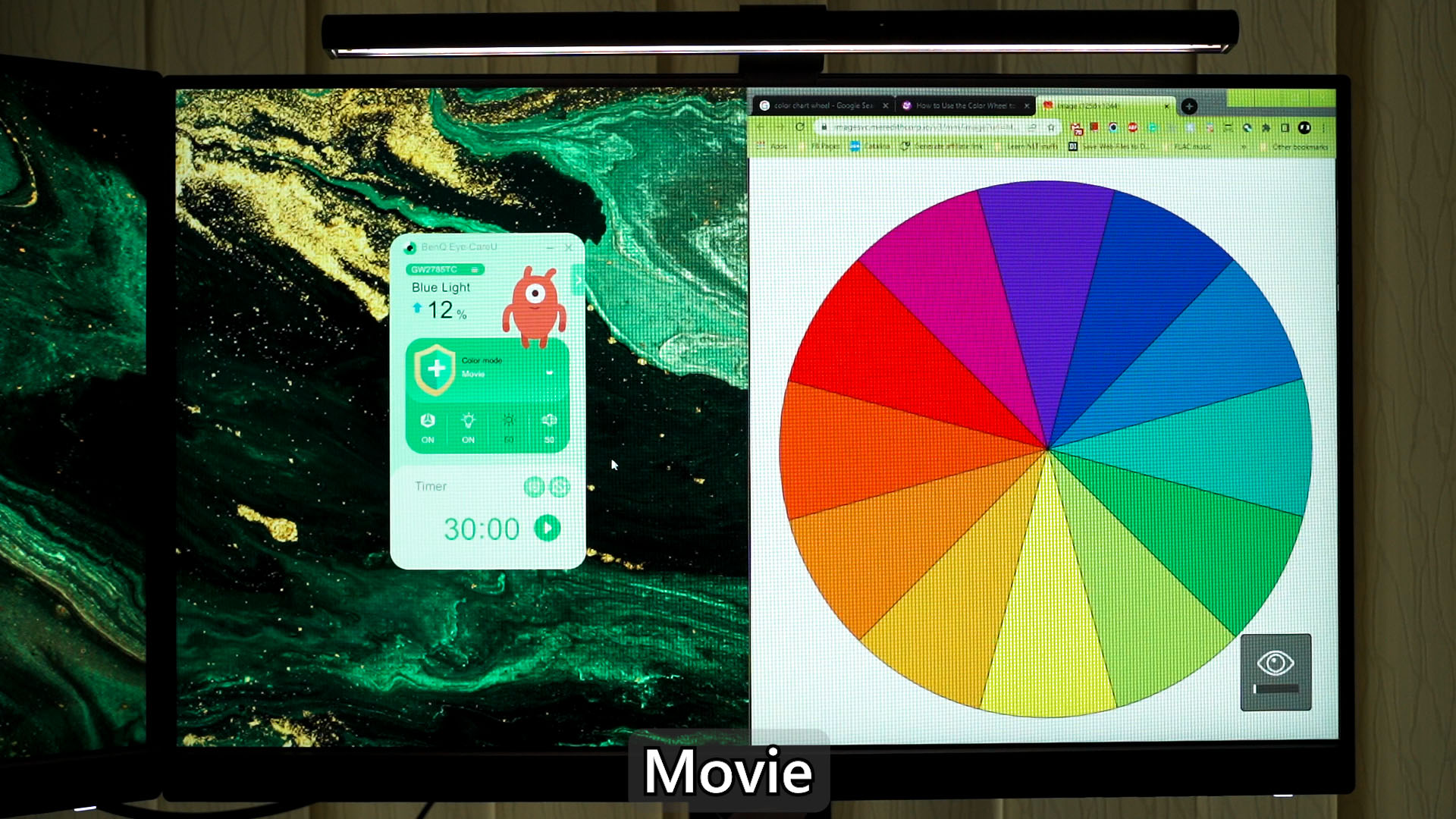
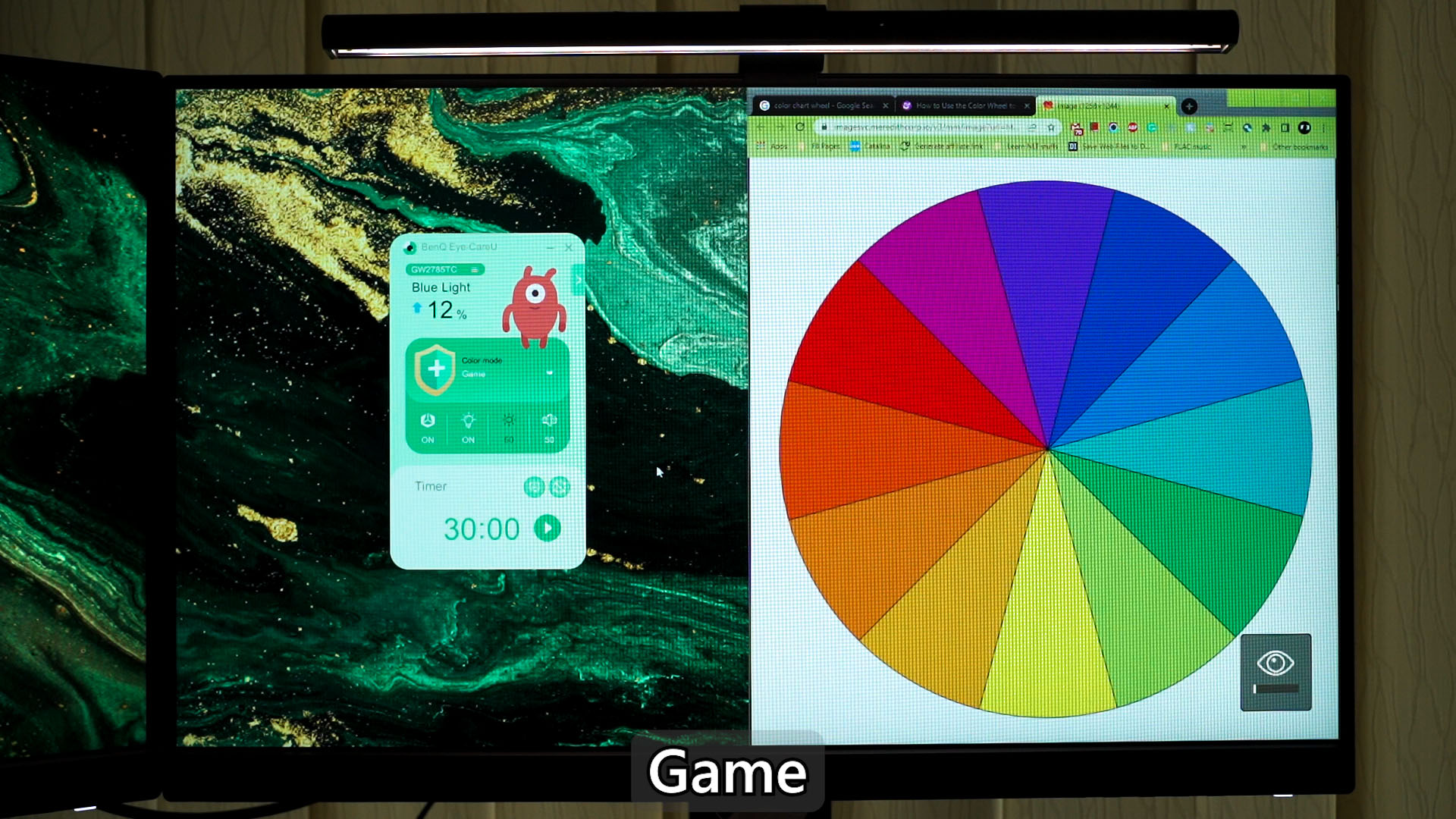
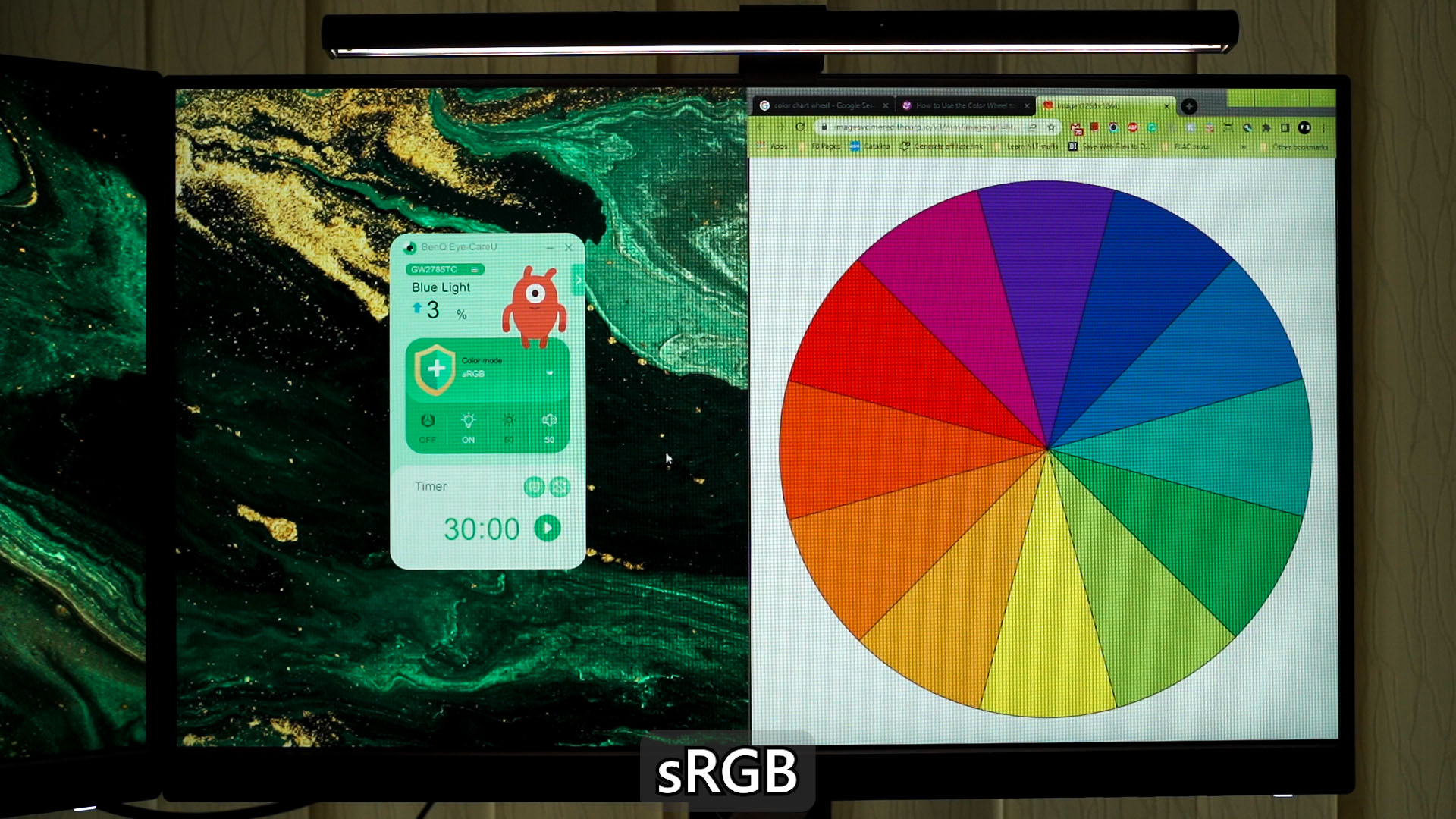
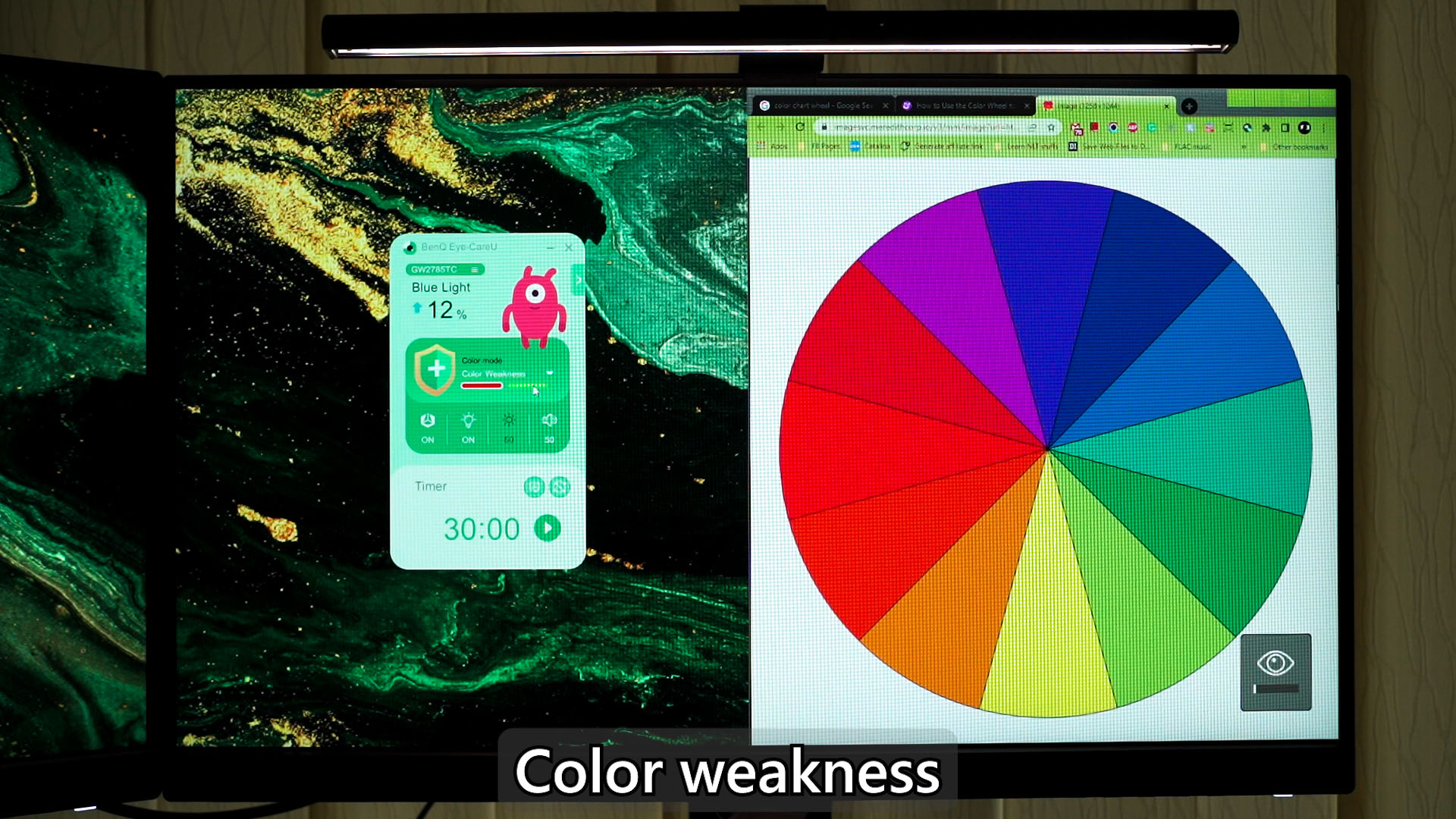
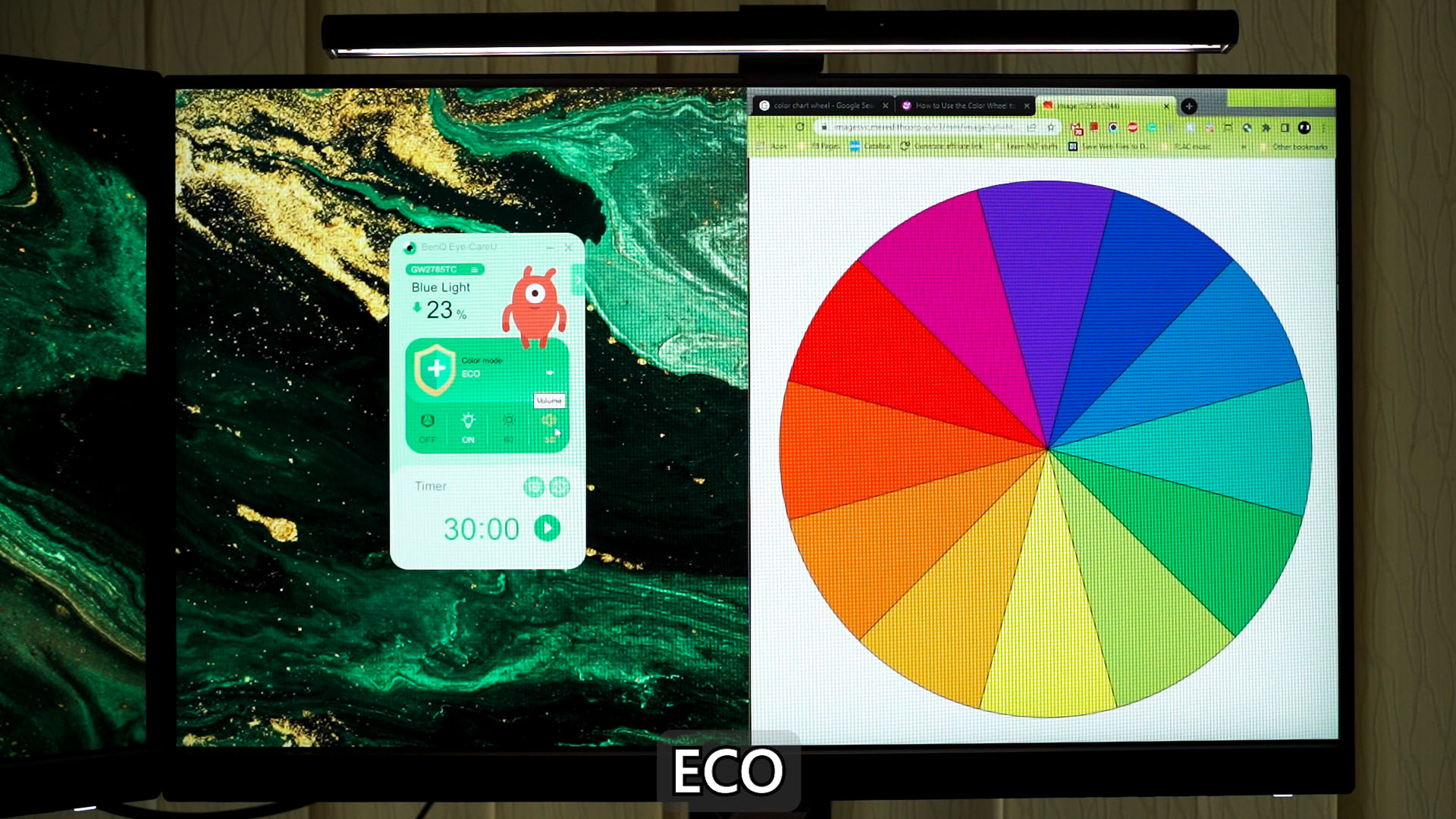
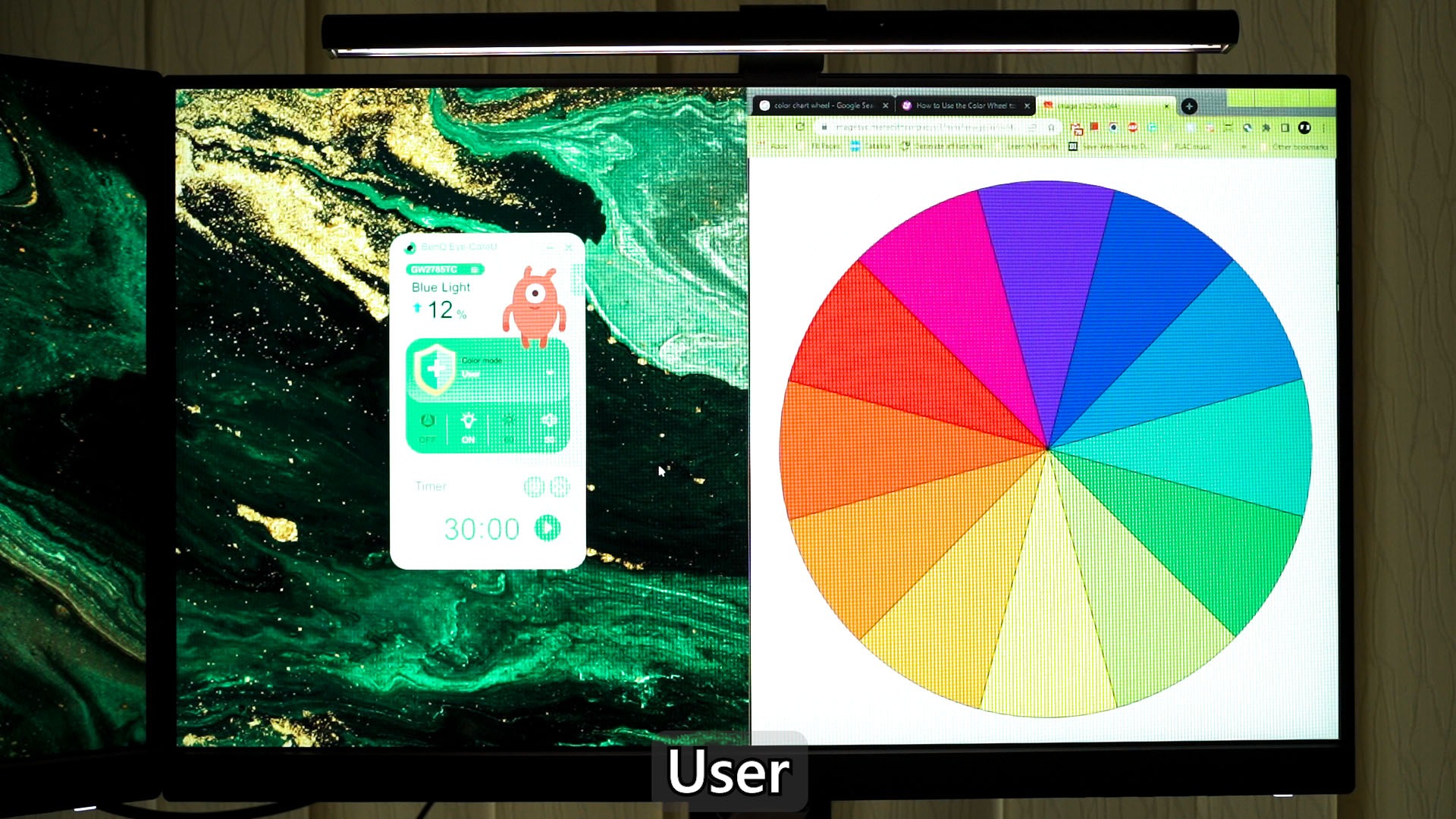
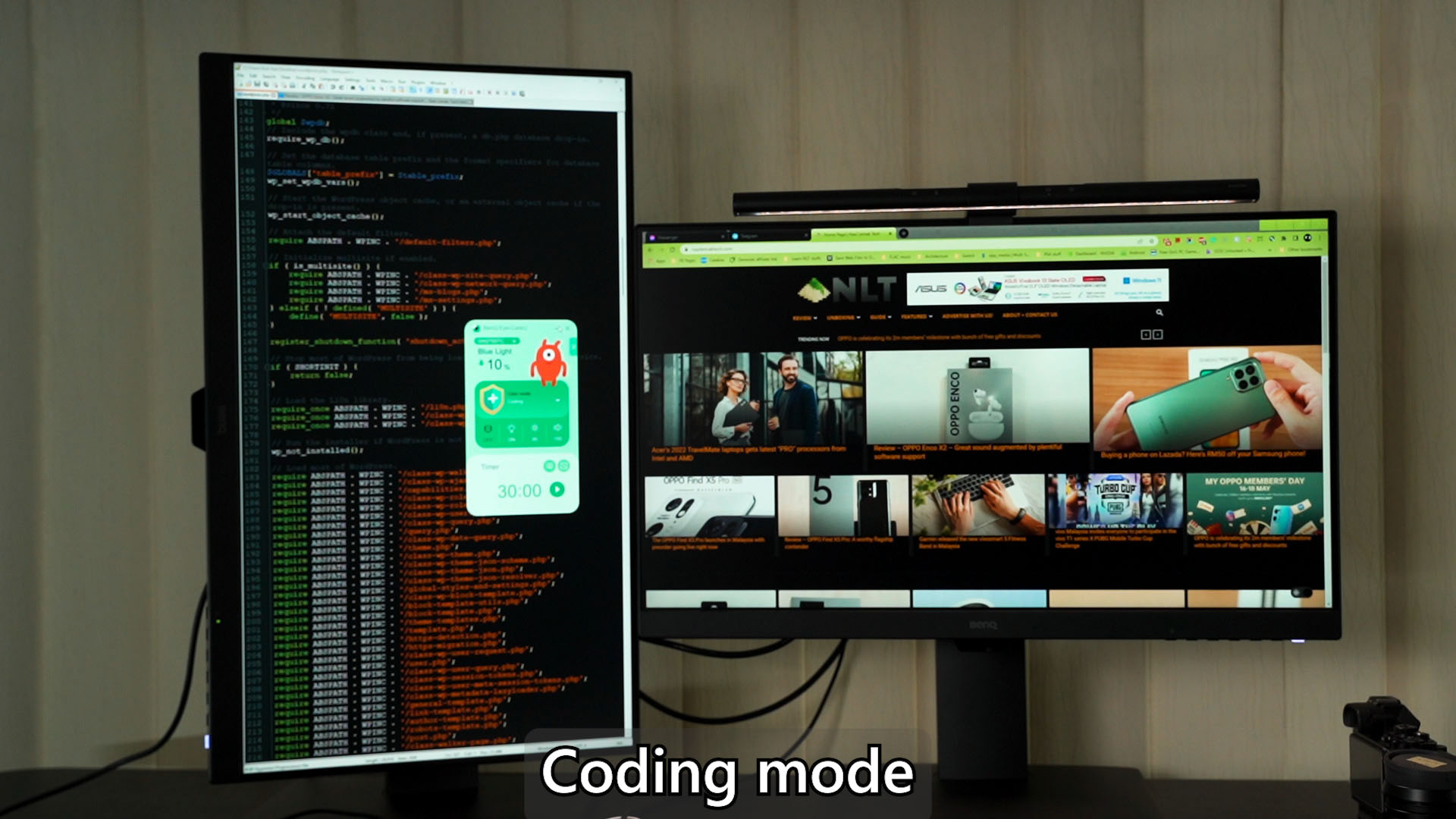
I want to give extra highlight to the Coding mode here because it increases the contrast to make codes easier to read – especially if you’re using IDE like Eclipse or Notepad++ that has dark mode – then the codes will be much easier to read. Since the monitor can also be rotated 90º, I believe that many programmers will like this monitor.
Conclusion
So, in conclusion – the BenQ GW2785TC is a 27-inch screen with BenQ’s excellent Eye-Care technologies built-in alongside with some other handy features like USB-C with charging, multi-monitor daisy-chaining via MST, and also a built-in microphone.
There is still a lot more to talk about when it comes to the monitors that we’re showing here today, so check out the link here to know more about the GW2875TC in terms of their features. Or, if you want to learn more about BenQ’s proprietary Eye-Care technology, click here.
Where to buy?
Like our Facebook Page here at NasiLemakTech.com for more news and in-depth reviews! Also, join our Facebook Group for insightful information and memes!
Subscribe to our YouTube channel too!