


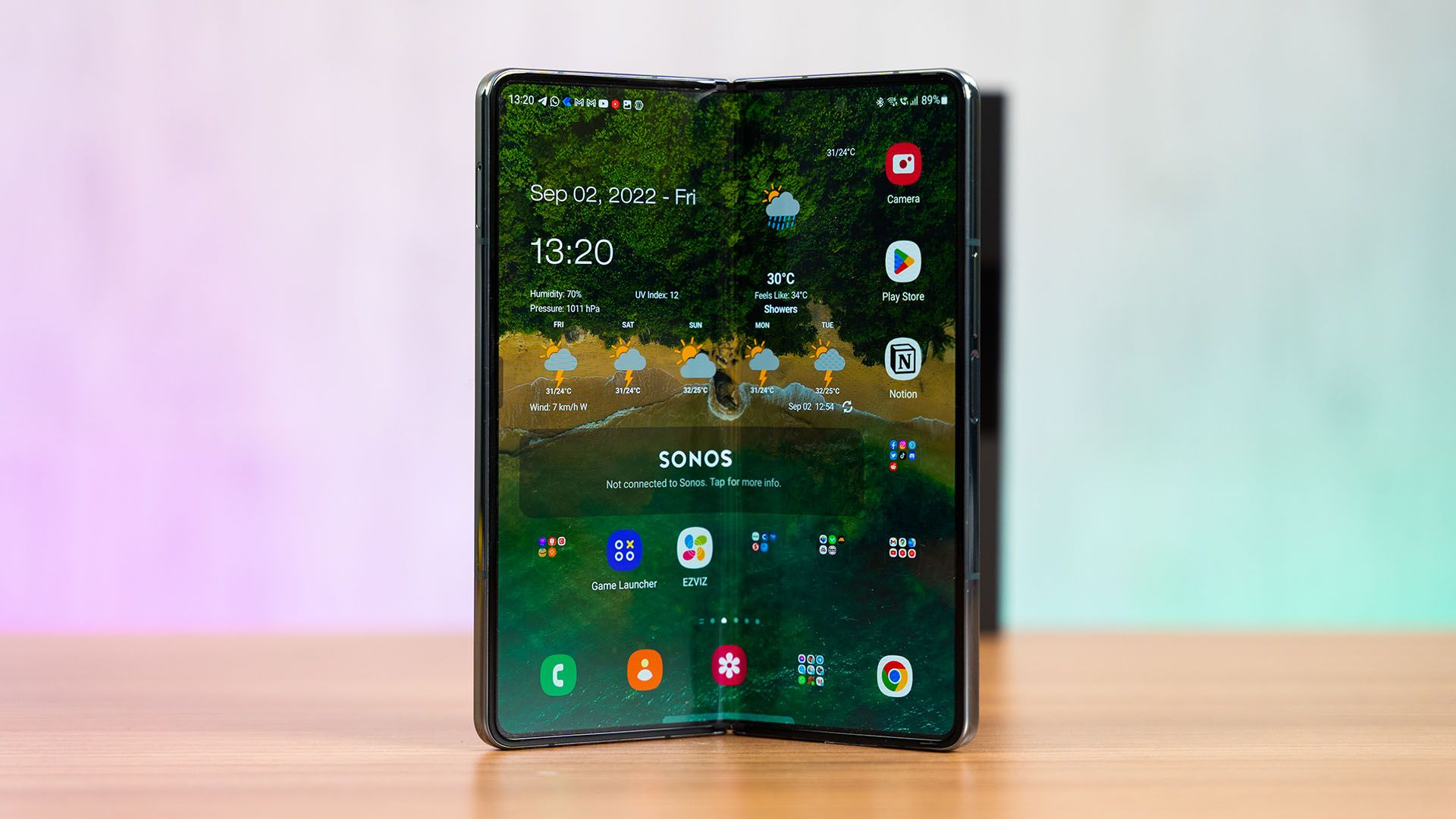

So you got yourself the new Samsung Galaxy Z Fold4 and you’re excited to start folding the device. It could be overwhelming since foldable devices are so different from all the other devices that are available in the market today.
In today’s tip-sharing session, I’m going to walk you through the 5 things that I’ll recommend you do to get the most out of your new Galaxy Z Fold4.
I’m going to be using my unit of the Galaxy Z Fold4 and I’ve just transferred all of my data from my Galaxy S22 Ultra using the Samsung Smart Switch utility. You don’t have to follow what I did here, it’s just what I have.

Starting off, I’ll recommend you get a screen protector for the cover display. Nah, I’m joking. Or am I?
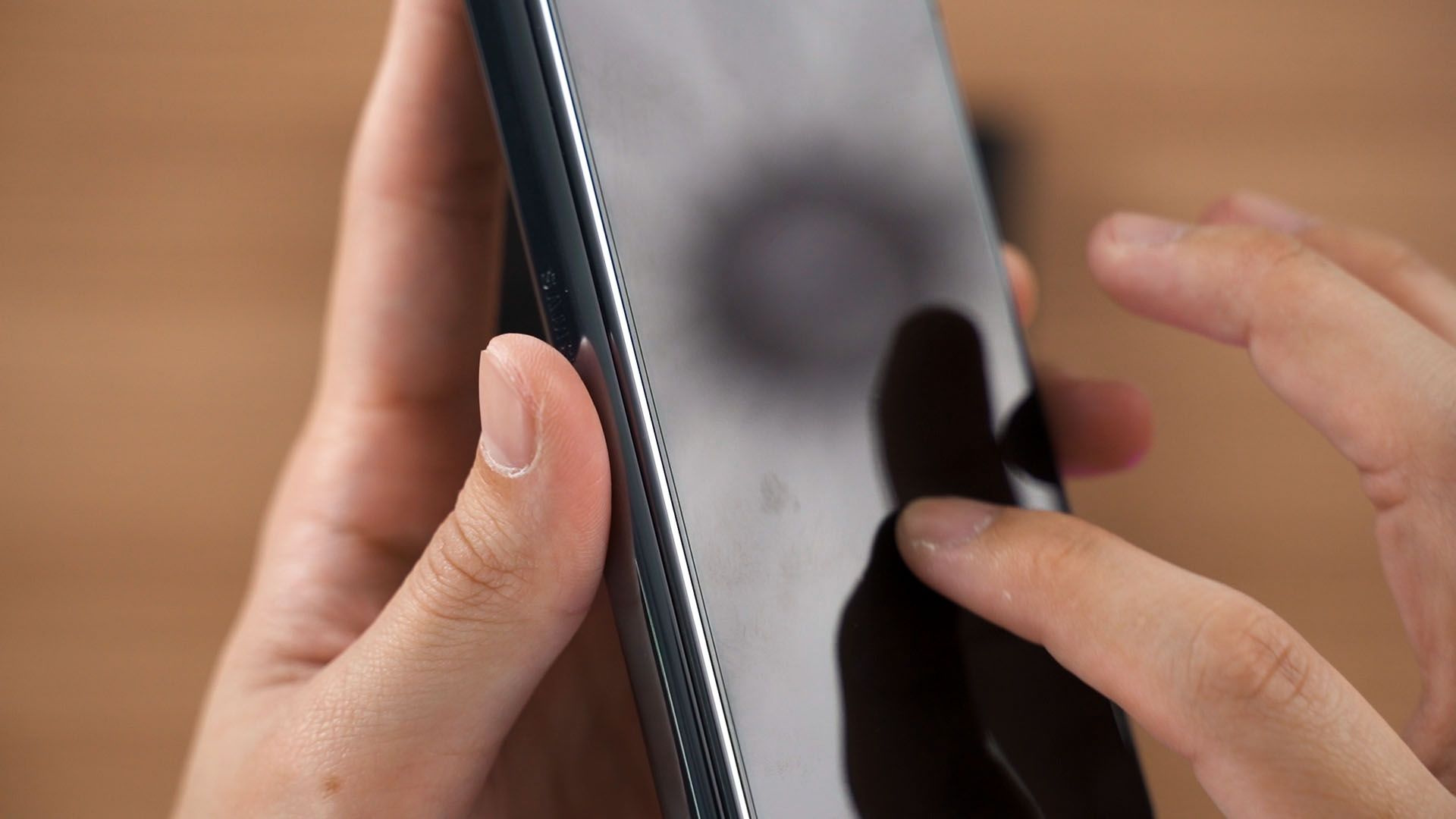
Okay, so this is not really a necessity for everyone. Samsung didn’t preinstall any screen protector for the cover display and I can’t stand it if I know my device got scratched due to my own mistake. That is why I usually use my devices with a screen protector and also a case.
1. Choosing your phone’s case
Actually, it’s more like you have to decide whether or not you want to use the S Pen Fold Edition together with your Galaxy Z Fold4. If you do, then you’ll need to have a different type of case to house the S Pen Fold Edition together with the phone.

Samsung does have a new case that is massively improved over the previous generation. The new case has a swappable design that you can either use the S Pen holder or change to a kickstand instead. However, it is annoying since you’ll have to swap between the S Pen and the kickstand – not both at the same time.

If you want to get the S Pen Fold Edition but use a third-party case, then there are some choices available but there are very, very limited. A lot of people said good things about the Supcase Unicorn Beetle Pro with an S Pen holder, but that design is just… not something that I prefer.
By the way, all cases from the Galaxy Z Fold3 will not fit the Galaxy Z Fold4.
2. Customize how you unlock your device
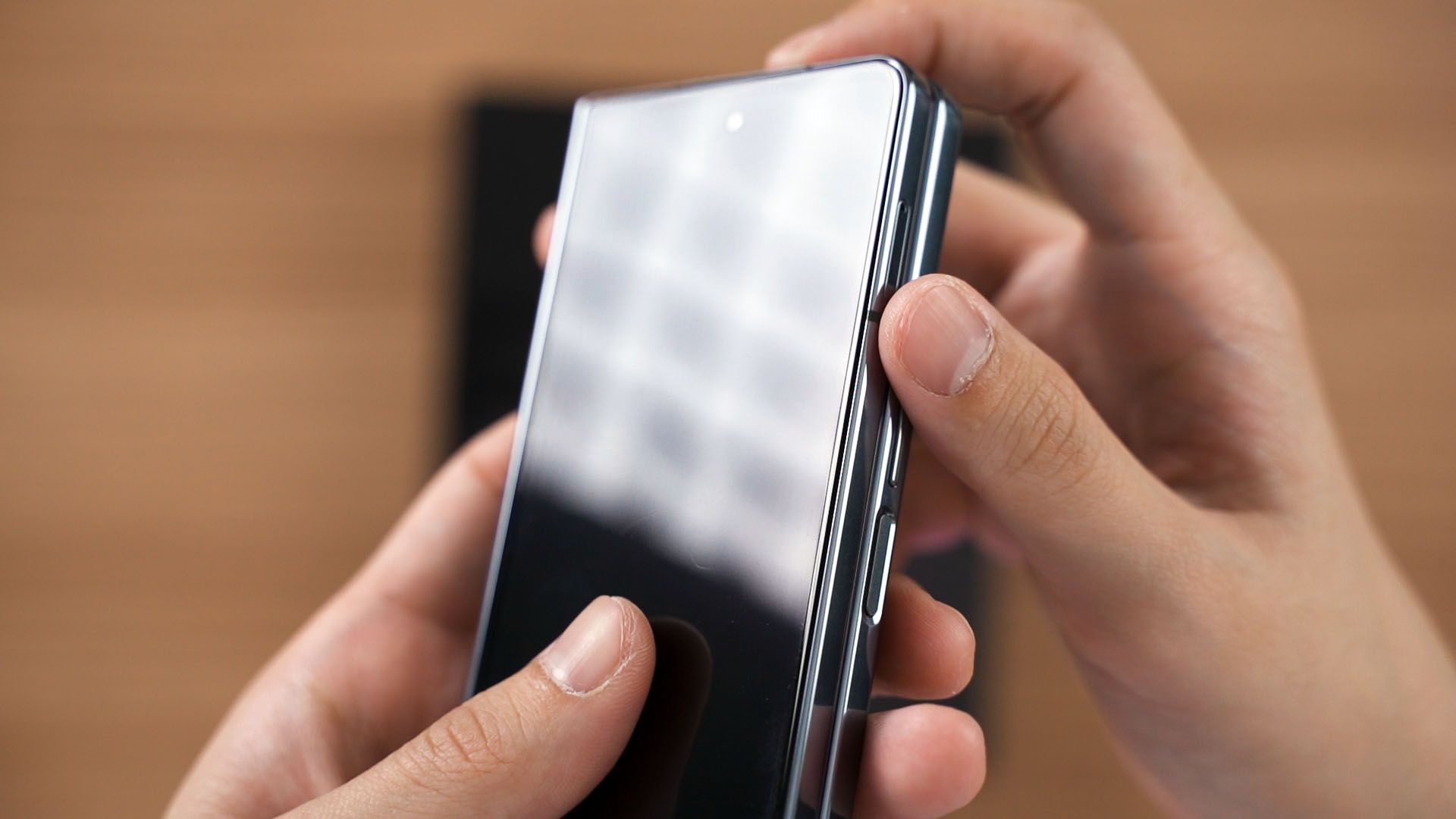
For this point, you actually have two ways to unlock the Galaxy Z Fold4. You can either use the very obvious fingerprint scanner that doubles as the power button on the right side, or you can use face unlock.
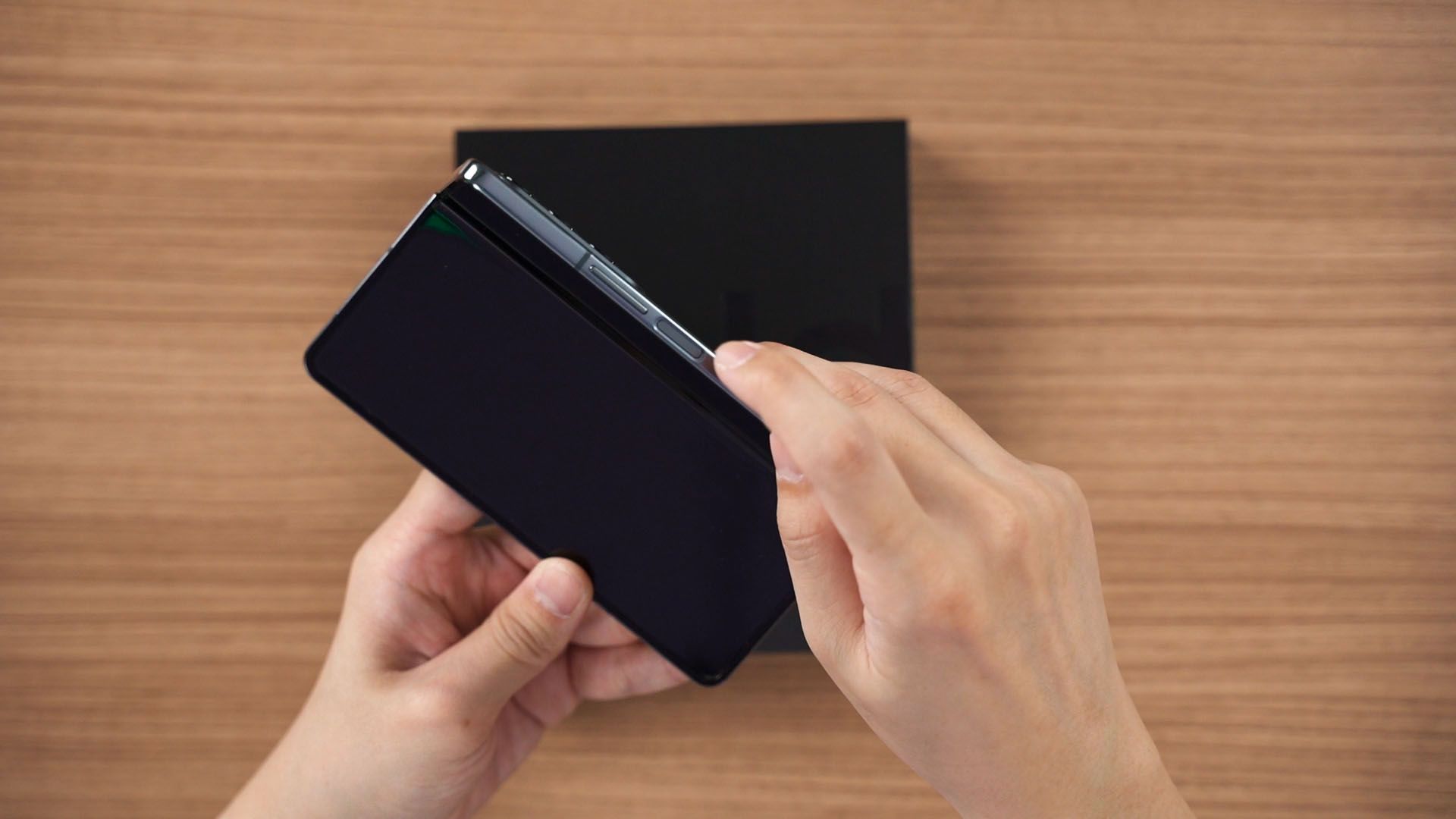
We’ll talk about the fingerprint scanner first. Heading into the settings menu and going into Security, we can customize how we unlock the device. We can customize when the fingerprint scanner should read our fingerprints.
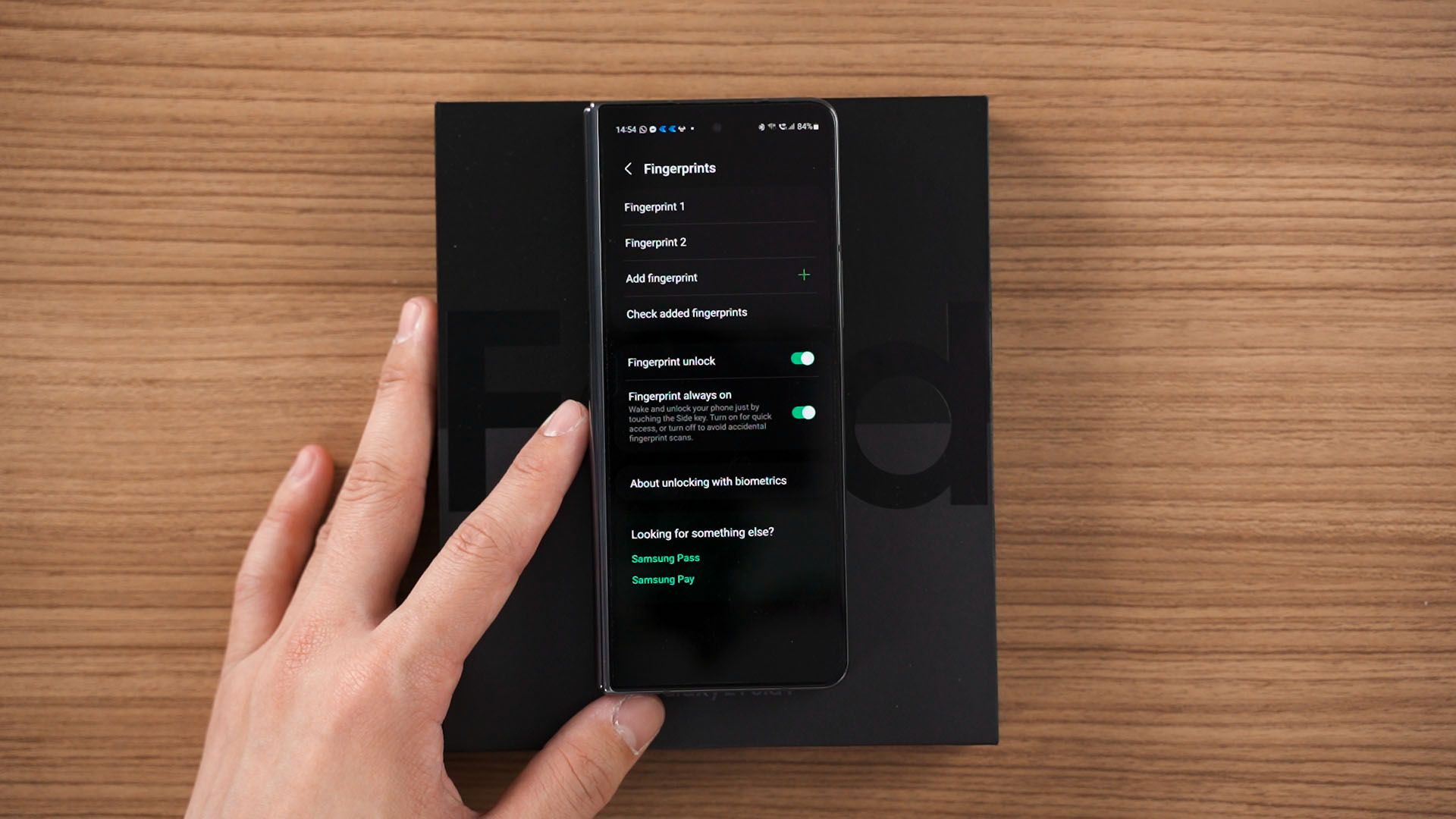
There’s an option here that if we enable, we don’t have to press on the power button and the fingerprint reader will immediately work and unlock the device. I personally find this feature to be quite annoying since it always detects wrongly so I left it off.
But, we’re not done here. I’m going to be a boomer and tell you that back in my days, fingerprint scanners used to be at the back of the device and it was great. We can actually swipe the fingerprint scanner to bring down notifications or bring up Samsung Pay. Technically, we can do that to the Galaxy Z Fold4 too – but we’ll need to head into the settings menu to do it.
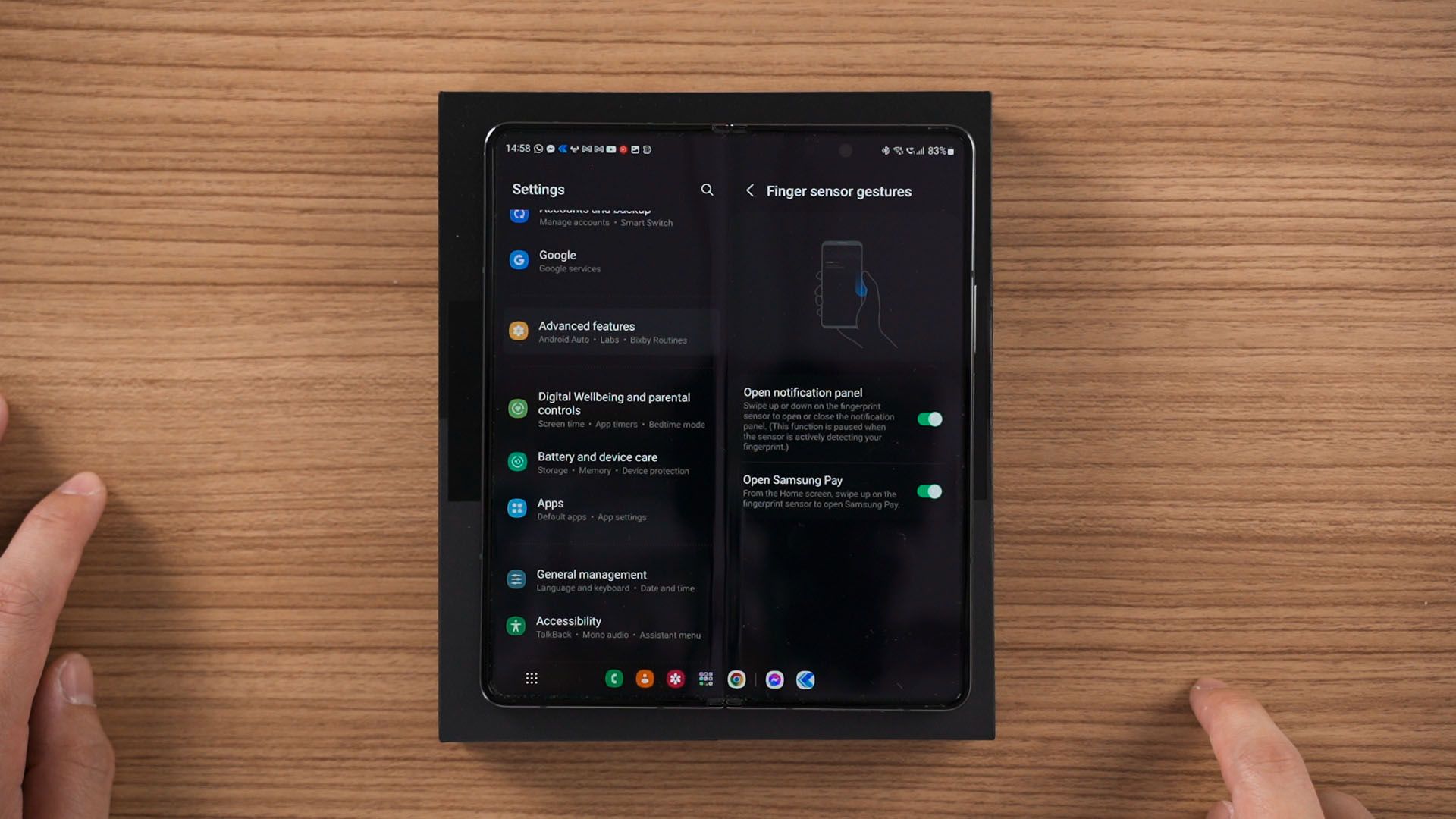
Here, you can enable the “swipe down for notifications” or “swipe up for Samsung Pay” gestures. It’s entirely up to you.
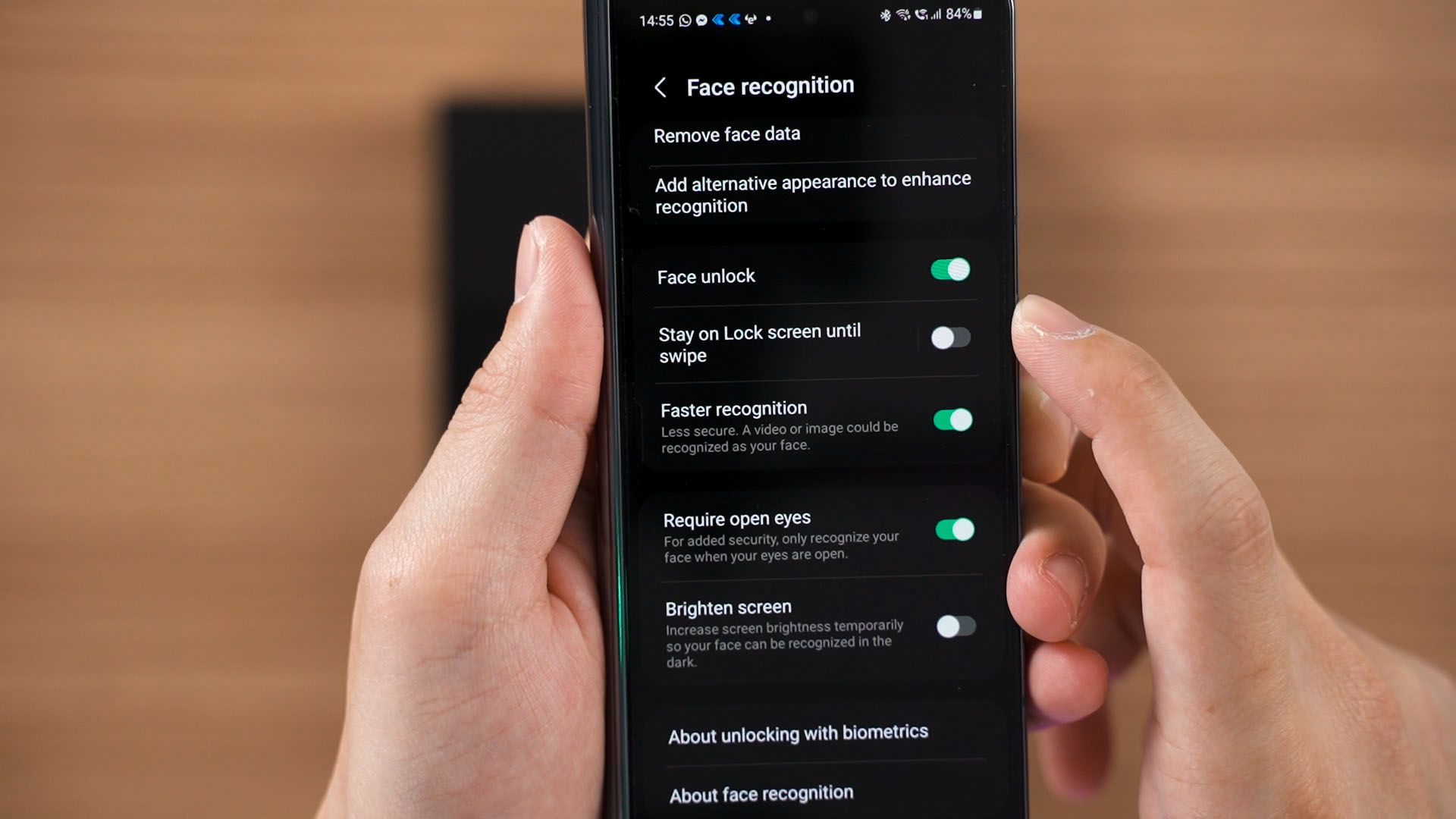
For those who prefer face unlock, you can also choose the option to directly bypass the lock screen when it scans your face or stay on the lock screen until you swipe it away. I chose the former since I don’t find myself looking at the home screen at all.
3. You technically have two different homescreens
Yes, you read that right – you technically have two different homescreens. One homescreen is on the cover display, and another one is when you unfold it. Both home screens will adapt a competely different layout and you can rearrange cover display with your app shortcuts, folders, and widgets however you want – and it won’t be the same for your unfolded display.
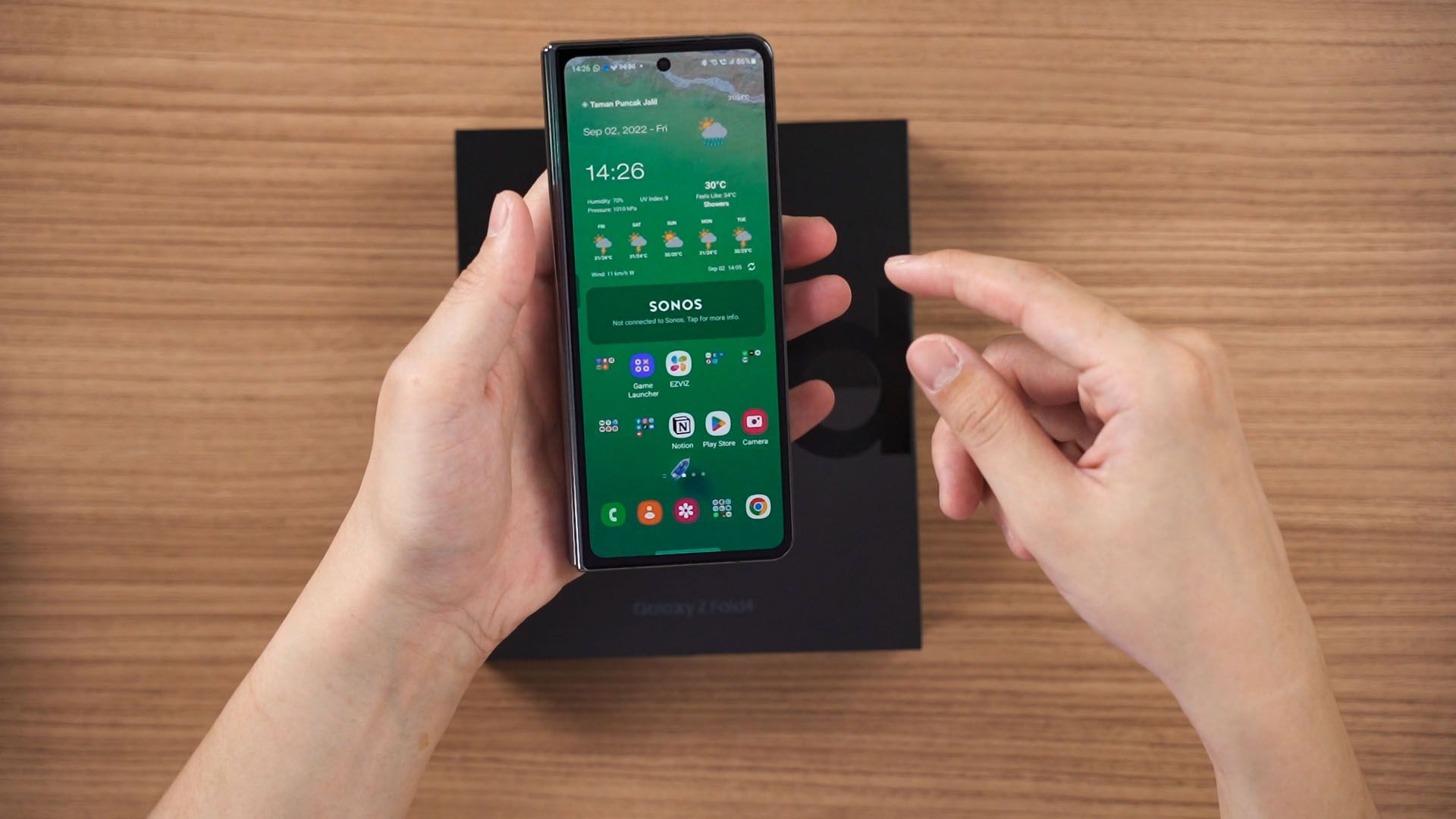
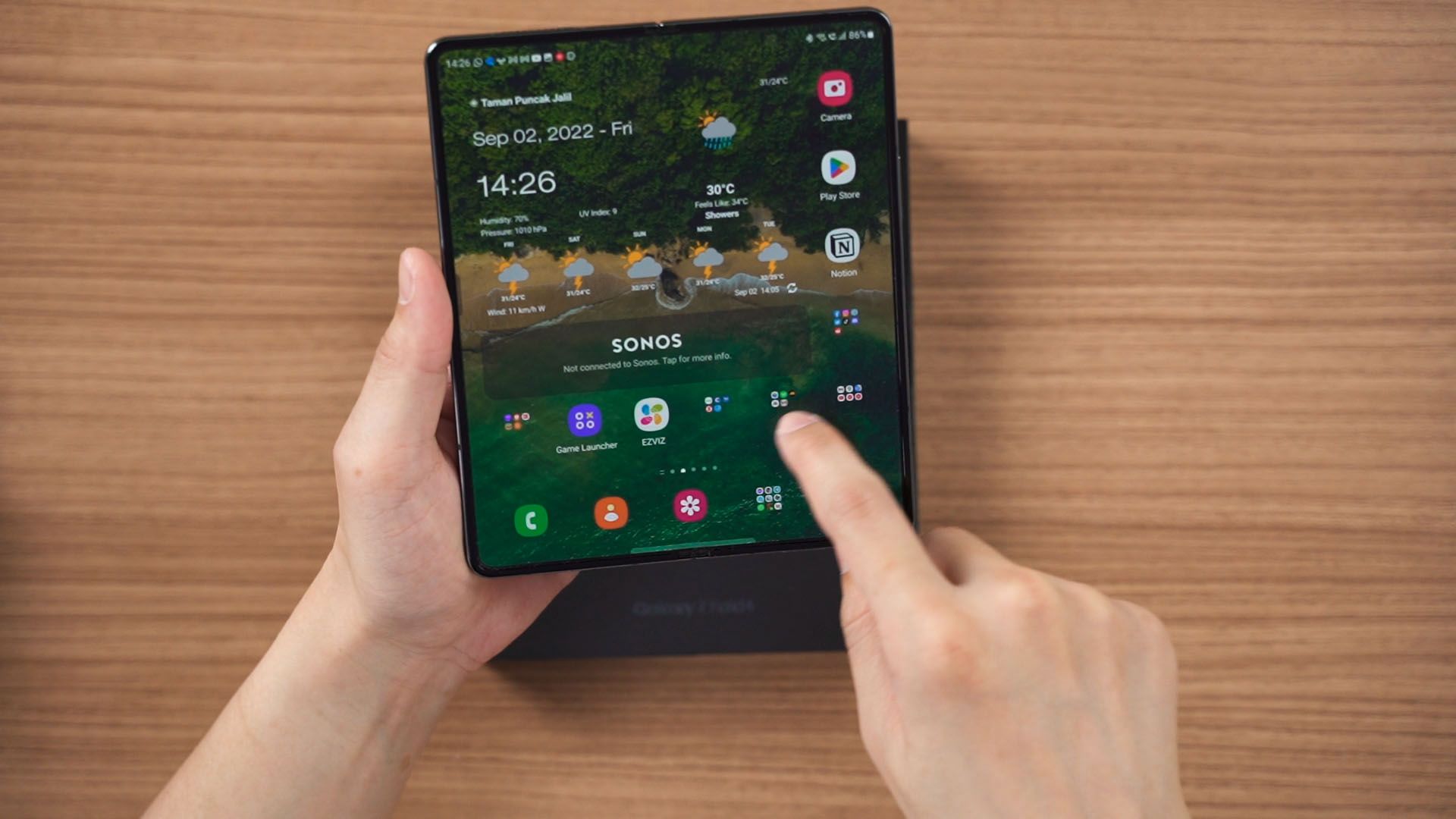
However, you can make the cover display’s home screen to be identical to when you unfold the device. It’ll look weird, yes – since one home screen page only takes up half of the unfolded display.
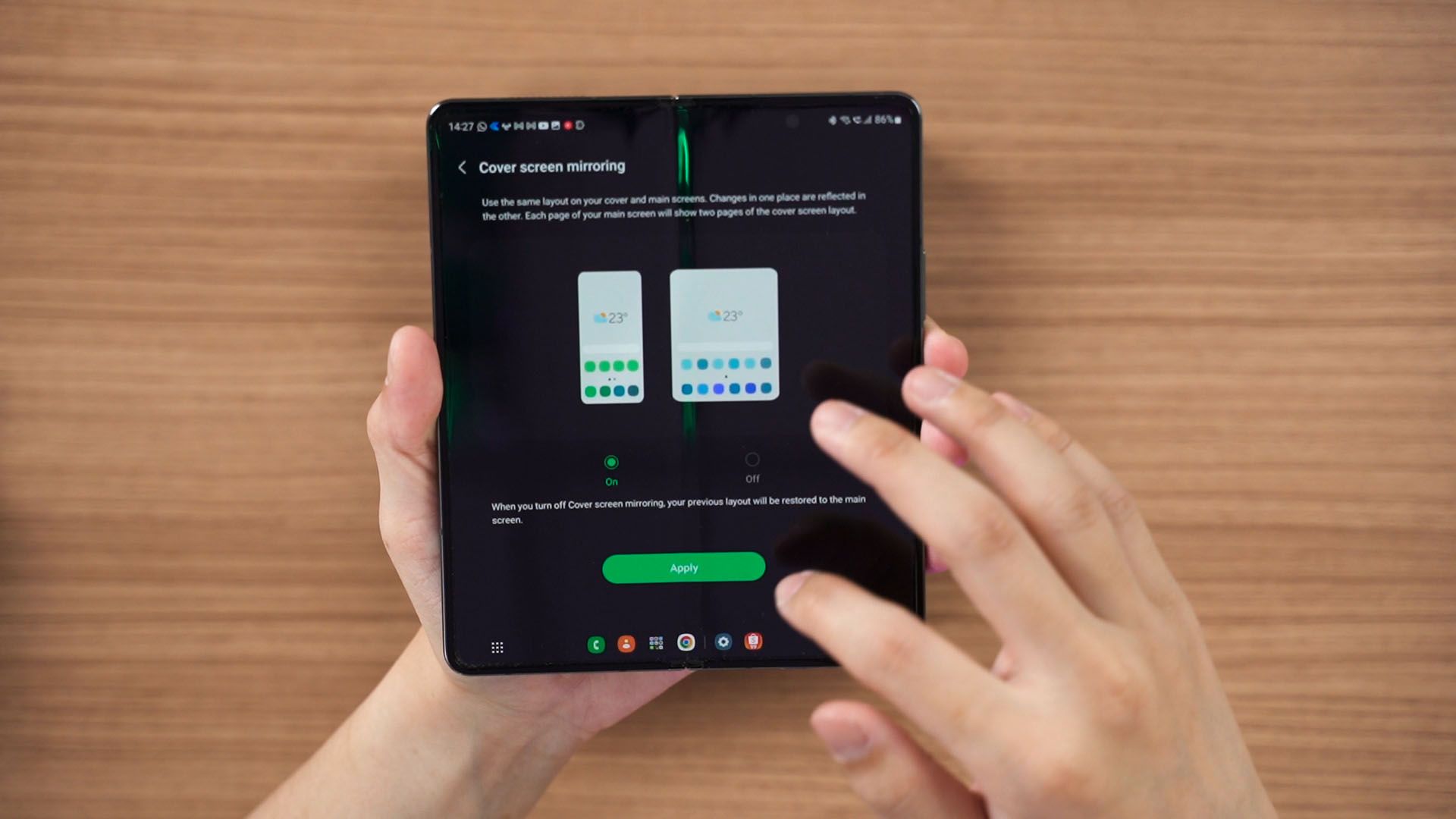
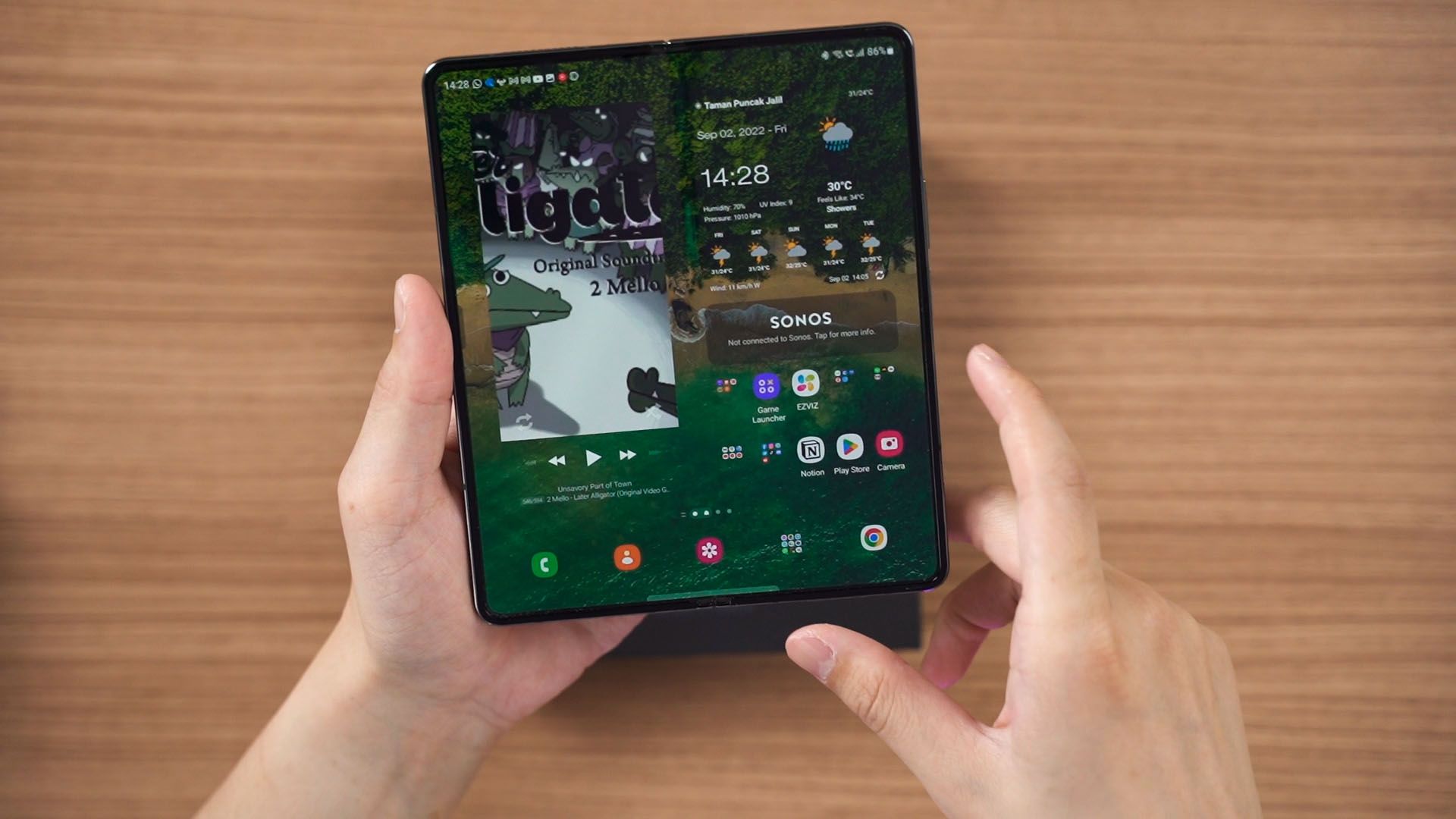
For me, I keep things separate because I won’t be needed the phone or contacts app when I unfold the device anyway. The reason why I bring this up is because of the next point:
4. The taskbar
When you unfold your Galaxy Z Fold4, the bottom bar of app shortcuts the home screen where they don’t move when you swipe around – that’s technically your taskbar. When you open any app, that entire row of app shortcuts becomes your taskbar.
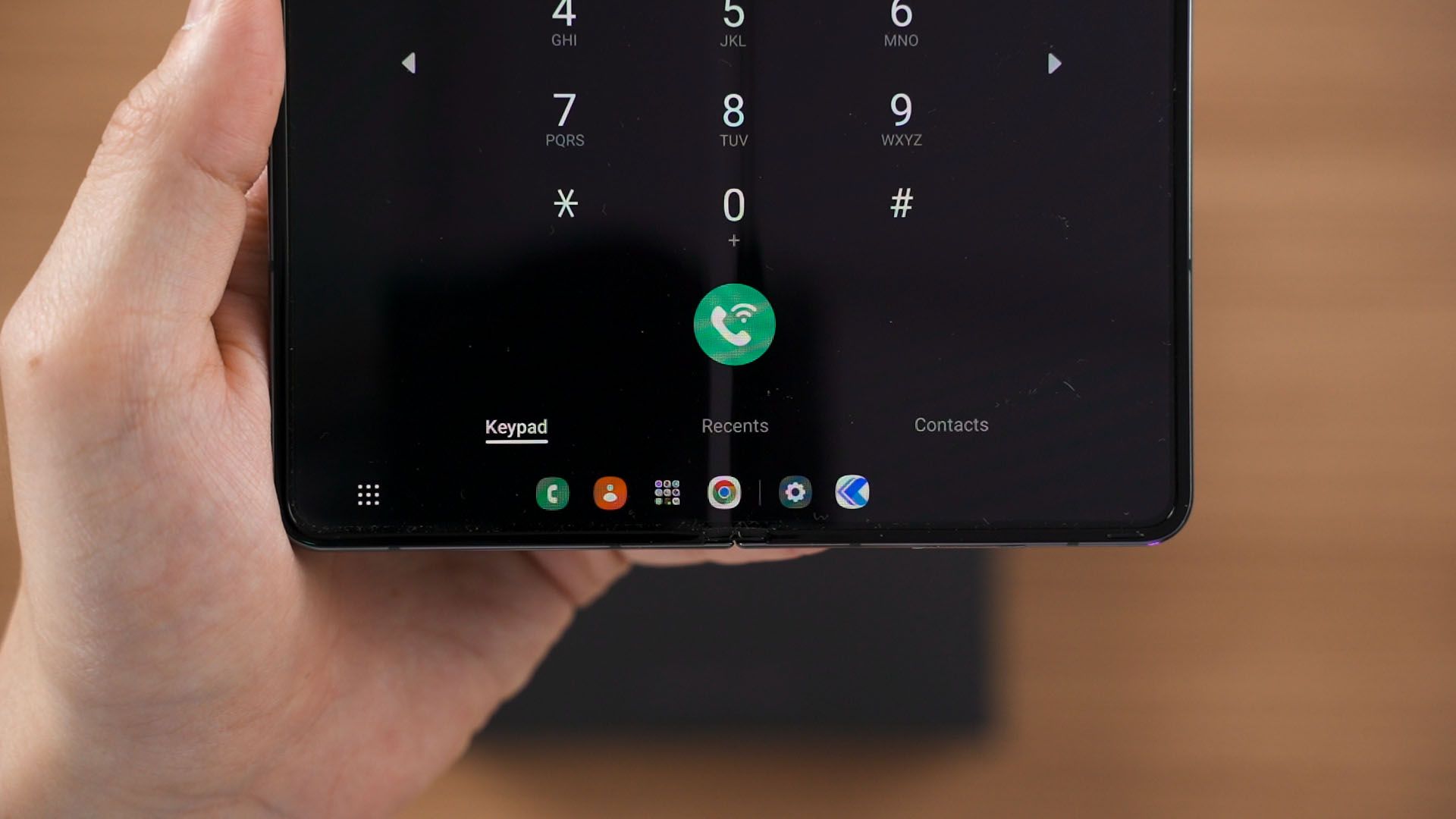
This plays a huge role in multitasking. My advise is to put the most commonly-used apps at that taskbar so you can swap between your apps with just a tap. We can even customize it a little. You see, by default, we can tap and hold to hide the taskbar, and do the same for the taskbar to appear again.
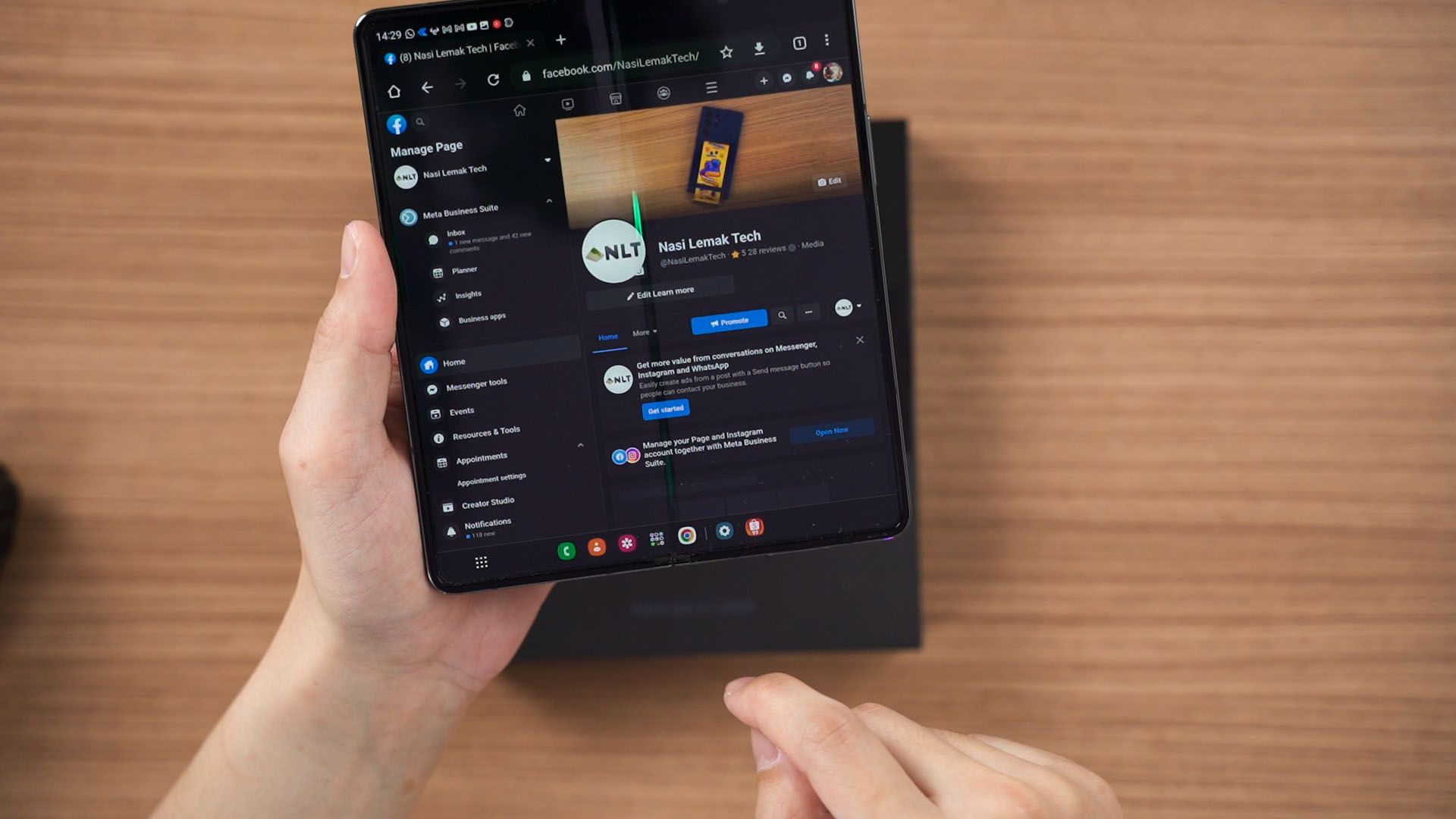
The right side of the taskbar – after the divider – also shows apps that we’ve recently minimized. We can change these two settings in the settings menu too.
I’m only going to disable the “tap and hold to hide the taskbar” option because we can tap and hold and then drag apps into the main section to quickly enter multi-window mode. Again, multitasking made easy.
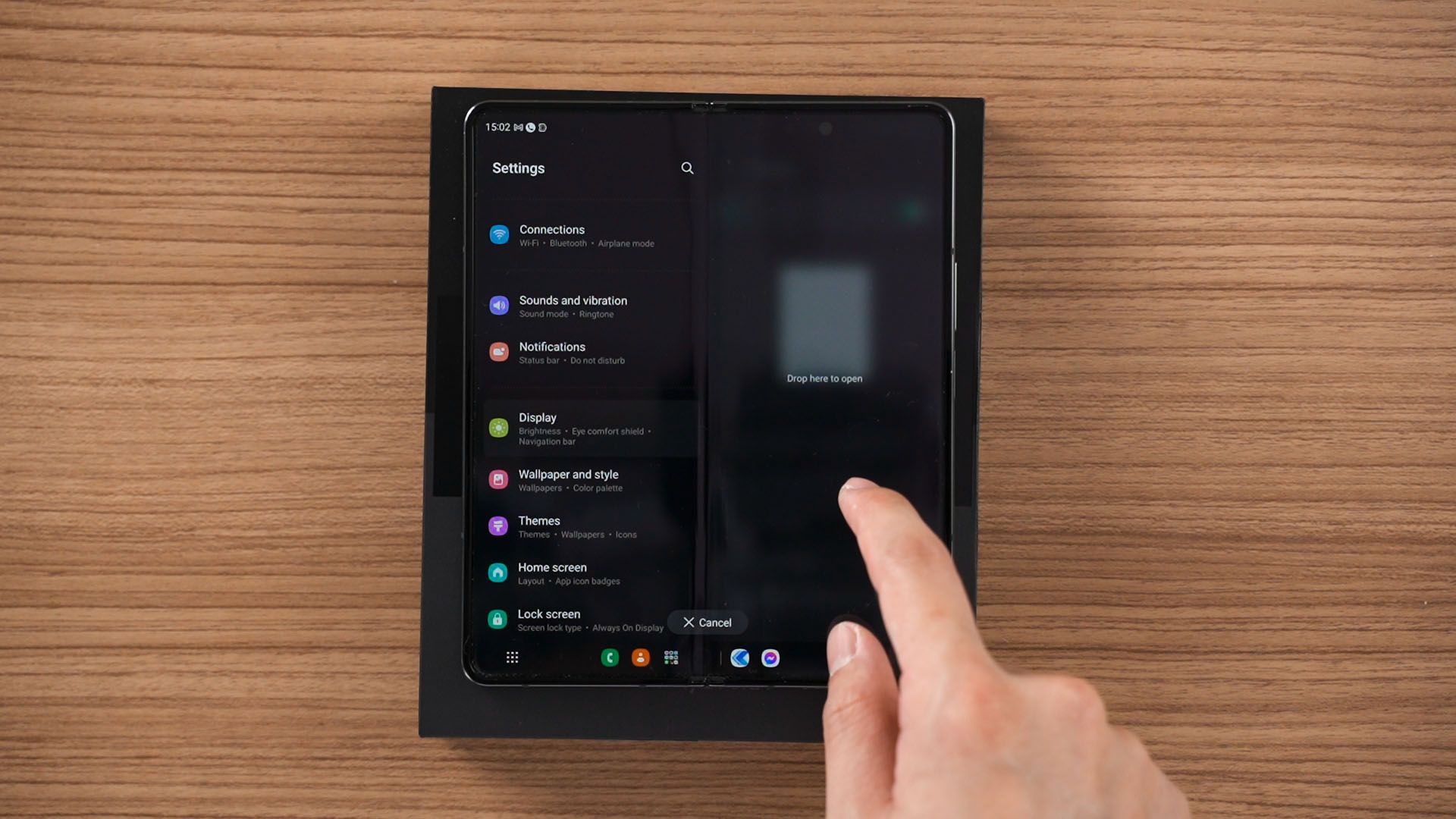
We’re not done talking about multitasking since it’s a big topic on its own – so we’ll leave that for another time. Do stay tuned for that.
5. Forcing app into a certain aspect ratio
Now, the Galaxy Z Fold4 has an unusual aspect ratio for both the cover display and the inner display. The cover display is using a 23.1:9 aspect ratio if I remember correctly – and the inner display is a 4:3 aspect ratio.
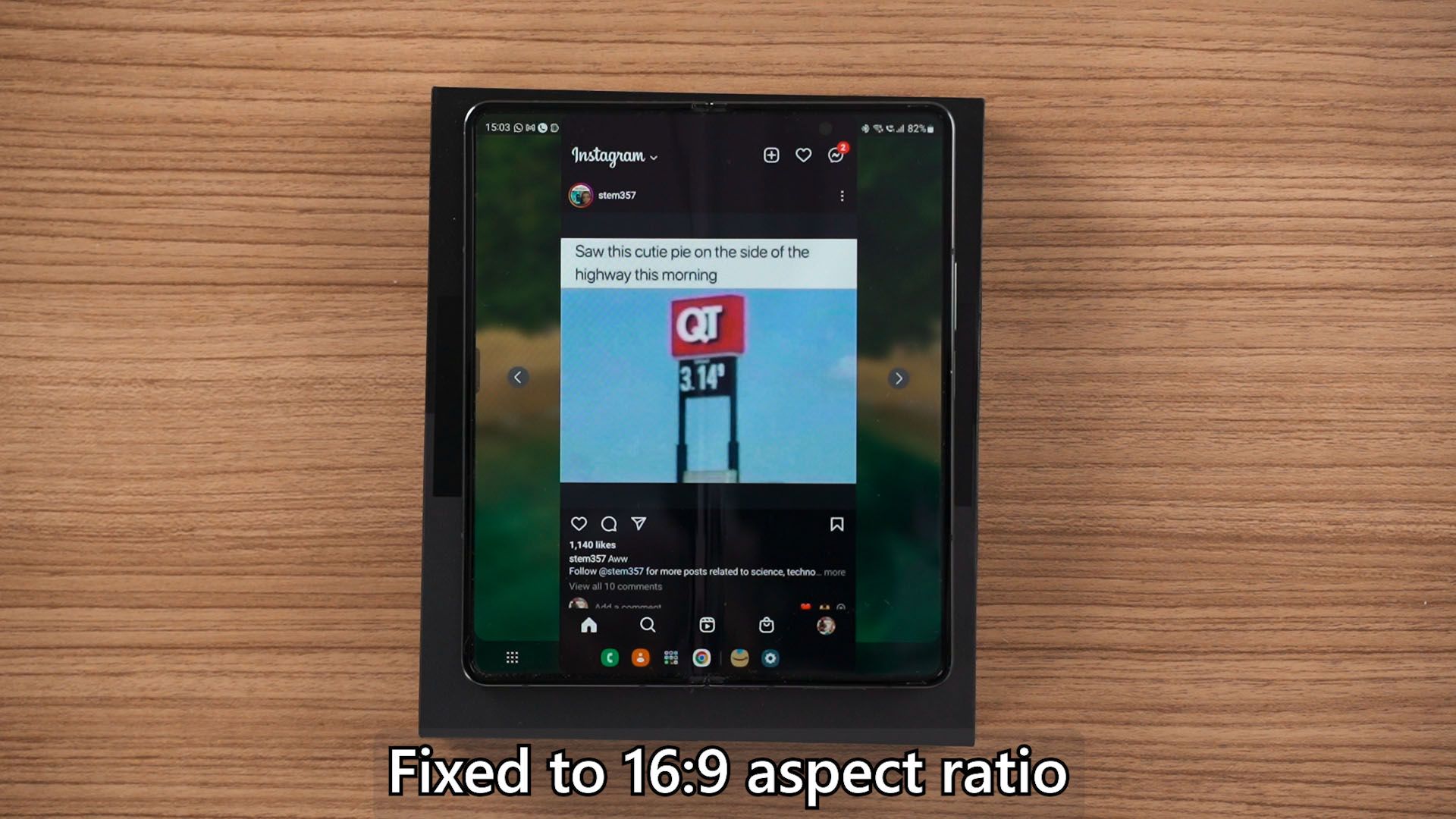
Some apps like Instagram works okay with the cover display but once unfolded, by default, it’ll be pillarboxed to a 16:9 aspect ratio. Pillarboxed as in, instead of having black bars at the top and bottom of the display, we have black bars at both sides instead.
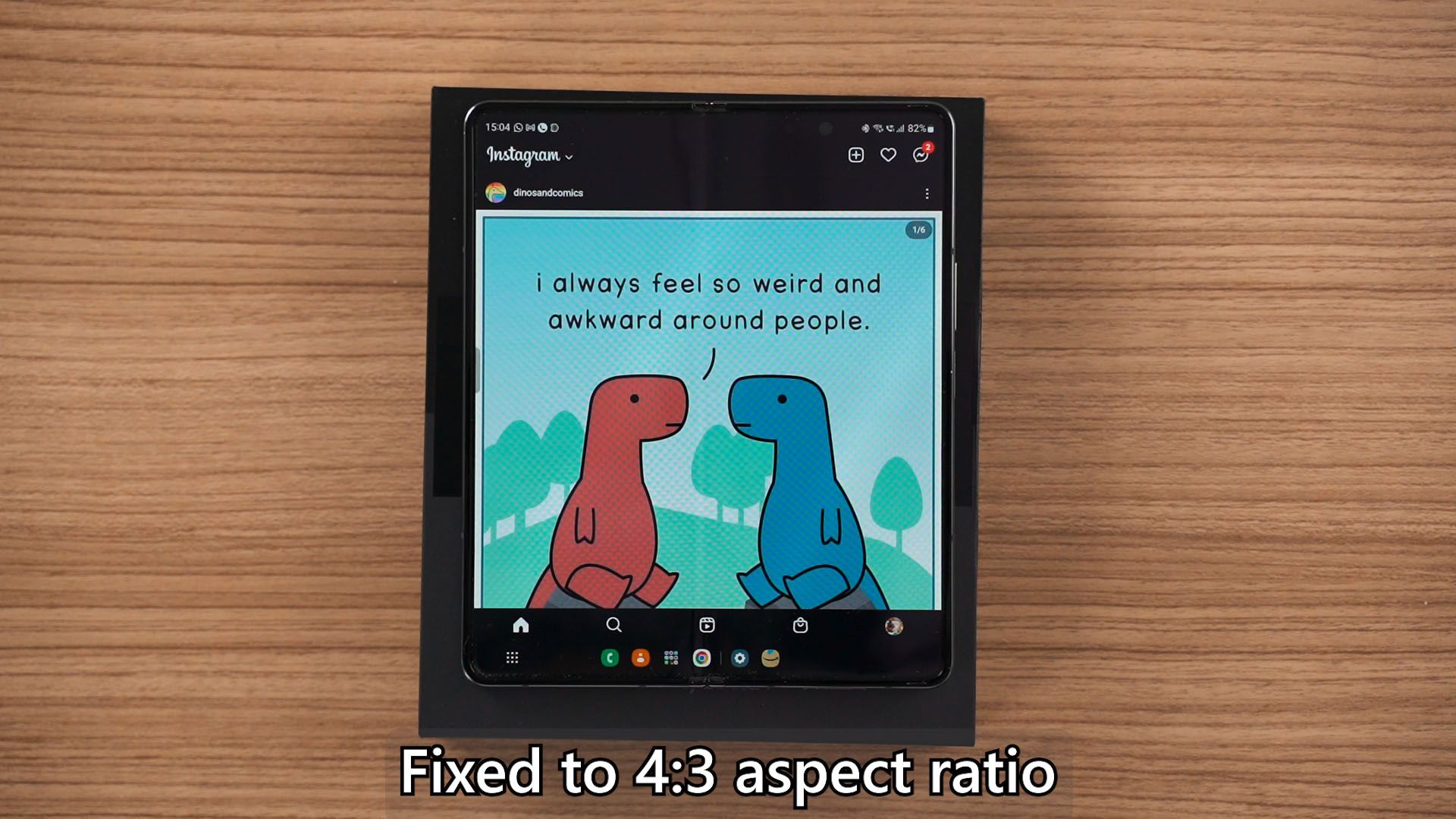
This is because if we view Instagram in a 4:3 aspect ratio, we can’t see a standard 1:1 image in a single glance. We’ll have to swipe up and down to get a complete view – and that is why Samsung automatically pillarboxed apps like Instagram to 16:9.
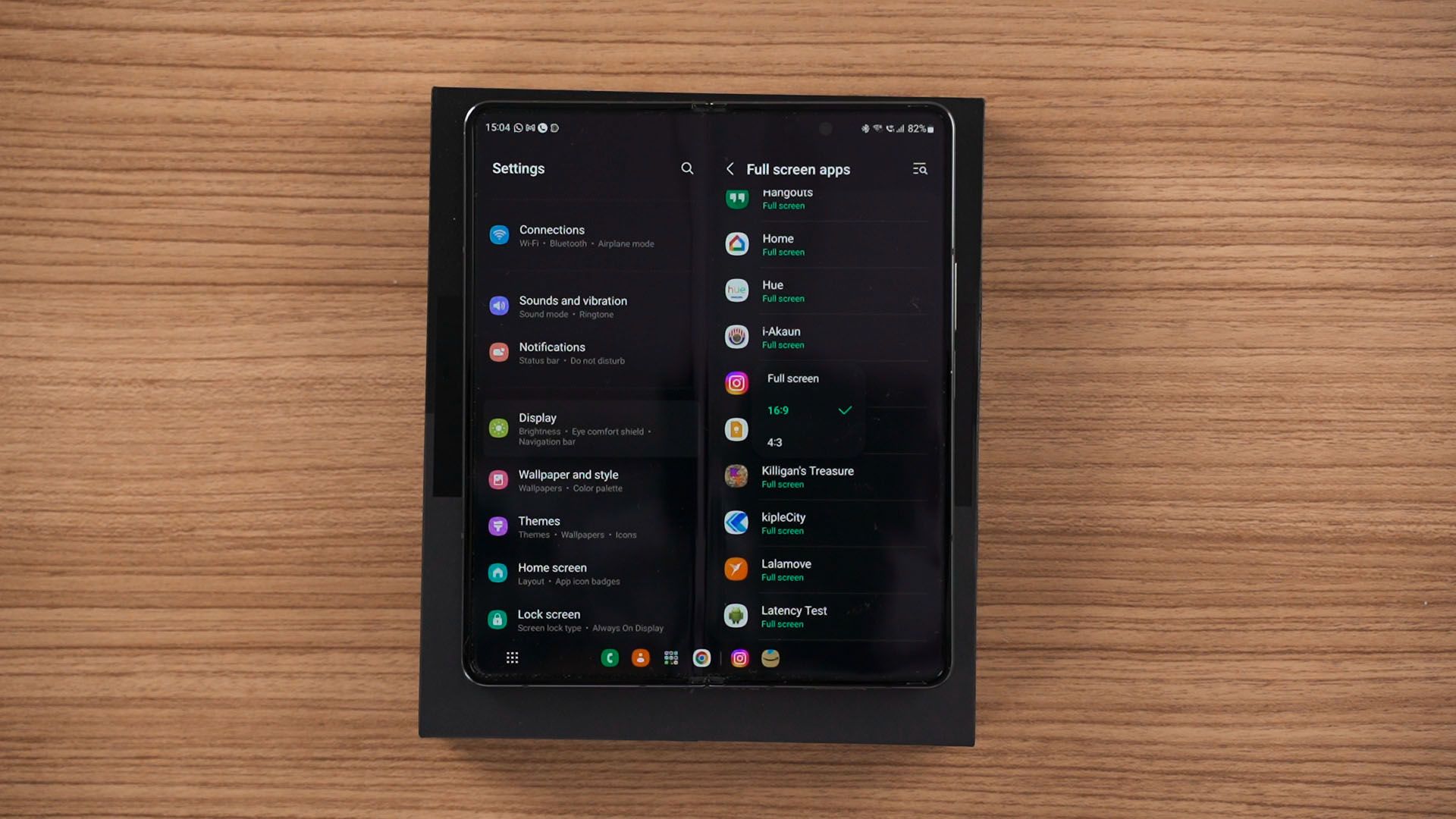
Of course, we can once again head into the settings and change any app’s aspect ratio to either 4:3 or 16:9.
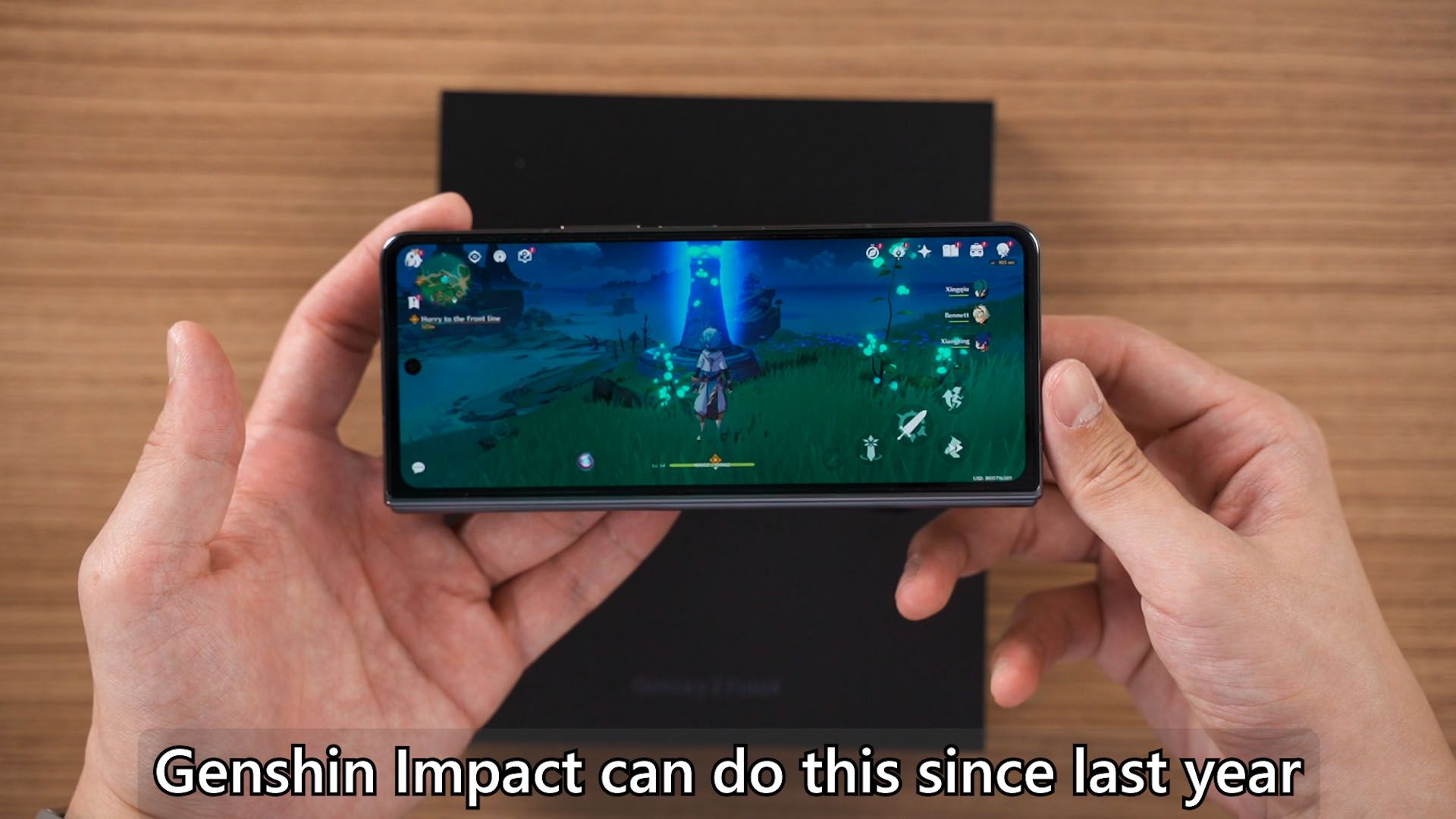
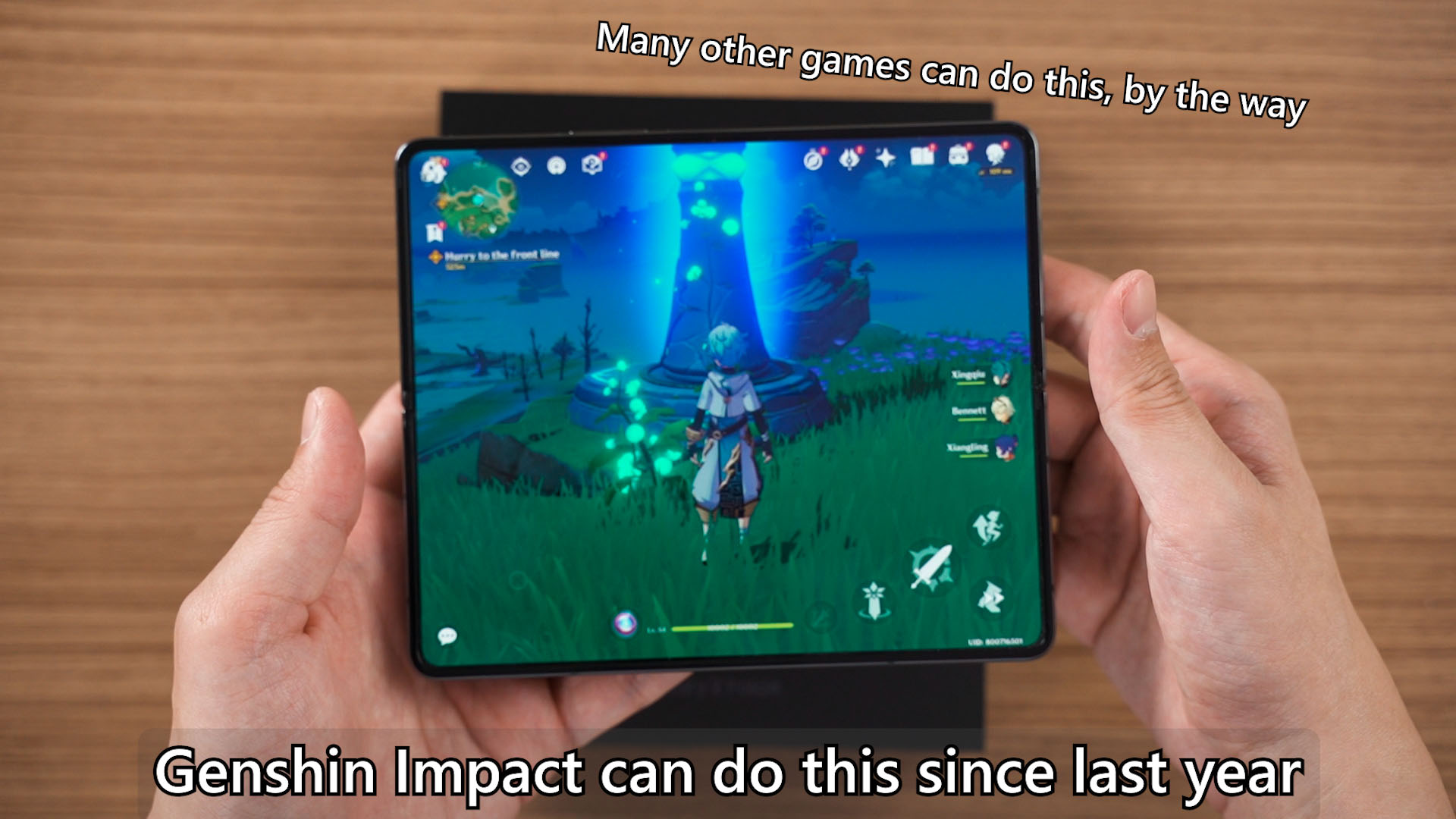
Some apps work better than others and even some games can scale between both the cover display and inner display flawlessly. Kudos to those developers – but I think many more developers are going to optimize their apps for foldables such as the Galaxy Z Fold series in general thanks to the introduction of Android 12L.
Bonus tip
Okay, so particularly for us here in Malaysia, we’re getting an extra year of warranty. I confirmed this with their customer support and they said that the extra year of warranty is already activated automatically upon purchase and activation of the device.
Where to buy? (Affiliate links)
Like our Facebook Page here at NasiLemakTech.com for more news and in-depth reviews! Also, join our Facebook Group for insightful information and memes!
Subscribe to our YouTube channel too!