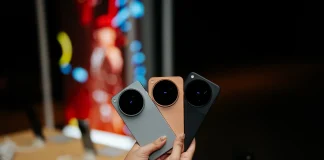
VR Chat is finally available on the PICO 4 natively! Yes, it can be downloaded directly from the app store and be played from anywhere that we have an internet connection – and we don’t need a PC. In this video, I’m going to show you how.
Turn on your PICO 4 headset, and then tap into the App Store. There are already a lot of different software that are available for free. But what we are highlighting here is VR Chat. You can search for it or just find it in the list of apps.


If you’re familiar with VR Chat, then the remaining parts of this video aren’t going to do anything for you. But, for those who are curious, then continue reading.

Once the VR Chat has been installed, we can proceed to login to our VR Chat account. This account will sync everything from our Steam version of VR Chat or we can create a new account if we want to.

And then we’re thrown into this home screen. From here, I want to highlight the one most important thing first – the movement method. You can select it to move with teleportation by controlling the body via 3rd person camera, or continuous movement in first-person camera. I personally prefer the first method as my body can tolerate that without any sort of motion sickness. There’s another notice here about the microphone – and we’ll get to it later as well. VR Chat is mostly revolving around talking with strangers.

Before we move around though, let’s head into the settings menu by pressing this button, and then tapping on the gear button. From here, we can select in sitting or standing position. I selected sitting since that is how I experience VR Chat. After that, select our height so that it matches what we see in real life.


Okay, now we can start to move around. There are portals here that we can hop in and enter different “worlds”. The worlds here are technically separate servers, and each of them has a specific theme. And I’m sure many of want to ask – there are so few worlds here, how can I search for what I want?

The answer is simple – hit the button on the controller and this menu pops up. Then, we can press on Worlds and this menu pops up. We have a whole list and we can browse by categories too. If you know the specific name of that particular world you want to join, then we can search for it as well.

Now, another staple feature of VR Chat is customizing how we look. As we can see, from this menu here, we can select Avatar. We can then select a list of recommended avatars and then look at ourselves in this virtual mirror. I selected a furry… and I don’t know why, and someone wants to shoot me (in VR).

But of course, this is not the only list of avatars that we can select from. At the top, there is a search bar and we can literally find whatever avatar we want. I saw Jake the Dog, the derpy How To Train Your Dragon’s dragon from Cas van de Pol’s animation, and many more other avatars.

When I searched for JoJo avatars, it brought me into a world. The reason is that each world can act like a “hub” for certain avatars. For this example, the cast of JoJo part 3 is here.


Let’s now go and explore what kind of shenanigans that we can do. I’m particularly interested with some games so let’s proceed with that. There’s an unofficial version of Among Us VR what we can play in VR Chat, and there’s even some other random shooter games, some sort of detective game, and many other games.
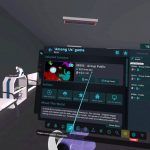

I also entered a room to chill. It’s a cabin in the woods during the night and it’s a cozy space. I walked out to the balcony, and it was such a vibe. Looking out and up the sky – hey, northern lights! It’s not the best in terms of visual fidelity but I was immersed in the mood.

Eventually, I hopped into a public space and interacted with more random people. Of course… there are a lot of random things happening. Like this guy who tried to kiss the other person. I mean, that’s VR Chat for you. There are lots of random interactions and anything can happen.

Yet now, everything is running on the PICO 4 natively. All you need is an internet connection and you can start playing wherever you are, whenever you want.


If you ever want to mute yourself in VR Chat, then hit this button. A small icon will appear, signifying that you are muted.
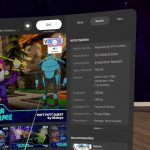

The app is about 300MB in size but do make sure that your PICO 4 has enough storage space as this file size will grow even further. If you haven’t already realized, loading each world requires it to be downloaded first. Same goes to the avatars – and that’s why the file size of VR Chat will continue to grow.
VR Chat on PICO 4 is entirely free
But best of all, it’s free! Download it on your PICO 4 right now but if you don’t have a PICO 4 VR headset yet, I’ll leave you all the purchase links down below.
Where to buy the PICO 4 VR headset?
Like our Facebook Page here at NasiLemakTech.com for more news and in-depth reviews! Also, join our Facebook Group for insightful information and memes!
Subscribe to our YouTube channel too!