




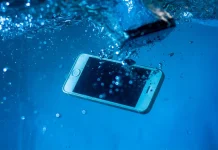

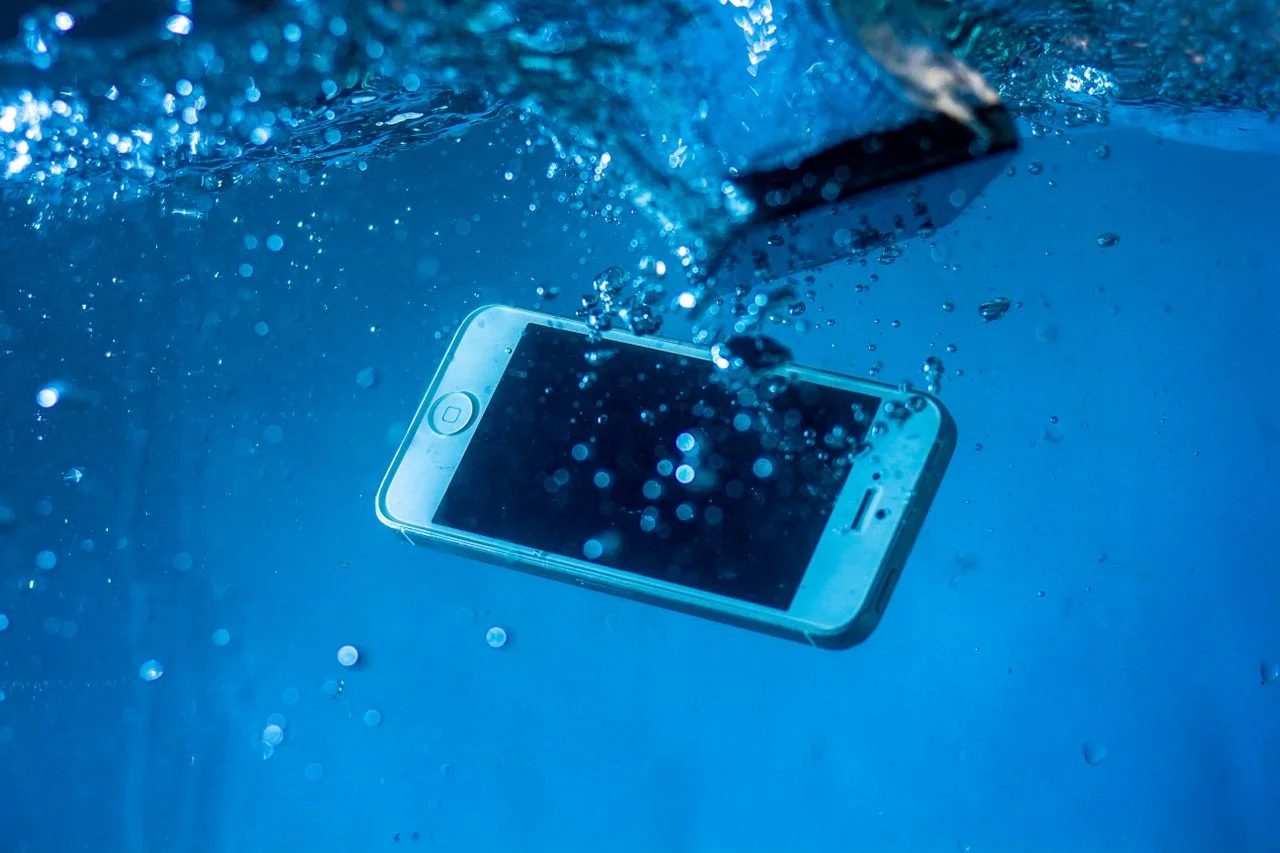

Dropped your iPhone in water? You should power it off immediately, eject the SIM tray, avoid charging or drying it with heat, and seek prompt assessment to limit corrosion and potential data loss. For professional diagnosis and repair, a specialist such as My iPhone Repair can assess the extent of the liquid damage and determine the most suitable course of action. The following guide outlines the immediate steps to take, how technicians evaluate water damage, and practical options for restoration versus replacement.
Key Takeaways:
- Power off the phone immediately and remove any case and the SIM card to reduce shorting risk; place the device on a clean towel in a dry, ventilated spot with silica gel packets or a desiccant pouch from a camera kit rather than using rice.
- Inspect the SIM tray for the liquid contact indicator and check ports for corrosion or debris; a mid-sized repair shop will typically open the chassis to look for board-level corrosion and determine whether the charging IC or connectors require replacement.
- Consider repair pathways: manufacturer service, independent technicians, or data-recovery specialists; Apple authorized service centres often deny warranty for liquid exposure while independent shops commonly perform ultrasonic cleaning followed by micro-soldering for corroded traces.
Step-by-Step Emergency Response
Power down the iPhone immediately and remove any protective case, then gently blot visible water with a lint-free cloth to minimize conductive paths; do not press buttons repeatedly or shake the device, which can drive liquid deeper. You should place the phone on a dry, flat surface with the Lightning port facing down to encourage drainage, and avoid applying heat or inserting objects that could cause damage.
Quick actions and why they matter
| Action | Purpose |
| Power off immediately | Stops electrical current to reduce the chance of shorts |
| Remove case and accessories | Allows trapped moisture to evaporate and exposes entry points |
| Blot surfaces; position ports down | Removes surface water and uses gravity to aid drainage |
| Eject SIM tray; use silica gel if available | Improves internal airflow and desiccation without heat or rice |
Powering Off the Device
Before attempting any drying, shut the device off to stop current flow; if the touchscreen responds, you should use the on-screen slider, and if it is unresponsive, perform the model’s force shutdown sequence by holding the appropriate hardware buttons until the screen goes dark. Do not plug the phone into power after exposure, and avoid trying to cycle the battery repeatedly, because each attempt increases the risk of shorting components.
Safe External Drying Techniques
After powering down, gently blot exposed surfaces with a lint-free cloth and use a soft brush to coax water from speaker grilles and the Lightning port, taking care not to push moisture inward. You should eject the SIM tray to give internal air an outlet and, if available, surround the phone with silica gel packets in a breathable container; avoid rice, compressed air, and hair dryers, since those methods often worsen corrosion or mechanical damage.
Identifying Types of Liquid Exposure
Assessing the type of liquid that reached your iPhone directs how you interpret immediate symptoms, since freshwater tends to cause temporary conductivity and mineral streaks while saltwater delivers electrolytes that accelerate oxidation and leave conductive residue. You should look for differences in residue color and persistence, as freshwater marks often fade after drying whereas chloride-driven deposits remain hygroscopic and continue to attract moisture on the Lightning or USB-C connector pins.
- Visible white mineral streaks vs greenish chloride deposits
- Intermittent faults that clear when dry vs faults that return quickly
- Sticky residue after pool exposure vs crystalline salt crust after sea exposure
- Discoloration around ports and speaker meshes
- Rapid onset of audio or charging issues indicating corrosive agents
| Freshwater (tap, lake) | Mineral deposits and temporary conductivity; often leaves white streaks around ports and speakers |
| Pool water (chlorinated, treated) | Chlorine and stabilizers can etch coatings and adhesives, leaving sticky films and weakened seals |
| Saltwater (sea, brackish) | Chloride-driven corrosion that crystals and pitting form quickly on metal contacts and PCB areas |
| Soapy or detergent-rich liquids | Residue forms films that interfere with touch sensors and can clog speaker meshes |
| Household chemicals (acids, alkalis) | Strong corrosives can strip coatings and eat into metal or solder joints, producing rapid component damage |
Freshwater and Pool Exposure
Freshwater exposure, whether from a sink or lake, generally leaves mineral streaks that lodge in speaker grilles and around camera bezels, and you may notice intermittent behavior as trapped moisture redistributes. Pool exposure adds chlorine and stabilizers that can attack thin protective coatings and adhesives, creating sticky residues that mask underlying damage. If you observe clouded camera glass or altered button travel after contact with pool water, inspect the camera bezel and adhesive seams.
Saltwater and Chemical Corrosives
Saltwater soaks your device in dissolved electrolytes that dramatically raise conductivity, so you will often see rapid-onset corrosion and faults that reappear after drying. Chemical corrosives, including household acids or alkaline cleaners, produce visible etching and color changes on exposed metals and connectors, and you may detect persistent leakage paths across the PCB. Technicians frequently encounter pitting and verdigris on the charging pins and corroded ground planes as concrete evidence.
Essential Maintenance Tips for Prevention
Adopt a maintenance habit that pairs reliable protective gear with scheduled backups so you reduce the risk of data loss and costly service calls. You should choose products rated for immersion or splash resistance, keep spare seals and a tempered glass protector, and run a concise backup routine before any water-exposed activity, like a weekend canoe trip. A simple pre-departure checklist that takes a minute can prevent hours of troubleshooting and a probable screen replacement.
- Use an IP-rated waterproof case with replaceable port covers and a snug closure
- Keep moisture absorbers, such as silica gel packs, in phone storage bags
- Store a spare tempered glass screen protector and adhesive seals for quick swaps
- Enable automatic cloud backups and maintain a secondary local backup on a computer or encrypted external drive
- Create a one-minute pre-outing checklist to verify seals and that backups completed
Waterproof Cases and Seals
Choose a waterproof case that seals around ports and includes a snug, tested closure, and confirm the manufacturer specifies water resistance rather than relying on packaging claims. You should inspect rubber gaskets and port covers for wear, replace any loosened adhesive on screen protectors, and avoid stretched or misaligned seals after a drop. As a practical step, test the empty case at home with a short immersion or a paper test before heading out for a beach weekend.
Routine Cloud Backups
Schedule automatic cloud backups so your device saves recent photos, messages, and settings without manual intervention, and enable Wi-Fi-only transfers to preserve cellular data. You should keep at least one secondary backup on a computer or external drive, confirm that backups include app data or messages if needed, and periodically perform a test restore to verify integrity. As a practical habit, check that a recent photo restores successfully after your next backup cycle.
Critical Factors in Repair Feasibility
Assessing how long the phone remained submerged and the visible extent of corrosion forms the core of repair feasibility evaluation; you should document the incident timeline, the liquid type (fresh, salt, or chemically contaminated), and any prior attempts to power the device, since each factor shifts the likely outcome. When you record those details, also note model and prior repairs, plus precise symptoms for the technician to reference during diagnosis at a mid sized repair shop.
- Estimated submersion duration and time until drying
- Water type observed, for example saltwater versus fresh water
- Visible corrosion on connectors, ports, or battery contacts
- Whether the device was powered or charged after exposure
- Model, prior repairs, and parts availability for assessment
Duration of Submersion
Longer immersion increases the likelihood of irreversible damage, so you should aim to provide an accurate exposure window and note intermittent wetting events, because repeated brief contacts can cause cumulative harm similar to continuous submersion. If you attempted to power the phone while wet, indicate that clearly since electrical activity accelerates corrosion and shorting. Handing over a precise timeline helps the technician estimate cleaning needs and potential parts replacement at an independent repair shop.
Internal Component Corrosion
Corrosion often targets solder joints, connector pins, and the logic board, so you should inspect for green or white residue, contact discoloration, and any bulging battery cells that signal electrochemical activity; superficial films may clean up, whereas pitting or lifted traces frequently require board level repair. Ask the shop for photographic documentation of affected areas and an estimate that includes the possibility of a logic board replacement at a professional computer repair shop.
Final Words
After water exposure, you should power off the iPhone, remove the SIM tray and case, and blot moisture with a lint-free cloth. Avoid turning it on or using heat; instead place the device port-down beside silica gel packets or in dry air for several hours before testing. If problems persist, you should bring it to an authorized service provider or reputable local computer repair shop for evaluation; technicians can assess corrosion, board-level repairs, and data recovery, for example, a mid-sized repair shop often runs a diagnostic before offering a scoped repair estimate.
Frequently Asked Questions (FAQ)
What immediate steps should I take the moment my iPhone gets water exposure?
If the device remains powered on, shut it down right away to reduce the chance of short-circuits. Remove any case and the SIM tray, then gently blot visible moisture with a lint-free microfiber cloth while avoiding probes into ports, loose fabrics, or compressed air. Avoid attempting to charge or power the phone to test functionality, since applying voltage to wet components can cause further damage. Photograph the exterior and any signs of corrosion for insurance or repair documentation, and seek a professional diagnostic within 48 hours, for example at a local independent technician who offers liquid-damage assessments.
Can water damage be fully repaired, and what repair options exist?
Repair outcomes depend on exposure type and how long the device was wet, with brief splashes often repairable and prolonged submersion more likely to cause deep corrosion. Available repairs range from port and connector replacement, battery and screen swaps, to logic-board cleaning and micro-soldering performed by technicians with microscopes and flux. Manufacturer or authorized service programs may offer out-of-warranty repairs or replacements, though liquid-detection indicators can affect serviceability. Some owners opt for careful board-level cleaning using high-purity isopropyl alcohol only when they have appropriate tools and experience, while others send the unit to specialists for data recovery prior to any major restoration, such as a micro-soldering shop that services iPhone logic boards.
How should I decide between repair, replacement, or filing an insurance claim?
Base the decision on three factors: functional symptoms, repair cost compared with current device value, and whether important data is recoverable. Functional signs that often indicate severe internal damage include persistent reboots, dead speakers, unresponsive touchscreen sections, or a noncharging port. If a repair estimate approaches the price of a comparable refurbished device, replacement often becomes the more practical choice, as a mid-priced refurbished iPhone can be less expensive than an extensive logic-board rebuild. Review any phone-protection or homeowner insurance policies for accidental water-damage coverage and deductible amounts before committing to a repair quote, and prioritize data extraction if you lack an up-to-date backup to iCloud or a computer.
Like our Facebook Page here at NasiLemakTech.com for more news and in-depth reviews! Also, join our Facebook Group for insightful information and memes!
Subscribe to our YouTube channel too!