















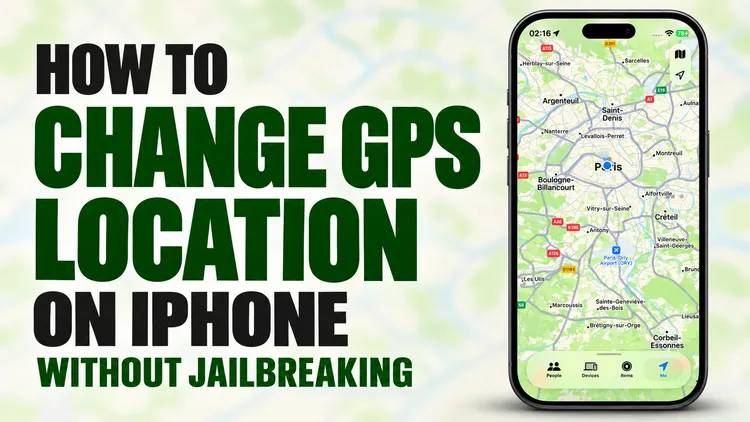

Want to explore another city’s local recommendations or use location-based features from home? Your app may keep showing what’s nearby, even when you search somewhere else.
With LocaChange location changer, you can choose a different GPS position on your iPhone without jailbreaking it. Start by checking which type of location your app uses.
What Actually Changes Your iPhone’s GPS Location
Your iPhone uses GPS, Wi-Fi, cellular networks and Bluetooth to determine its position through Location Services. Apps can also use an IP address or a location saved in your account. The right method depends on which information you want to change.
Method What it changes GPS location changer The virtual coordinates reported through a location-changing setup. Use it to change your location in Pokémon GO, set a virtual location in Find My, or simulate movement along a chosen route. VPN Your public IP address and its apparent network location. You can access websites and streaming libraries offered in another country, including region-restricted films and TV shows. Apple Account country or region Your account’s store region. Use it when moving countries to access the local App Store and its available apps and media.
If your goal is to move the position an app reads from your phone, a GPS tool is the relevant starting point. You can then check whether that particular app accepts the changed coordinates.
How to Change GPS Location on iPhone with LocaChange
The LocaChange location changer gives you a desktop map for choosing a virtual position on your iPhone. Its Windows and Mac versions suit anyone who wants to search for a destination on a larger screen and manage the phone from there.
1 Install LocaChange and Connect Your iPhone
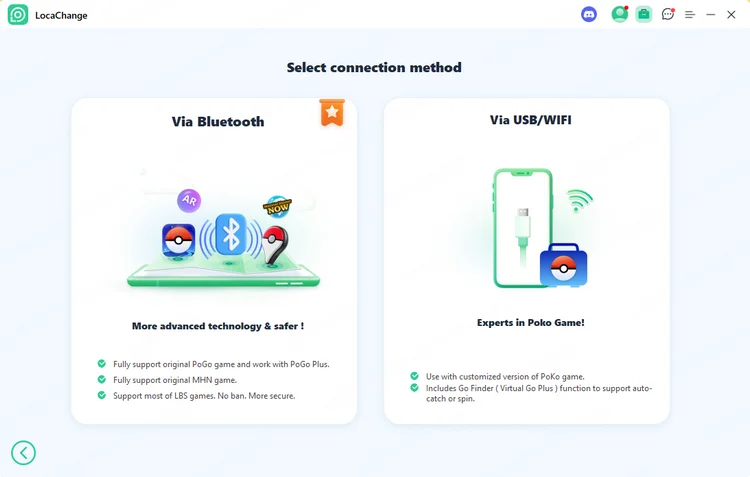
Install LocaChange on your Windows PC or Mac, connect your unlocked iPhone and complete the on-screen connection prompts.
Select Universal Mode for general location-based apps. For the device-specific setup steps, follow the LocaChange desktop guide. Once the map loads, you’re ready to choose a destination.
2 Choose a Destination on the Map
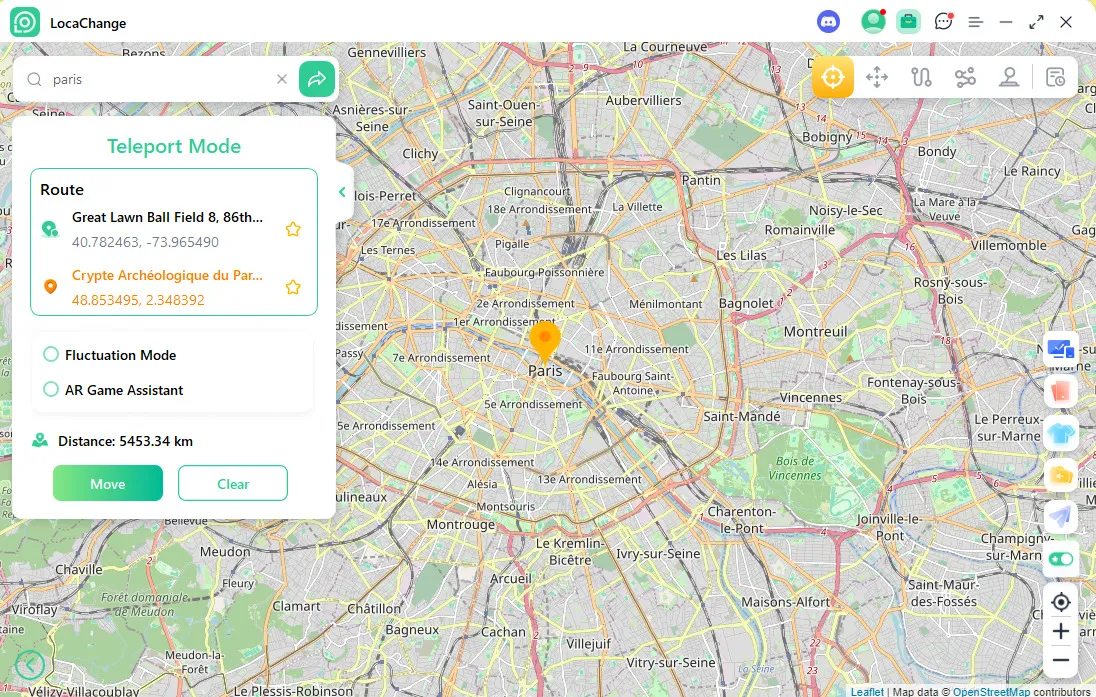
Open Teleport Mode. Search for an address or GPS coordinates, then check the place name and map pin in the destination panel. Click Move to apply the selected location.
Choose a familiar landmark for your first attempt and zoom in to check the exact spot. When pasting coordinates, keep their order and any minus signs.
3 Check the Location in Your App
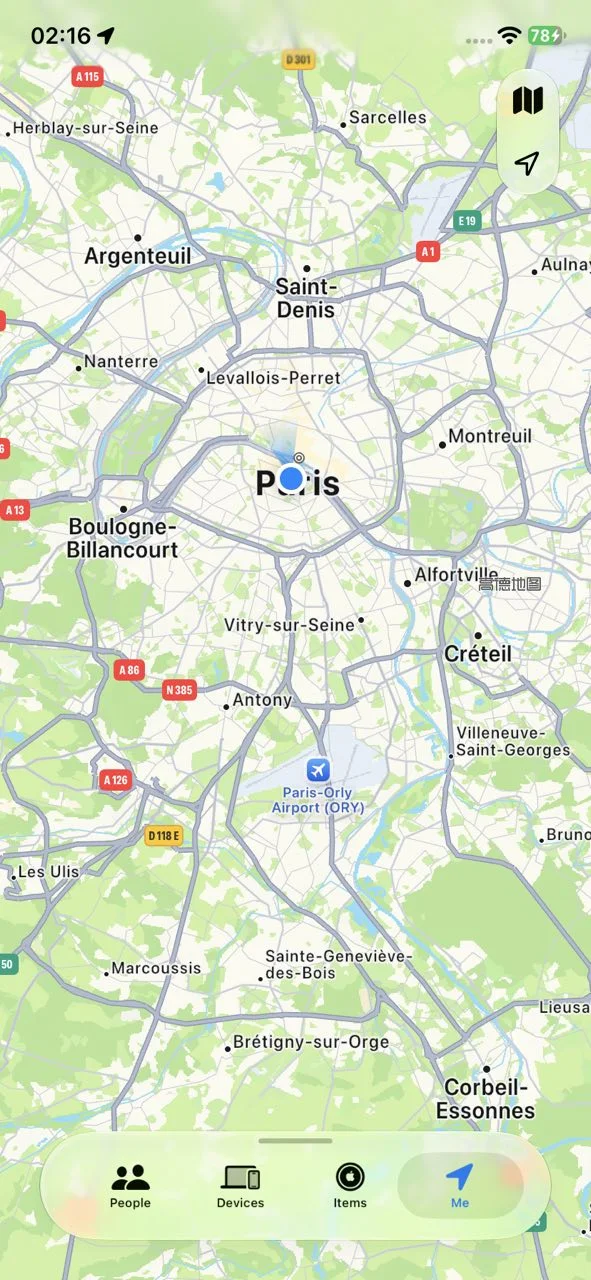
Check Maps first. Tap the current-location control and confirm that the current-position marker has moved to your chosen destination.
Then check your target app. Open it and look at its location display or nearby results. If it still shows your old location, follow the troubleshooting steps below.

4 Add Movement Only If You Need It
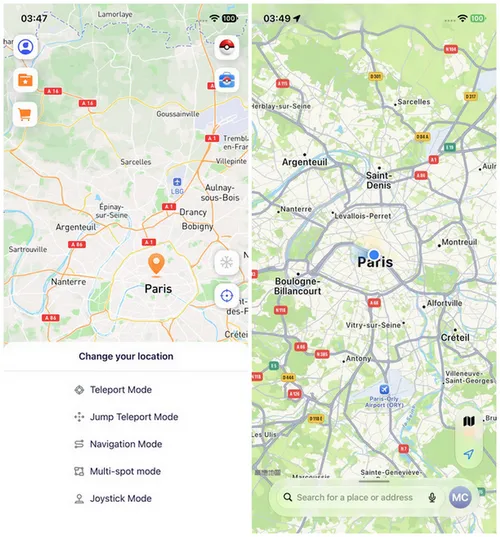
Keep a fixed destination if you only need to change where you appear. Use a route when you want to simulate travel.
Two-spot Mode connects two locations; Multi-spot Mode lets you build a longer path. Choose a speed and try a short route first so you can follow the position changes on your phone.
Can You Use an iPhone Location Changer Without a Computer
Prefer to make changes directly on your phone? LocaChange’s iPhone app iGo lets you choose a virtual location without using a computer each time. You’ll still need to complete the initial setup before switching to phone-only use.
Different iOS versions use different installation paths. Follow the LocaChange iOS setup guide for your system versionn. After setup, you can manage location changes from the phone.
What LocaChange Users Say About Setup and Support
Positive Trustpilot reviews highlight patient customer service, clear communication and help with setup questions.

If your location hasn’t updated after setup, start with these checks.
If Your Location Does Not Update or You Want to Switch Back
Check the Connection and Location Permissions
- Check the connection. Confirm that LocaChange recognises your iPhone. If it doesn’t, unlock the phone and reconnect the cable.
- Check permissions. Open Settings > Privacy & Security > Location Services. Make sure Location Services is enabled and your target app has permission to use it.
- Refresh the target app. If Maps shows the new location but the app doesn’t, close and reopen it. Check whether it uses live device location or a manually selected city.
Still stuck? Send support your iPhone model, iOS version and a screenshot of the problem so they can help with your specific setup.
Restore Your Real Location Before Navigation
Finish any simulated route and end the location-changing session, then restart your iPhone to restore its real location. Open Maps and confirm the current-position marker is back where you are before requesting directions or sharing your location.
Conclusion
To change GPS location on iPhone, use LocaChange to select a destination and check it in your target app. Add a route when you need movement, and restore your real position before returning to navigation or location sharing.
Like our Facebook Page here at NasiLemakTech.com for more news and in-depth reviews! Also, join our Facebook Group for insightful information and memes! Subscribe to our YouTube channel too!