





Corrupted files are one of those problems that rarely happen at a convenient time. A phone video may stop playing, a product photo may look damaged, or a document may refuse to open right before it is needed. In this Wondershare Repairit review, the main question is simple: does Wondershare Repairit offer a practical way to repair everyday digital files? Repairit is an advanced AI-powered data repair tool for videos, photos, files, audio, and emails, and it also has a convenient online version for quick fixes when users want to try browser-based repair.
What Is Wondershare Repairit?
Wondershare Repairit is a file and media repair platform designed for users who need to fix corrupted or damaged digital content without handling technical file structures manually. It covers several common repair needs, including video repair, photo repair, document repair, audio repair, and email repair.
The product is especially relevant for users who create, store, or transfer many files across devices. A video can be interrupted during recording, a JPEG can become damaged during transfer, and a Word or Excel file can break after a crash or failed sync. Repairit gives users a structured repair workflow instead of leaving them to test random converters or media players.
Who Is Repairit Best For?
Repairit is best for people who regularly work with important media or documents. Content creators can use it when videos become unplayable. Office users can use it for corrupted documents or spreadsheets. Everyday users can use it when personal photos, audio recordings, or shared files become damaged.
It is not a replacement for good backup habits, and it should not be described as a guaranteed fix for every damaged file. A more realistic view is that Repairit provides an accessible first repair workflow before users decide whether a file needs to be recreated, restored from backup, or sent for specialist recovery.
Part 1. Key Repairit Features in This Review
Video Repair for Unplayable Clips
The most important feature for many users is Repairit video repair. It is built for damaged videos that will not open, freeze during playback, show a black screen, or have playback errors after recording, transfer, or export. This is useful for MP4, MOV, and other common video workflows where recreating the footage may not be possible.
Photo Repair and AI Enhancement
Repairit also supports photo repair for damaged or corrupted images. This fits users who have broken JPEGs, visual artifacts, old images, or photos that do not preview correctly. The AI enhancement angle is useful when the issue is not only file damage but also image clarity or quality.
File, Audio, and Email Repair
Beyond media repair, Repairit supports repair workflows for documents, audio, and emails. That broader feature set makes the tool more useful for mixed file problems, especially when users do not want to keep separate utilities for every damaged file type.
Repairit Online vs. Desktop Repairit
The desktop version is the better option for larger files, repeated repair tasks, batch workflows, or more serious repair jobs. It gives users a fuller repair environment and is better suited to people who frequently work with important files.
For lighter or urgent cases, Repairit Online video repair is useful because it lets users try video repair from a browser. This is a practical option when someone wants a quick repair attempt without installing software, especially for smaller files or fast checks.
Part 2. How to Use Repairit Video Repair in 4 Steps
The steps below follow the official Repairit video repair workflow and show how a typical repair process works.
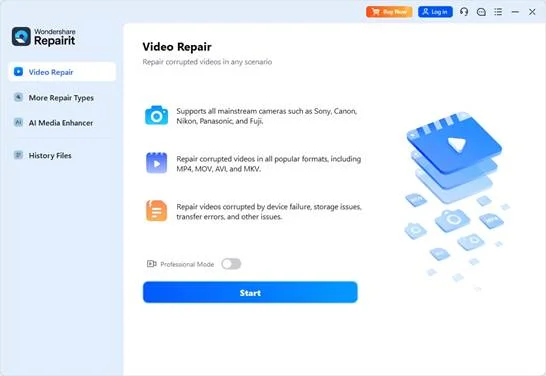
Step 1: Add the Corrupted Video
Open Repairit, choose the video repair function, and add the damaged video file. Keeping a copy of the original file is a good habit before starting any repair process.
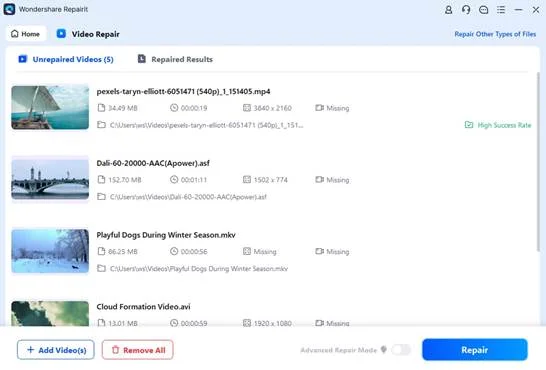
Step 2: Start the Repair Process
After the video is added, start the repair process. Repairit analyzes the file and works to rebuild the damaged video structure so the clip can play correctly again.
Step 3: Preview the Repaired Video
Previewing matters because users should confirm the repaired video before saving it. Check whether the video opens, plays smoothly, and contains the important visual content.
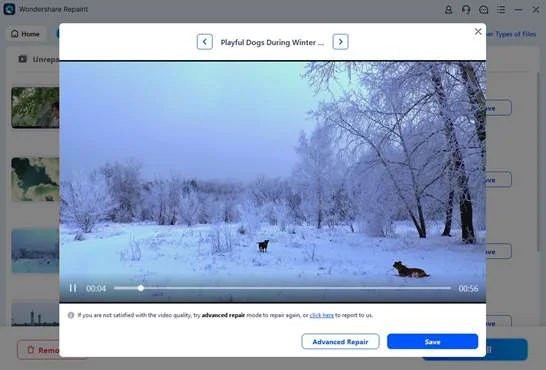
Step 4: Save the Fixed File
If the preview looks right, choose a safe folder and save the repaired video. For valuable footage, store the repaired file separately from the original damaged version.
Part 3. What Works Well About Repairit
The strongest part of Repairit is the range of repair categories. Many users do not have only one type of damaged file. They may need to repair a video today, a photo tomorrow, and a document later. Having those repair paths under one product makes the workflow easier to understand.
The preview step is also important because it keeps the process practical. Users can inspect the repaired result before saving, which is especially useful for videos, photos, and important documents. The online version adds flexibility for quick repair attempts, while the desktop version remains better for heavier work.
Part 4. Limitations to Keep in Mind
Repairit should be used with realistic expectations. Very severely damaged files may not always be fully recoverable, and repair quality can depend on how much usable data remains inside the file. Users should also continue using backups, safe transfer habits, and reliable storage devices.
That said, as a first-response repair tool, Repairit is more accessible than manual technical troubleshooting. It gives users a clear process instead of forcing them to understand codecs, headers, or document internals.
Final Verdict
This Wondershare Repairit review finds the tool most useful for people who want a straightforward way to repair damaged videos, photos, files, audio, and emails. Its desktop software is better for serious repair work, while the online option is helpful for quick video repair attempts. For creators, office users, and everyday file owners, Repairit is a practical repair tool to keep in the workflow when important files become corrupted.
Like our Facebook Page here at NasiLemakTech.com for more news and in-depth reviews! Also, join our Facebook Group for insightful information and memes!
Subscribe to our YouTube channel too!