
Disclaimer: The gauging of the price-to-satisfaction ratio in this review is solely based on the current ongoing promotion and will change depending on whether the prices return to their original numbers
My last year’s software review journey revolved around iTop‘s VPN service and data recovery program where both of them showed good results in terms of the features delivered and the overall user experience.
Since it is already 2023, the brand has decided to give me the 3rd green light to review another subscription service of theirs which is the iTop Screen Recorder.
Now hold up, you might have the same question as I am in your mind right now – why bother using these instead of some of the popular alternatives like Bandicam or OBS? Well, that’s why the review is here to give you some insight.
So let’s start off with the first boot of the application.
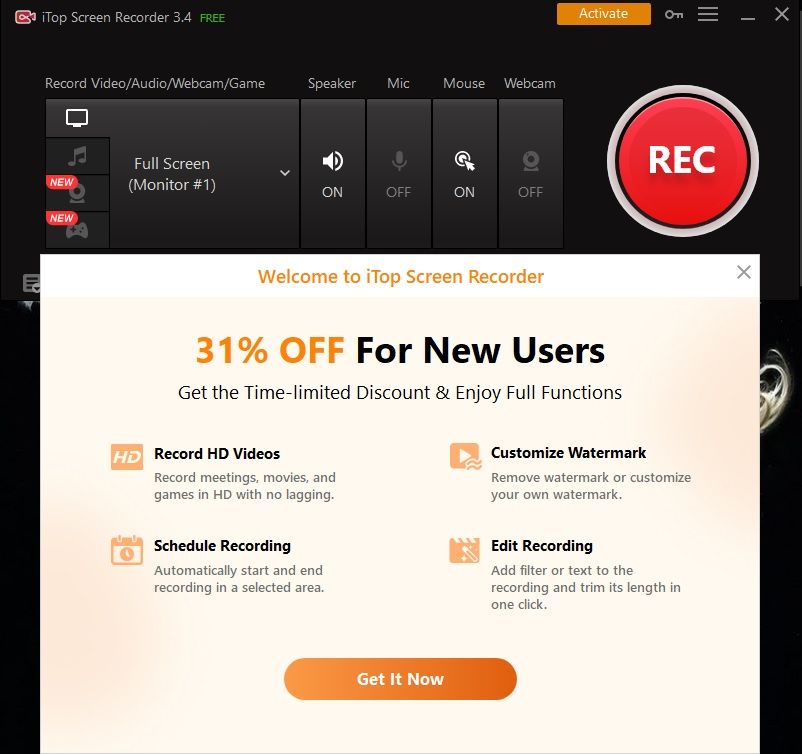
After installing the program, this is what I see. Okay, I was semi-expecting this stunt but it seems like this is just iTop’s way of promoting their paid subscription plans – by blasting it towards your face the first time you open up any software created by them.
I got no complaints about this though as I got a test account with “Pro” status to find out the full capability of the Screen Recorder suite.
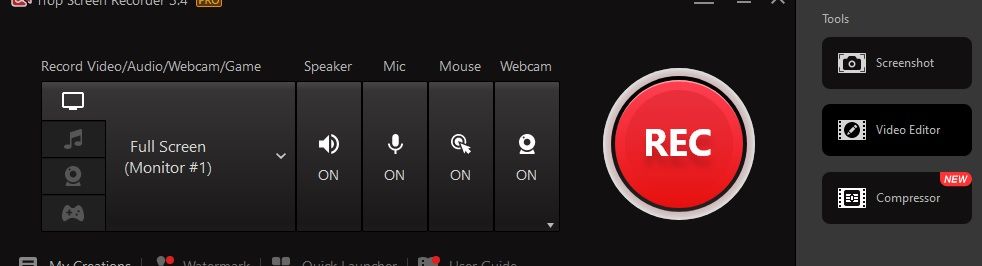 So after activating the account, the first thing you’ll notice is there are 4 main tabs targeting 4 different use cases where the program can record what’s on your screen right now (You can target a specific display if you’re running a multi-monitor setup), audio only, webcam only, or capturing a game or application.
To start recording, simply hit the big red ‘REC’ button, and off you go.
We’ll talk about the tools later in this post.
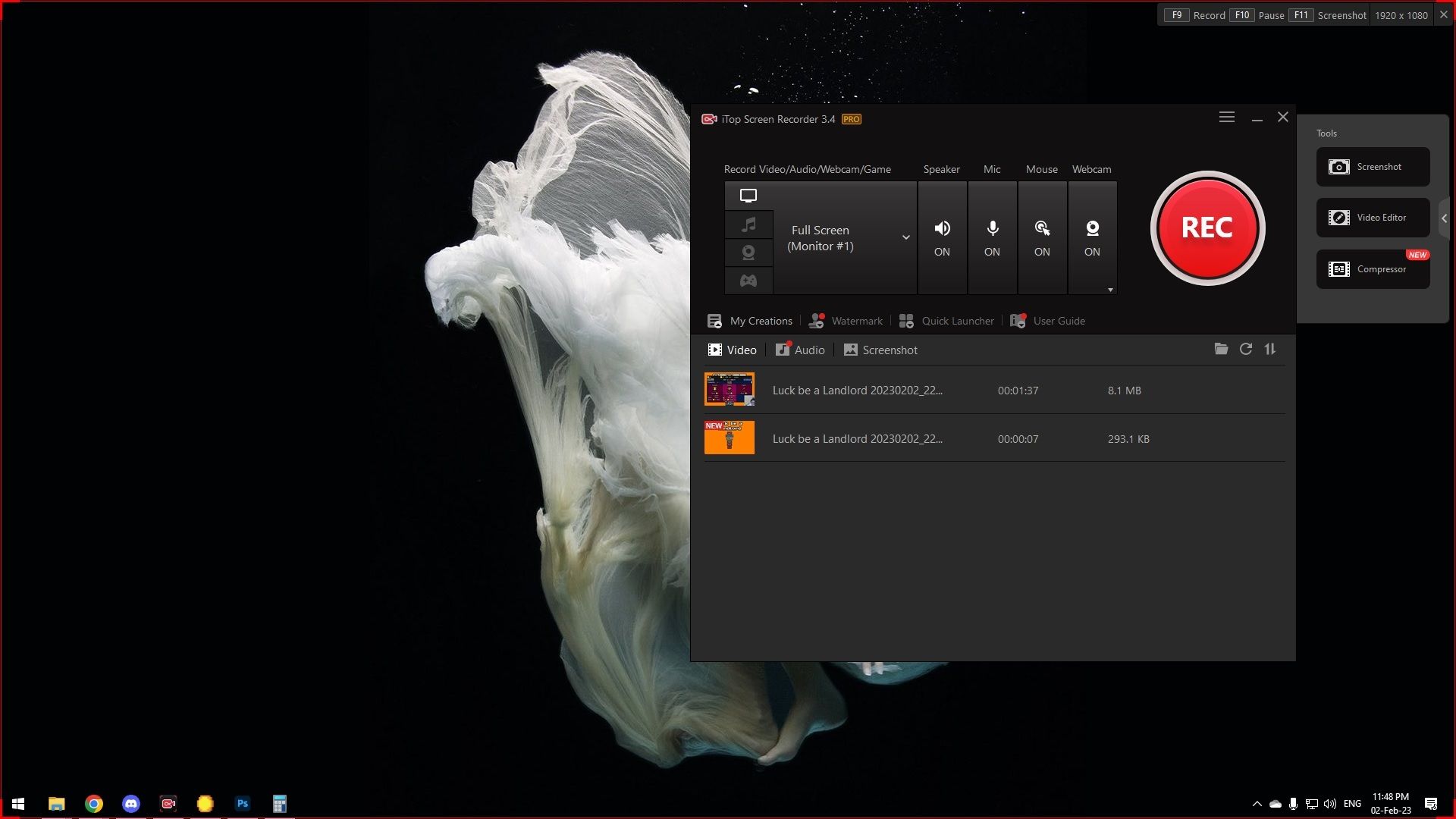 In the case of the actual screen recording, aside from Full Screen, you may also select a certain area of the display or just a specific window to make your lives easier. It also has a couple of ratio selections of 4:3 and 16:9 if you’re more comfortable with that.
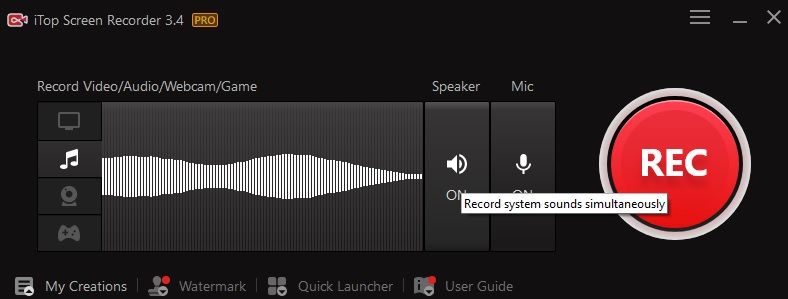 The Audio tab is the most simple out of the four – recording sounds. But good thing the tooltip mentioned “Speaker” being the computer sound, or Stereo Mix if you know your IT stuff, which is an extra point from me for properly labeling functions. So you can either record the sound you hear out of your PC, your own voice, or both!
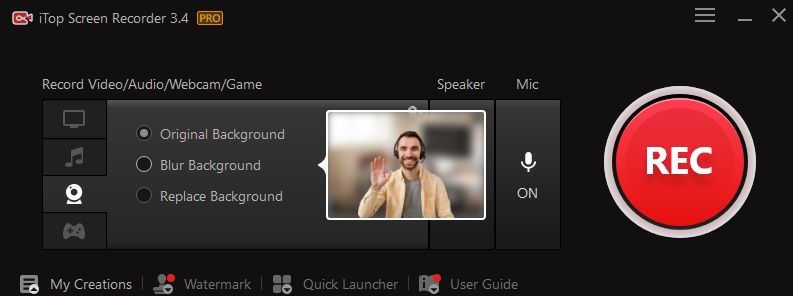 Onto the Webcam section, at here you can also record the Speaker and Microphone together with your webcam. I appreciate the easy-to-access background replacement function that can either be a blur filter or straight-up replaced with a virtual image of your choice.
Want to be professional in an office setting? You can do it. Lazy much? Hit the Blur Background option and start recording your speech.
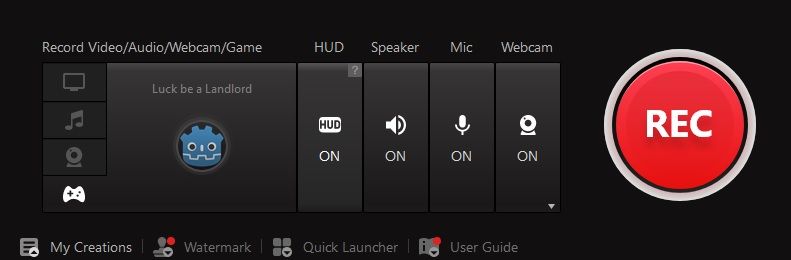 The last tab is focused on gaming which the program will hook itself to your already active application and they are thoughtful enough to include a HUD option for you to know whether the application is live or not.
And of course, to provide a full “stream-like” layout, the trio of Speaker/Mic/Webcam is available for toggle as wished.
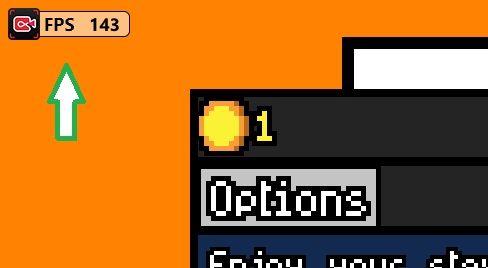
If the Screen Recorder has successfully hooked into your game with the HUD on, then you’ll see this little box on the top left (default position).
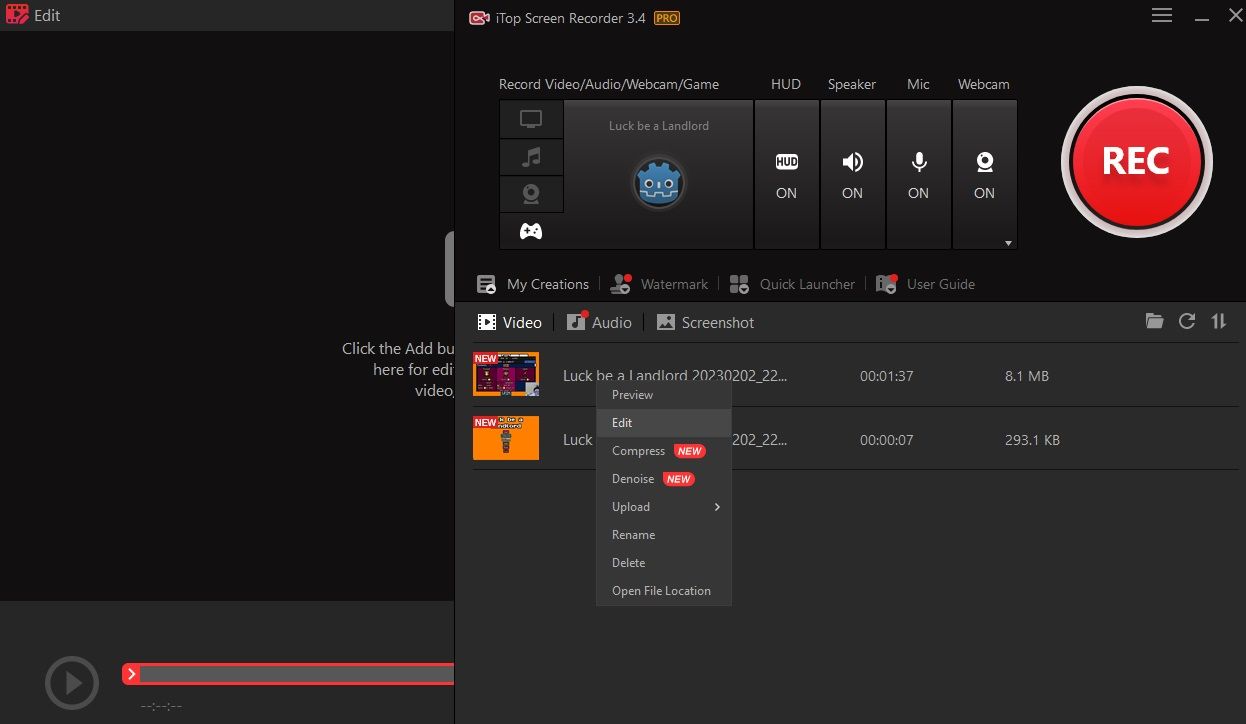
For all your recorded footage, it will be listed down in the My Creations tab with proper categories of Video, Audio, and Screenshot and that’s wonderful for decluttering a bunch of content.
Anyways, by hitting the Edit button you’ll launch the built-in Video Editor function.
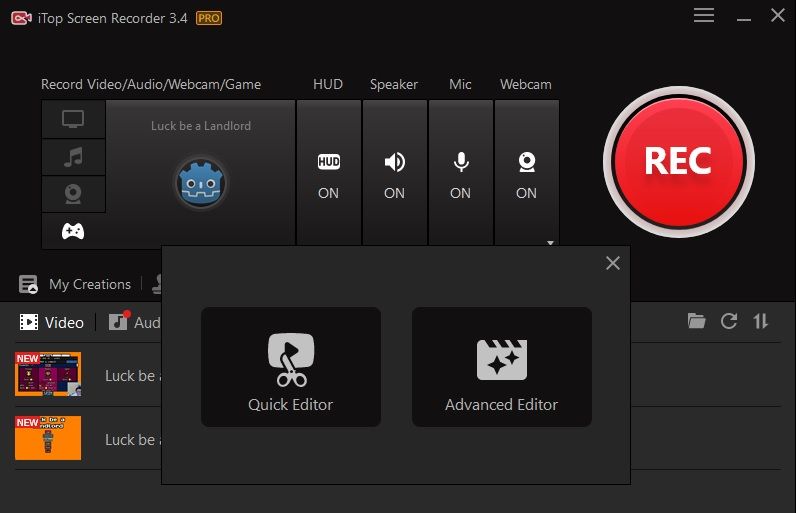 Oh yeah, and there are 2 modes for you to choose from – the Quick and the Advanced Editor.
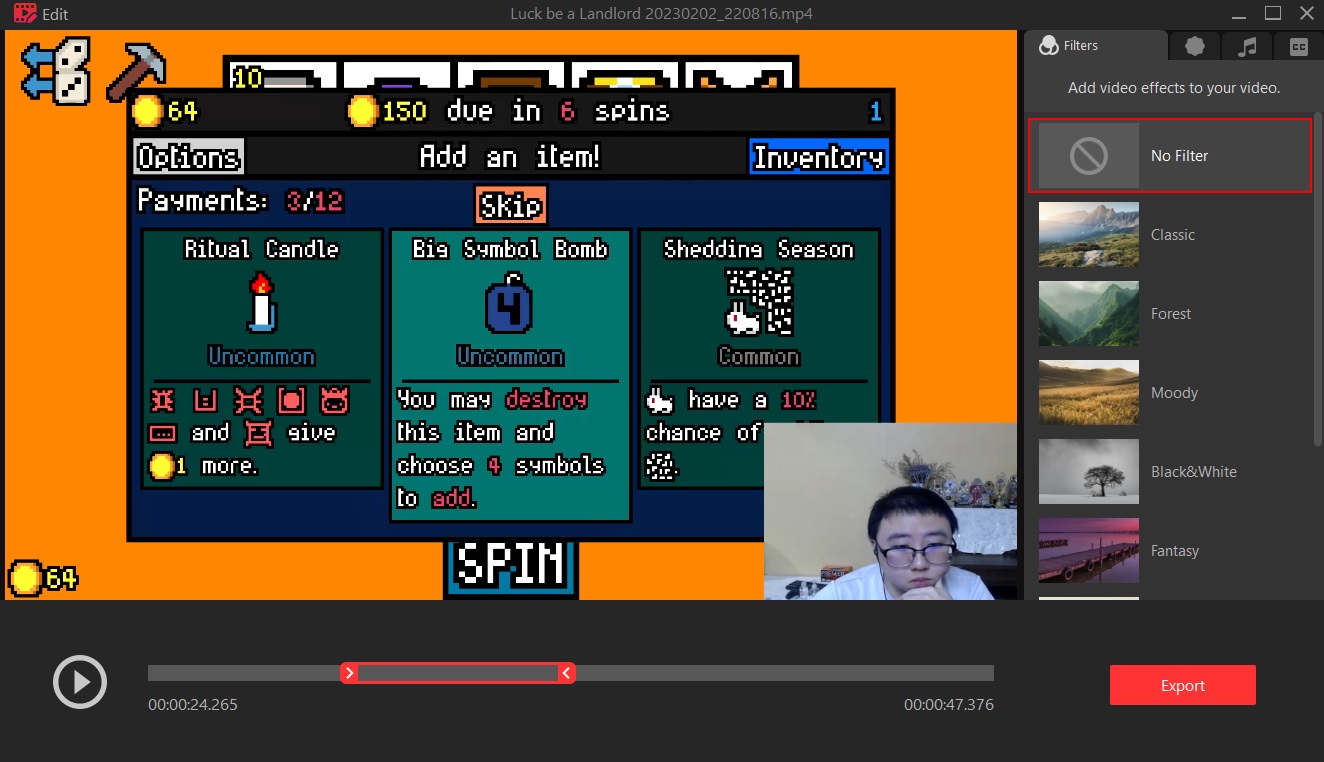
Now, this is what I would want if I’m paying for a screen recorder software because the Quick Editor is just so easy to use and powerful to mess around with.
For starters, the Timeline bar at the bottom has the red slider thing which is essentially the Crop function – select the time range you want then bam, no cutting, and frame adjusting needed.
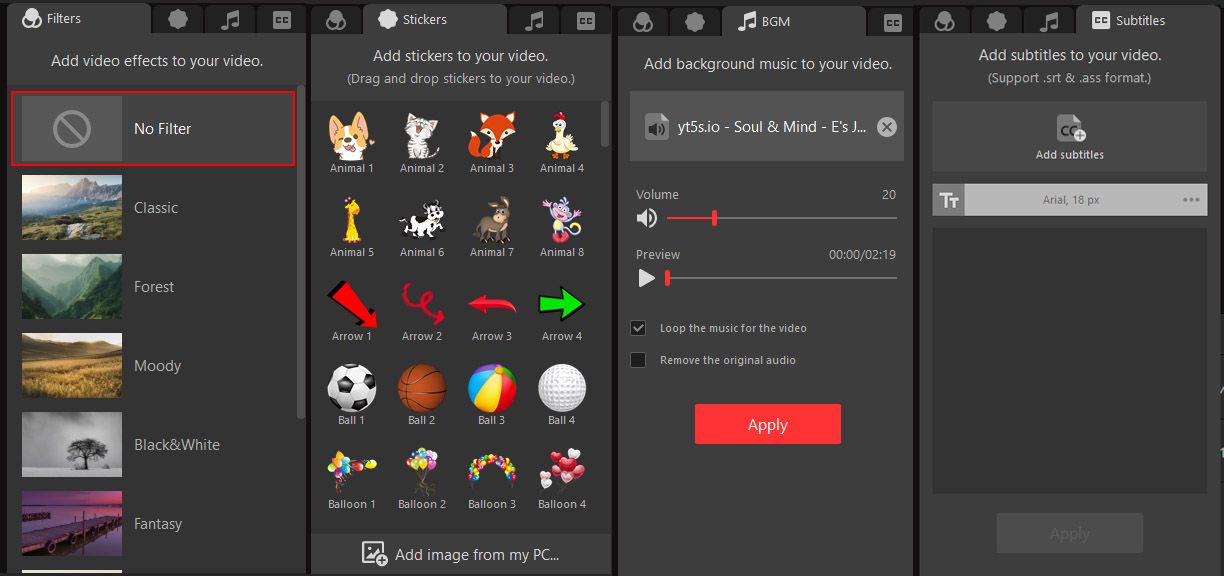
There’s also a bunch of post-processing goodies you can add to your video clip such as filters for the photography works, stickers if you want some cartoony touch, or even add a music file and have it overlayed for you, and don’t get me started you can adjust the volume in case your source file is too loud.
And if you’re working on a video guide or presentation of some sort and you have a subtitles file ready to go, just plop it in, adjust the font and text size, and watch them start populating your screen at the desired timestamp.
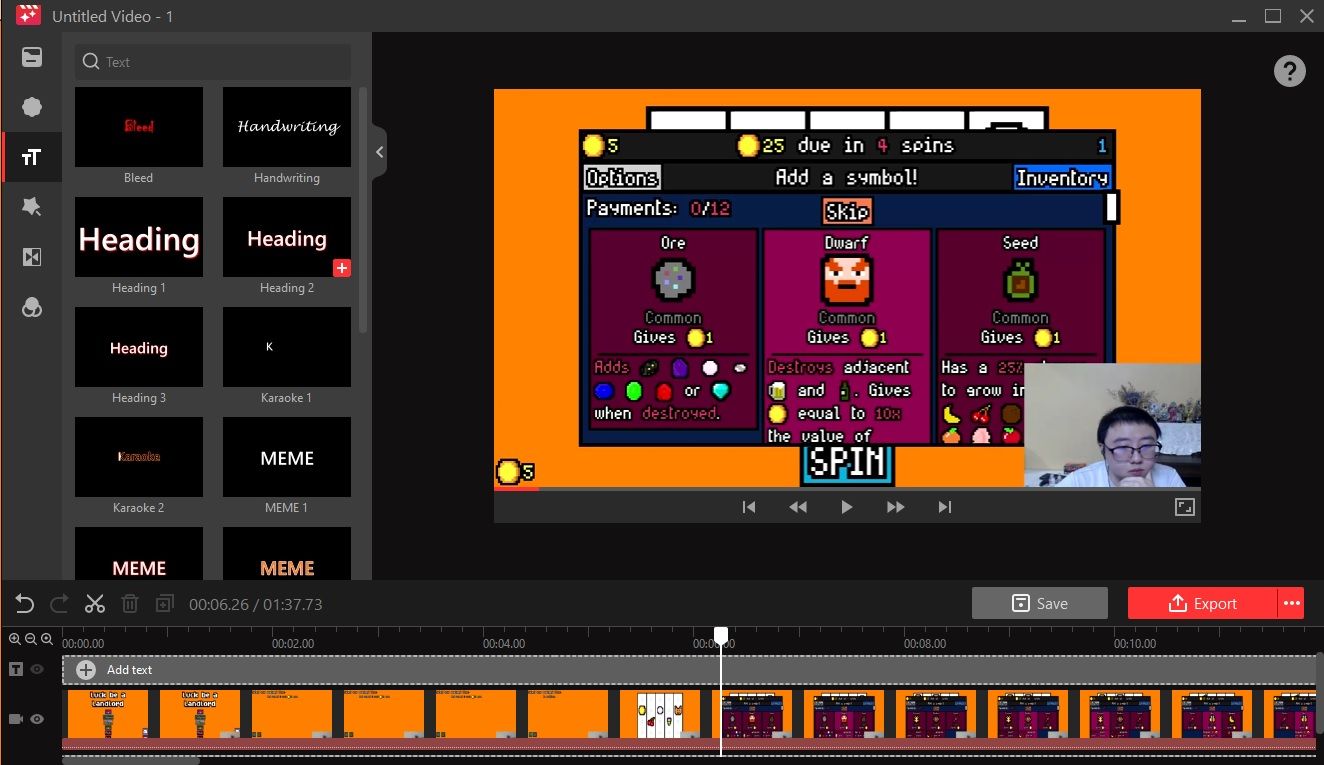
For the Advanced Editor, you can play around with even more functions and features where it actually looks like a competent video editing software. Although what it offers could be limiting for the creative industry, but if it has what you needed, applying them is easier than I expected.
So anyway, I chose the Quick Editor and give it a spin. The following video is what it produced – 23 seconds at just 1.85MB.
Not too shabby right?
And if you’re a paid plan user, you can even record up to 4K resolution provided you’re running a display of that caliber therefore the Screen Recorder can really handle some tough work.

Alright now onto the tools. The first one is the Screenshot tool but Windows already has one so I guess this is a bit redundant?
But it has a scrolling window capture capability so it is technically better than just hitting the PrintScreen button on your keyboard.
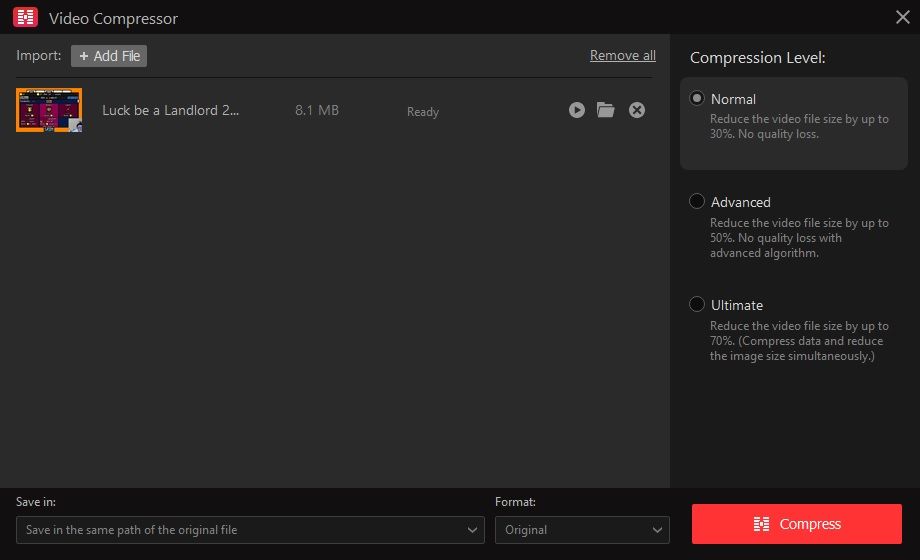
For any reason, if the video file is too large for your transfer or upload, you can call out the Video Compressor and let it do its job to cut down on the size with 3 available tiers of “diet plans” for your footage.
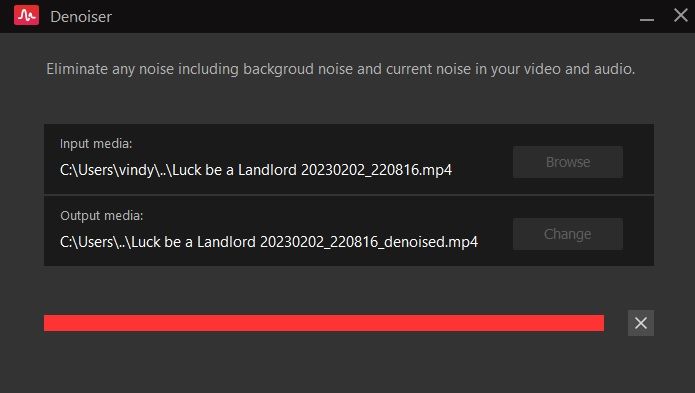 The newly added Denoiser function is also pretty convenient to help you save some time to not rerecord by getting rid of those pesky dog barks or sudden chimes.
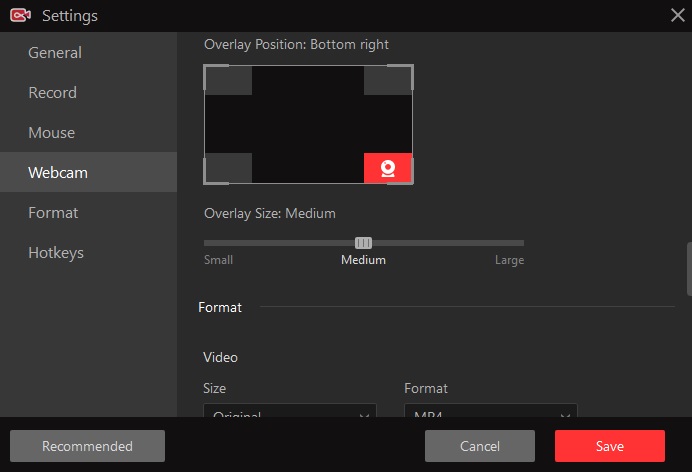
The settings menu as expected is filled with all the related parameters like video export destination path and hotkey setup for easy Start and Stop just to name a few.
Here, you may also change your webcam’s overlay position and size to your needs and even mess around with the video encodings aspects like file format, bitrate, and more. As it wasn’t hard to just Google for recommended settings, it shouldn’t be a problem even for most non-IT savvy users.
Conclusion
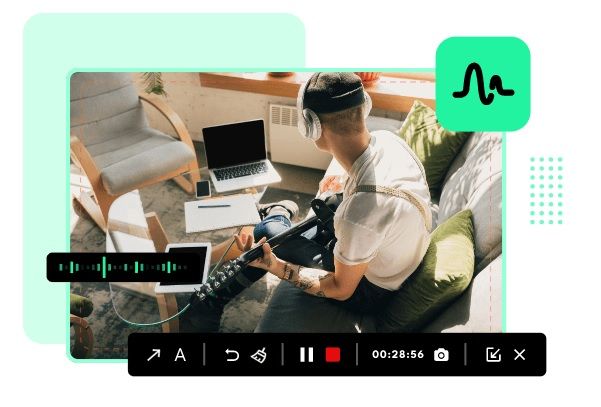
So to sum everything up, the iTop Screen Recorder has shown me what a screen recording software should have in order to stand out from the rest of its competition – a lot more of the “optional” things that could make its user’s life much easier and from a user’s perspective, they are originally expecting just a single piece of application but instead gotten a whole suite. Now that’s what I call value.
But turning back the clock back to the beginning of this review where one would question why pay for something when some alternatives are free? Well, it boils down to one important factor which is the user base.
To make it simple, business organizations are willing to pay for Microsoft Teams or Skype for Business instead of going for something like Discord even though both of them do the same thing for free – video calls and voice calls. It is important to know who your software is appealing to and how to tailor it to their needs.
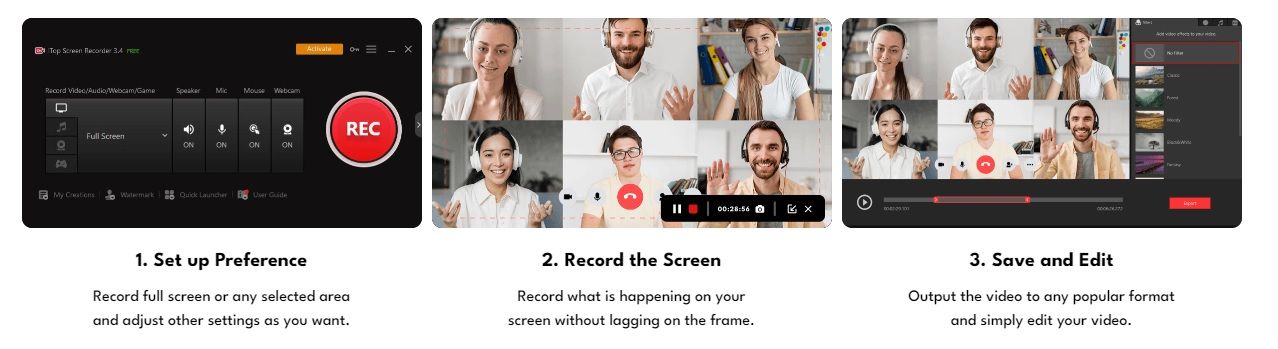
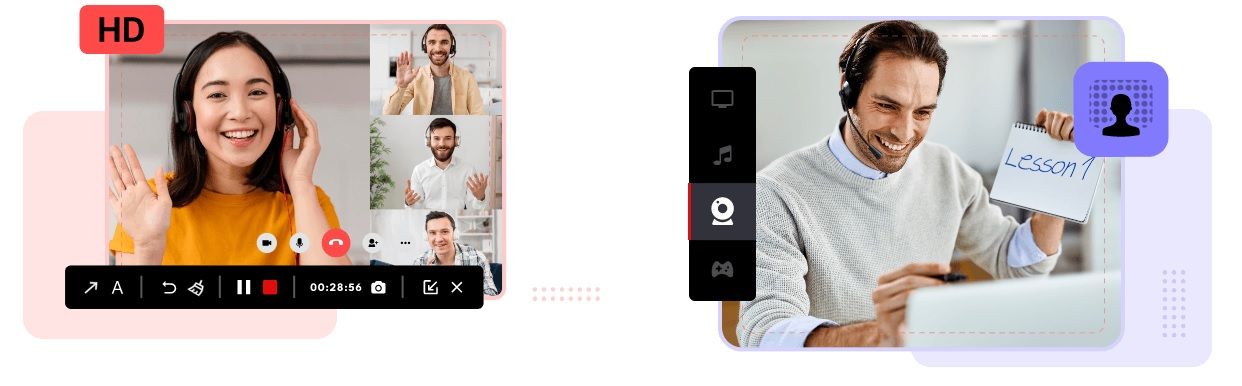
Then, what kind of user can benefit from it the most? One of the roles I could think of is teachers and lecturers who create educational digital content for a living. In contrast to the high IT and software literacy skills required to operate something like OBS, what iTop is providing here is very straightforward and user-friendly where the setup and detection of associated recording hardware are almost fully-automatic and instantaneous.
Additionally, they could edit the video on such quick notice that students alike can gain access to properly edited media fitted with subtitles and other relevant graphics for a highly effective and content-rich video. Combined with its compression algorithm resulting in high-quality visuals with small file sizes, it means that even devices with mid to low-tier hardware can utilize the application without many bottlenecks.
But practically speaking, any information or content that needs to deliver in a pre-recorded format pretty much gets satisfied by what the iTop Screen Recorder can do – be it gamers making a short highlight clip or recording a Zoom call for archiving purposes.
Pricing
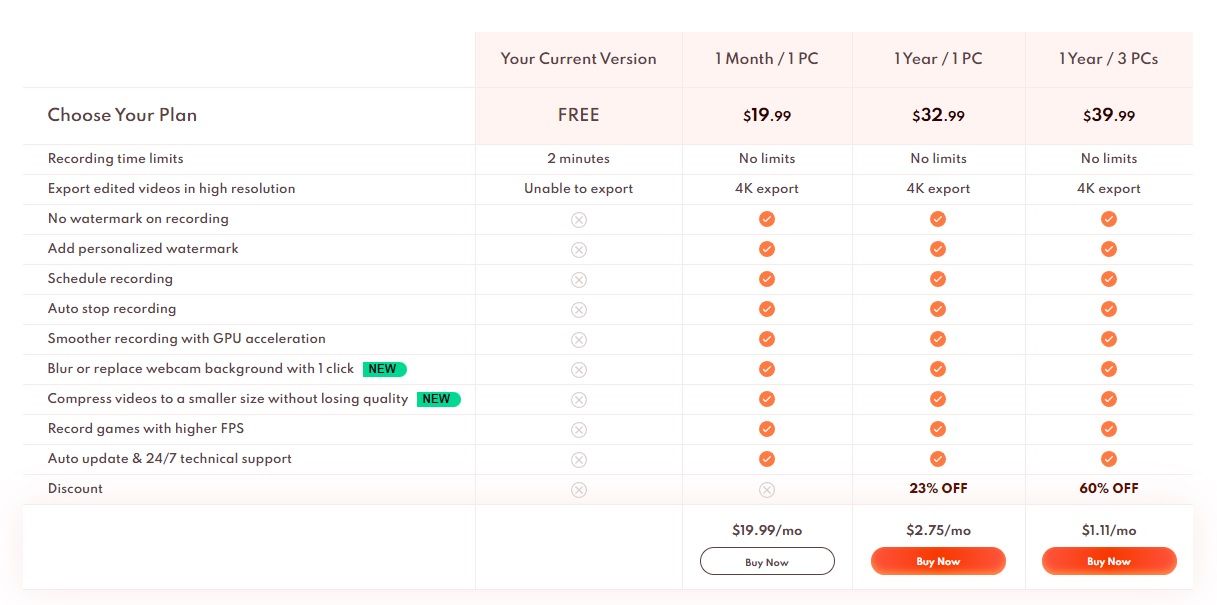
Now to the usual pricing session. As of now, there’s a 60% off promotion where you can get a 1-Year plan for 3 PCs at just USD39.99 which is only a dollar and eleven cents in Uncle Sam currency each month. At its best price, this is one of the best options where you may even share with your buddies or co-workers to offload the fee to an even lower figure per person.
AndnNot only just for personal and hobby use, small-scale businesses that rely on digital marketing can also find some extreme value here by equipping in-house editors with it to whip up some quick and easy shorts for SNS.
Click here to get access and try out the iTop Screen Recorder service starting today.
Like our Facebook Page here at NasiLemakTech.com for more news and in-depth reviews! Also, join our Facebook Group for insightful information and memes!
Subscribe to our YouTube channel too!