



















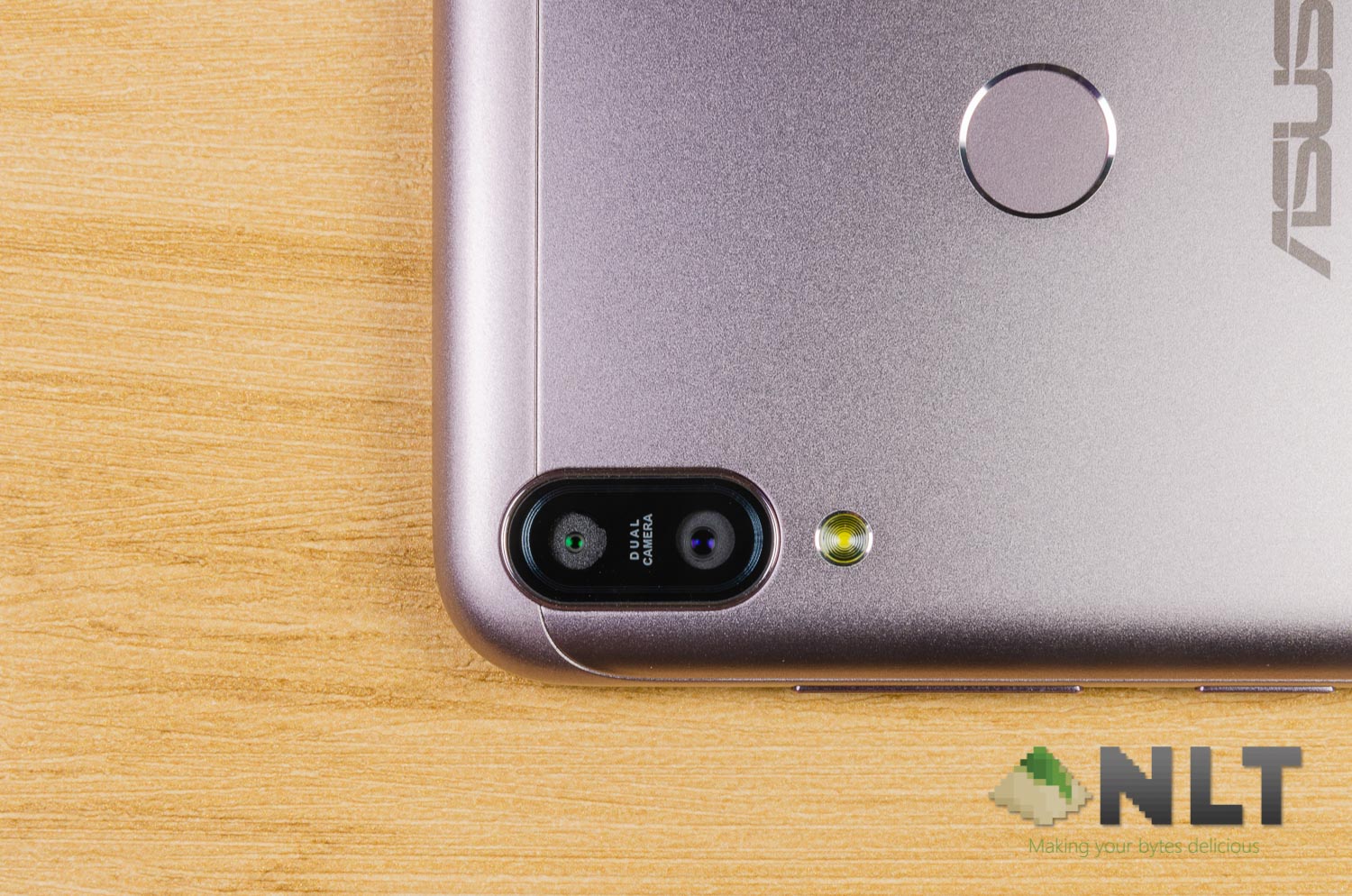

The ASUS ZenFone Max Pro (M1) is definitely an important phone of 2018. It sets the bar for what a mid-range smartphone can do while its price is way lower than we are used to. However, during our review of the ZenFone Max Pro (M1), we absolutely hated the camera for its poor quality, limited controls, and just slow performance overall. Now, funny enough, someone discovered how to enable developer options of the camera app.
This trick was first discovered by someone in the ASUS ZenFone WhatsApp group and was reposted too many times that I can’t find the source anymore.
To enable developer option, you first open the camera app, go settings, and tap on the “redeye reduction” multiple times. Then, a popup saying “camera developer option is enabled now.”
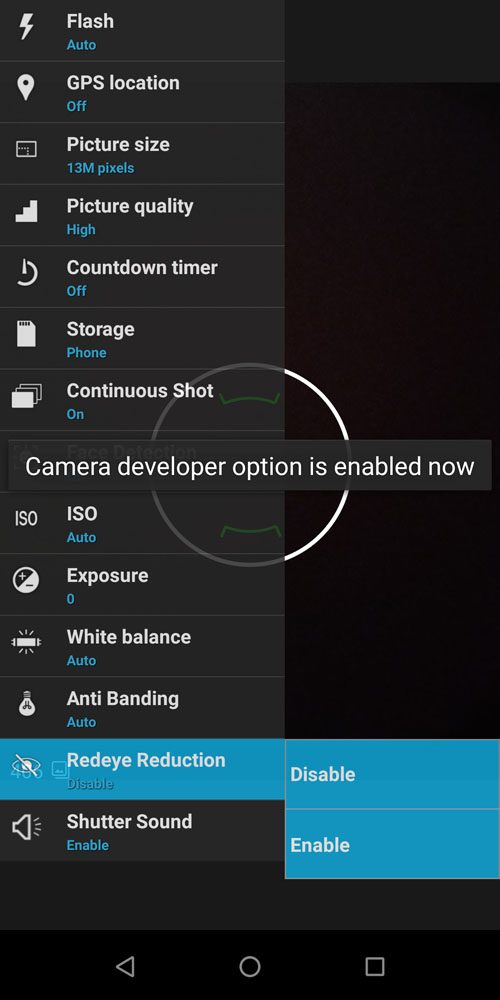
Just close the settings menu and open it up again, and you’ll see a slew of new options now available for you to control.


The most notable option here is the manual exposure mode, where it gives you ISO priority, exposure time priority, or full manual.
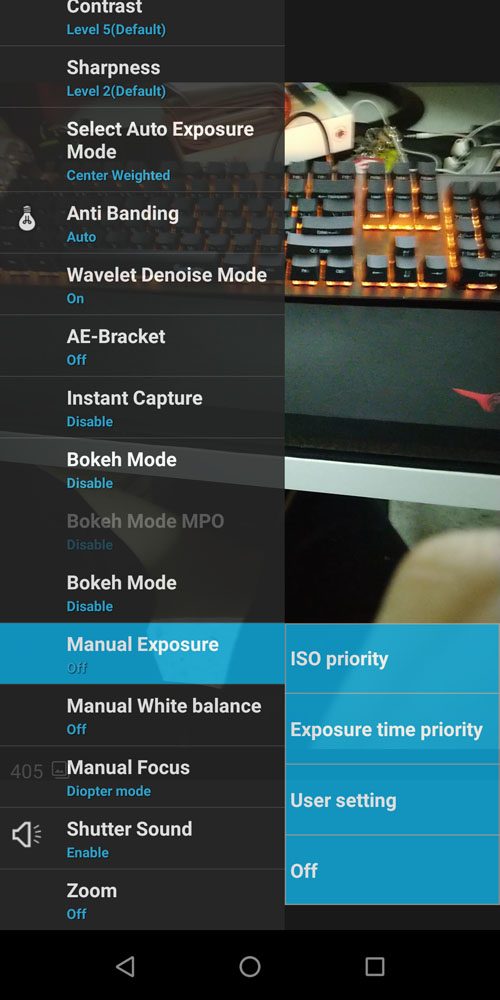
Since this is a developer menu and not meant for end users like you and me to access, the menu for manual mode here is pretty… jaw-dropping.
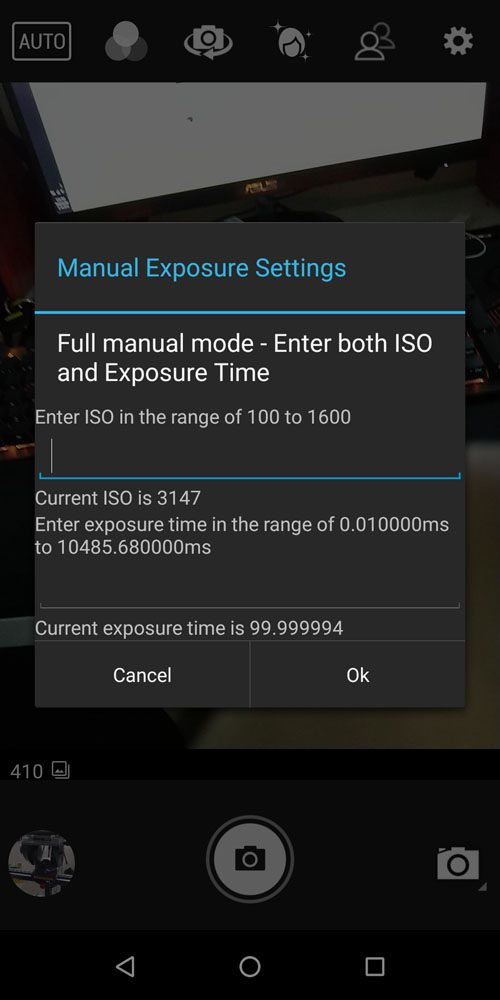
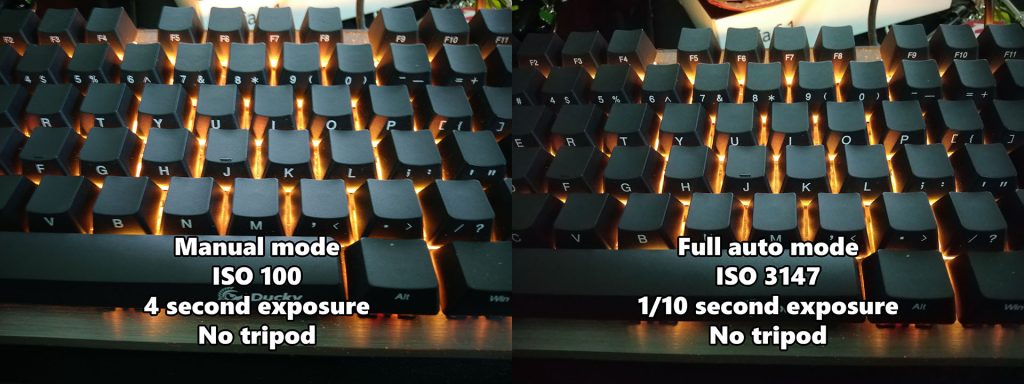
You’ll have to manually key in the value for ISO and exposure time. Not only that, the viewfinder will be so laggy at longer exposure time that you’ll pretty much have to wait for a few seconds before the screen updates once. Though, it works. Take a look at a comparison shot here.
There’s also manual focus mode where you can pick either by Diopter mode or scale mode.
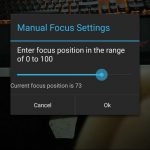
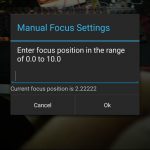
Upon exiting the camera app, all of the manual settings will be gone and will need to be redone once again.
The camera app used in the ZenFone Max Pro (M1) is actually by Code Aurora. It’s a pretty rudimentary camera app, if you ask me. You technically can install Google Camera in the ZenFone Max Pro (M1), but that means more bloat.
[UPDATE] Here’s how to remove the developer options
In the past 24 hours, I got a lot of comments and messages asking me how to remove the developer option. Yes, it looks ugly as heck and most of the options don’t work particularly well. So, here’s how to remove them. These steps are only for
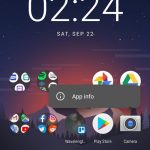
- Tap and hold the Camera app icon
- Tap on “App info”
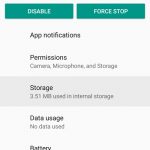
- Tap of “Storage”
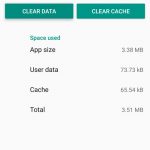
- Tap on “Clear Data”
- Tap on “OK”
- Done!
Now when you relaunch the Camera app, it will be the reverted back to its original state.

Like our Facebook Page here at NasiLemakTech.com for more news and in-depth reviews! Also, join our Facebook Group for insightful information and memes!
Subscribe to our YouTube channel too!

How to take continuous shot
Hold the shutter button.