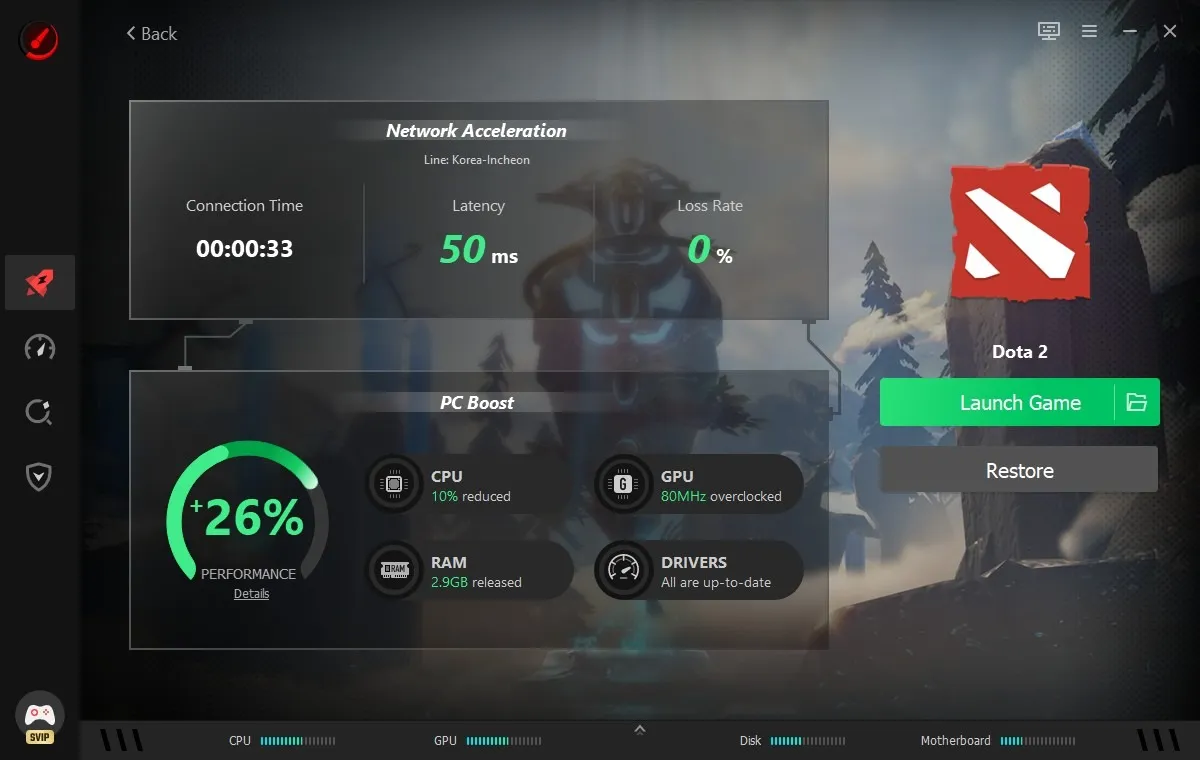

I have been using the same PC for gaming for quite some time. I have started noticing its age. Games that once ran smoothly now sometimes take longer to load, and I occasionally get FPS drops when there is a lot happening on screen. I am not ready to replace the whole system yet, so I started looking for ways to get a little more out of the hardware I already have.
That is when I decided to try Smart Game Booster. I wanted to see if it could make my older PC more suitable for everyday gaming without requiring complicated changes.
After using it across several gaming sessions, I found that it can help with some common performance problems. However, I also learned that a software tool has clear limits when the hardware itself is outdated.
What Makes an Older PC Struggle?
Before testing Smart Game Booster, I looked at what was actually slowing down my computer.
My PC often had several programs running in the background. Browsers, launchers, chat apps, and startup services could all use memory and processor resources. I also noticed that I was not always running the latest graphics drivers.
These things may seem minor, but on an older computer with limited resources, they can make a difference.
There is also the problem of newer games demanding more from the CPU and GPU. No software can turn an old graphics card into a new one, but reducing unnecessary system load can give the hardware more room to work.
That was the main thing I wanted to test.
How I Used Smart Game Booster on My Older PC
I followed the same four-step routine before most of my tests.
Install and open Smart Game Booster
I downloaded and installed the software on my Windows PC. After opening it, I let the program check my system and identify areas that could be optimized.
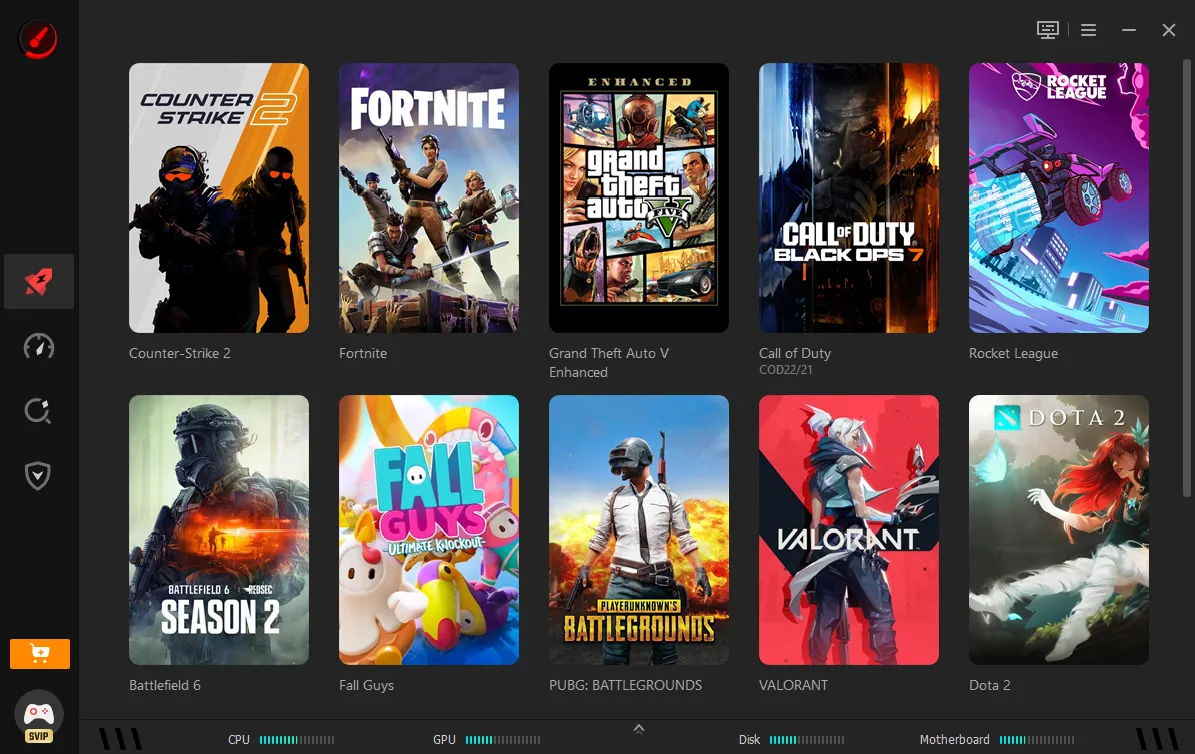
Choose my game
Next, I selected the game I wanted to play. This gave me a quick way to prepare my system before starting the game.
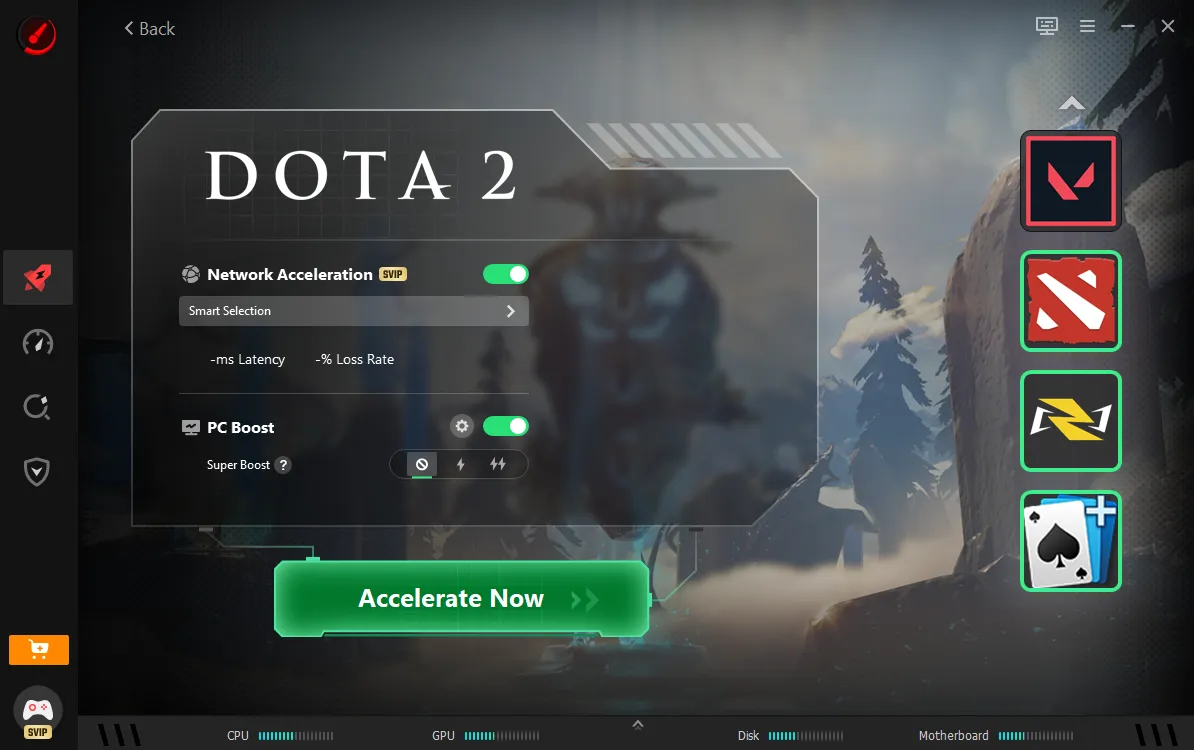
Run the boost
I clicked the accelerate option and allowed the software to manage unnecessary background activity and free up available system resources.
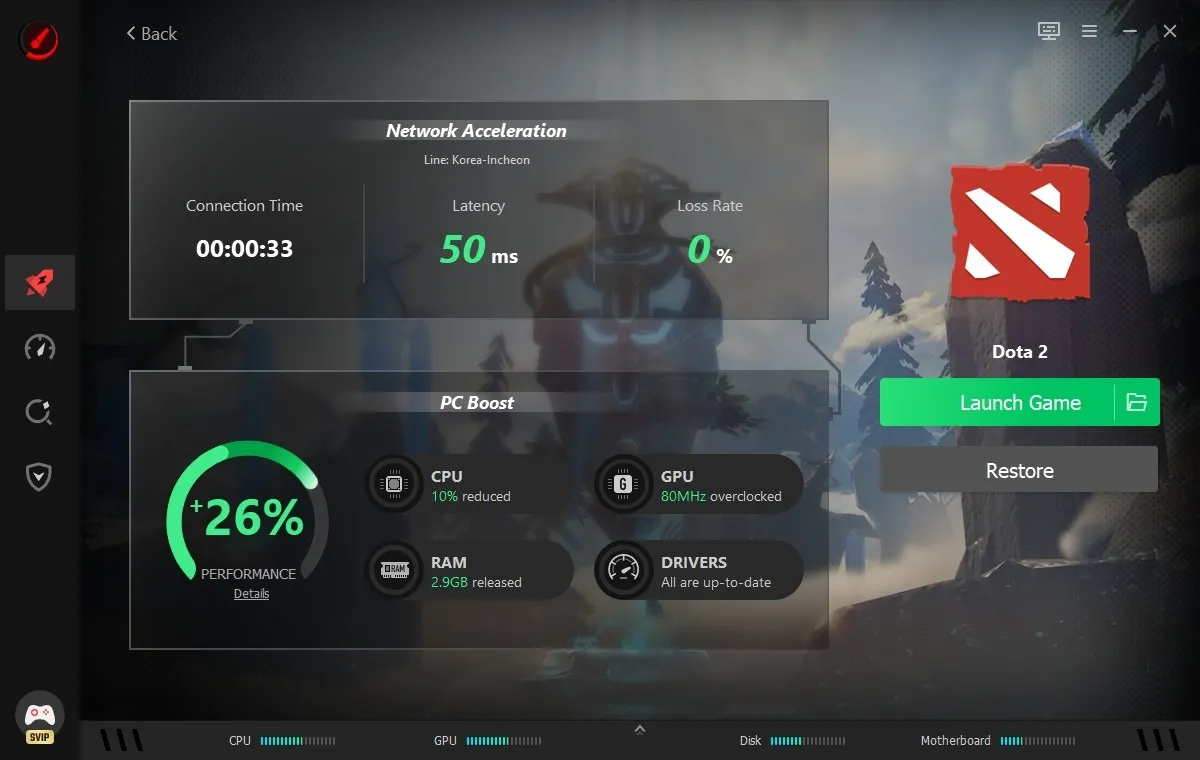
Start playing and compare
After the optimization finished, I launched the game. I paid attention to FPS stability, loading times, and overall smoothness. For multiplayer games, I also checked how stable the connection felt.
Key Features I Found Most Useful
Here are some of the most useful features of Smart Game Booster
FPS Optimization
This was the first feature I tested because FPS drops are one of my biggest problems with an older PC. Smart Game Booster helps reduce some of the background activity that can take resources away from games. During my testing, I noticed that certain games felt smoother after boosting.
I did not get a massive FPS increase in every title. Instead, I saw fewer small drops in some situations, particularly when my PC had other programs running before I started playing. For anyone looking for a dedicated FPS Booster, I found this part of the software more useful when a PC was being held back by background tasks rather than weak hardware.
Background Process Management
This feature made a noticeable difference to my daily routine. Before using the software, I often forgot about programs running in the background. Smart Game Booster helped reduce some of those unnecessary processes before I started gaming.
On an older PC, freeing even some CPU and memory can be useful. It gave my games more room to run without having to close everything manually.
PC Cleanup Tools
Smart Game Booster also includes tools for cleaning unnecessary files and managing startup programs. I used these occasionally rather than before every game. They helped me reduce some of the clutter on my PC and control what launched when Windows started.
I found this useful for general PC maintenance as well as gaming.
Network Optimization
My older PC is not the only thing that can cause problems. I also play online games, so I tested the network features. The software tries to improve the route between the PC and game servers. In some multiplayer sessions, I found the connection felt more stable after using the network boost.
However, I would not rely on it to fix a slow internet plan or problems caused by my ISP. Those are separate issues.
What I Didn’t Like?
Here are a few things to keep in mind
- Results vary depending on the PC and game
- It cannot replace old CPU or GPU hardware
- Very demanding games may still perform poorly
- Network tools cannot solve every internet problem
Final Thoughts
After using Smart Game Booster, I would say this technology made my older PC more gaming-friendly, but not dramatically more powerful. The biggest difference was in how easily I could prepare the computer. Instead of manually closing programs, I could handle many of these things from one application.
Smart Game Booster is best viewed as a way to get more out of the hardware I already own. It will not replace a hardware upgrade, but it can make an older PC easier to manage and a little more enjoyable for everyday gaming.
Like our Facebook Page here at NasiLemakTech.com for more news and in-depth reviews! Also, join our Facebook Group for insightful information and memes!
Subscribe to our YouTube channel too!