















Data recovery software doesn’t have to be complicated to be effective. Whether you’ve accidentally deleted important documents, formatted a memory card, or lost access to an external hard drive, the right tool can help you get your files back without advanced technical knowledge.
Disk Drill data recovery software combines powerful recovery algorithms with a clean, intuitive interface. It also offers specialized tools that address more complex data loss scenarios. In this article, we’ll explore its technical capabilities, key features, pricing, and how to use it to recover lost files.
What Is Disk Drill Data Recovery Software?
Disk Drill is data recovery software for PC and Mac developed by CleverFiles, with its first version released in 2009. It combines file system analysis and signature-based recovery algorithms to locate and reconstruct lost data. The software supports a wide range of storage devices and handles various data loss scenarios, from accidental deletion and formatting to partition loss and file system corruption.
Disk Drill is completely safe to use and has received numerous positive user reviews. According to CleverFiles’ Terms of Service, the company cannot access, store, transfer, or view your file contents during the scan or recovery process. Your files remain entirely yours.
User-Friendly Interface
One of the main advantages of Disk Drill is its approach to interface design. Instead of overwhelming users with technical settings, Disk Drill offers a clean dashboard that displays available storage devices, their capacity, file systems, and connection types. A sidebar provides quick access to recovery modules and additional tools.
Its Universal Scan automatically combines multiple recovery methods, so users don’t need to figure out which algorithm suits their situation. The software displays scan progress in real time and allows users to access results before the scan finishes.
Disk Drill organizes scan results into categories and folders that resemble a standard file explorer. Users can narrow down results by file type, size, modification date, or name.
These elements make Disk Drill user-friendly data recovery software that requires minimal technical knowledge without sacrificing advanced capabilities.
Supported File Systems and File Types
Although Disk Drill runs on Windows and macOS, it supports a wide range of file systems across Windows, macOS, and Linux:
- FAT16, FAT32, and exFAT
- NTFS, NTFS5, and ReFS
- HFS, HFS+, and APFS
- EXT2, EXT3, and EXT4
- BTRFS
- RAW drives
Its signature-based recovery algorithms recognize hundreds of file formats, from everyday documents and photos to specialized formats used in professional photography, video production, graphic design, and architecture. Supported file types include:
- Images: JPEG, PNG, TIFF, HEIC, CR2, CR3, NEF, ARW, DNG, and more.
- Videos: MP4, MOV, AVI, MKV, M4V, MXF, R3D, and more.
- Audio: MP3, AIFF, FLAC, AAC, M4A, MID, and more.
- Documents: DOCX, XLSX, PPTX, PDF, EPUB, and more.
- Archives: ZIP, RAR, 7Z, DMG, TAR, and more.
- Professional files: PSD, AI, INDD, AEP, DWG, BLEND, C4D, FLP, and more.
- Other files: ACCDB, SQL, VMDK, RAW, DD, IMG, and more.
Supported Storage Devices
Disk Drill doesn’t limit data recovery to computer drives. The software supports a wide variety of storage devices, which makes it suitable for personal and professional use:
- HDDs and SSDs – internal and external storage drives.
- USB flash drives – portable storage devices of various capacities.
- Memory cards – SD, microSD, CompactFlash, and other common formats.
- Digital cameras – storage media from digital cameras, GoPros, drones, and dashcams.
- NAS and RAID systems – compatible network-attached storage devices and software RAID arrays.
- Virtual disks and disk images – VMDK, VHD, VHDX, and other supported formats.
- Mobile devices – iPhones, iPads, and compatible Android devices (available in Disk Drill for macOS only).
Keep in mind that TRIM can significantly reduce recovery chances on SSDs. Once the drive clears the deleted data blocks, no recovery software cannot restore their contents.
Supported Data Loss Scenarios
Disk Drill can address both common data loss situations and more complex storage device problems. Its recovery algorithms can help in the following scenarios:
- Accidental deletion – recover files that you accidentally deleted from internal or external storage devices.
- Emptied Recycle Bin or Trash – restore permanently deleted files, including those removed with Shift + Delete on Windows.
- Formatted drives – retrieve lost files and folders after accidental or quick formatting.
- Crashed hard drives – recover inaccessible data from drives that remain detectable by the operating system.
- Virus infections – restore files deleted by viruses or other malicious software, provided the malware did not encrypt them.
- Lost partitions – retrieve data from deleted or missing partitions, potentially with the original file names and folder structure.
- RAW drives – extract data from storage devices with an unrecognized or damaged file system.
- Corrupted storage devices – recover photos, videos, documents, and other files from logically damaged hard drives, memory cards, and USB flash drives.
If you need to recover files from a corrupted hard drive, Disk Drill can help as long as the device remains detectable and the original data is readable. For drives with severe physical damage, professional data recovery services are a safer option.
Key Disk Drill Features
Disk Drill offers a combination of features that simplify everyday file recovery and advanced tools that address more complex data loss scenarios. Here are some of its most notable capabilities:
- File Preview. Disk Drill allows users to preview photos, videos, documents, and other supported files before recovery. This helps users identify the correct files and assess their condition.
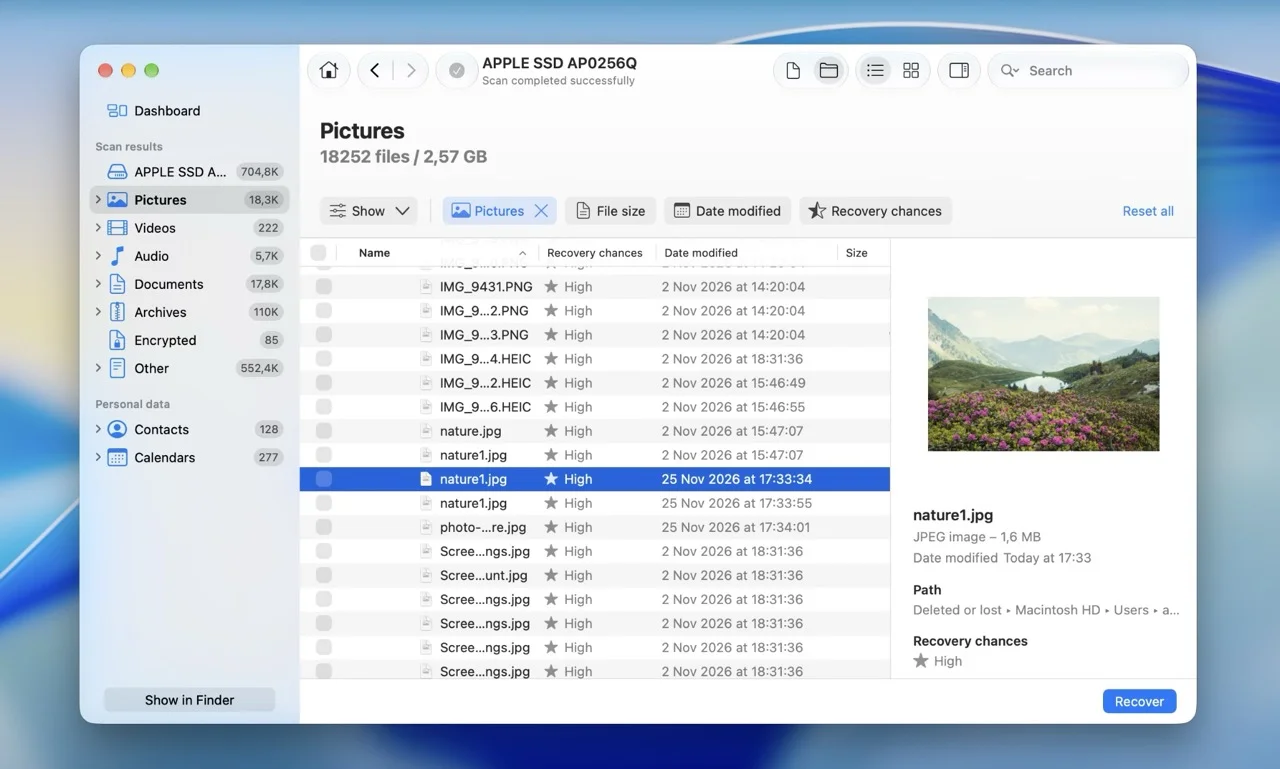
- Recovery Chances Indicator. The software analyzes available file information and estimates the likelihood of successful recovery. Users can prioritize files with higher recovery chances, although a high rating does not guarantee successful recovery.
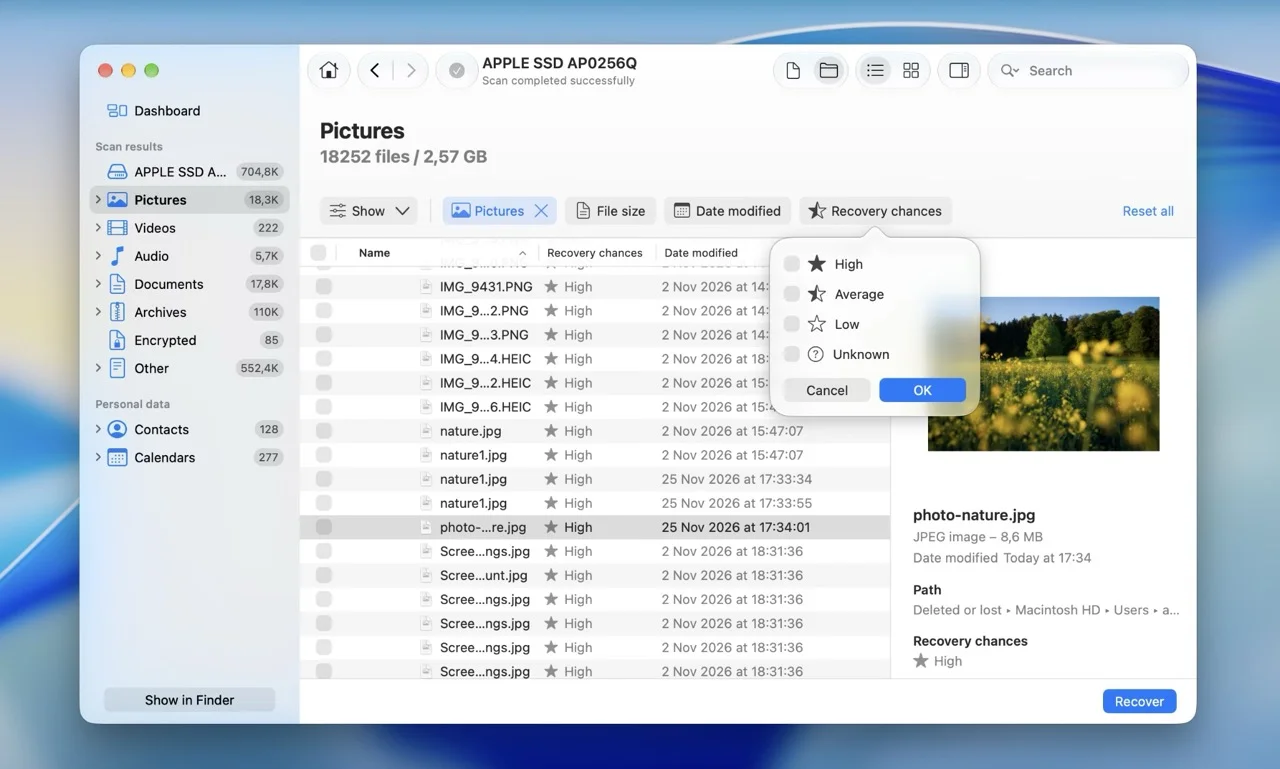
- Byte-to-Byte Backup. This feature creates a sector-level copy of a storage device. Users can scan the disk image instead of the original drive, which is particularly useful when a drive has read errors but remains accessible.
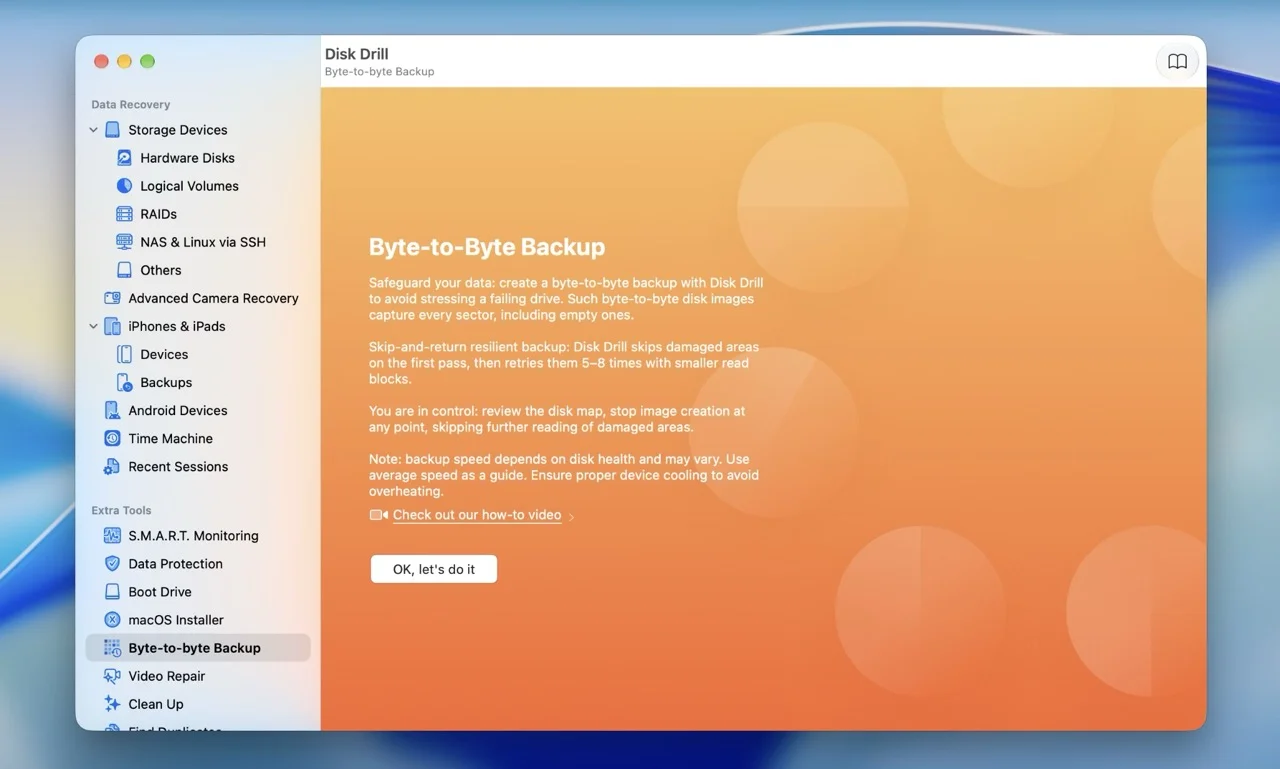
- Advanced Camera Recovery (ACR). Unlike conventional recovery methods that may struggle with fragmented video files, ACR uses specialized algorithms to locate and reconstruct video fragments from cameras, drones, and dashcams.
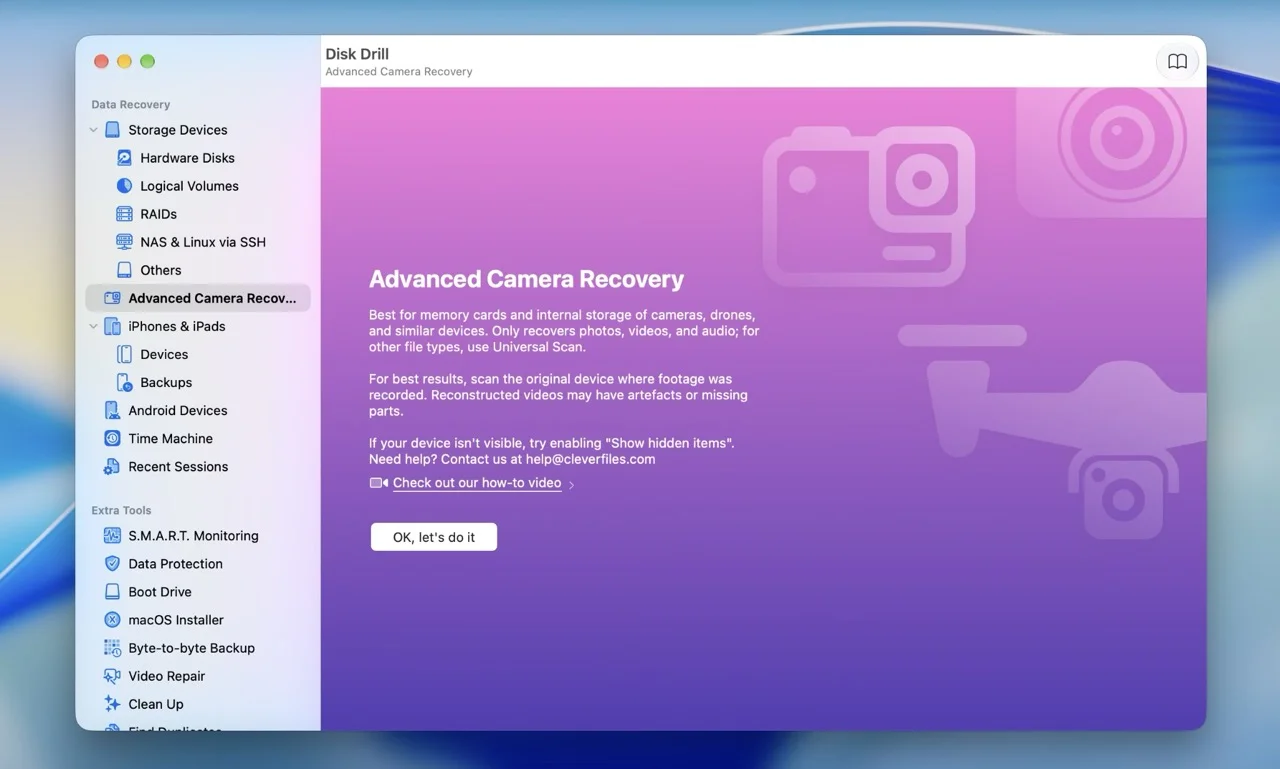
- NAS and RAID Recovery. Disk Drill supports recovery from compatible Linux-based NAS devices via SSH. It can also automatically reconstruct supported software RAID configurations, including RAID 0, 1, 5, 6, 10, 1E, and JBOD.
- Hex Viewer. Advanced users can inspect raw hexadecimal data at the disk and partition levels to examine underlying data structures.
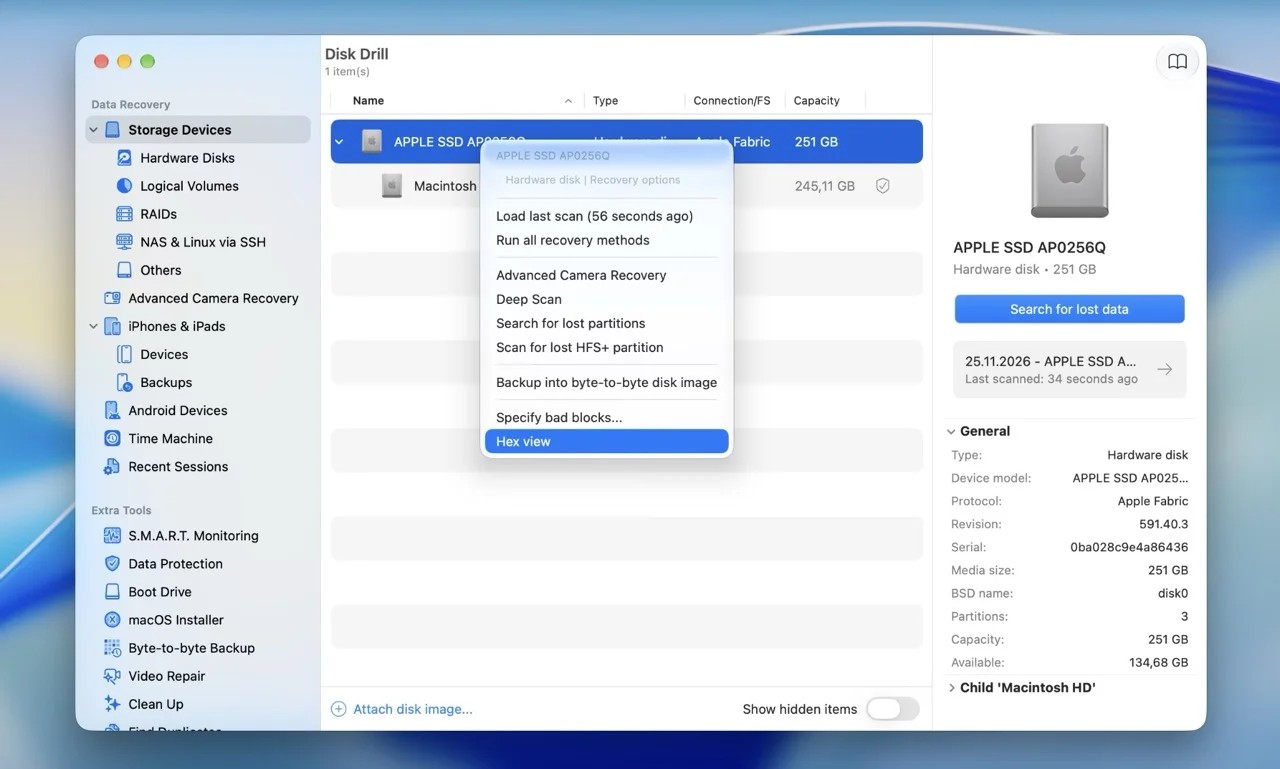
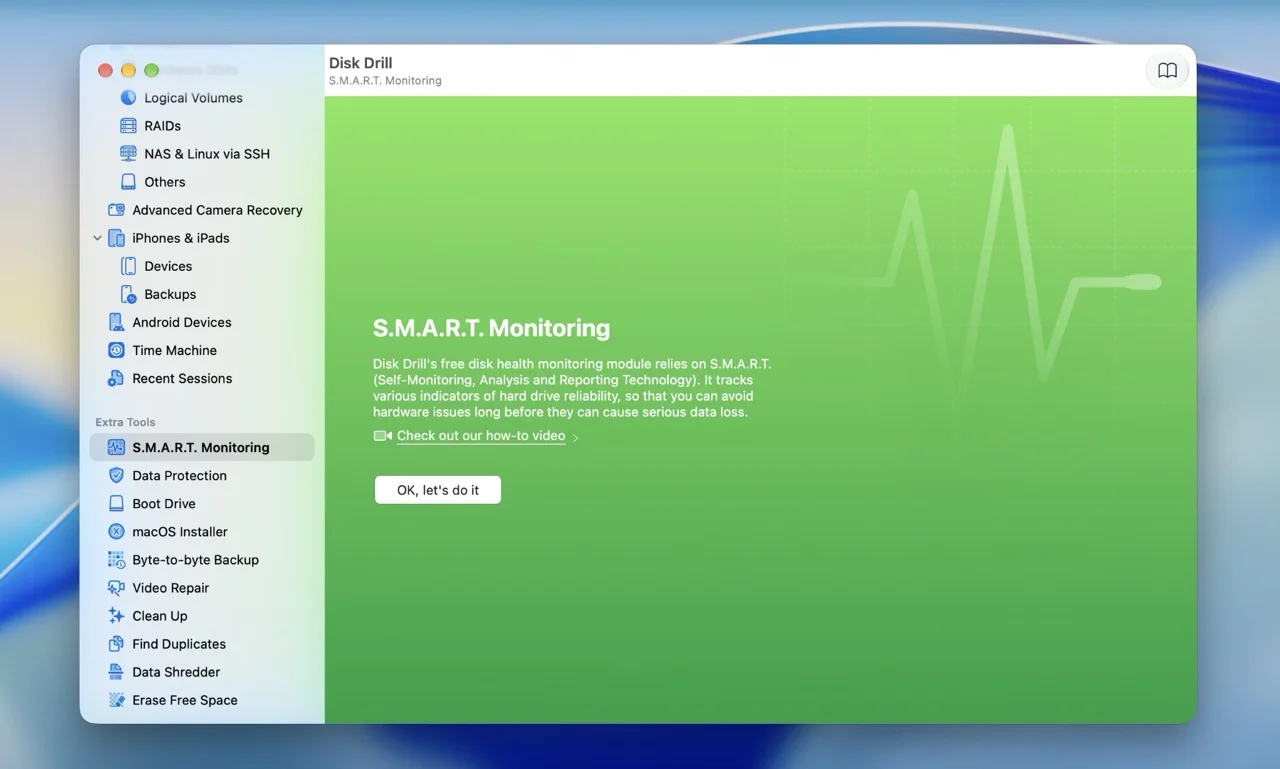
- S.M.A.R.T. Monitoring. This feature displays available drive health indicators and helps users identify potential hardware problems.
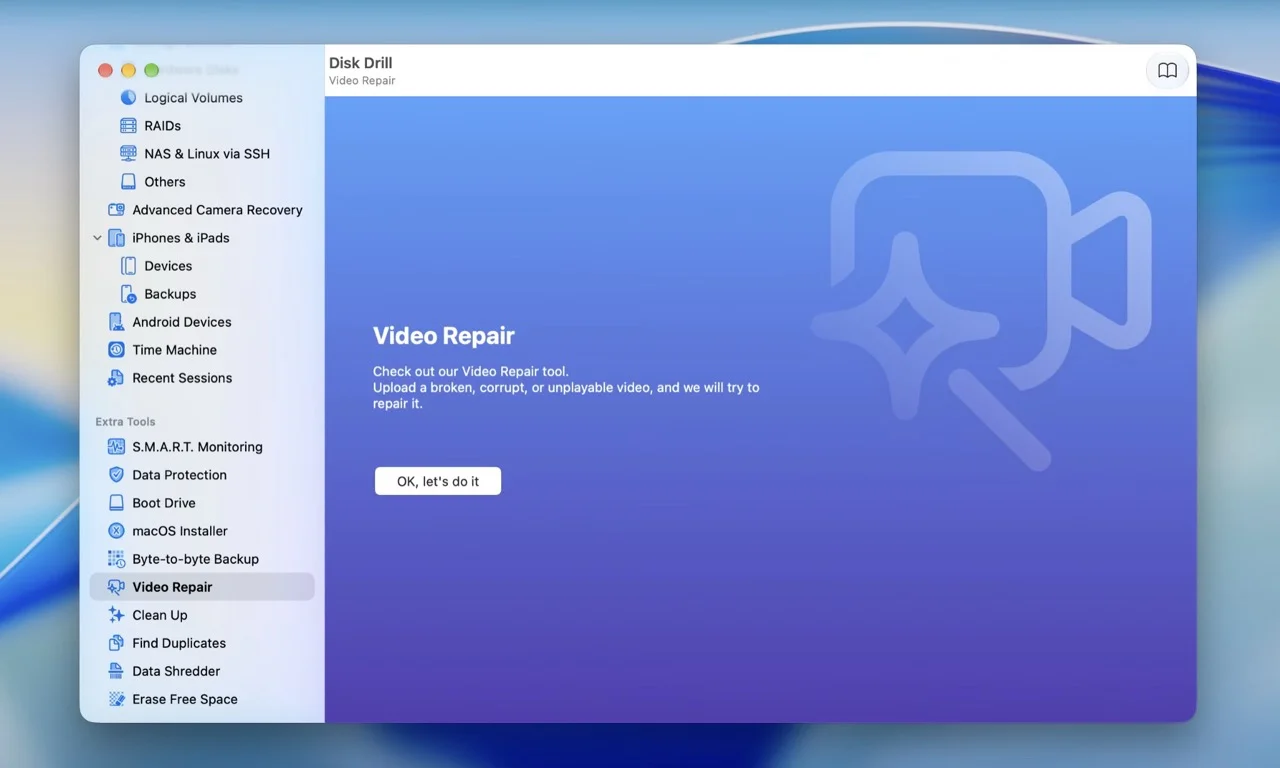
- Video Repair. Disk Drill provides access to an online video repair service that can repair damaged or unplayable video files.
- Recovery Vault. This proactive data protection feature preserves file metadata to improve recovery chances after future accidental deletions.
- Recovery Mode. Disk Drill for Mac can run directly in macOS Recovery Mode, which allows users to recover files from the system drive even if their Mac fails to boot normally.
Disk Drill Pricing and Licensing Options
Disk Drill software follows a freemium model, so users can evaluate its recovery capabilities before they purchase a license. The software offers several licensing options for personal and business use, with paid licenses that cover both Windows and macOS.
License | Price | Main Features |
Basic | Free | Windows: unlimited free scans and file previews, up to 100 MB of free data recovery;macOS: unlimited free scans and file previews only |
PRO Annual | $89/year | Unlimited data recovery and software upgrades; 1 user, install on up to 3 devices |
PRO Lifetime | $149 | Unlimited data recovery and lifetime upgrades; 1 user, install on up to 3 devices |
Enterprise | Custom pricing | Business-specific licensing solutions |
How to Use Disk Drill to Recover Files
Disk Drill makes the recovery process straightforward. You don’t need to manually configure recovery algorithms or understand the technical structure of your storage device.
Before you start, stop using the affected drive to prevent data overwrites. If you’re unsure how to fix a corrupted hard drive, focus on data recovery first. Once your files are safe, you can proceed with fixing a corrupted hard drive with tools such as CHKDSK or Disk Utility’s First Aid.
Follow these steps to recover lost files with Disk Drill:
- Download Disk Drill from the official website and install it on a drive that does not contain your lost files.
- Connect the affected storage device to your computer if you need to recover data from an external hard drive, USB flash drive, or memory card.
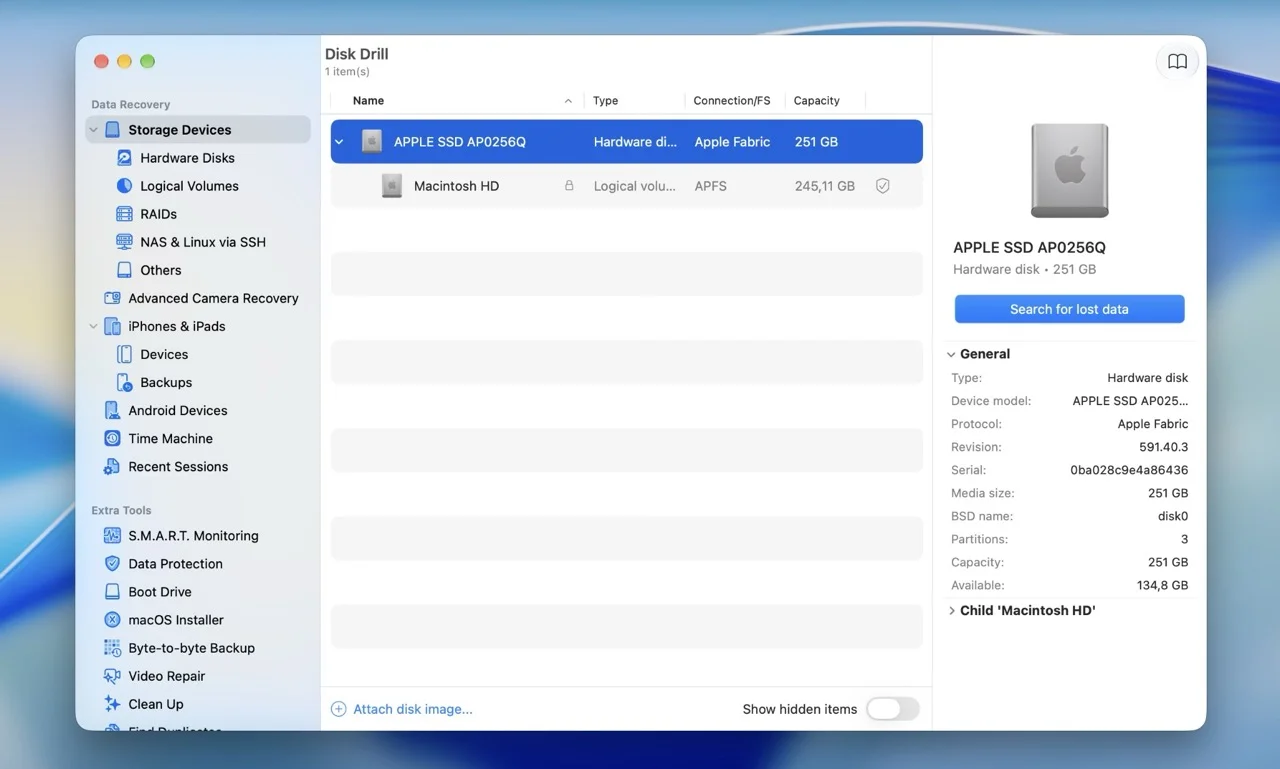
- Launch Disk Drill and select the affected device under Storage Devices.
- Click Search for lost data. For external storage devices, a pop-up window will appear. Select Universal Scan for general data recovery or Advanced Camera Recovery for fragmented video files from cameras, drones, GoPros, and dashcams.
- Wait for the scan to finish and click Review found items. You can also access the results before the scan finishes, but it is recommended that you wait until it is complete for the best recovery results.
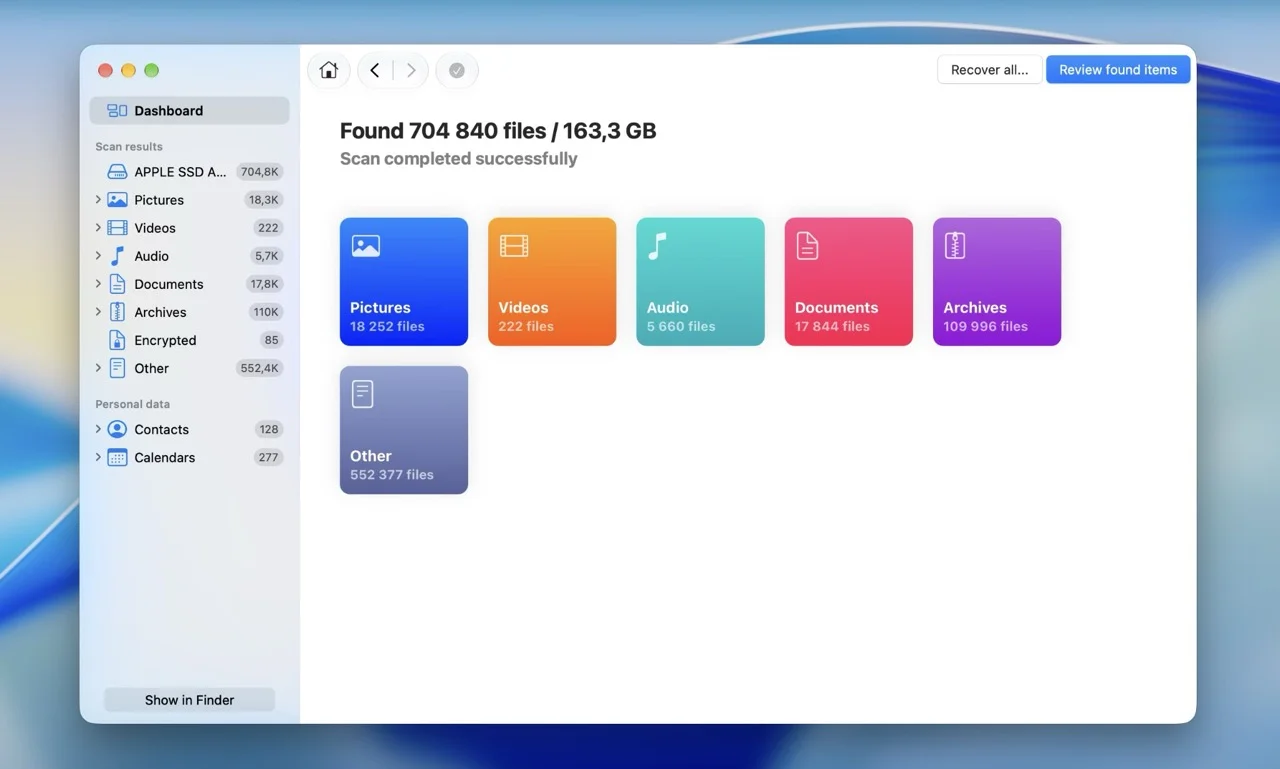
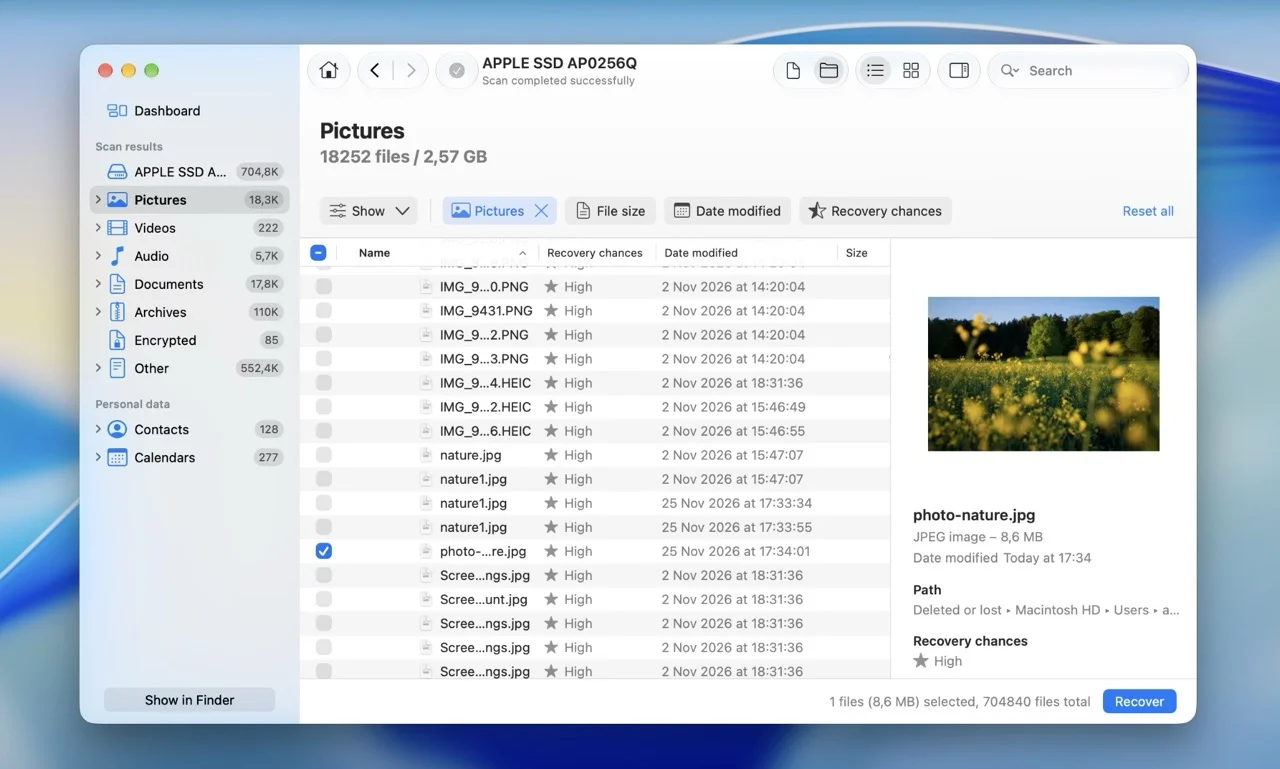
- Browse the scan results by file type in the left sidebar. You can also use the search bar to find files by name or extension and apply filters to narrow down the results.
- Preview the files and check their recovery chances. Select the files you want to restore and click Recover.
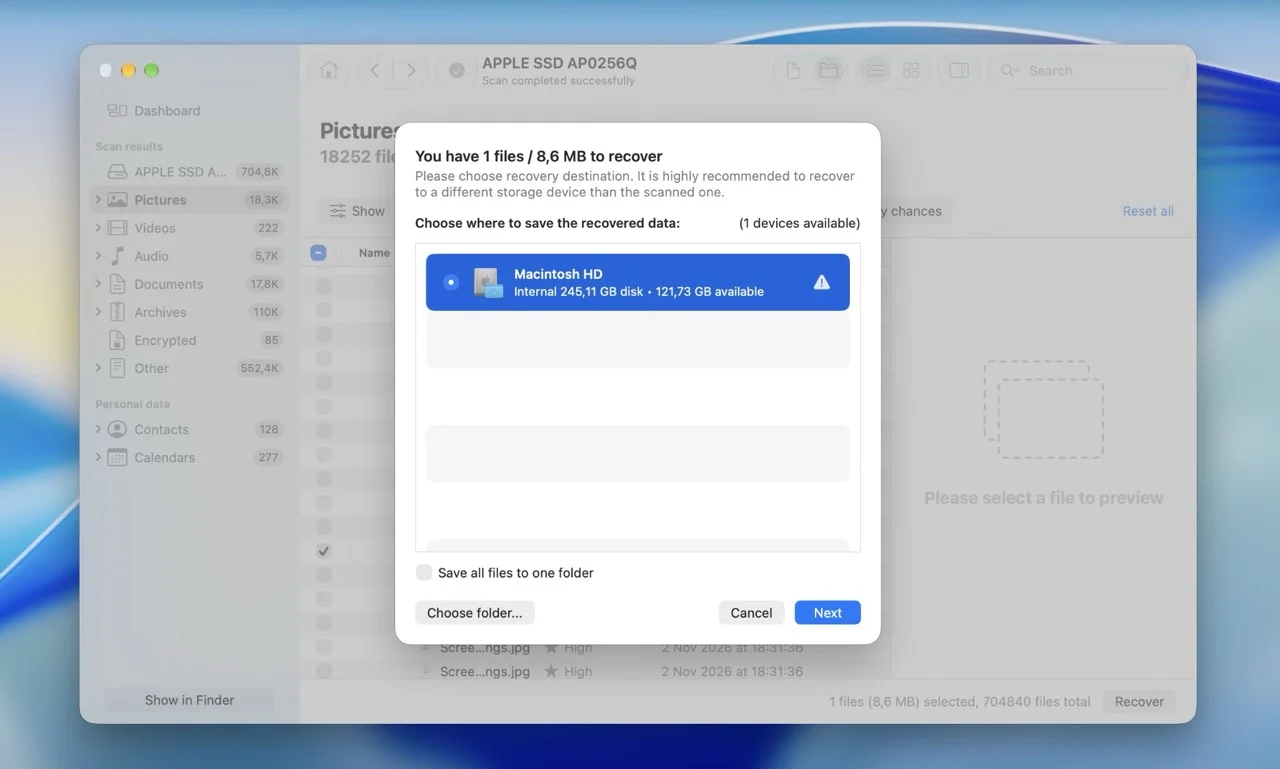
- Choose a recovery destination on a different physical storage device and click Next. Once the recovery process finishes, open the recovered files to verify their contents.
Conclusion
Disk Drill stands out as data recovery software for PC and Mac that combines advanced recovery technology with an accessible interface. Its broad file format and storage device support makes it suitable for everyday data loss situations, while specialized features such as Advanced Camera Recovery, Byte-to-Byte Backup, and RAID recovery address more complex cases. Although recovery success depends on the condition of the original data, Disk Drill offers a versatile solution for both beginners and experienced users.
Like our Facebook Page here at NasiLemakTech.com for more news and in-depth reviews! Also, join our Facebook Group for insightful information and memes! Subscribe to our YouTube channel too!