
Introduction
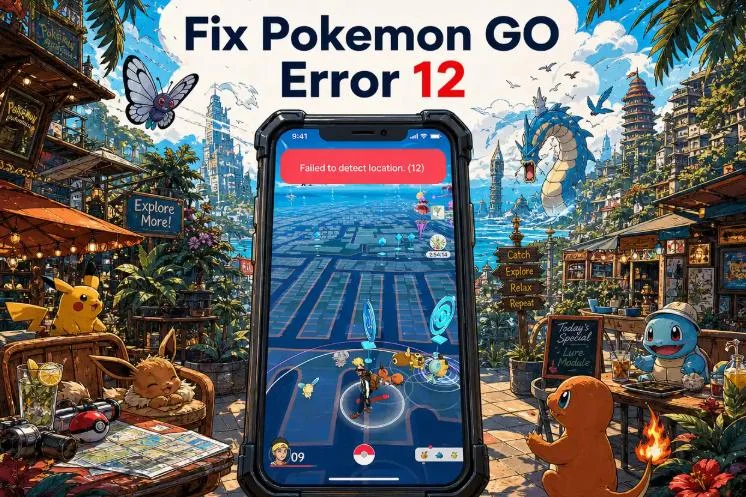
Pokémon GO Failed to Detect Location (12) is a real bummer when you’re just having fun. It means the game cannot verify a usable location from your phone. The map may stop loading, your avatar may remain in place, or normal gameplay may become unavailable until the location issue is resolved.
But it doesn’t mean that your Pokemon GO account has been banned. Error 12 can appear because location permission is disabled, the phone has a weak or conflicting GPS signal, the game or operating system is outdated, or a third-party location tool is not configured correctly.
This guide shows you how to avoid Pokémon GO Error 12 and fix it on both iOS and Android.
How to Avoid “Failed to Detect Location (12)” While Spoofing
This error often appears when your location-changing setup sends conflicting signals. The best way to prevent it is to cut those conflicts at the source—and that starts with choosing the right spoofing tool.
One of the most recommended tools in the spoofing community is iMyFone AnyTo, reliable tool built by a professional team that understands how Niantic’s system works, which is.
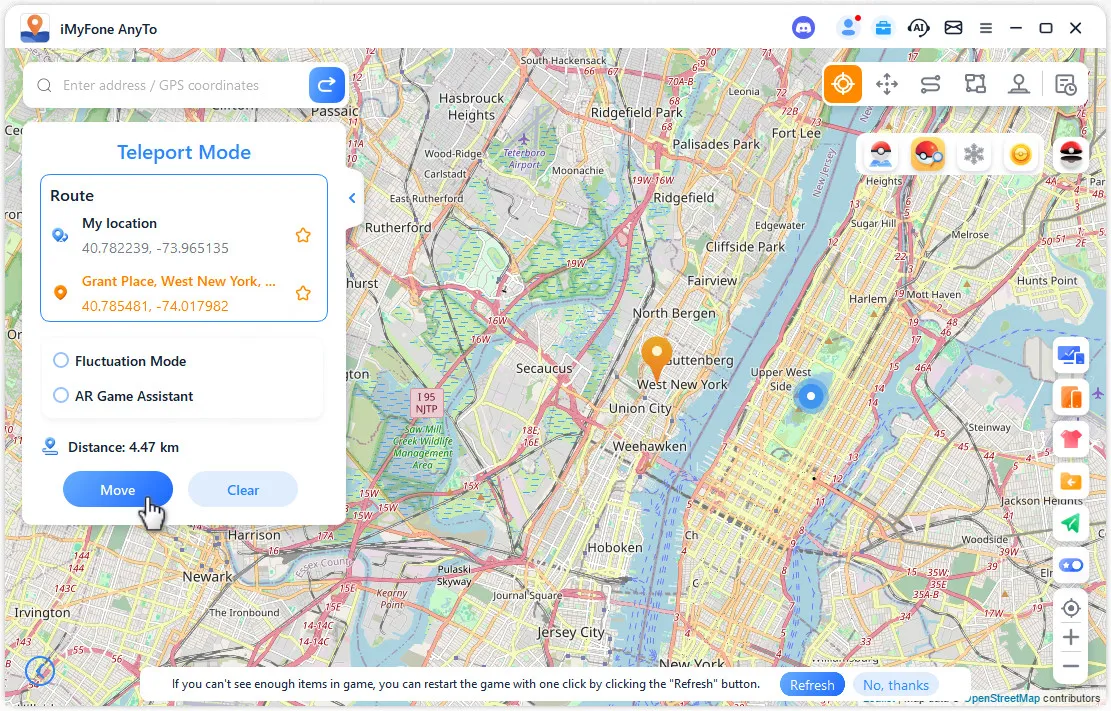
The AnyTo team has spent years refining the app to bypass common issues like Error 12. It now supports iOS 27 and Android 17, with a Pokémon GO-focused Game Mode that simplifies setup and supports Bluetooth-based connections. It allows you to change location with or without a computer.
AnyTo also includes teleport, joystick, two-spot, and multi-spot modes. These controls let you choose a destination or simulate movement along a route instead of switching between unrelated GPS tools. Even with a carefully configured setup, however, Error 12 can still appear, so it helps to know how to restore normal location access on each platform.
How to Fix Error 12 in Pokemon GO on iOS and Android
If you’re a normal player who doesn’t spoof, try the following fixes first:
- Make sure Location Services are enabled for Pokemon GO, and set your device to High Accuracy mode if you use Android.
- Restart Pokemon GO.
- Check your internet connection and make sure you have a strong network signal.
- Try moving to a different location to see if your GPS accuracy improves.
If Error 12 keeps popping up while spoofing in Pokemon GO, there is no need to panic. Restore the device to its real position first and confirm that Maps can locate it accurately. From there, the exact settings depend on your operating system, so follow the iPhone or Android instructions below.
How to Fix Error 12 on iPhone
1. Check Location Services and Precise Location
Open Settings > Privacy & Security > Location Services and make sure Location Services is on. Select Pokemon GO, allow location access while using the app, and turn on Precise Location where the option is available. If Pokemon GO cannot access a precise position, it may not be able to place the player correctly on the map.
2. Restart Pokemon GO and test the real location
Force-close Pokemon GO and open Apple Maps. If Maps also struggles to find you, move to an area with a clearer view of the sky and try a stable Wi-Fi or mobile-data connection. Once Maps displays the correct position, reopen the game.
3. Update Pokemon GO and iOS
Install available updates for the game and iOS, then restart the iPhone. An older game build or system-level location issue can cause unexpected behavior after either service changes.
4. Reset Location and Privacy
If the permission appears correct but the error remains, go to Settings > General > Transfer or Reset iPhone > Reset > Reset Location & Privacy. This restores location permissions to their defaults. Apps will ask for permission again, so allow Pokemon GO to use precise location when prompted.
How to Fix Error 12 on Android
1. Allow precise location for Pokemon GO
Press and hold the Pokemon GO icon, open App info > Permissions > Location, and allow location access while using the app. On supported Android versions, also enable Use precise location. Menu names may vary slightly by phone manufacturer.
2. Check Android Location Accuracy
On Android 12 and later, open Settings > Location > Location Services > Location Accuracy and check Improve Location Accuracy. This setting can combine GPS with Wi-Fi, mobile networks, and device sensors. If you have changed it for a spoofing setup, restore your normal setting before testing your real location.
3. Clear the Pokemon GO cache
Open App info > Storage & cache > Clear cache, then reopen the game. Start with the cache rather than clearing all storage, because deleting app data may sign you out and require a new login.
4. Update the game, Android, and Google Play services
Check Google Play for a Pokemon GO update, install available Android system updates, and make sure Google Play services is current. Restart the phone after updating so the location services load cleanly.
Conclusion
Pokémon GO Error 12 Failed to Detect Location can be frustrating, but it’s usually fixable. Whether it’s caused by GPS issues, app conflicts, or spoofing attempts, understanding the error and using the right methods can get you back in the game.
Tools like AnyTo make it easier to spoof safely, offering features like game mode and Bluetooth connection for both iOS and Andorid to reduce detection risk. With careful use and proper setup, you can enjoy Pokémon GO without running into Error 12 again.
Like our Facebook Page here at NasiLemakTech.com for more news and in-depth reviews! Also, join our Facebook Group for insightful information and memes!
Subscribe to our YouTube channel too!