
















One forgotten PIN can put your entire Samsung phone out of reach. Before jumping to a factory reset and risking your photos, messages, and other files, it’s worth trying safer options first.
The best method depends on your Samsung model, Android/One UI version, and whether preserving your data is essential. Here are five ways of how to unlock samsung without losing data.
Part 1. Can You Unlock Samsung Without Losing Data?
Yes, but it depends on the Samsung model, Android version, and lock type. Some older devices may offer recovery options that let you regain access without wiping the phone. On newer Samsung phones, stronger security means the android system user data locked state can prevent access without the correct screen lock credentials.
A factory reset may be required when no supported recovery method can verify your identity. Since a reset erases the phone’s local data, try any available data-preserving options first before choosing this route.
Part 2. How to Unlock Samsung Without Losing Data
1. Use Tenorshare 4uKey for Android
For some Samsung phones, a dedicated unlock tool can be a simpler option than jumping straight to a factory reset. Tenorshare 4uKey for Android supports Android 4–16 and can remove PINs, passwords, patterns, fingerprints, and other screen locks on supported devices.
It can be especially useful when the usual recovery options are unavailable or you want to avoid a factory reset. Just keep in mind that data-safe unlocking is limited to compatible Samsung models, so check your device before starting.
Key Features of 4uKey for Android
- Screen Lock Removal: Removes supported PIN, password, pattern, fingerprint, and face locks.
- Samsung Data-Safe Unlocking: The Keep device data mode can unlock selected early Samsung devices without erasing their stored data.
- Wide Android Support: Supports screen-lock removal on Android 4–16, although the available method varies by device.
- Samsung FRP Support: It also provides FRP removal for supported Samsung devices, but FRP removal and screen-lock removal are different processes.
- Guided Process: The software provides on-screen instructions for selecting the device and entering Download Mode.
How to Unlock Samsung Without Losing Data Using 4uKey
Step 1: Open 4uKey for Android and click Remove Screen Lock. Select Samsung, then choose Keep device data if it is available for your phone.

Step 2: Choose your phone’s correct name and model. Make sure the details are accurate. If your model is not listed, this method may not support your device.

Step 3: 4uKey will automatically download the required data package. Wait for the download to finish.

Step 4: Follow the instructions on the screen to put your Samsung phone into Download Mode. Once it enters the mode, click Start.

Step 5: 4uKey will remove the screen lock. Wait for the process to finish, then check your Samsung phone. On supported devices, your data should remain intact.

2. Try Smart Lock or Other Previously Enabled Unlock Options
Some older Samsung phones may still unlock automatically through a Smart Lock option that was configured before the screen lock was forgotten. This can work through a trusted location, trusted device, or another previously enabled condition. However, Smart Lock must have been set up before the phone was locked, so it cannot be used to enable a new unlock method afterward.
Requirements:
- Smart Lock must have been enabled beforehand.
- The phone must meet the trusted condition you previously configured.
- The feature must still be supported by your Android version.
Steps on how to unlock an android phone without losing data:
- Go to a location that was previously added as a trusted place, such as your home.
- If you used a trusted Bluetooth device, turn it on and keep it near the phone.
- Wake the Samsung and check whether it unlocks without asking for the pattern, PIN, or password.
- Once you get access, open Settings > Lock screen and change the screen-lock method.

Limitation: This method only works when the trusted-unlock feature was already configured. It cannot remove a forgotten lock on a phone where Smart Lock was never enabled.
3. Unlock a Locked Samsung With ADB Commands
ADB (Android Debug Bridge) can communicate with an Android phone through a computer, but it is only useful for unlocking in very specific circumstances. USB debugging must have been enabled before the phone was locked, and the computer must already have been authorized. Otherwise, the locked phone will not give a new computer the required access.
Requirements:
- USB debugging was enabled before the lockout.
- The computer was previously authorized on the phone.
- The phone can still be detected through ADB.
- The Android version supports the particular ADB-based procedure.
Steps of how to unlock an android phone:
Step 1. Use a USB cable to connect the locked Android phone to the computer that was previously authorized.
Step 2. Open the folder where ADB is installed, then right-click inside the folder and select Open in Terminal or Open Command Window Here.

Step 3. Enter:
adb devices
Make sure the phone is detected as an authorized device.

Step 4. For older Android devices that use the applicable lock-file system, enter:
adb shell rm /data/system/gesture.key

The source also lists these older lock files as possible alternatives:
adb shell rm /data/system/password.key
adb shell rm /data/system/locksettings.db
adb shell rm /data/system/locksettings.db-shm
adb shell rm /data/system/locksettings.db-wal
Step 5. Enter:
adb reboot
After the restart, check whether the screen lock has been removed.
Limitation: This method is primarily applicable to older Android implementations. The gesture.key and related lock-file commands should not be presented as working on every Samsung or modern Android device.
4. Use the “Forgot Pattern” Option on Older Android
Older Android versions could display a Forgot Pattern option after several unsuccessful attempts. This allowed users to verify the Google account already associated with the phone and create a new pattern.
Requirements:
- The phone must run an older Android version that supports this feature.
- A Google account must already be linked to the device.
- You must know the Google account credentials.
Here how do i unlock my android phone:
- Enter the wrong pattern several times.
- Wait for Forgot Pattern to appear.
- Tap Forgot Pattern.
- Sign in with the Google account previously linked to the phone.
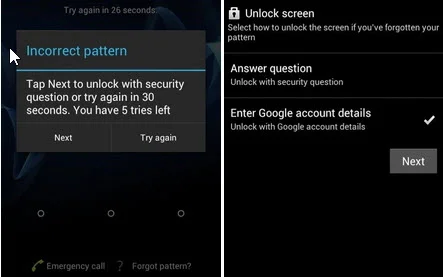
- Complete the verification process.
- Create and confirm a new pattern. Use the new pattern to unlock the phone.
Limitation: This option is only available on older Android versions and does not appear on most modern Samsung phones.
5. Use Google Find My Device
Google Find My Device can help locate, secure, or erase an Android phone remotely. However, it should not be treated as a way to remove a forgotten Samsung screen lock while keeping the phone’s data.
Requirements:
- The phone must be linked to your Google account.
- You must be able to sign in to that account.
- The phone generally needs to be powered on and connected to the internet.
Steps of how to unlock an android phone:
- Open Google Find My Device on another phone or computer.
- Sign in with the Google account linked to the locked Samsung.
- Select the Samsung phone from the device list.
- Check whether the device appears online.
- Review the available remote actions.
- Use Erase device only when you are prepared to lose the data stored on the phone.
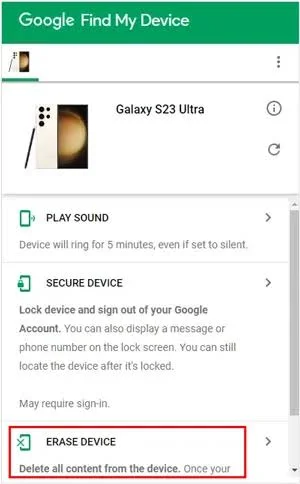
- After the reset, complete the setup and sign in with the previously associated Google account if required.

Limitation: Erasing the phone removes its stored data and does not preserve the existing files.
Part 3. How to Unlock an Android Phone Without Losing Data
Some Android phones offer built-in options that may help you regain access without deleting your personal data. However, these methods are not available on every device. Your Android version, security settings, and features enabled before the phone was locked all affect which option will work.
1. Try the Emergency Call Lock-Screen Exploit
Some older Android phones had a security flaw that could be triggered through the Emergency Call screen. By repeatedly entering characters and interacting with the lock screen, the interface could sometimes become unstable and expose parts of the phone.
Limitations:
- This was a security vulnerability, not an official unlocking feature.
- It does not work on most modern Android phones because manufacturers have patched the flaw.
- The exact behavior varied between Android versions and device models.
Steps of how do i unlock my android phone:
- Wake the phone and tap Emergency Call on the lock screen.
- Enter a series of asterisks (*) in the emergency dialer.
- Select and copy the characters, then paste them repeatedly until the input field is full.
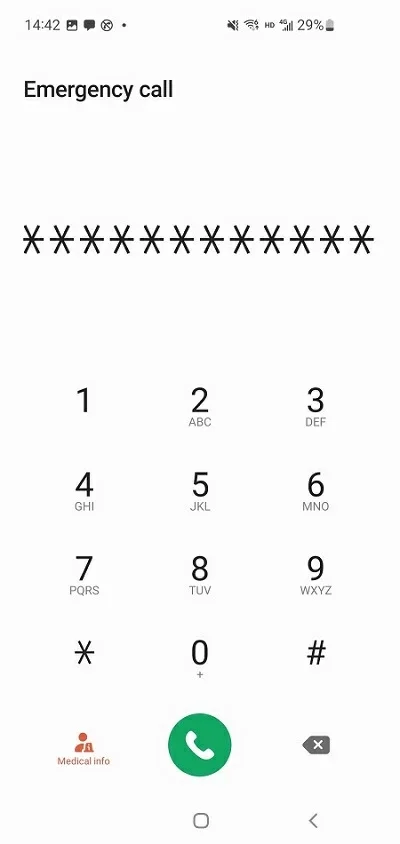
- Return to the lock screen and open Camera.
- Pull down the notification panel and open Settings.
- Paste the copied asterisks into the password field repeatedly.
- On some older versions, this could crash the lock screen and provide temporary access. It does not work on most updated Android phones.
2. Check for an Existing Biometric Unlock
If fingerprint or face unlock was configured before the password was forgotten, it may still provide access in some situations. This is not a way to remove the screen lock, but it can help you get into the phone without entering the PIN or password.
Limitations:
- A fingerprint or face must have been registered previously.
- Android may require the original PIN, password, or pattern after a restart or certain security events.
- Biometric unlocking cannot normally replace the primary screen-lock credential.
Steps of how to unlock an android phone:
- Wake the locked Android phone.
- Place a registered finger on the fingerprint sensor, or look at the screen if face recognition is enabled.
- Follow the on-screen instructions and wait for the phone to authenticate you.
- If biometric authentication works, open Settings and go to the screen-lock or security settings.
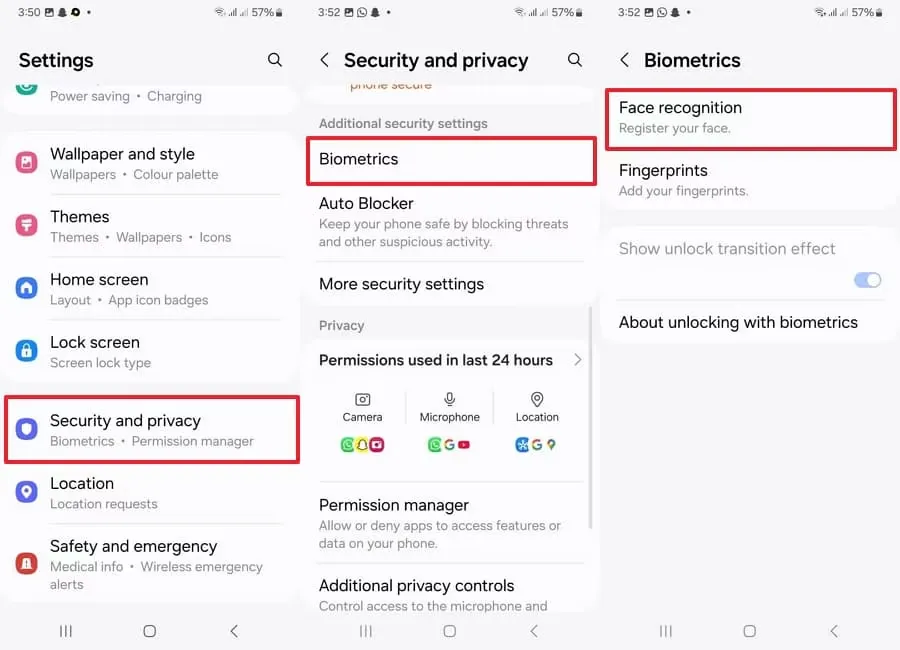
- Change the screen-lock method while you still have access to the device.
Part 4. Is There a Universal Unlock PIN for Android?
No. Android has no universal unlock PIN, master code, or secret password. Your device normally requires the correct PIN, password, or pattern to protect its data. Avoid random “master codes” shared online, as they are usually unreliable and may only apply to specific older devices or software versions.
Tip: Avoid entering random “master codes” repeatedly. They usually will not bypass a modern Android lock and could trigger additional security restrictions.
Part 5. What Does “Android System/User Data Locked” Mean?
This message means Android cannot access the protected user data until the correct screen-lock credentials are provided. It may appear after a restart, failed unlock attempts, a reset, or a software-related issue.
What to do:
- Enter the correct PIN, password, or pattern.
- Try fingerprint or face unlock if available.
- Restart the phone if you suspect a temporary issue.
- Check the manufacturer’s official recovery options.
- Use a factory reset only as a last resort, as it erases the device and may trigger Google account verification.
FAQ About How to Unlock Samsung Without Losing Data
- How do I bypass the lock screen on my Samsung without losing data?
Try your registered fingerprint, face unlock, or an official Samsung/Google recovery option. Avoid factory resetting the phone if you need to keep your data. - How do I unlock my phone without losing any data?
Use the original PIN, password, pattern, or an already-enabled biometric unlock. Recovery options depend on your phone model and Android version. - How can I unlock my Samsung phone without resetting it?
Try the available Samsung or Google account recovery options, or use a previously enabled biometric method.
Conclusion
We see that how to unlock Samsung without losing data depends on your phone model, Android version, and available security options. Start with methods that may preserve your data, such as your original PIN, biometrics, or account recovery. You can also consider 4uKey for Android for supported devices. If none of these options work, a factory reset may be unavoidable, but it will erase the data stored on your phone.
Like our Facebook Page here at NasiLemakTech.com for more news and in-depth reviews! Also, join our Facebook Group for insightful information and memes!
Subscribe to our YouTube channel too!