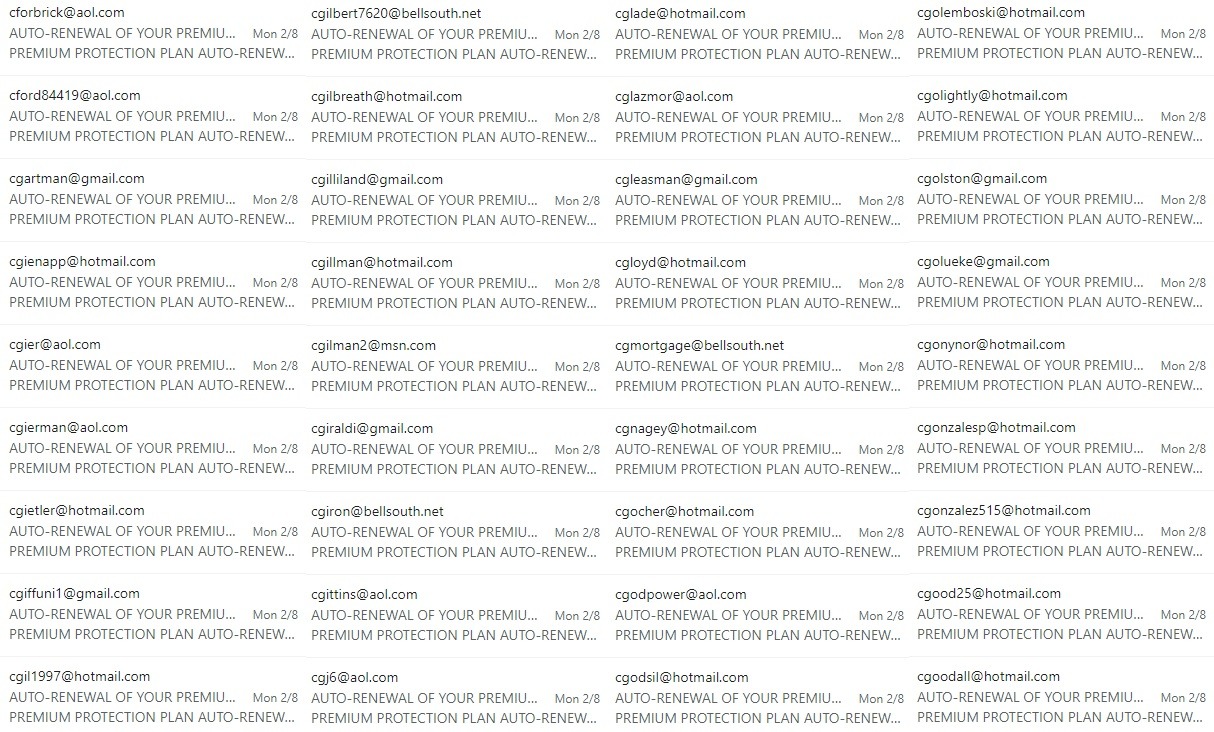

One night around the early weeks of February, my phone was suddenly bombarded by a slew of notifications with around 100+ of them all related to Microsoft Outlook and while I quickly realized what might be happened, the situation was a bit tougher than usual.
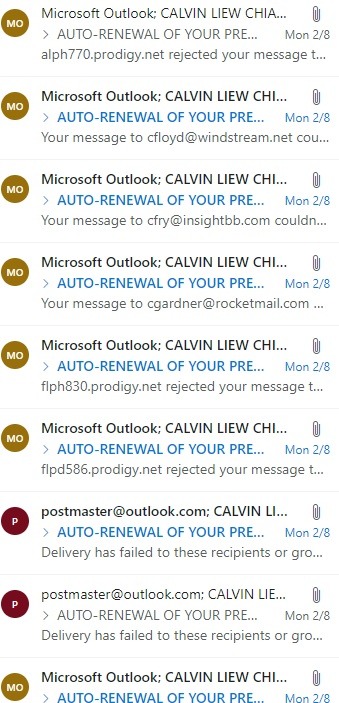
At first, I thought I was a victim of an ongoing wormable spam email of some sort, but as it turns out the real problem is that my Outlook account was compromised to be served as a node of a wider botnet that was trying to phish people by trying to be legitimate and the notification that spammed my phone is actually the failure of sending those spam emails, denoted by the postmaster service of Microsoft Outlook. The continuous barrage of sending phishing emails lasted for around 15 minutes which I cleared up every time one gets sent out. Perhaps, the actor realized I found out and left the session not long after.
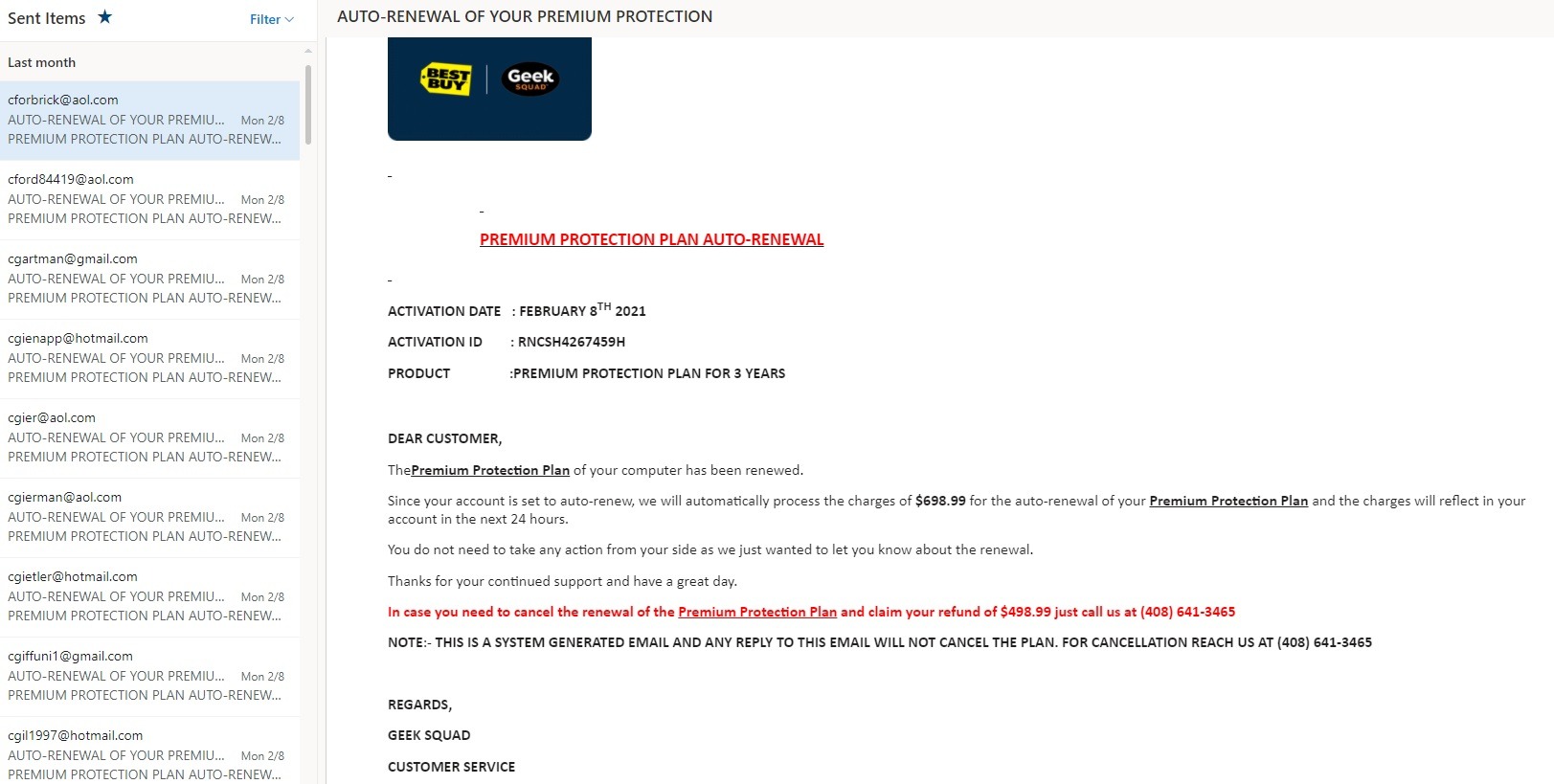
But luckily, the content is completely unrelatable to me but the chances of striking someone with similar interest will surely screw over someone’s sensitive info and their devices, right? At least we don’t have Best Buy, Geek Squad, and the likes in Malaysia anyway.
The thing that troubled me is that the Outlook email address is an educational account generated by my college back in the day with a pre-formatted student ID carried by the mail service address of the college and I have never used it for logins to 3rd party websites outside of processing academic files and tasks. The only thing I could think of are either compromises to the college’s internal networks and subsequent leaks of the database, a brute force attack on the account itself (I admit the account does have a fairly weak password) or it was Microsoft’s server’s getting exploited or attacked, reported by much recent news of the SolarWinds and Azure hacks. While the latter seems unreasonable for an attack to be on this scale just for phishing purposes, I suggest the actor behind this might have some insider knowledge of how the default passwords for these education accounts are created, thus gaining access to my account wasn’t that hard.
And unsurprisingly, my Gmail account which I used daily for almost everything, is on the receiving end of another batch of spam emails, sent by a fake Amazon.de address stating I haven’t paid for some PCIe SSDs and wants me to complete the payment. Very funny fellow Deutsche.
Out of all of these, I suspect that for emails that the actor is able to hijack, they are served as the sender node while those which are uncrackable due to the 2nd layer of authentication such as 2FA and hardware-based logins are treated as the receiving end of these phishing emails. Years ago, I have set up 2FA for my Google, Facebook as well as Steam due to unauthorized access as well but not the Outlook account.
So here I want to emphasize the use of the second layer of authentication for every account that you deemed important and used on a daily basis to prevent bad stuff from happening and escalate even further. Since I applied it for my Google and Facebook (Steam has native Steam Guard through the Steam app), let’s run through a couple of instructions to help you set them up.
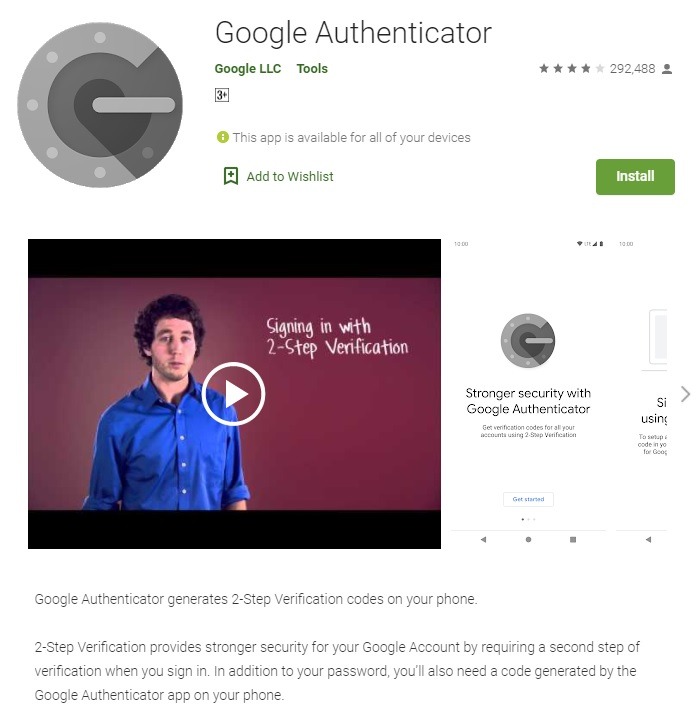
Grab the Google Authenticator app on the Play Store or App Store, this serves as the 6 PIN generator
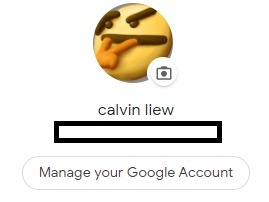
On any Google-based services such as the Chrome homepage, right-click the top right corner of your profile picture and go into Manage Your Chrome Account.
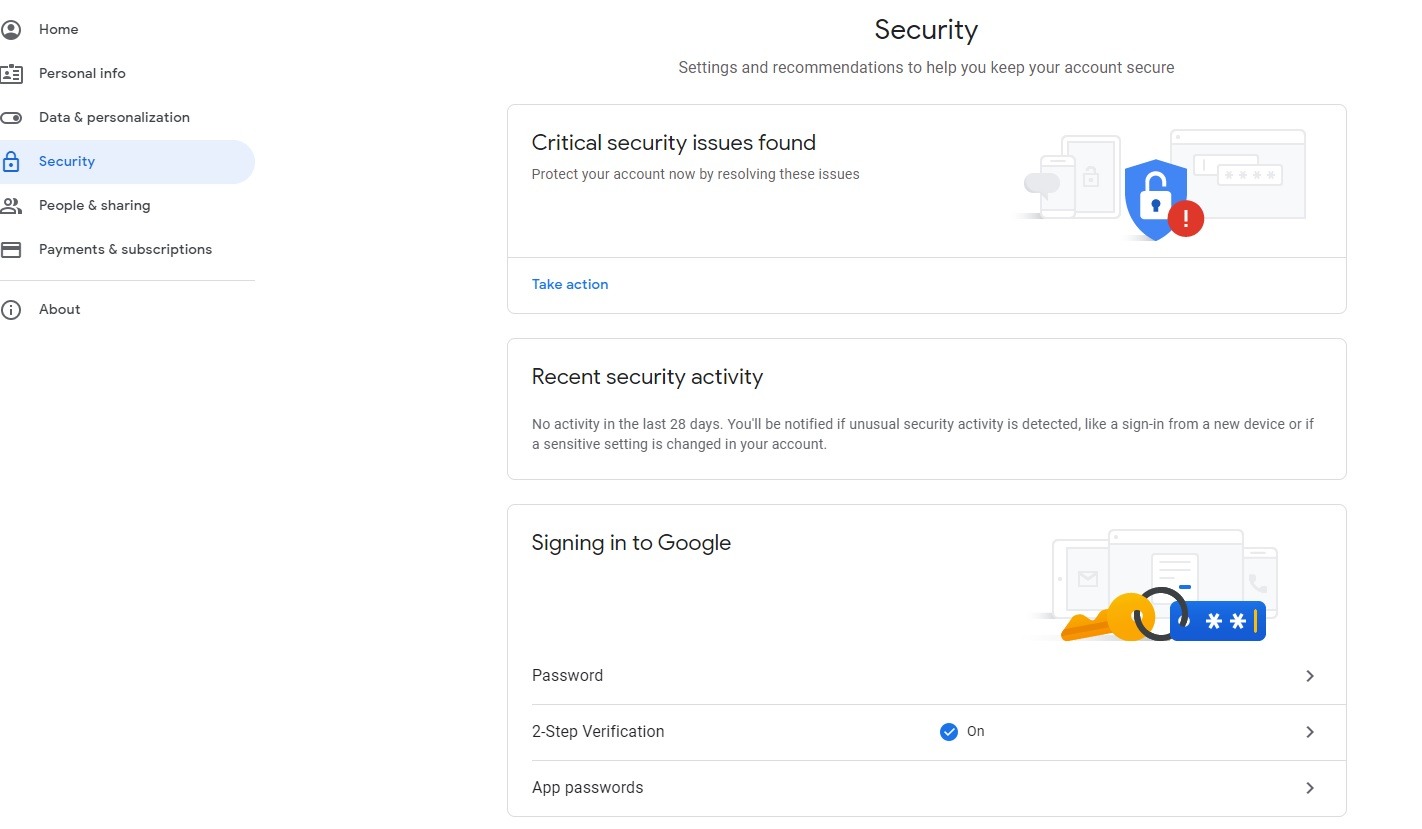
Click on the Security tab on the left and look for 2-Factor Authentication. Click into it login to your account for verification
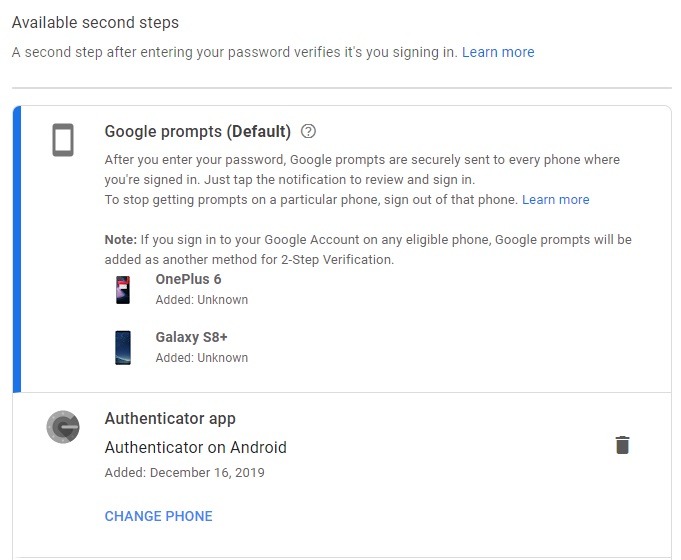
Once finished login, follow the informational navigation which will require you to set up phone number and such and you’ll end up on this page and now select the Authenticator app on the screen
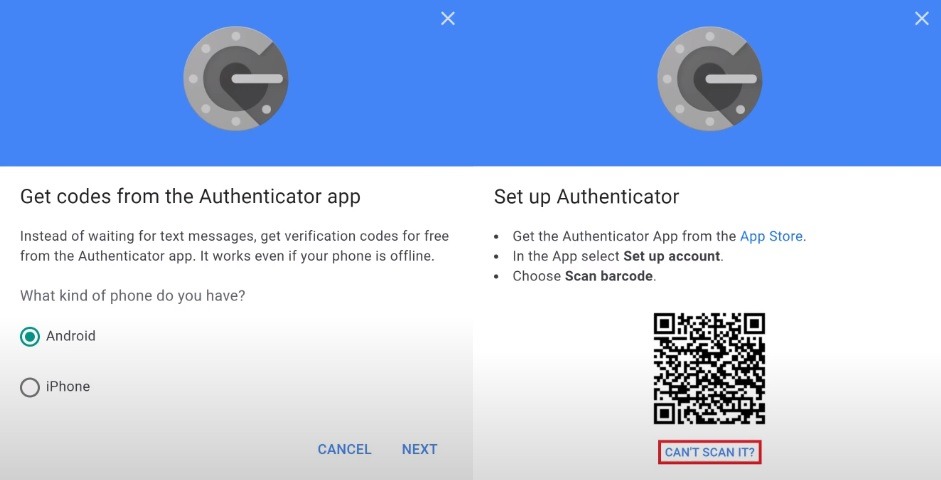
- Select your platform of Android or iOS and a Barcode will be available for scanning but we will choose Can’t Scan It in this case for those with broken cams
- Head to your Google Authenticator app on your smartphone and tap the + icon and Enter a Setup Key
- At here, you’ll get to input the account name (Used to denote which platform or account is this, it is not unique and can be anything for your own identification purpose) and most importantly, key in the Setup Key displayed on the Google screen as this is the verification token for this Google account only.
- Hit add and it is done
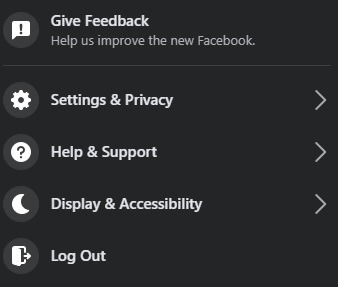 Head to the top right corner and find Settings and Privacy and then Settings
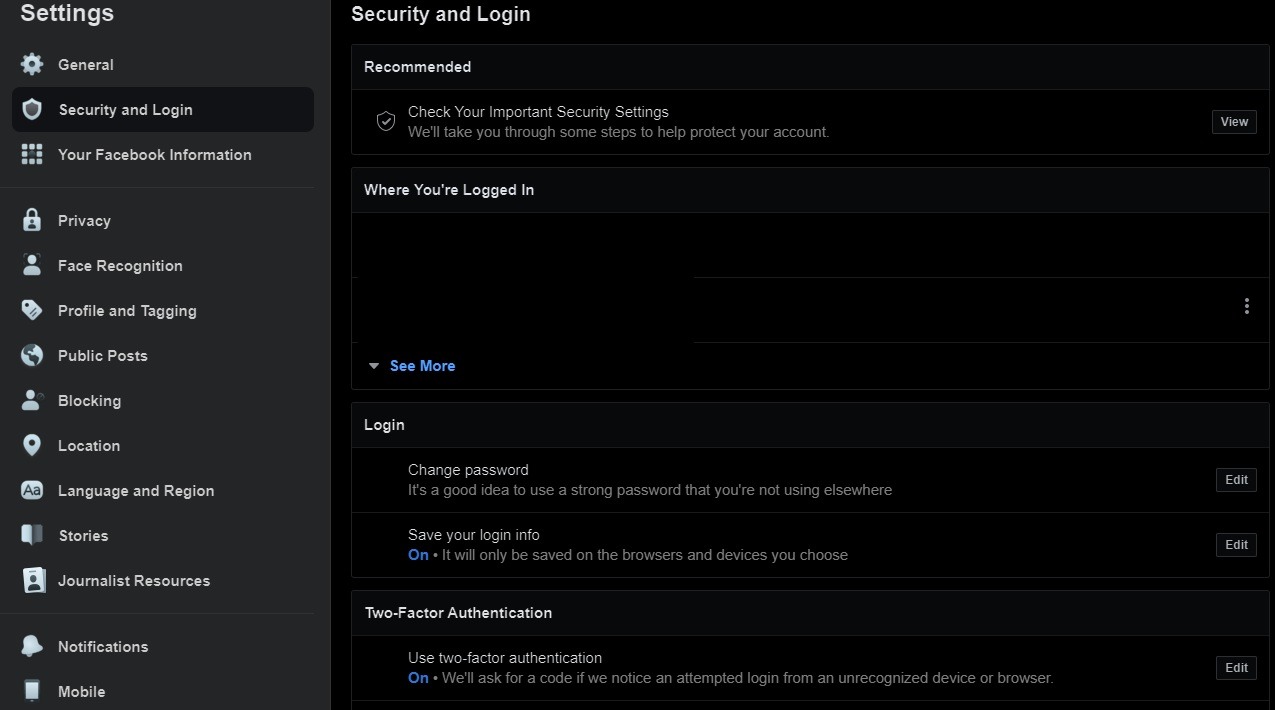
From here, click Security and Login, and find Use 2-Factor Authentication as it should be OFF for you.
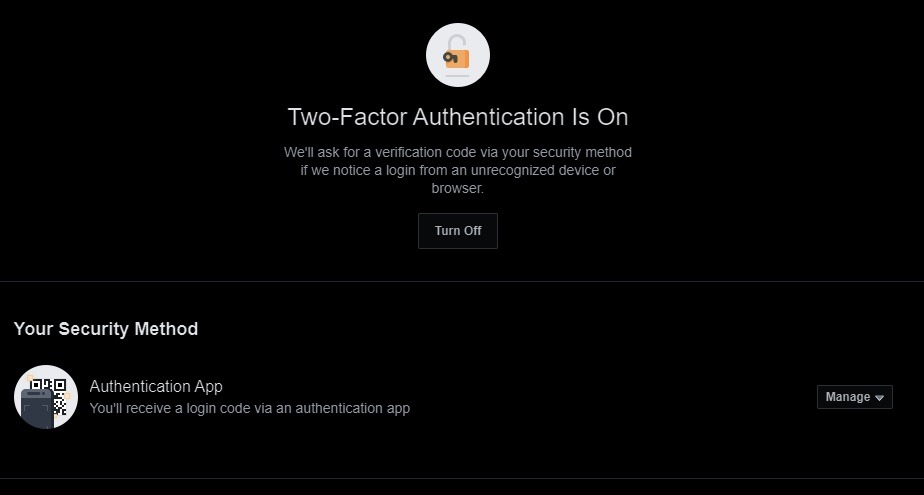
You’ll need to key in your password again for verification and locate the Authentication app selection.
From here out, it is also similar to Google where you’ll obtain a Setup Key for the particular Facebook account and create it the same way as before. Facebook’s way of setting up things is also more convenient for single smartphone device setups so yeah, kudos to that.
Again, using 2FA isn’t the best and top-tier way to protect your most sensitive data as anything is possible to be hacked but using these authenticator apps doesn’t cost anything on top of it being usable by anyone. Most importantly, if you ever receive anything suspicious that you have no idea what its context and content is, be vigilant by not touching anything and let someone else do the job or just ignore them. Someone is bound to contact you legitimately if it is something urgent or important.
Like our Facebook Page here at NasiLemakTech.com for more news and in-depth reviews! Also, join our Facebook Group for insightful information and memes!
Subscribe to our YouTube channel too!