
We’ve previously reviewed the MasterKeys Pro L before – both the RGB and White LEDs version. However, the one Cooler Master keyboard that I personally deem as an iconic keyboard – the QuickFire TK. It was an inexpensive mechanical keyboard with 90% layout, but it had quite a lot of flaws. After a few years, here’s Cooler Master’s next iteration of the 90% keyboard mechanical layout – the MasterKeys Pro M.
Unboxing
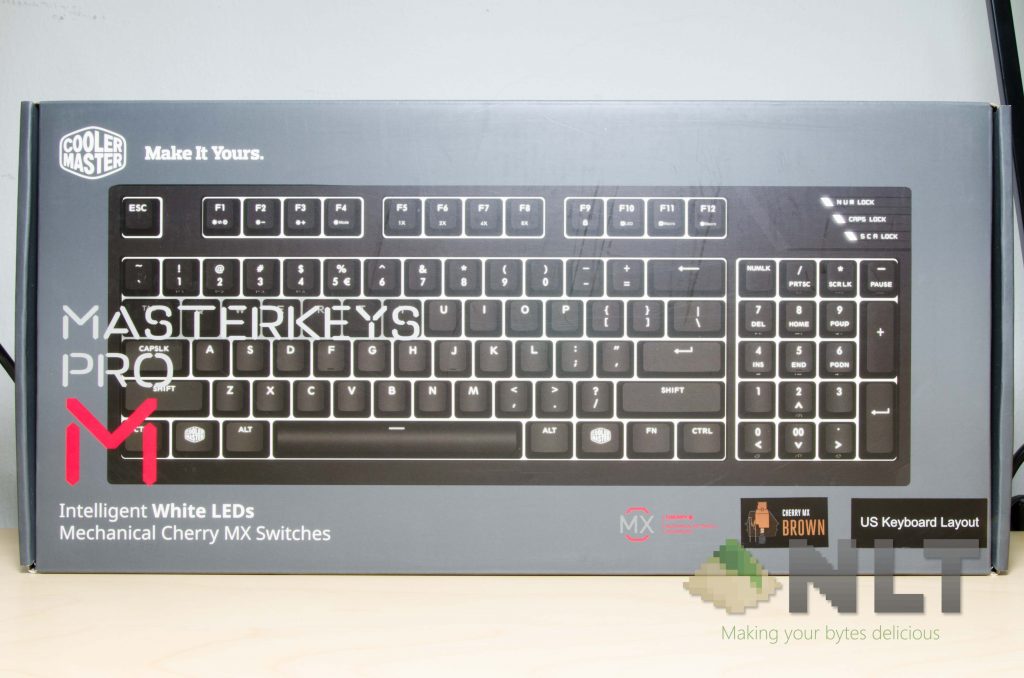
The packaging design and everything is the same as the other MasterKeys keyboards. No surprises here.
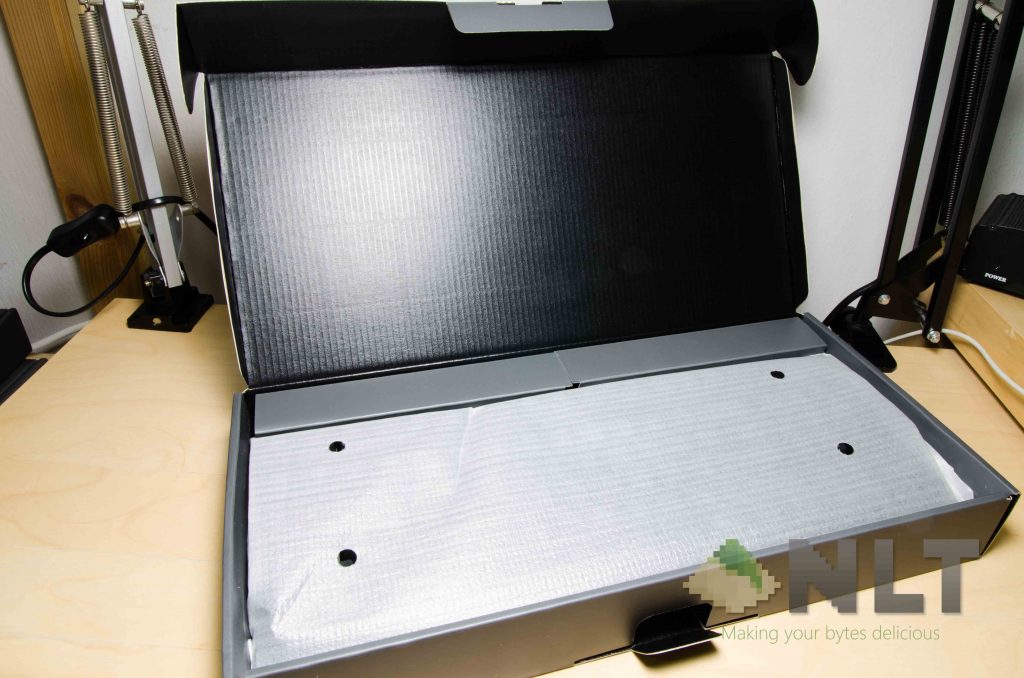
Opening up the box shows a somewhat different material used to wrap the keyboard. The MasterKeys Pro L had fabric wraps around the keyboard, but the MasterKeys Pro M has some styrofoam wraps only. Well, not like we’re going to reuse these bags anyway.
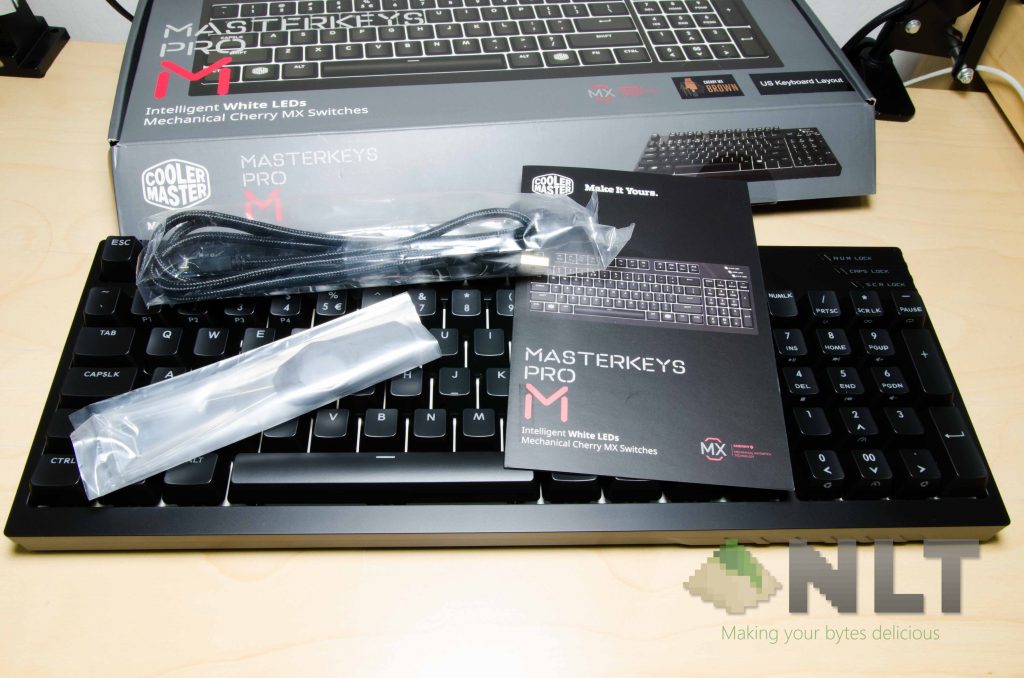
Then comes the contents. The MasterKeys Pro M has the exact same contents as the other MasterKeys keyboards – a wire keycap puller (which is the best), a user manual, and a nylon-braided USB cable.
Design
This time around, Cooler Master didn’t just take the MasterKeys Pro L chassis and downside it, then call it a day. Instead, they’ve taken the QuickFire TK’s design and modified it from there to create the MasterKeys Pro M.
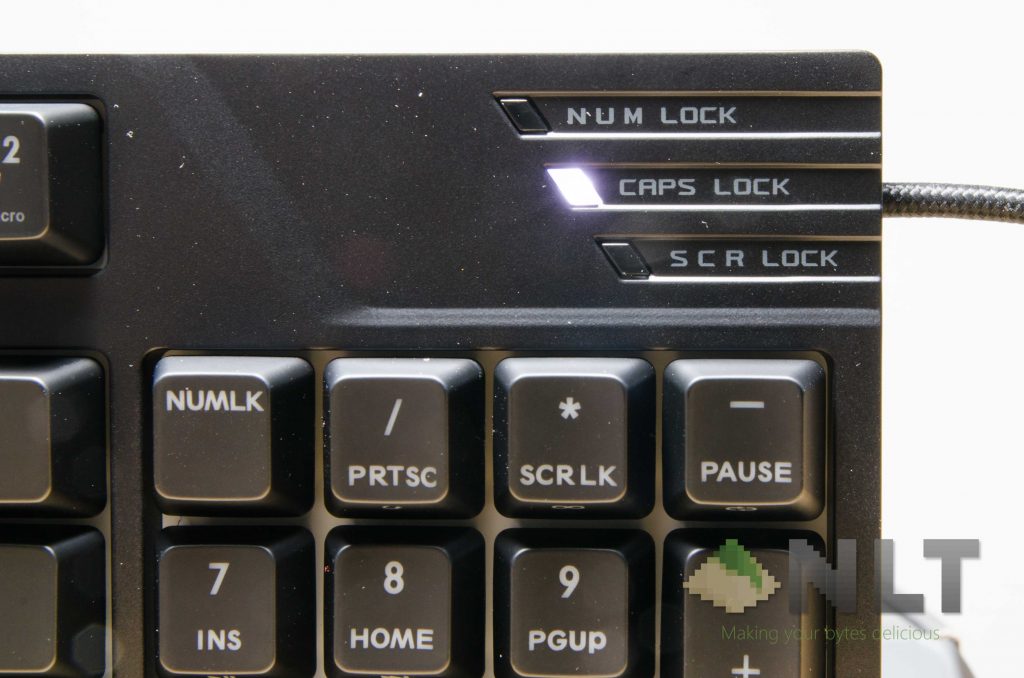
I think many of you do regard the QuickFire TK as a “gamer keyboard”, but I can assure you that the MasterKeys Pro M is a lot different.
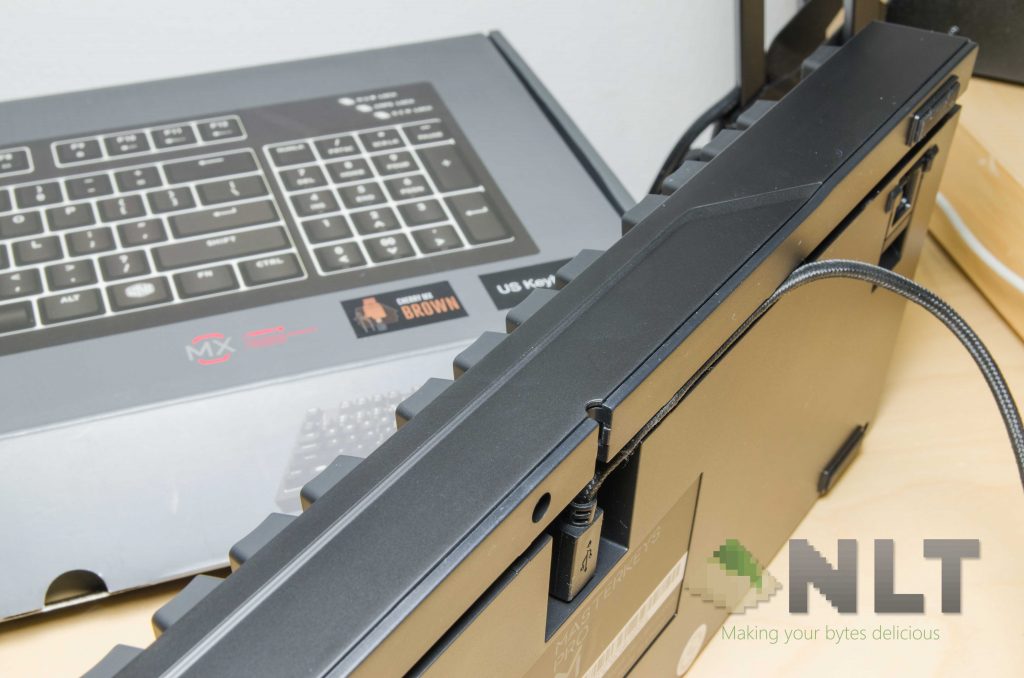
Firstly, Cooler Master removed the fiery CM Storm and left it blank, all LEDs are now white, and all the keycaps are now in line with the other MasterKeys keyboards. In my opinion, the MasterKeys Pro M is much sleeker, classier, and more elegant than the QuickFire TK already. Since they do share the same chassis, some of those facet cuts are still there. There’s also the MasterKeys Pro L-esque cable routes at the back, which is nice.
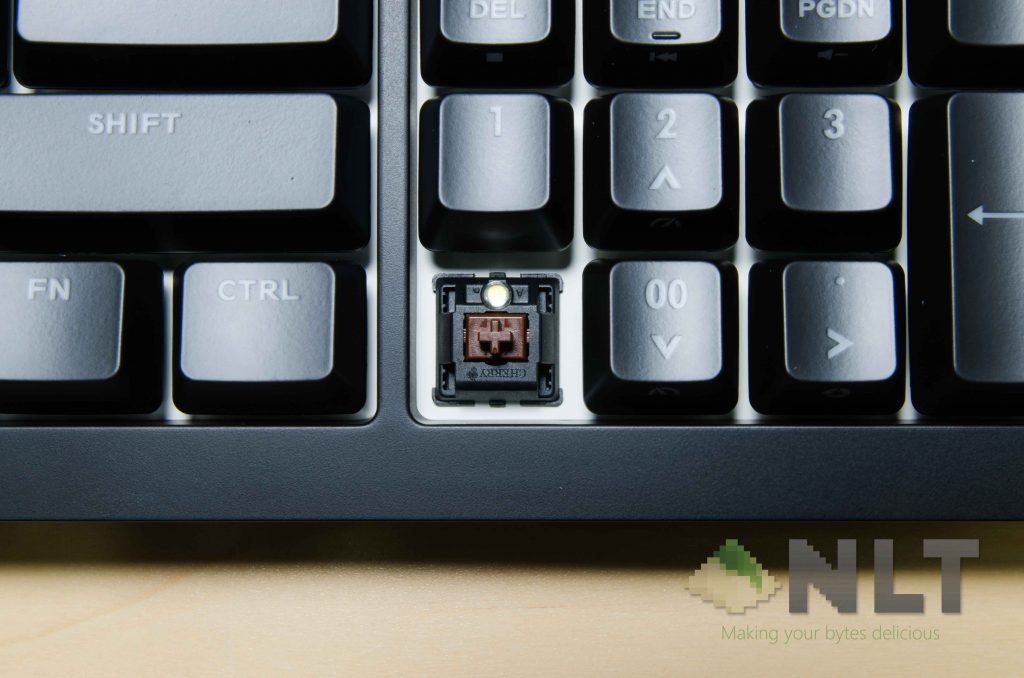
Also, the MasterKeys Pro M is now using a standard bottom row layout! That’s a huge plus – but the numpad still has the non-standard “00” key, which is fine, since the specialty of this keyboard is because of that compromise.
Using the MasterKeys Pro M White LEDs
As I’ve said before in the other MasterKeys review, these UV-coated keyboard shells get grease stains easily. It’s not much of an issue – just a personal preference of mine. Then there’s another difference regarding the MasterKeys Pro M – there’s some extra padding between the edge of the bottom of keyboard and the bottom key row compared to the MasterKeys Pro L series. Again, this just solidifies the point that I’ve made – Cooler Master took the QuickFire TK’s chassis and made minor tweaks for it and call it the MasterKeys Pro M.
However it is the MasterKeys Pro M is still shiny and good-looking as ever, and this 90% layout is obviously the deal appeal of this keyboard.
It’s still using genuine Cherry MX switches – and for our review unit, we’ve got the MX Brown variant.
What about that number pad?
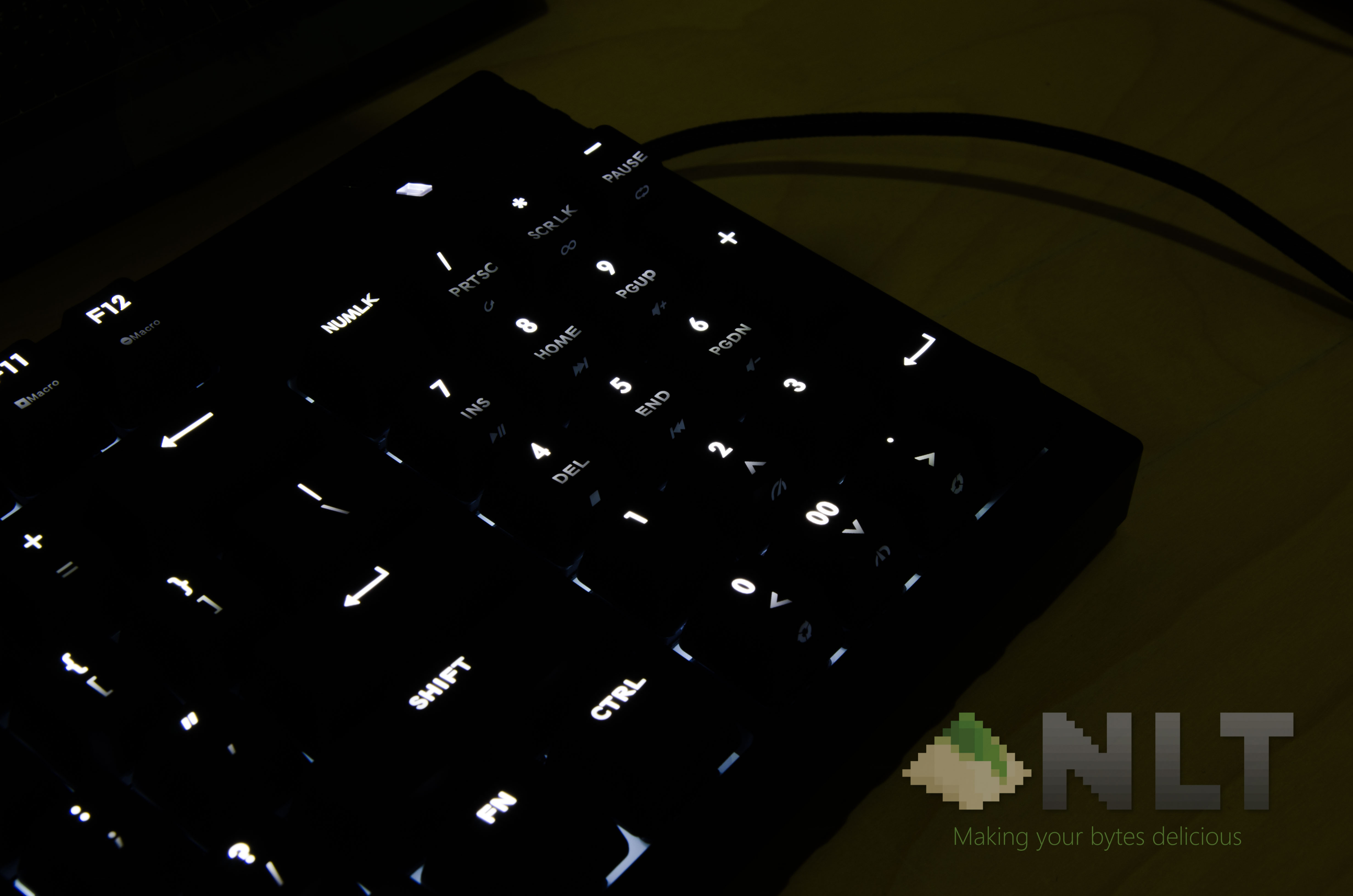
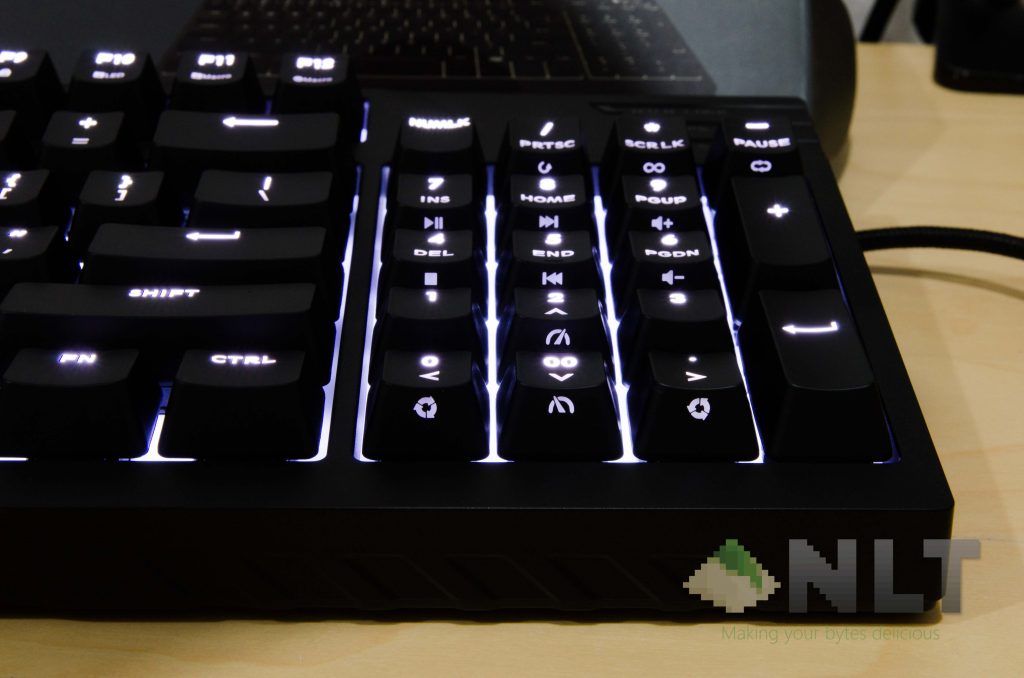
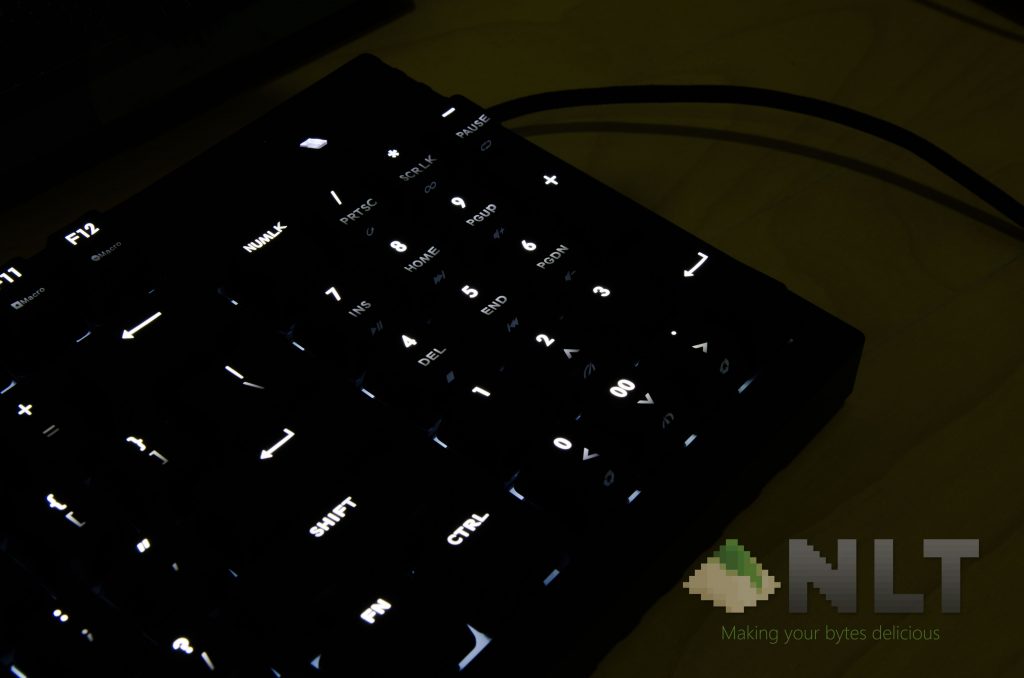
That’s why I’m focusing mostly on that number pad. And to be honest, Cooler Master made some changes compared to the QuickFire TK. firstly, the keycaps. Not the quality, but there are additional legends printed at the side.
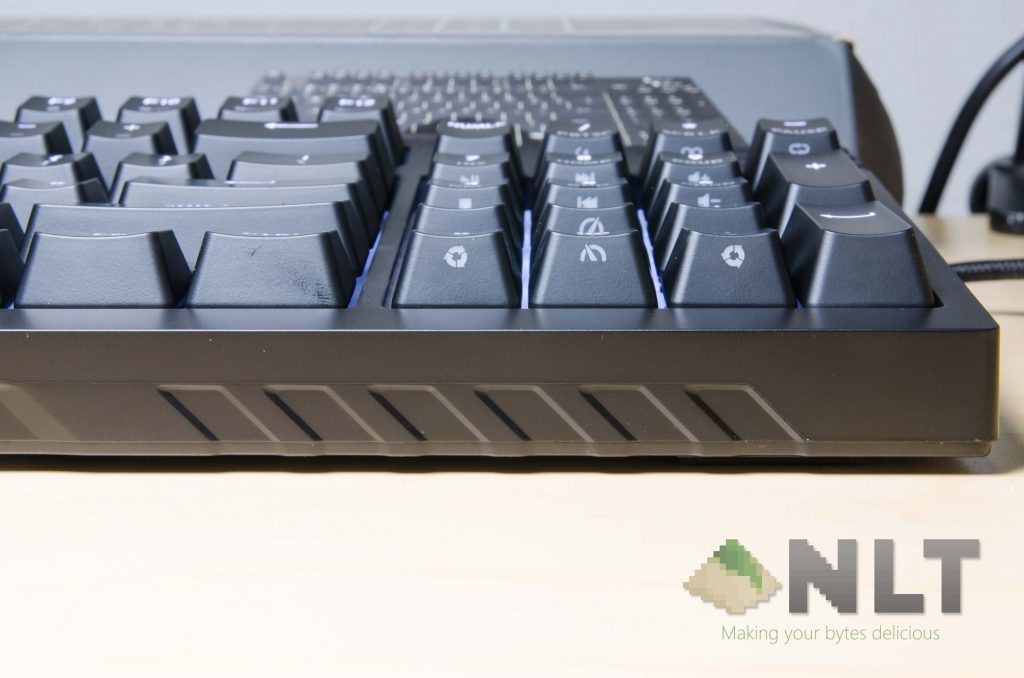
These are function modifier keys, from lighting modes to multimedia keys, and even navigational keys. But that doesn’t dismiss the few-year old question…
Did Cooler Master improve that enter key on the number pad?
In short – yes! They did!
Now, I’ve only used the original QuickFire TK for a short while, and the biggest turn-off was the number pad’s enter key doesn’t work if NumLock is off. Which was a little weird to me, since that key does absolutely nothing when NumLock is off. I was not the only one who pointed out this issue, and there were quite a lot of owners who complained either. I mean, they enter key doesn’t obstruct my usage if the NumLock key was turned off or on anyway.
From what I can find, there wasn’t any firmware updates for the QuickFire TK that fixed this issue either. That’s where the MasterKeys Pro M shines – no pun intended, since it uses bright white LEDs.
The new MasterKeys Pro M did address this issue – and they’ve enabled the enter key on the number pad no matter if the NumLock is switched on or off. This is a really good addition – or rather, a fix – from Cooler Master’s behalf.
Software
This keyboard doesn’t support any sort of custom lighting effects, so everything is obviously hardcoded into the keyboard’s chip. It’s not a bad thing as it keeps everything simple. You can actually upgrade the firmware through CM Portal software too, which is great. The unit I got was originally running v1.01.00, and I’ve upgraded this keyboard’s firmware to version v1.06.00.
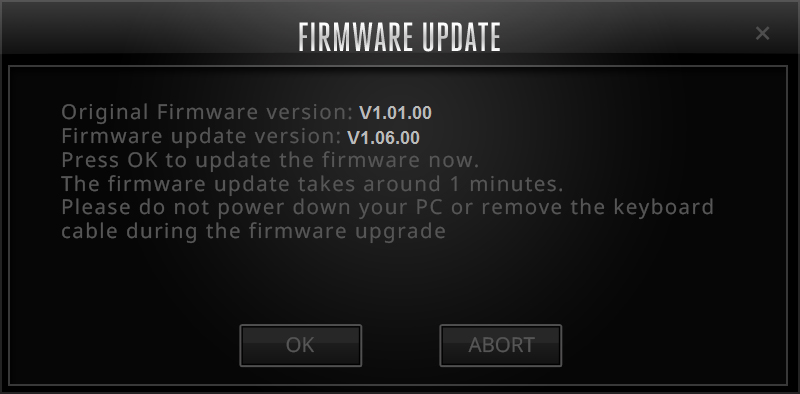
Not sure what has changed, but being able to get firmware updates for peripherals is always a good thing.
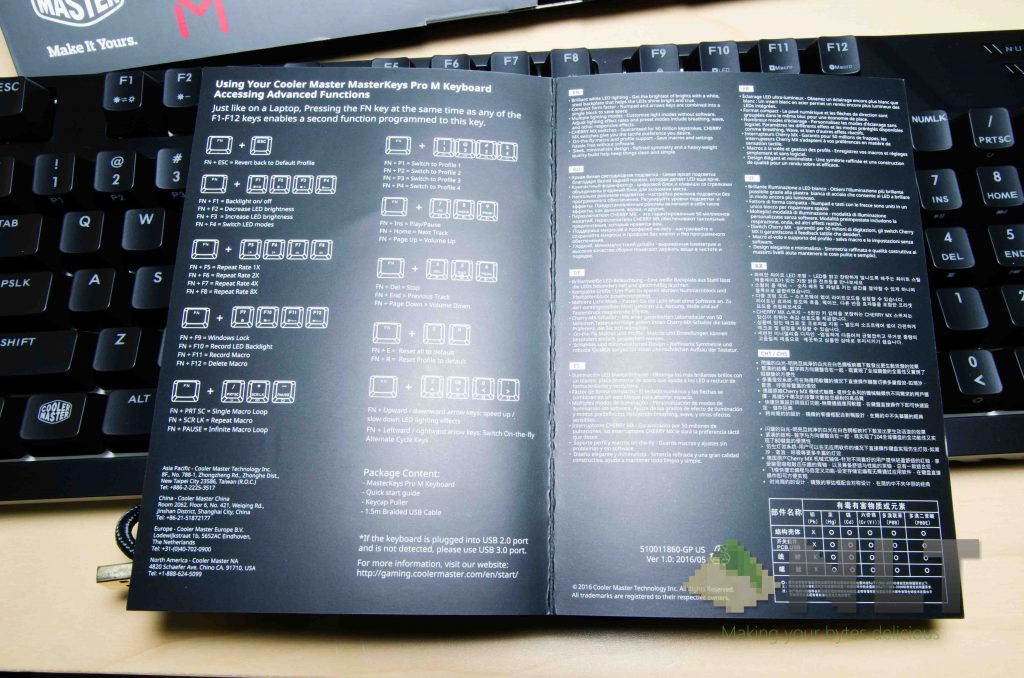
Other than that, just keep the user manual handy so that you know how to navigate around the keyboard’s features.
Wrap up
Firstly, the MasterKeys Pro M is based on the original Cooler Master QuickFire TK keyboard. There’s just no denial in that – even the chassis is very similar – and there were a few aesthetic tweaks to it. While the original QuickFire TK was already a highly-recommended keyboard, I can say the same if for the MasterKeys Pro M too. And since Cooler Master fixed that number pad and enter key issue, this keyboard is just perfect.
You can actually buy a MasterKeys Pro M right now from Store Uni and get a ROYAL GLAM Black Walnut wrist rest. For a keyboard with such thickness, a wrist rest is highly recommended – at least from my usage.
Otherwise, you can actually find the MasterKeys Pro M at Lazada for RM 368 only. Get it quick before it’s sold out! 😀
Like our Facebook Page here at NasiLemakTech.com for more news and in-depth reviews! Also, join our Facebook Group for insightful information and memes!
Subscribe to our YouTube channel too!