We’re not one to talk about PC components, but let’s start off with this – the Sharkoon BW9000-W. This case right here is available in two different color schemes – either black or white. The one I have with me here white. It’s a beautiful case with notable features all throughout the case, and I have to say that it’s actually quite a nice case.
Unboxing
Firstly, let’s talk about the box itself. The Sharkoon BW9000-W comes in a very basic black-and-white cardboard box and has some crucial information regarding its compatibility printed at the front.
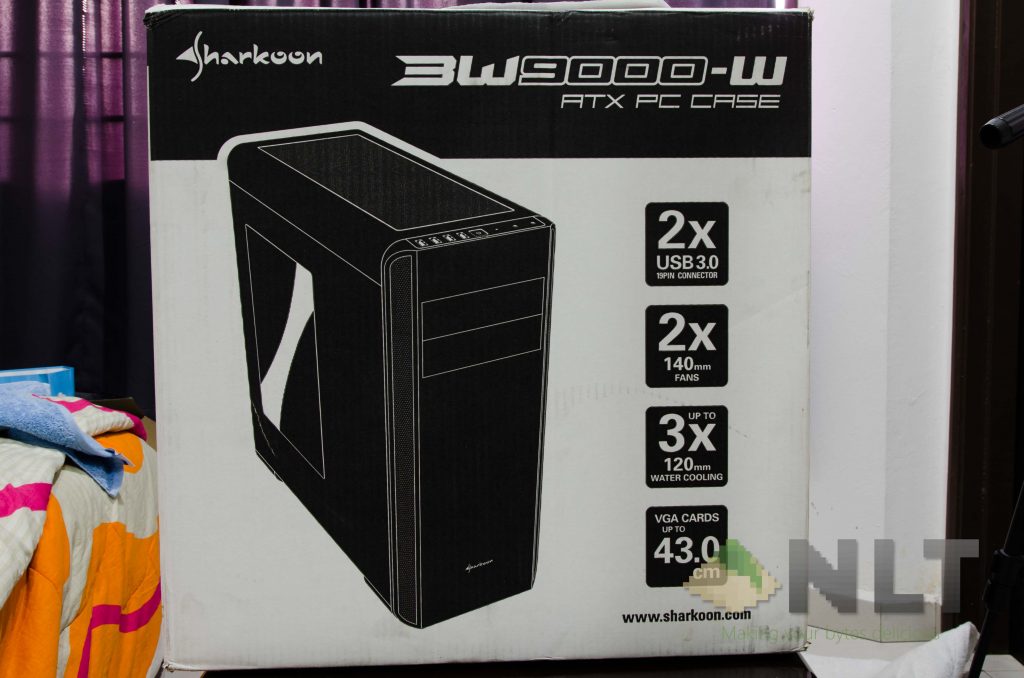
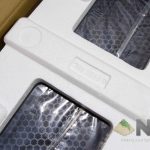
There are some pretty bold claims about the Sharkoon BW9000-W on the box itself, and of course, we’re here to take a look into that. Digging deeper into the box, we found a nicely molded foam piece that protects the case itself from any damages. Decent quality foam too.
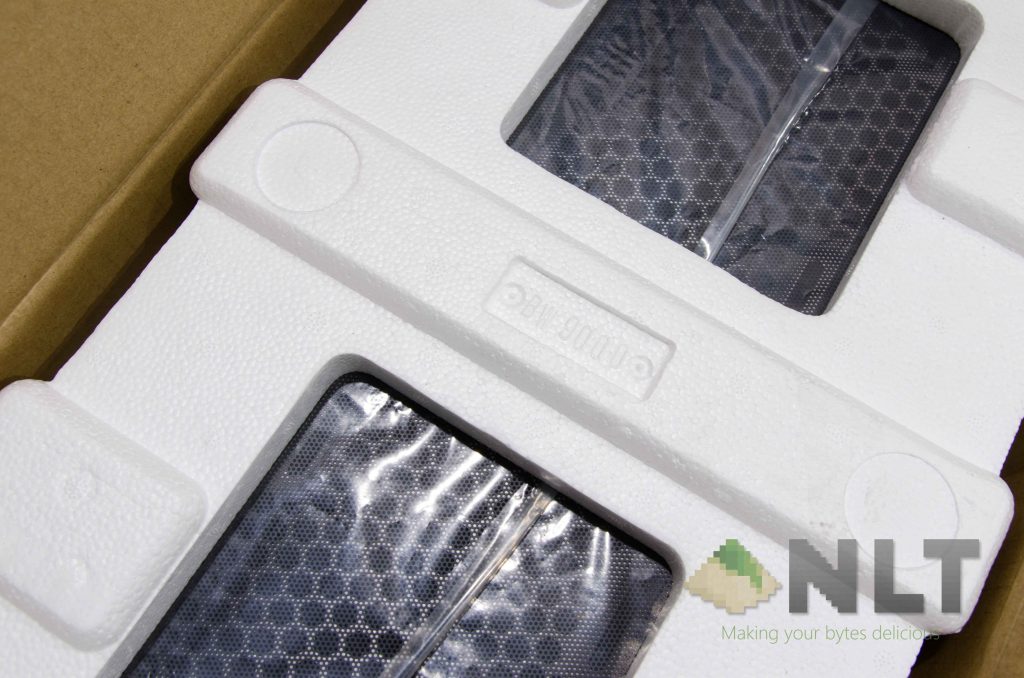
Flipping all of the contents out reveals a pretty standard packaging for any other computer case.
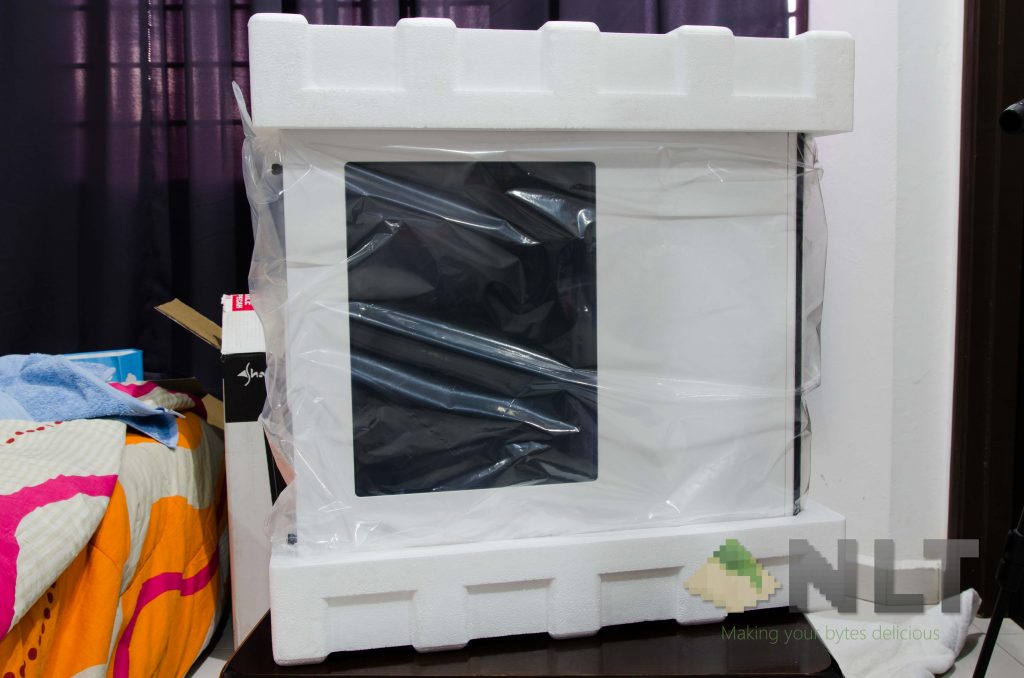
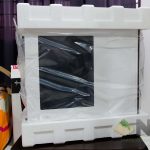
Protected by two pieces of thick foam on both sides, preventing any sort of bumps that the Sharkoon BW9000-W might have during transport. The case fits in really snugly too.
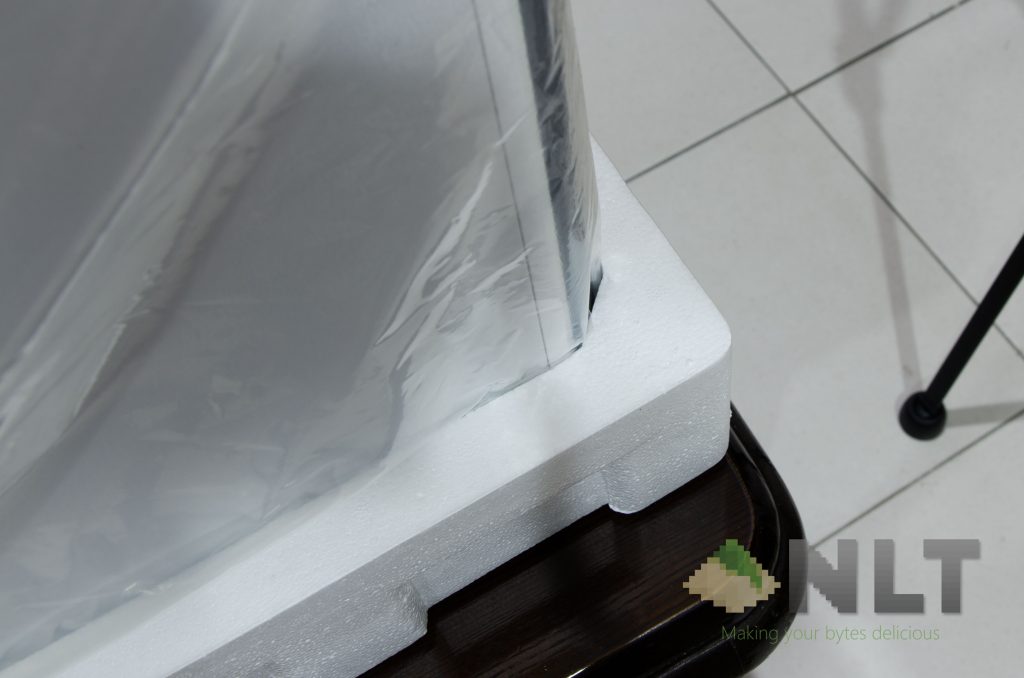
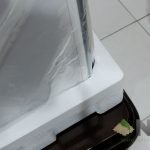
Unwrapping the plastic reveals a very clean packaging style that Sharkoon has opted for. I’m really liking the packaging so far.
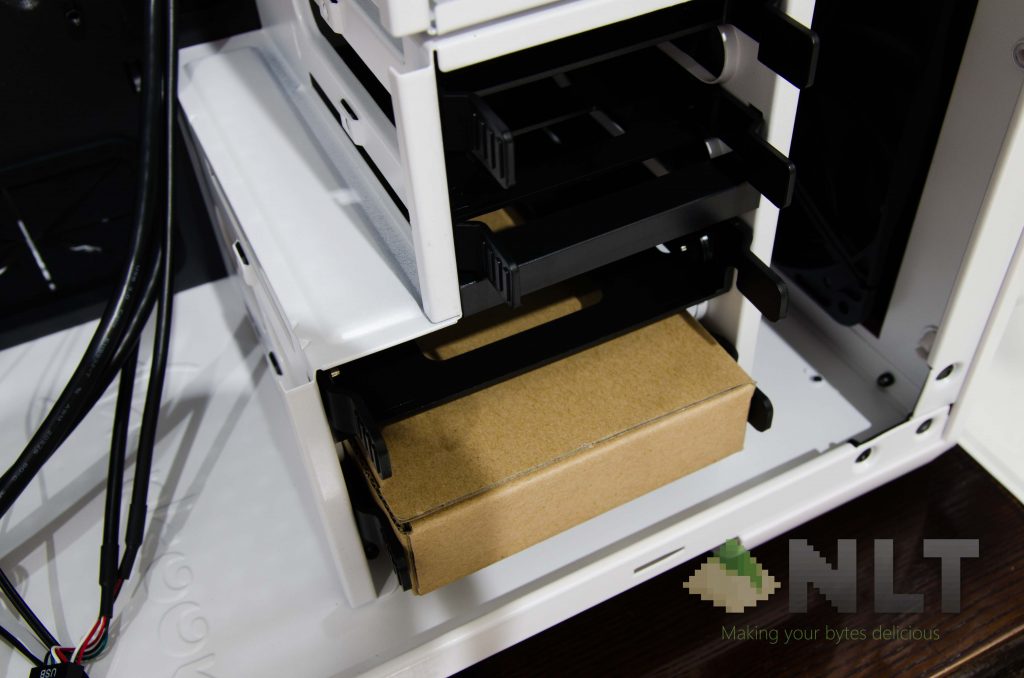
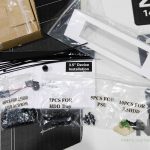
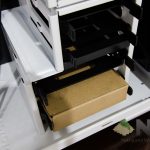
Also, all of the accessories are packed in this little box. That measurement is specific – because it fits in the 3.5-inch hard disk slot snugly. The box even has screw holes on all 4 sides to mount on the toolless mounting mechanism, by the way.
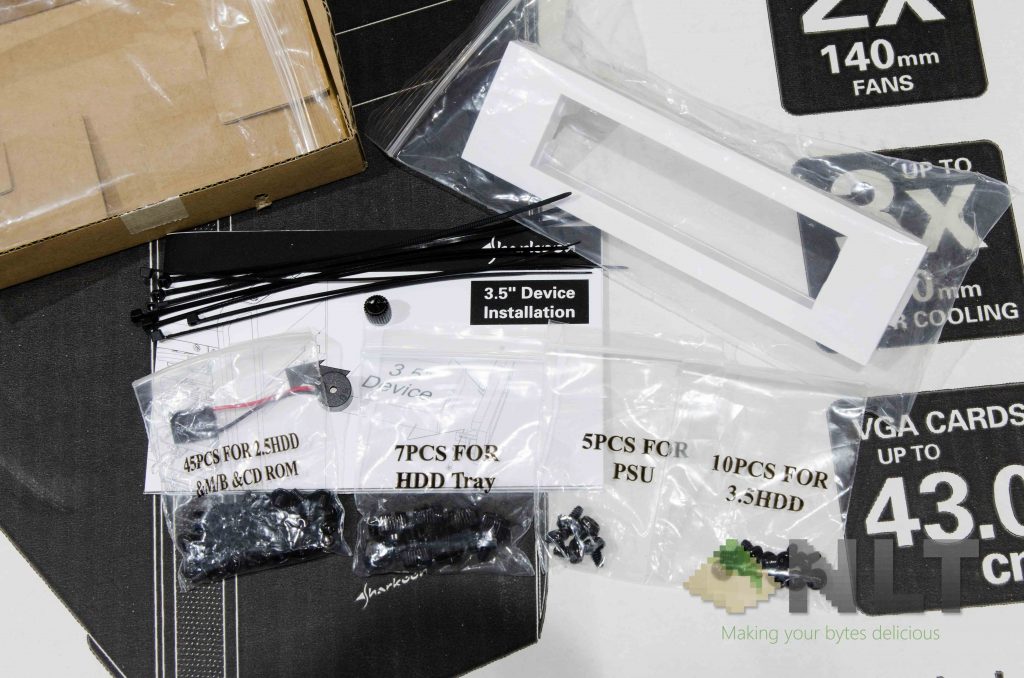
Digging out all of the documentations, accessories, and other included items reveal quite a complete range of things to complete the work cleanly with. More on this later.
Design
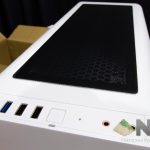
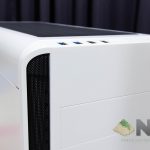
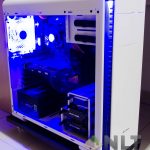
Aesthetically, the Sharkoon BW9000-W is really clean. Here is a series of pictures I took.
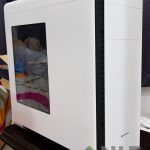

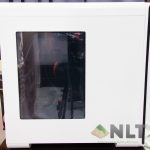
Material-wise, the Sharkoon BW9000-W is built on metal, but don’t expect thick, cold, and hard metal like the Cooler Master HAF 932 – the case that I was using before the Sharkoon BW9000-W.
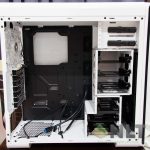
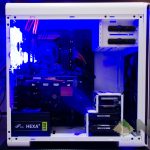
The Sharkoon BW9000-W has an adequately-sized acrylic side panel, which I think shows off pretty much all of the goods inside.
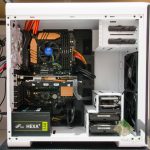
The black motherboard tray here coherently complements the black-coloured parts in the case. A nice touch by Sharkoon.
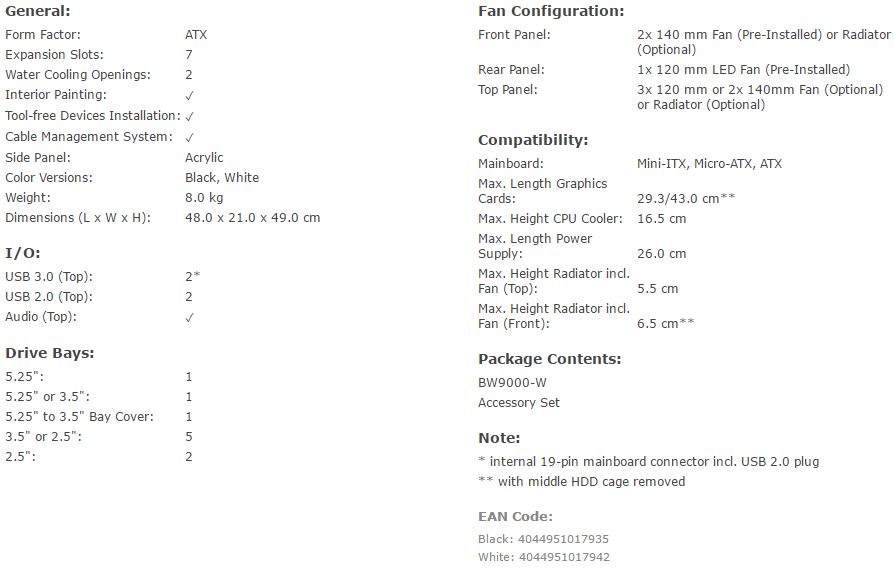
Specifications
Features
External
There are a few notable selling points that are worth highlighting on the Sharkoon BW9000-W. Let’s go through one by one.
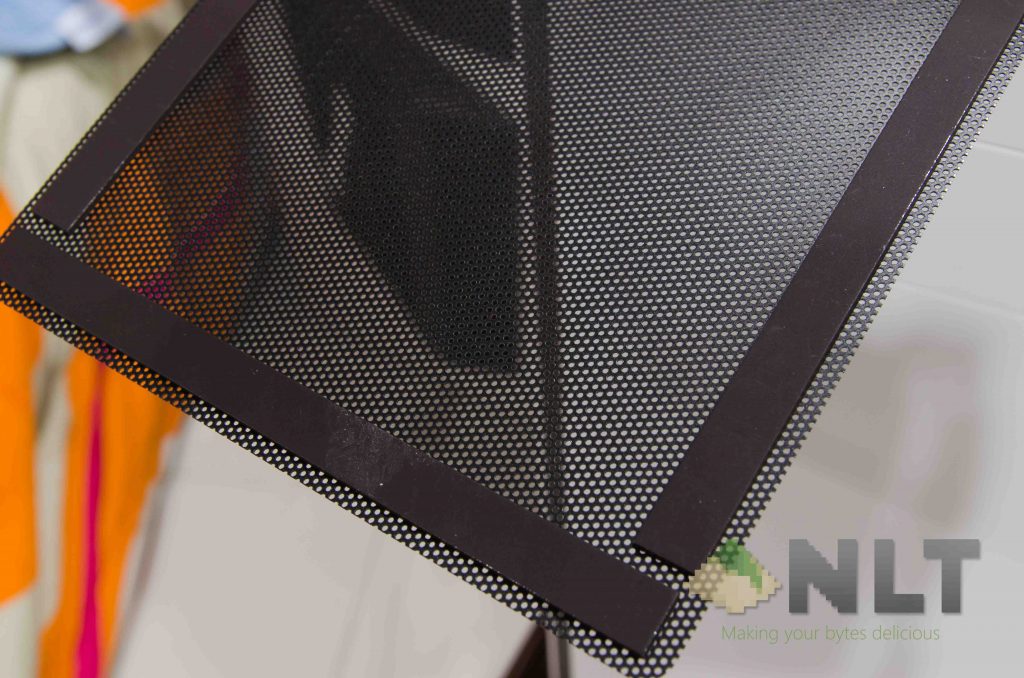
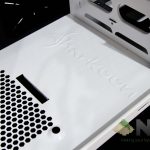
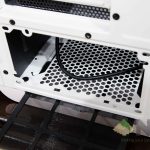
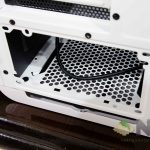
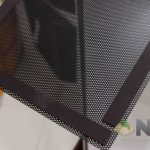
Firstly, the magnetic dust filters at the top. They sit in flushed – nice and clean.
However… the top dust filter panel could have a better-looking magnet strip instead of what we got here, though.
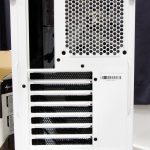
Secondly, there is a slider-style dust filter for the PSU too. Very nice!
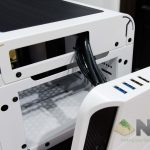
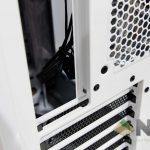
Thirdly, the front panel can be removed without any tools. Also, all of the I/O ports and buttons are placed at the top. All of the cables for these ports and buttons are grouped together, so the front panel can be removed and rotated away, so that there is some extra space to work on the front panel.
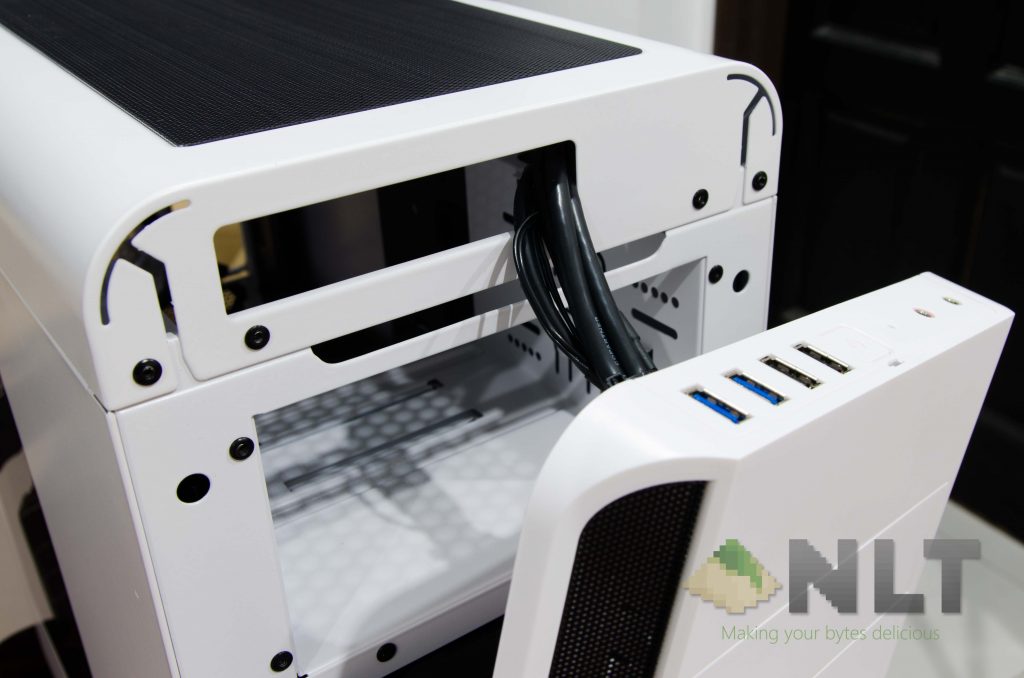
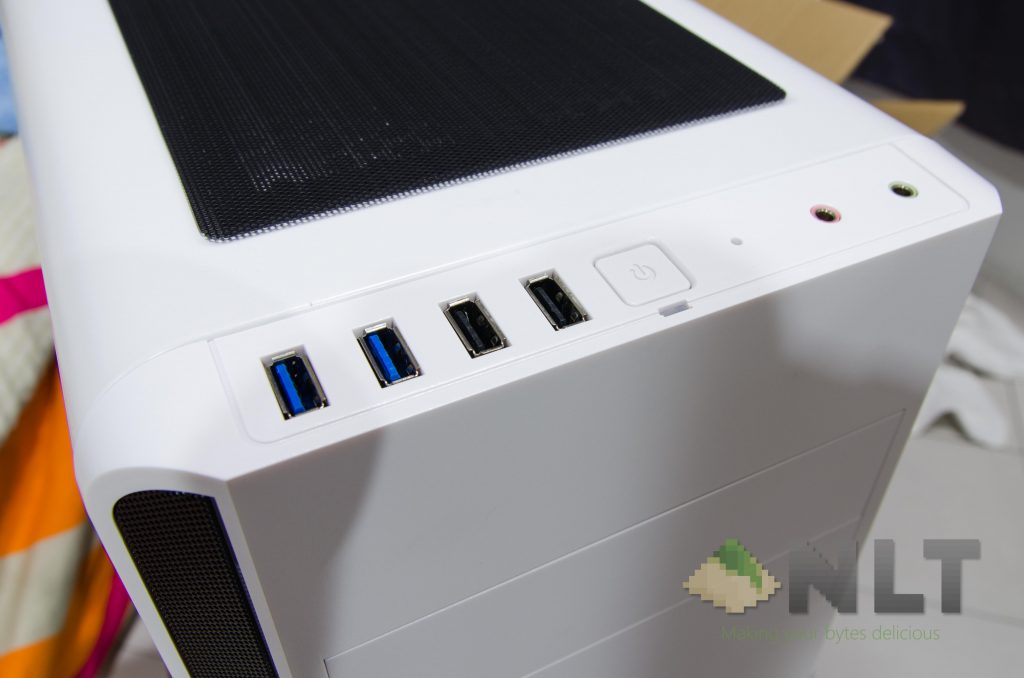
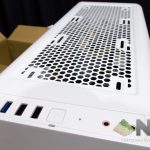
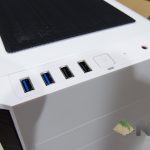
While on the subject of the front I/O panel, there are two USB 3.0 ports and two more USB 2.0 ports, a power button with an activity LED, a headphone and a microphone jack. To be honest, I think it’s adequate. The lack of a dedicated reset switch is a little bothersome, but holding the power button for a few seconds do the same thing anyway. Just that it gets a little frustrating during overclocking sessions.
Sharkoon did a really good job in keeping the aesthetic clean, though!
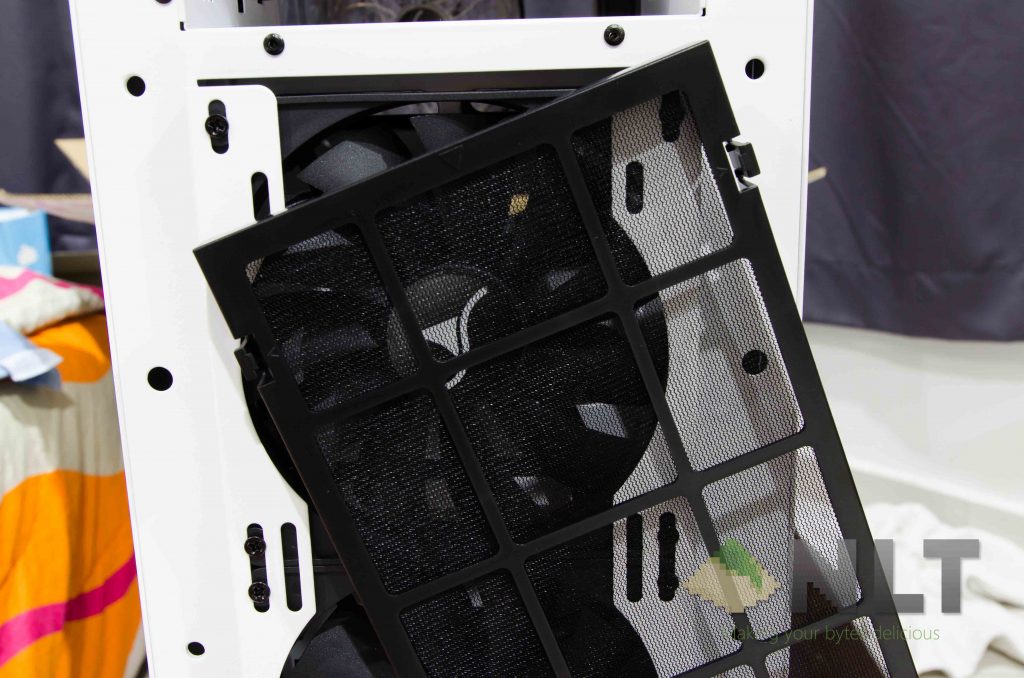
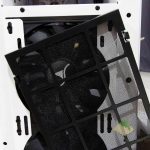
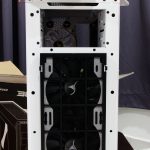
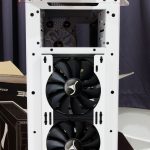
Underneath the front panel is where the two included 140mm fans are located. Also, there’s a large dust filter that uses a clamp mechanism to secure itself onto the case. The filter can be taken out easily, of course.
Those fan filters used here are pretty okay too. The gaps aren’t too small or too big, but they can definitely filter larger gunk out. again, removing it is really simple. There are 2 plastic clips on each side with connected tabs, and will have to be pushed outwards, then pulled away from the case to remove the front fan filter.
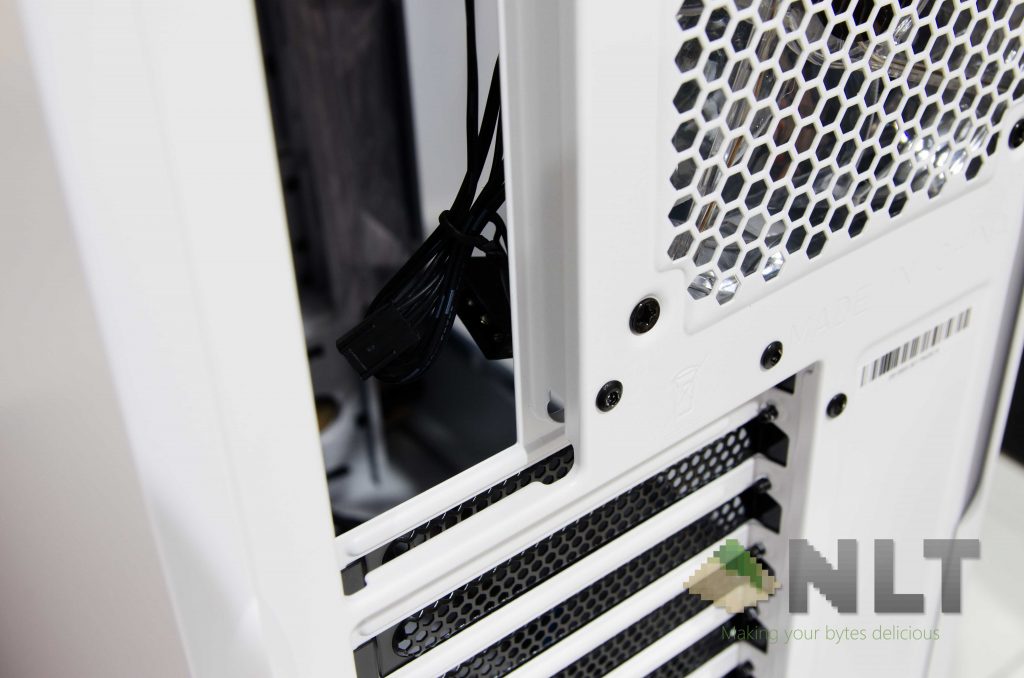
At the back, there’s a 120mm fan included in the case itself. This one is a transparent one, and has built-in blue LEDs.
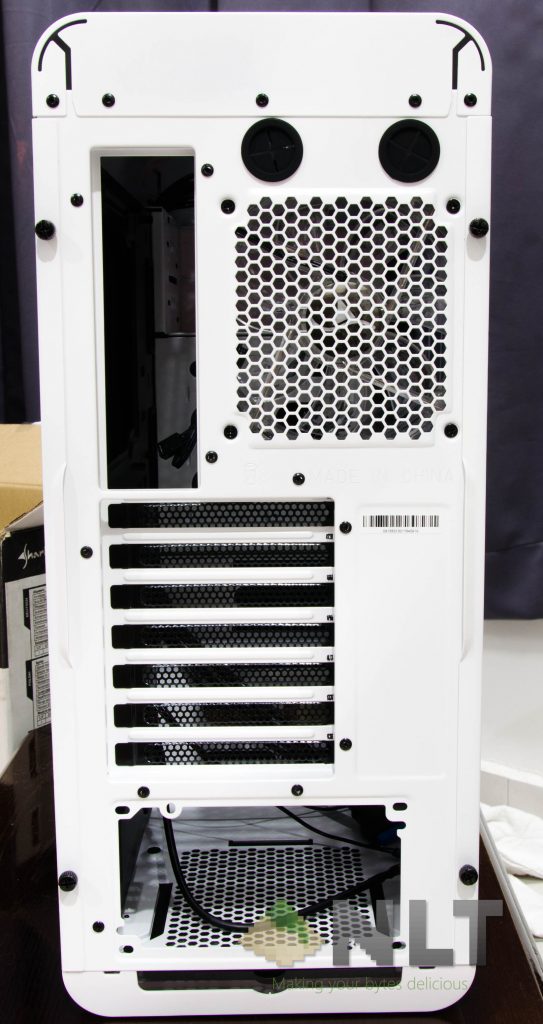
This fan, however, is way too bright for my taste. Also, the colour scheme on the Sharkoon BW9000-W is locked in white/blue. More on this later.
Internal
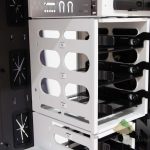
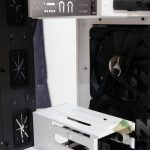
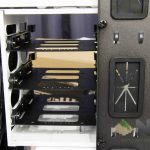
Inside the Sharkoon BW9000-W reveals a lot of interesting features. The first thing that grabbed my attention is the removable triple 3.5-inch hard drive cage.
It should be noted that the Sharkoon BW9000-W’s removable hard disk cage does block the front-facing radiator mounting. The front fans can still be utilized, but swapping the front fans are a little troublesome, as it requires the either the cage to be removed for easy access, or removing the other front fan and try to slot it upwards.
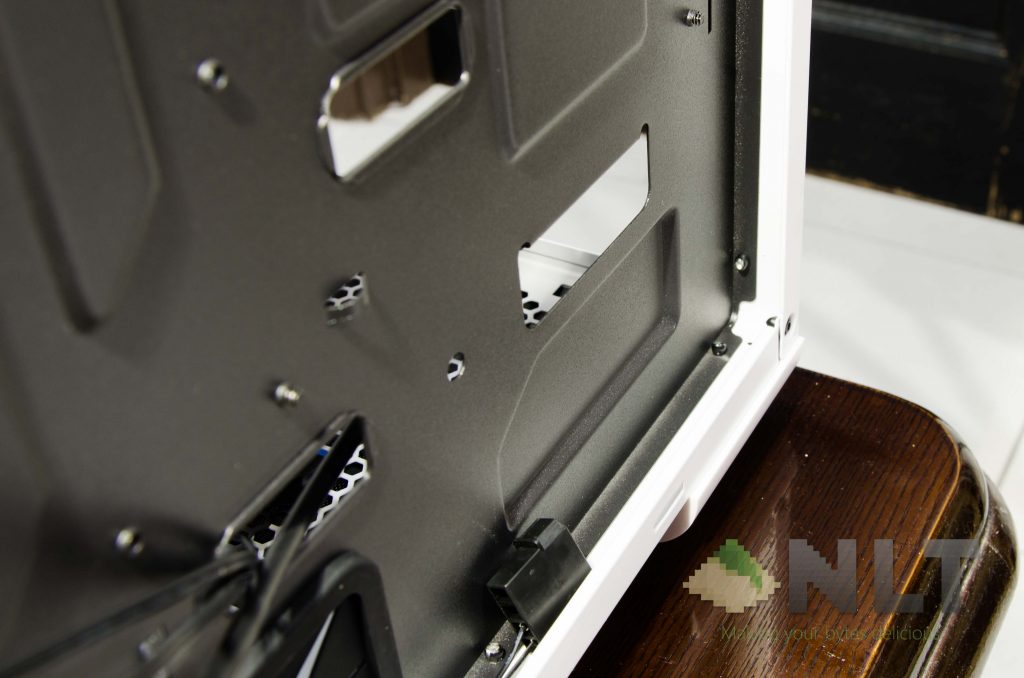
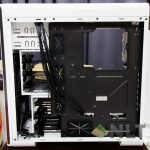
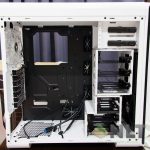
Behind the black motherboard tray, there is quite a lot of space between the back panel and tray itself. Also, there are quite a lot of loops for cable management. All the cutouts and rubber grommets included are great.
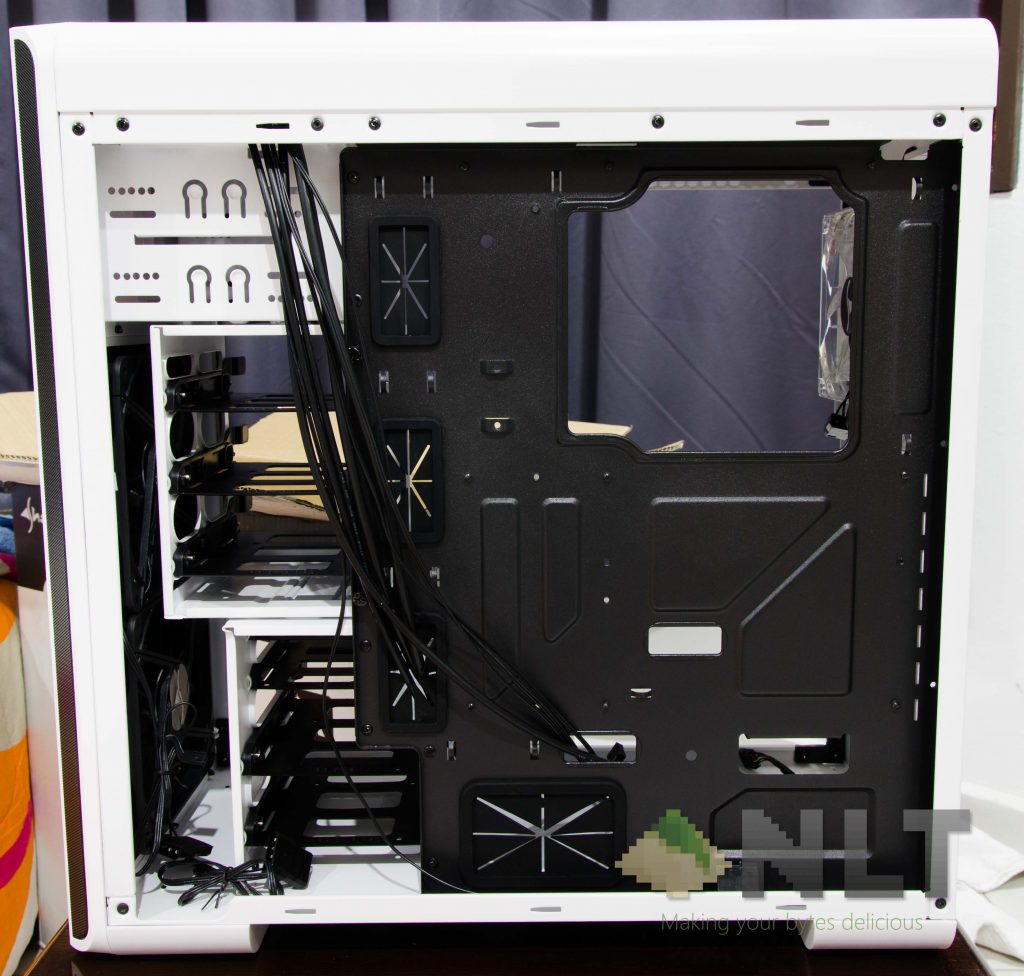
Speaking of the cutouts, the CPU cutout is decently-sized, and it’s correctly positioned.
I think that the case can be further improved with some dedicated SSD mounting slots behind the motherboard tray, and then include another option to totally remove both the hard drive cages. Maybe another option to remove the 5.25-inch bay too! That would be really fantastic!
Building in the Sharkoon BW9000-W
Right here are the hardware that I’m building in the Sharkoon BW9000-W.
| Testing hardware configuration | |
| CPU | Intel i5-6400 @ 4.0GHz |
| Motherboard | ASRock Z170 Pro4 |
| GPU | MSI GEFORCE GTX 1060 3GT OC |
| Memory | Corsair Vengeance LPX 4GBx4 |
| Power supply | FSP Hexa+ 550W |
The case itself is actually very easy to build with. I took out the extra 3.5-inch hard drive cage since I have no use for it – and it looks so much cleaner. However, removing them reveals one issue – cable management.
In my case (pun intended), my PSU isn’t modular. There is some cable management difficulty right here, but I managed to squish all the cables behind. This case is big enough for all the cables to be stashed behind the motherboard tray, mind you. The other thing to take note is the gap between that fixed drive cage and the front fans. If no radiators are used, then that gap is empty – but no cables should be stashed in there as the fan blades might catch it.
By the way, it should be noted that all of the stock fans have weird fan cables. It has a 3-pin fan connector, but there’s another Molex splitter attached to it. There’s no way of separating the Molex connector without cutting it directly. 🙁
I realized that the top side is very spacious, and there is quite a lot of clearance between the motherboard and the fan mounts.
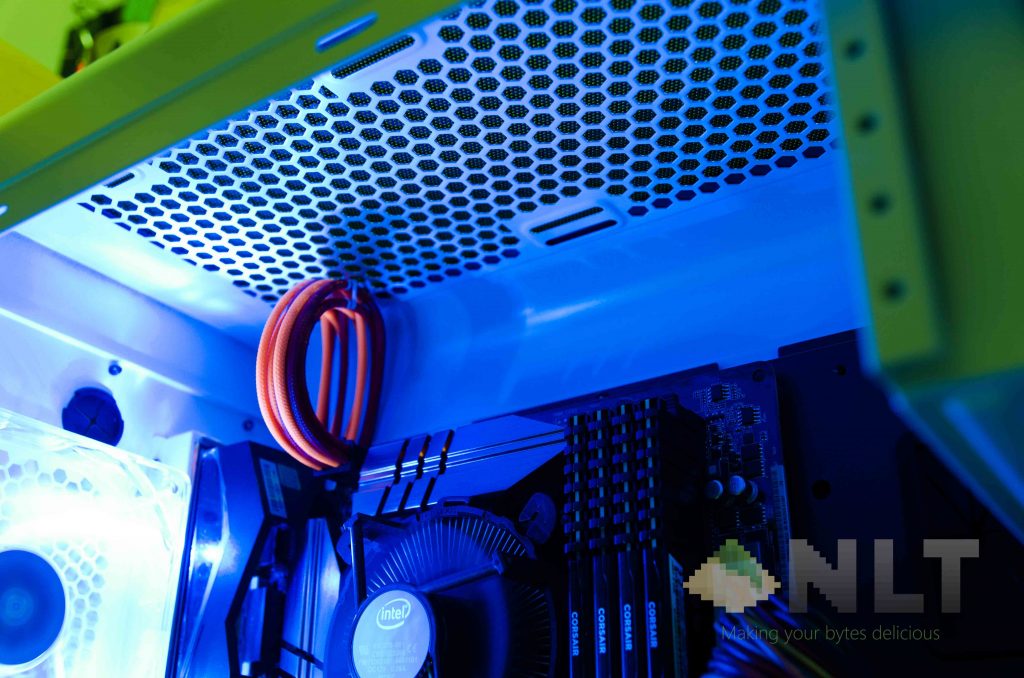
The case is aesthetically pleasing too – and I like the minimalist whiteout look that it has. Again, the rear fan is just way too bright for me – and replacing the fan might be an issue for many people.
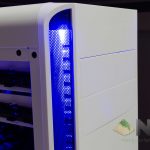
Why? Because the Sharkoon BW9000-W has indirect lighting with fixed color at the front.
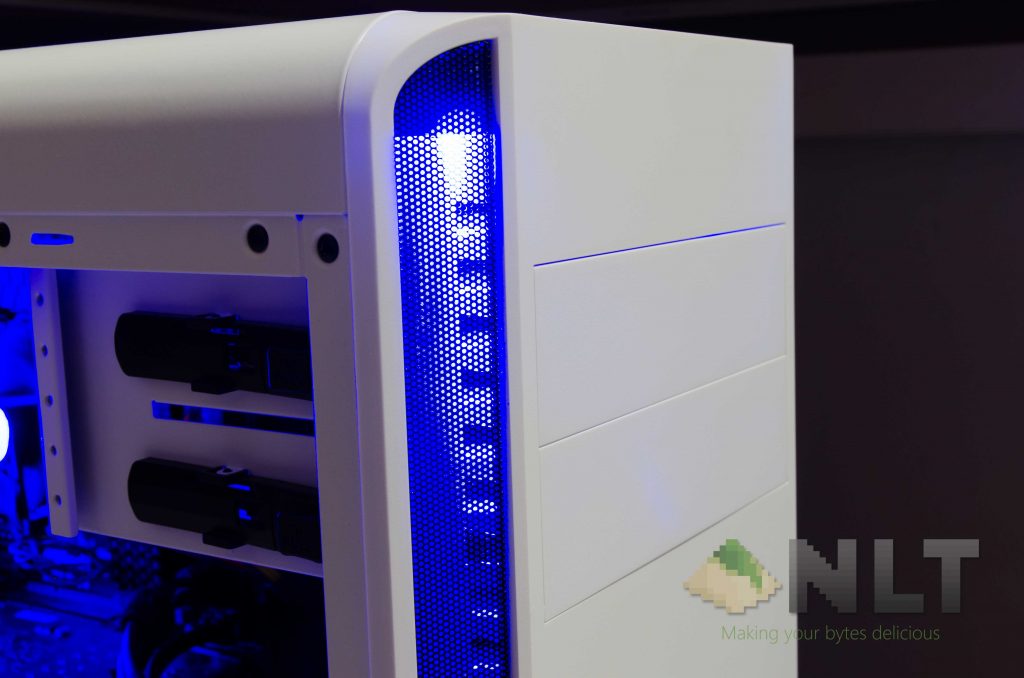
It’s actually a very nice touch to the aesthetics, but they’re powered by Molex cables – so keep that in mind. The end result is a very sleek build with those lights.
Temperatures
Coming from the ancient HAF 932 – an old case built out of thick metal and full of holes and large fans, the Sharkoon BW9000-W actually performs very well.
I ran synthetic benchmarks with AIDA64 in an air-conditioned room, and here are the results I got.
| Idle | Stress CPU only | Stress GPU only | Stress both | |
| CPU (℃) | 40 | 60 | 53 | 65 |
| GPU (℃) | 30 | 30 | 62 | 61 |
It’s pretty good, considering that I’m only using a stock cooler. However, noise is definitely an issue here. It’s loud.
Wrap up
The Sharkoon BW9000-W is a beautiful case – no doubt. There are some questionable design choices such as the included fans’ cables, but that can easily be fixed by a quick fan swap. Cable management for non-modular power supplies might be an issue here because there’s just no space to stash the extra cables if all hard disk slots are occupied.
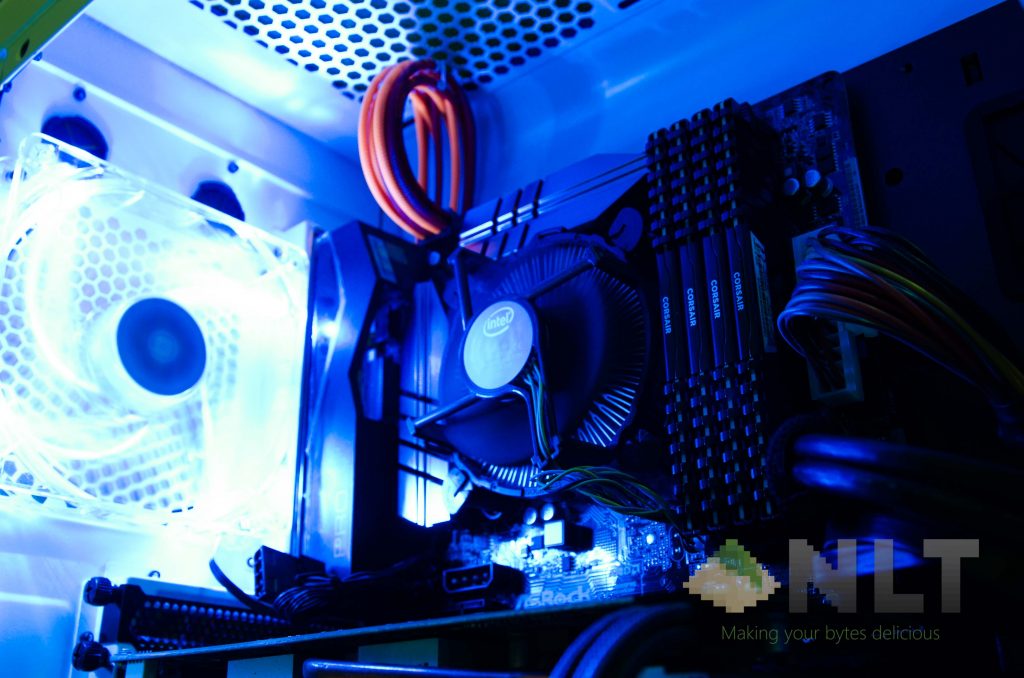
All of the included fan filters are nice and easily accessible, and the I/O ports are appropriately placed too.
For the price of RM299, it’s a little on the pricey side – but I can assure you, it’s a nice case.
Be sure to check out our full gallery of images on the next page!



Like our Facebook Page here at NasiLemakTech.com for more news and in-depth reviews! Also, join our Facebook Group for insightful information and memes!
Subscribe to our YouTube channel too!