







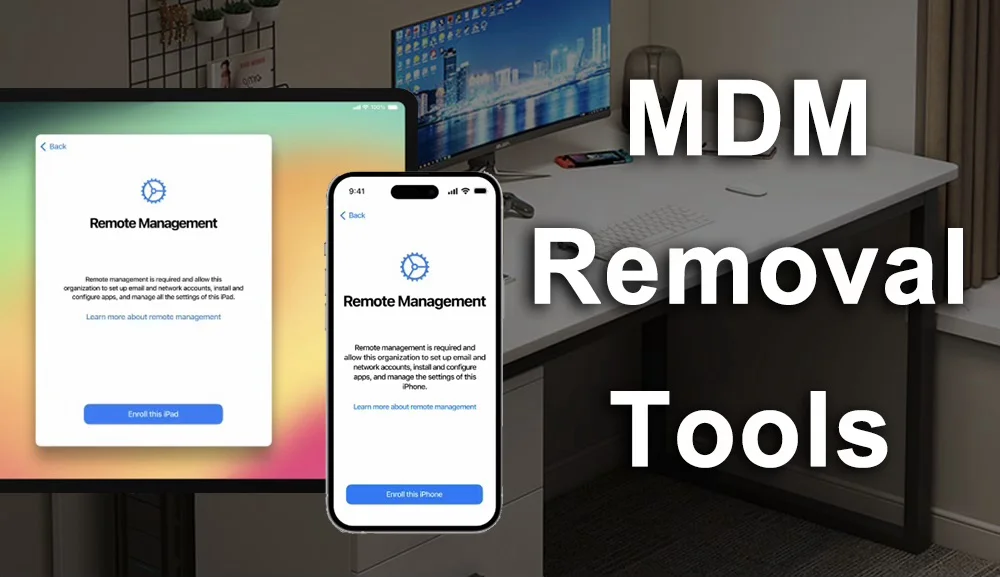

Mobile Device Management (MDM) is widely used by schools, businesses, and organizations to manage iPhones and iPads. It can control device settings, restrict certain features, and remotely configure apps and security policies. The problem starts when an iPhone or iPad remains connected to an organization’s MDM system after it has been transferred to a new user. You may see a Remote Management screen during setup or find that certain settings are unavailable.
So, how can you remove MDM from iPhone and iPad? In this guide, we’ll look at four MDM removal tools and methods, explain how they work, and show you what to consider before choosing one.
Can You Remove MDM from iPhone or iPad?
Yes, but the available options depend on how the device is enrolled and who controls the MDM profile. For an iPhone or iPad managed by a business or educational institution, the authorized administrator can release the device from its MDM enrollment. This is the official approach and should always be considered first.
Things become more complicated when you legitimately own a used iPhone or iPad but cannot contact the previous organization. In this situation, some third-party MDM removal tools can help with supported Remote Management configurations.
Before choosing an MDM removal solution, check its device and iOS/iPadOS compatibility, whether it can preserve your data, how consistently it works on supported devices, and how easy the removal process is. With that in mind, let’s look at four options.
1. MagFone iPhone Unlocker
MagFone iPhone Unlocker is a desktop tool that includes a dedicated MDM removal feature for iPhone and iPad. Instead of requiring users to manually deal with complicated configuration files or system procedures, MagFone provides a guided interface for handling the Remote Management screen.
One reason it can be useful is that the MDM removal process is designed to work without data loss in supported scenarios. This can be important if the device contains photos, messages, or other personal information that you don’t want to erase.
What MagFone iPhone Unlocker Offers
- Remove MDM and Remote Management from supported iPhone and iPad models
- Designed to remove MDM without data loss in supported scenarios
- No complicated manual procedures
- Supports a wide range of iPhone and iPad models including iOS 27
- Simple interface for less technical users
- Also includes other iPhone unlocking functions
2. Tenorshare 4uKey
Tenorshare 4uKey is another popular desktop-based iPhone unlocking utility. It provides several tools for dealing with different types of iPhone and iPad restrictions. Its main advantage is the relatively straightforward interface. Instead of requiring advanced technical knowledge, users can follow the software’s on-screen instructions.
For users specifically dealing with MDM, however, it’s important to check whether their particular Remote Management configuration is supported before proceeding. 4uKey is better suited to users looking for a broader iPhone unlocking toolkit rather than a solution dedicated only to MDM.
3. iMobie AnyUnlock
AnyUnlock is a multi-purpose iPhone unlocking tool that covers several common Apple device lock scenarios. It provides a graphical interface and combines different unlocking functions in one application. Depending on the supported version and device configuration, it can also be considered for certain MDM-related situations.
One advantage of an all-in-one tool is convenience. If you’re dealing with more than one type of restriction, you don’t necessarily need separate software for every problem. As always, check the supported iOS versions and device models before attempting MDM removal.
4. Remove MDM Through the Organization
Before using third-party software, there’s one official option that shouldn’t be overlooked: ask the organization that manages the device to remove it. Companies and schools can manage enrolled Apple devices through their MDM platforms. An administrator can remove the device from management when it is no longer needed or when ownership has been transferred.
If you purchased a used iPhone or iPad that is still showing Remote Management, contacting the seller and asking them to have the device released from their organization can also solve the problem. This is the most straightforward approach when the previous organization is available. The downside is that it may not be practical if you have no way to contact the original administrator.
How to Remove MDM from iPhone and iPad with MagFone
Step 1: Run MagFone iPhone Unlocker on your Windows or Mac computer, and select the Remove MDM feature from the available options.
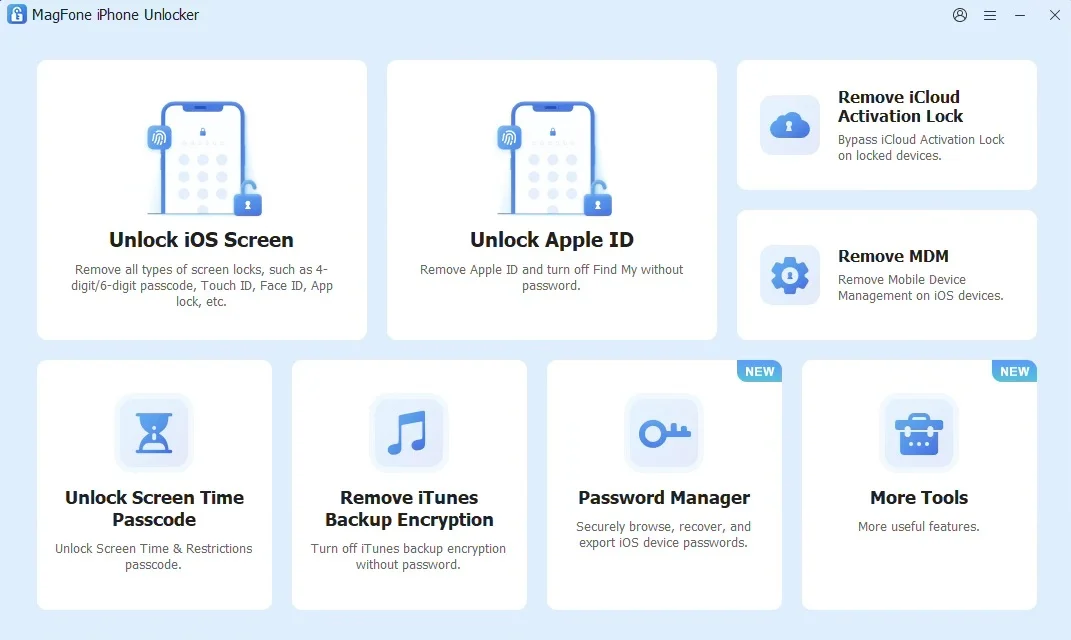
Step 2: Connect the managed iPhone or iPad to your computer using a USB cable. If prompted, unlock the device and select the appropriate trust option.
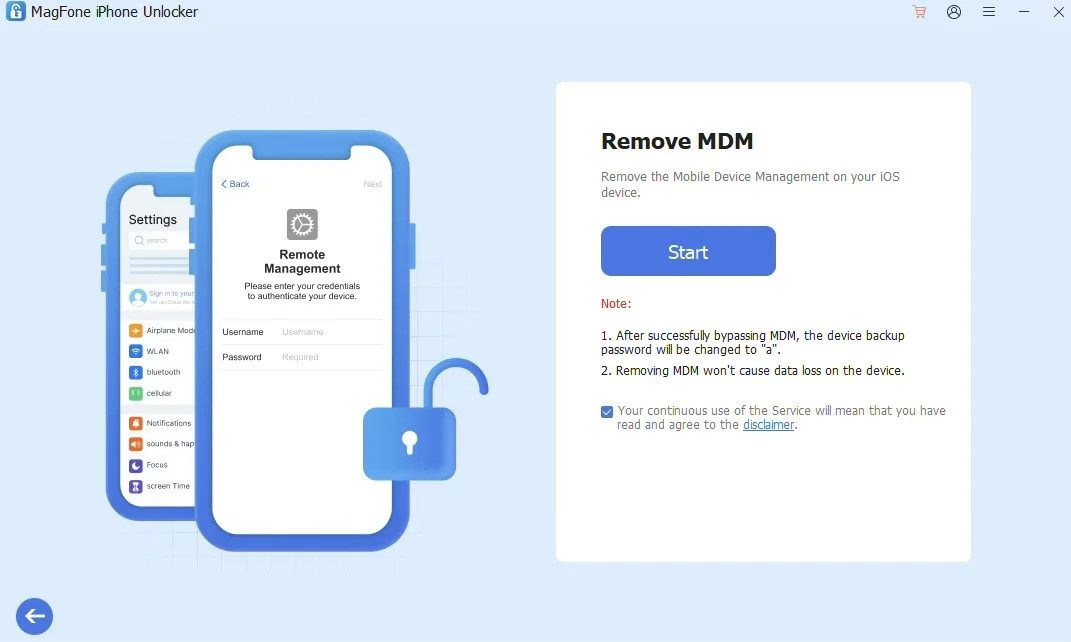
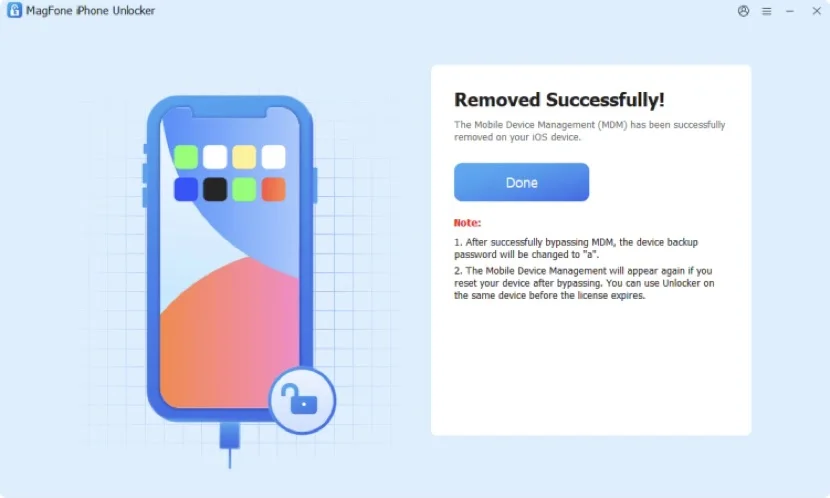
Step 3: Follow the instructions displayed by MagFone to begin removing the Remote Management restriction. Once the process has finished, check whether the Remote Management screen has been removed and whether you can access the device normally. The process is designed to remove the MDM restriction without erasing existing data.
Which MDM Removal Method Should You Choose?
The right approach depends mainly on your situation. If the iPhone or iPad is still owned by a company or school, contacting the administrator should be your first choice. If you’ve purchased a used device and the seller can contact the original organization, asking them to release the device is another practical option.
For users who legitimately own the device but cannot access the original organization, a third-party MDM removal tool may be worth considering. When comparing these tools, pay attention to four things:
- Compatibility: Make sure your iPhone or iPad and iOS/iPadOS version are supported.
- Success performance: Look for tools that consistently work across their supported configurations.
- Data preservation: Check whether the removal process requires a factory reset or can preserve existing data.
- Ease of use: A guided interface can be much easier than complicated manual procedures.
MDM Removal vs. Factory Reset
A factory reset doesn’t necessarily solve every MDM problem. If a device is enrolled in an organization’s automated device management system, resetting it may simply cause the Remote Management screen to appear again during setup.
That’s why resetting an iPhone or iPad isn’t always enough to remove MDM. The device may need to be released from the organization’s management system or handled with a compatible MDM removal solution.
What About MDM Profiles in Settings?
On some personally managed devices, an MDM or configuration profile may be visible under the device’s settings. If the profile provides a Remove Management option, you may be able to remove it directly.
However, organization-controlled devices can restrict this option. If the removal button isn’t available, the profile may require administrator authorization. In that situation, repeatedly resetting the device won’t necessarily remove the management restriction.
Final Thoughts
MDM is an important management feature for businesses and schools, but it can become a problem when an iPhone or iPad remains enrolled after ownership changes. The official route is to ask the organization or administrator to release the device. When that isn’t possible, third-party MDM removal tools provide another option for supported configurations.
Among the tools discussed here, MagFone iPhone Unlocker focuses directly on iPhone and iPad unlocking scenarios, including MDM and Remote Management. Other utilities such as Tenorshare 4uKey and iMobie AnyUnlock provide broader collections of iPhone unlocking functions.
Whichever approach you choose, check compatibility first, back up important data when possible, and make sure you have legitimate ownership or authorization to remove the device from management.
Like our Facebook Page here at NasiLemakTech.com for more news and in-depth reviews! Also, join our Facebook Group for insightful information and memes!
Subscribe to our YouTube channel too!