











The ASUS ROG Phone has just finally been launched! We’ve talked a lot about the ROG Phone here, from its history to the top 5 reasons why the ROG Phone is the only gaming phone you’ll need. Today, we’re here for the in-depth review of the brand new ROG Phone – ASUS’s first attempt in creating a gaming smartphone.
Before you buy it, here’s what you need to know about the ROG Phone from top to bottom. It’s ASUS’s first attempt in creating a true gaming smartphone and we have to say, they’ve done it really well – but it does have some flaws.
In this review, we’re only focusing on the ROG Phone alone as a standalone device. We do not have access to the accessories yet, so we cannot review the ROG Phone as an entire gaming ecosystem.
Unboxing
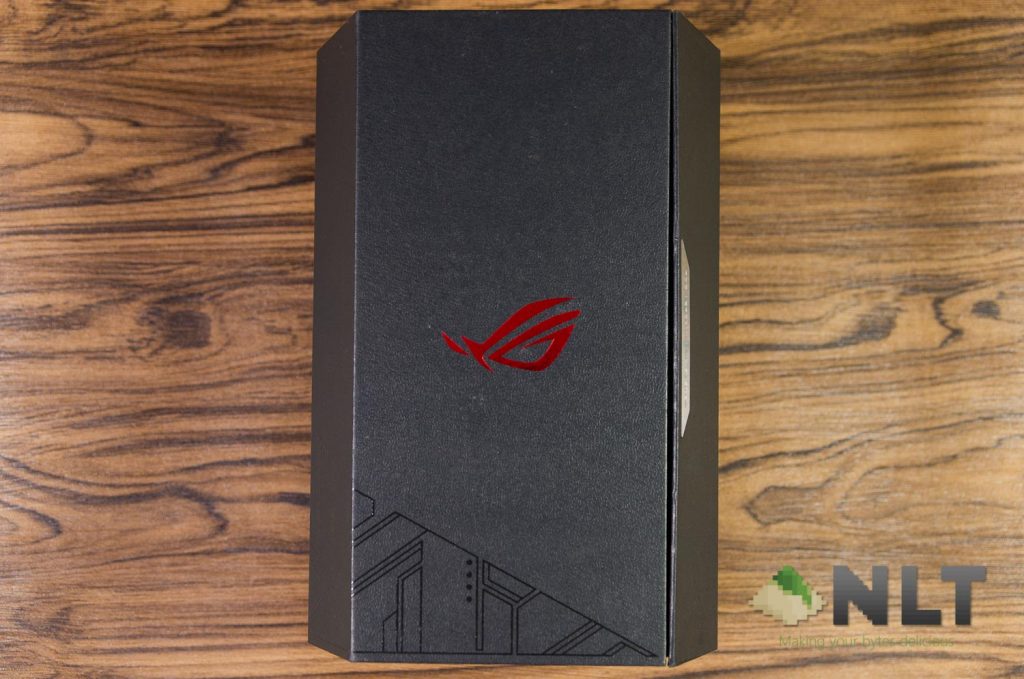
Firstly of course, the unboxing of this new smartphone. To spice things up, ASUS went with this prism-shaped box with shaved off corners. It looks absolutely stunning and bizarre at first sight and intrigues people to know more about it by just looking at the box itself. This box design is a feat in itself.
ASUS claims that they used the best quality materials to create this box to ensure its durability, look, and feel when you’re unboxing it. Its intricate design made us unboxed it in a rather delicate manner as we do not want to cause any amount of damage to this box. The box is literally a prized possession.
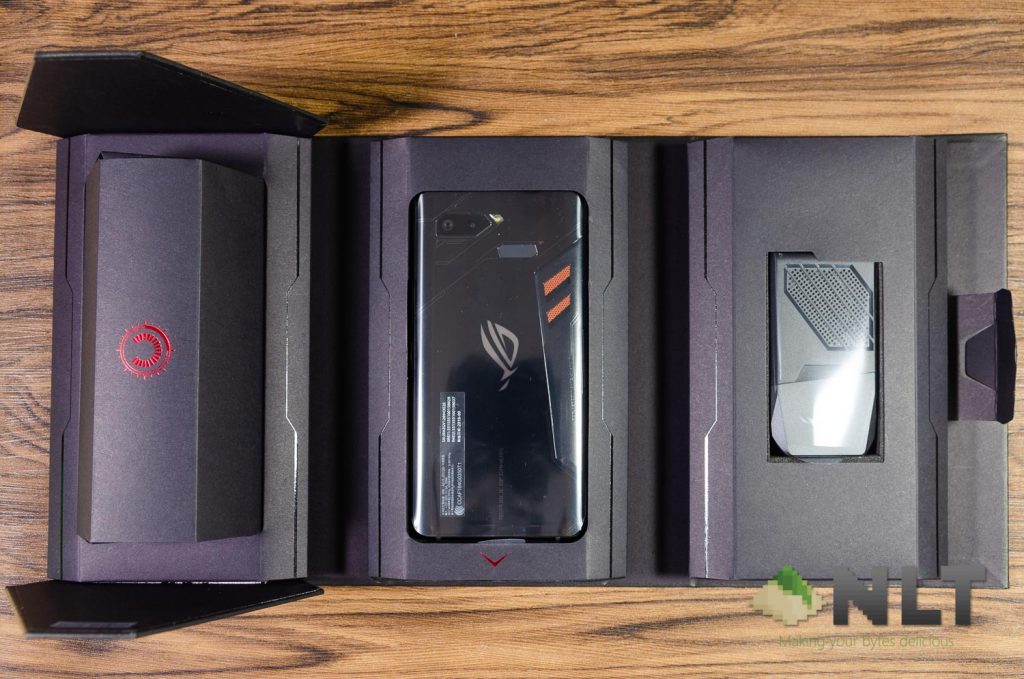
Opening up we can find the accessories box which is shaped like a semi-hexagonal cylinder, the ROG Phone itself, and also the AeroActive Cooler. Yes, the AeroActive Cooler is included in the box.
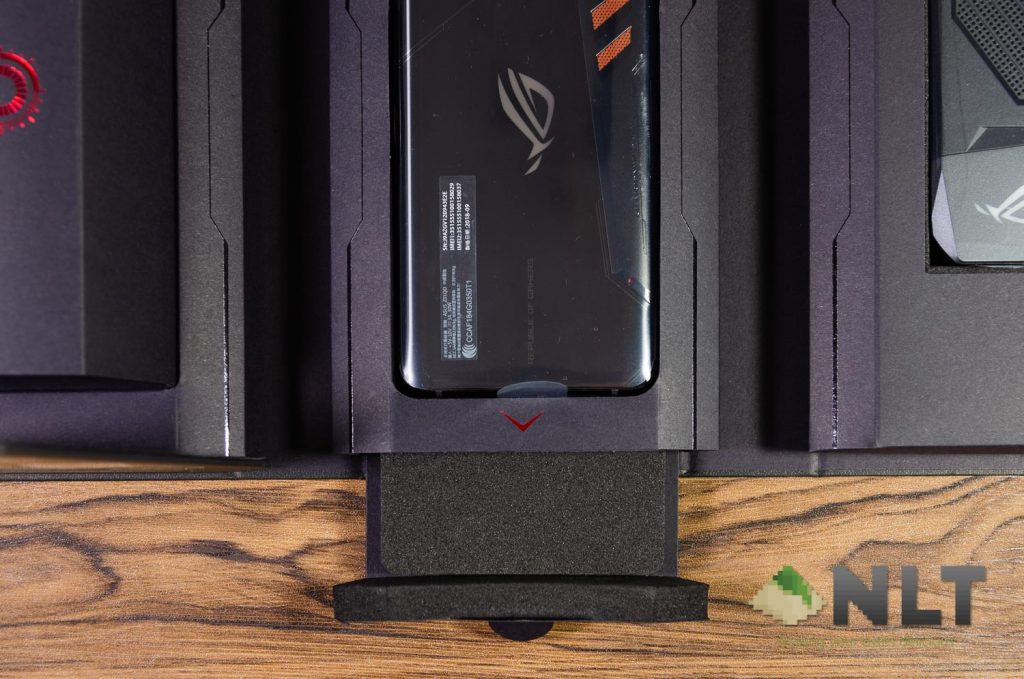
Supposedly the ROG Phone Case is included with the box too, alongside with the documentations. There’s another compartment that can be accessed through the pull tab underneath the phone’s cradle.
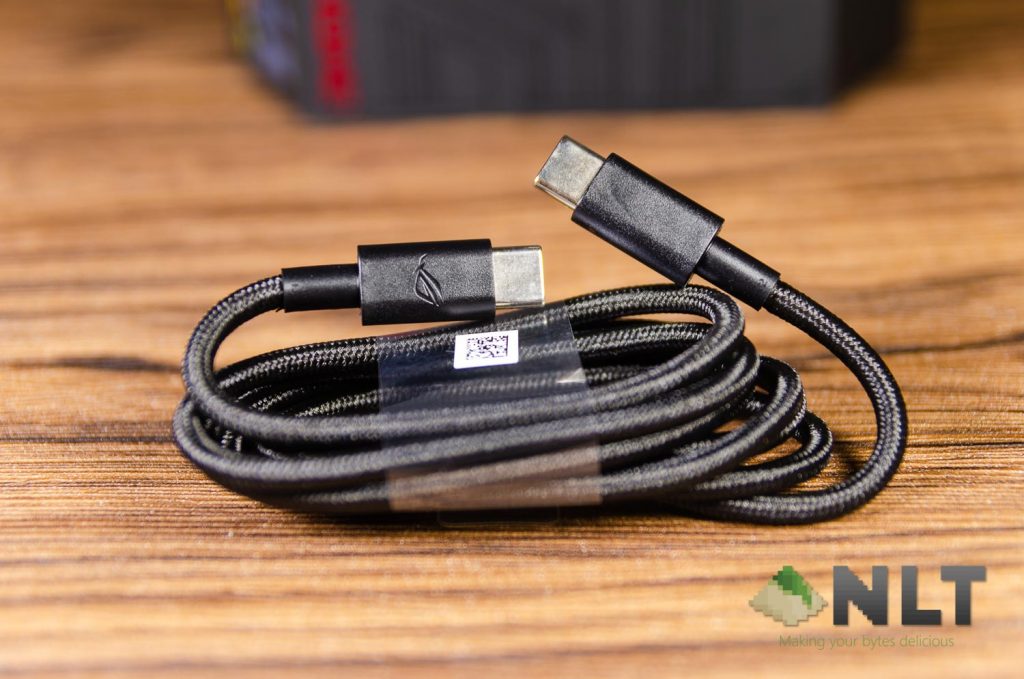
Once we got everything out, the accessories we have is the super high-quality braided USB-C to USB-C cable, and two literally plugs for the proprietary 48-pin connector. More on the latter later.
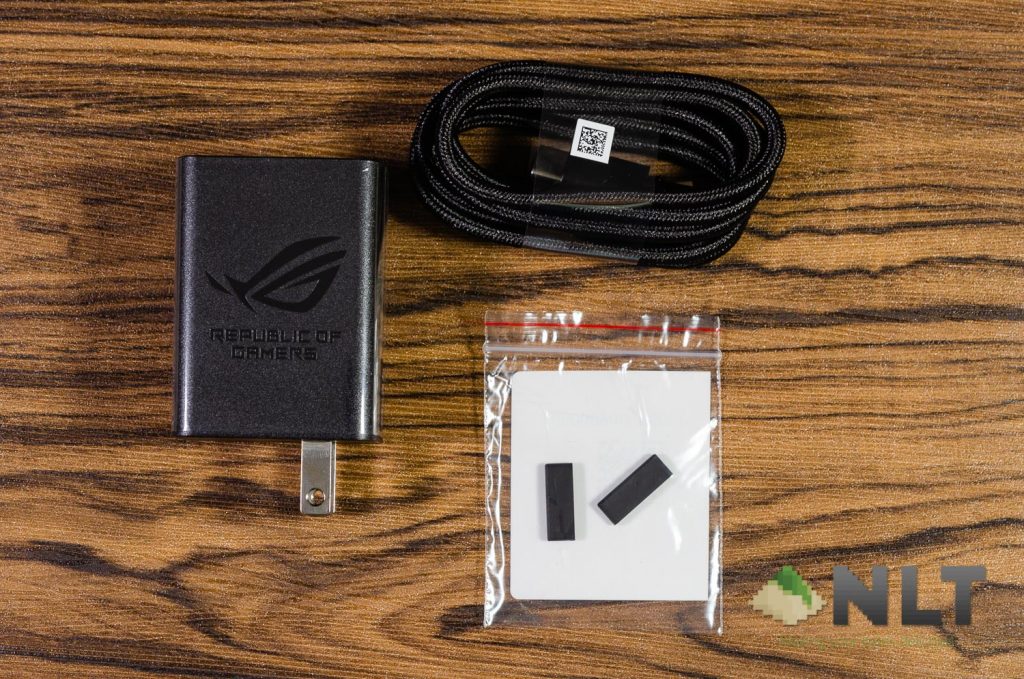
Once again, just to show you how the high quality braided USB-C cable looks like. I wish more smartphone companies do this, actually.
[nextpage title=”Design”]
ASUS showed us that throughout the conception of the ROG Phone, it didn’t happen overnight. It went through many sketches and eventually shortlisted to 4 different design inspirations – humanoid robot, stealth aircraft, tactical knife, and super car. The tactical knife, which is the 3rd out of the 4 designs, was ultimately chosen.


The ROG Phone is a smartphone that was created with functionality in mind yet focusing on aesthetics at the same time. It is a marriage between function and beauty, and you can feel it when you start using the ROG Phone. There’s just so many components packed into this sleek and slim smartphone!
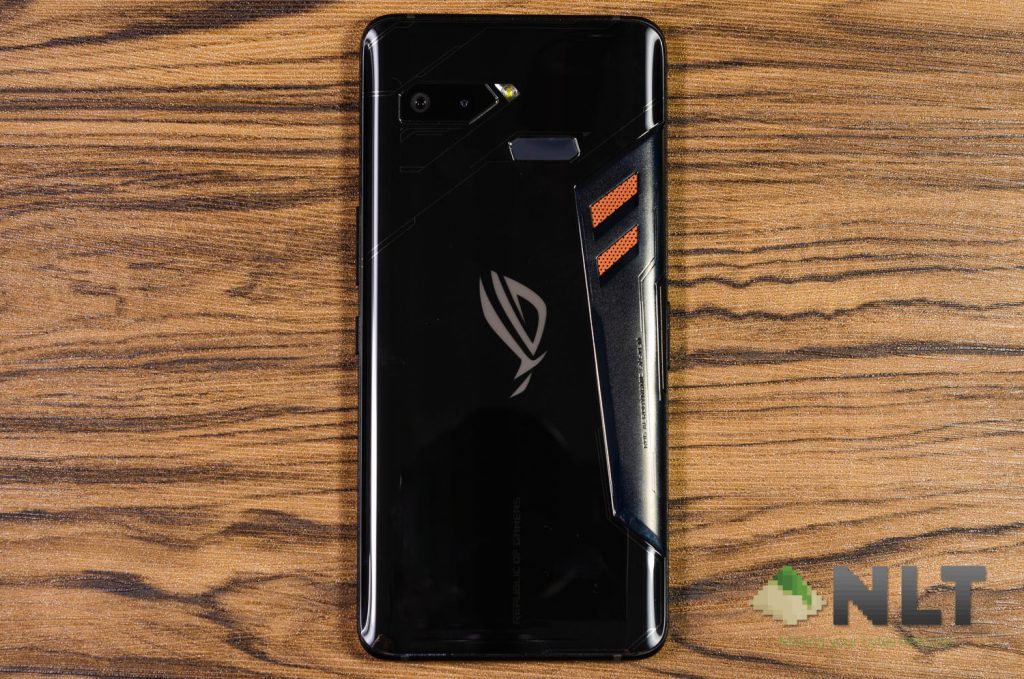
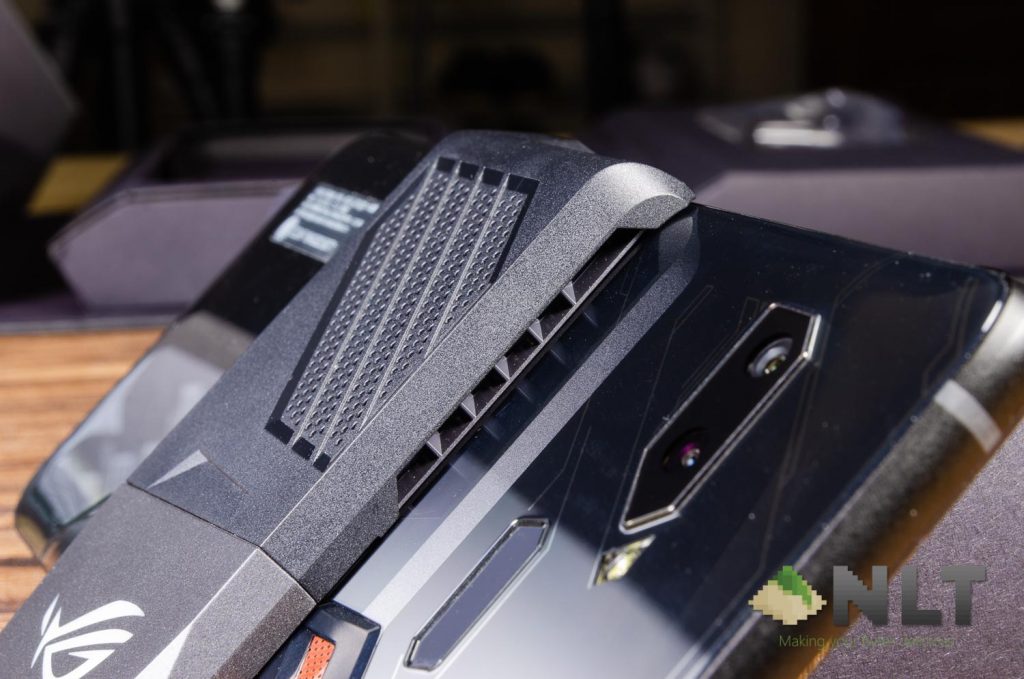
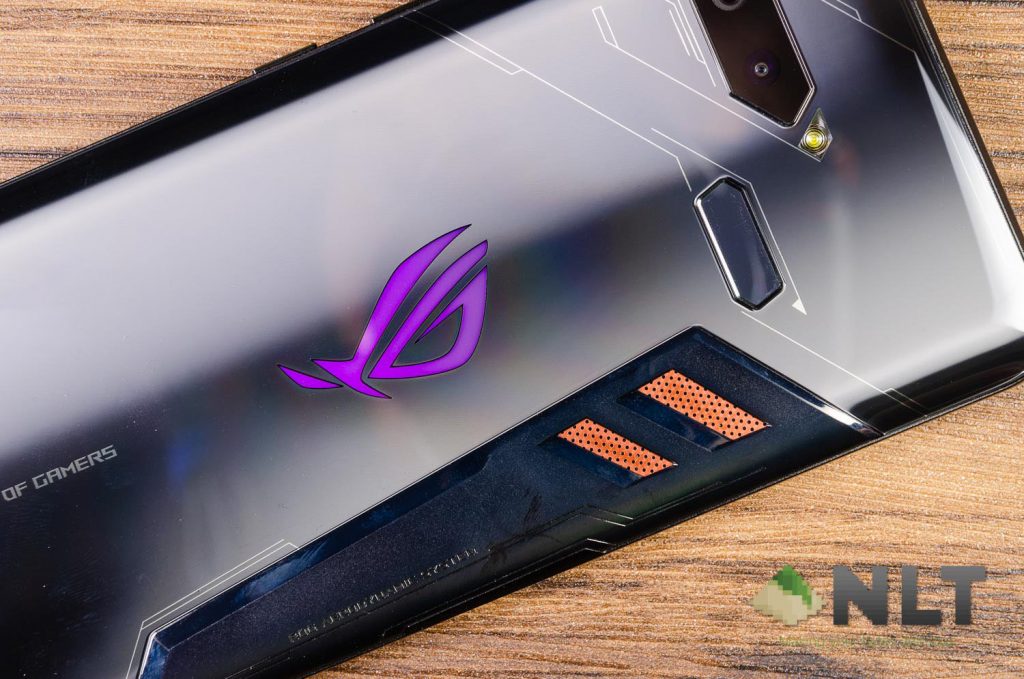
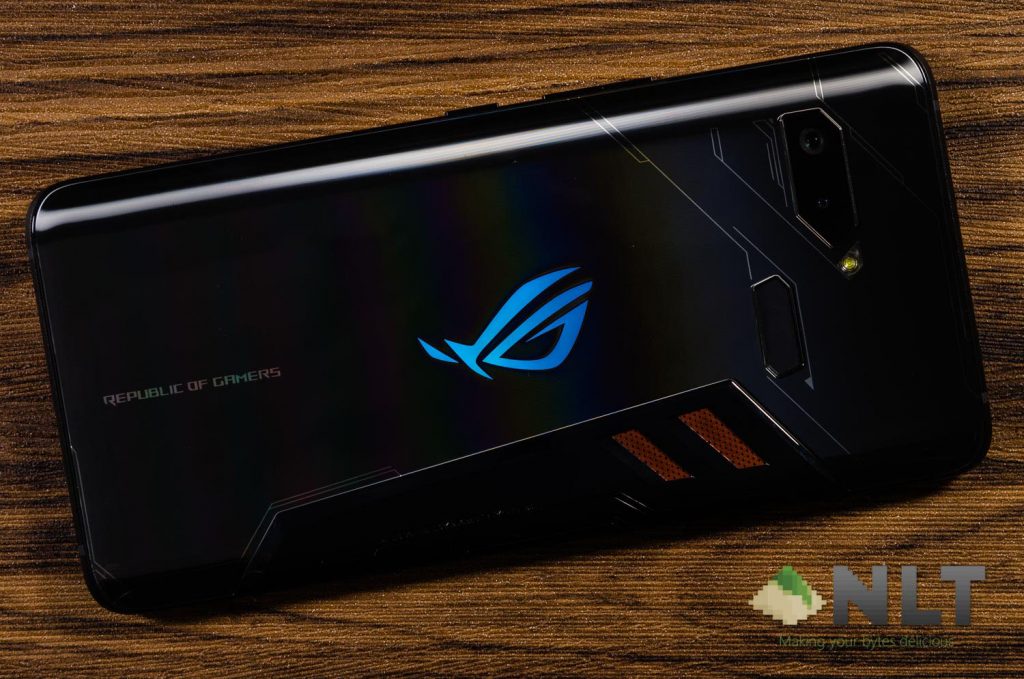
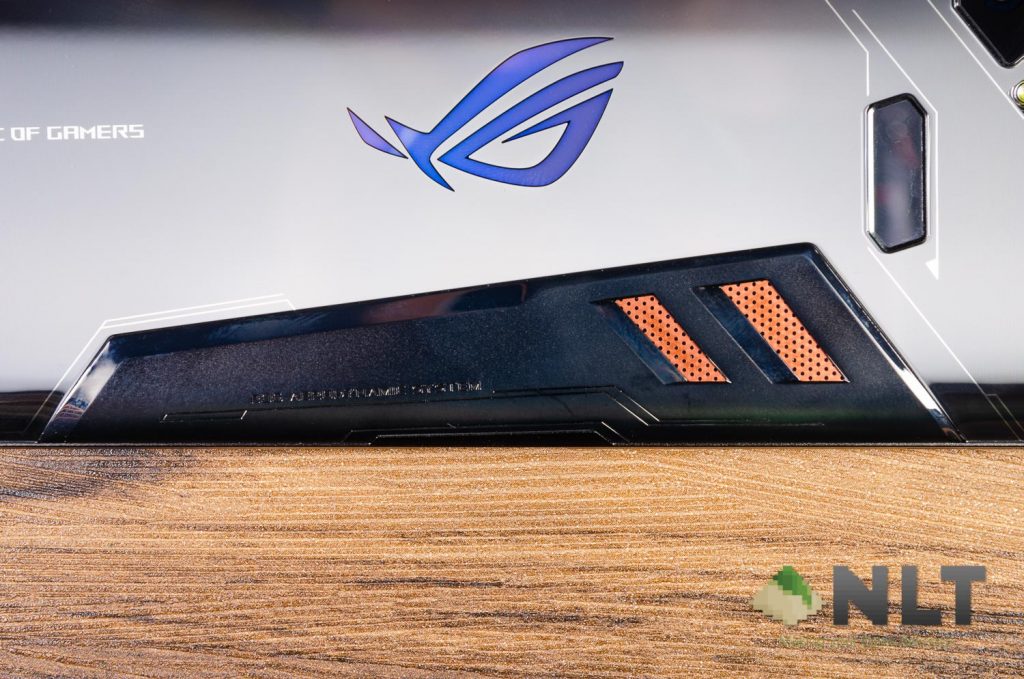
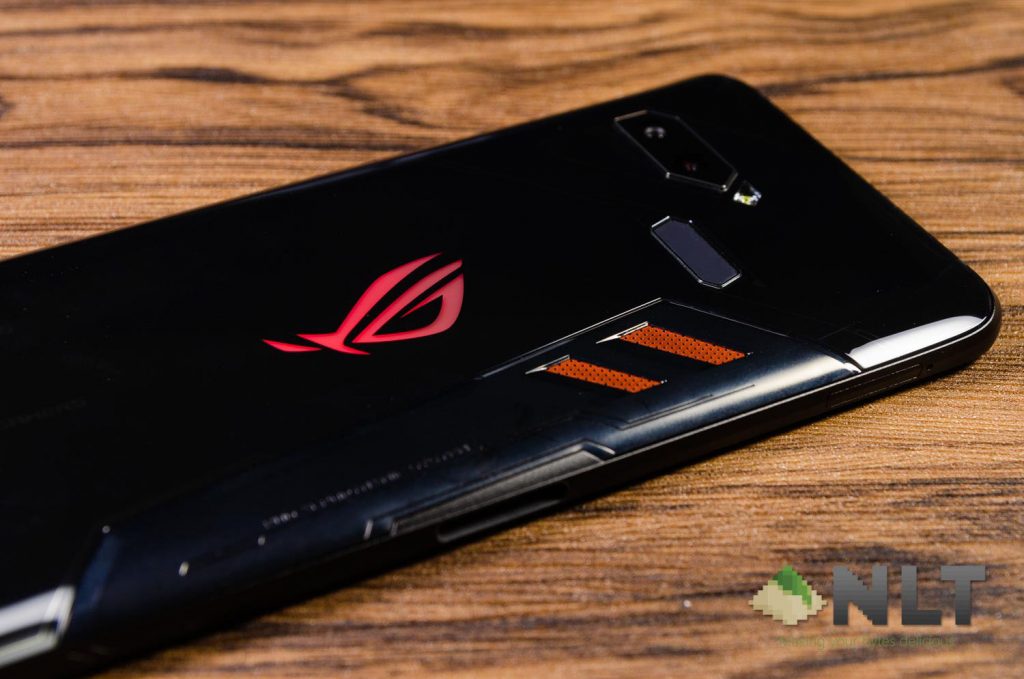
At the back of the phone we can see the dual rear-facing cameras, the slightly off-centered fingerprint scanner, the ROG logo, and also a piece of metal with a piece of perforated copper inside. Yes, you can feel the perforation with your fingertips. This is supposed to help with cooling and we’ll get into that later.
With certain lighting angles, the back glass of the ROG Phone starts to look a little different as well. The first thing that came into my mind is the Huawei P20 Pro’s Pearl White which has a similar effect under different lighting conditions.

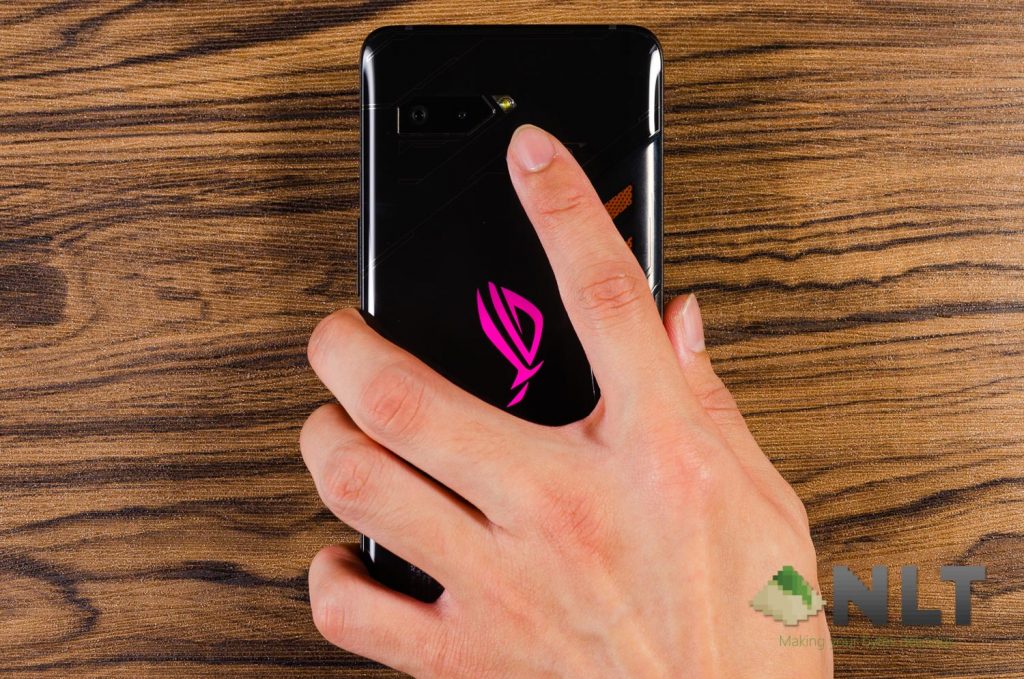
The ROG logo at the back shown above is when the lights are turned off and on. You can head into the Game Center and enable the Aura RGB to literally “outshine the competition”, as ASUS stated in the ROG Phone’s product page. The ROG Phone only has 4 lighting modes – static, breathing, color cycle, and strobing. Unsurprisingly, you can also sync it up with other Aura Sync-compatible peripherals. More on this later in the software part of this review.
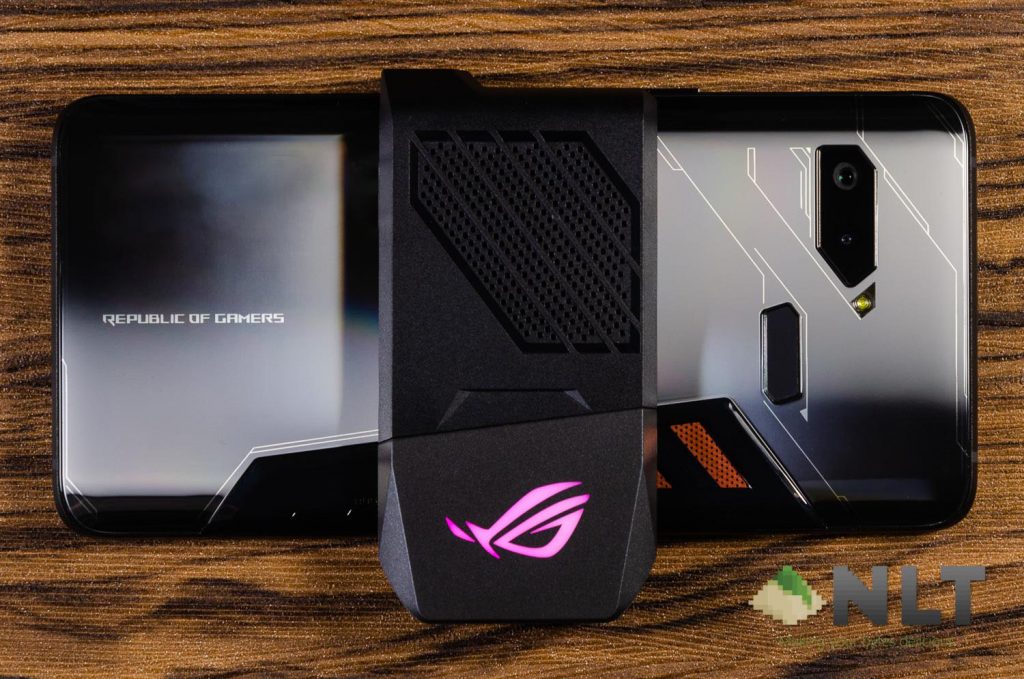
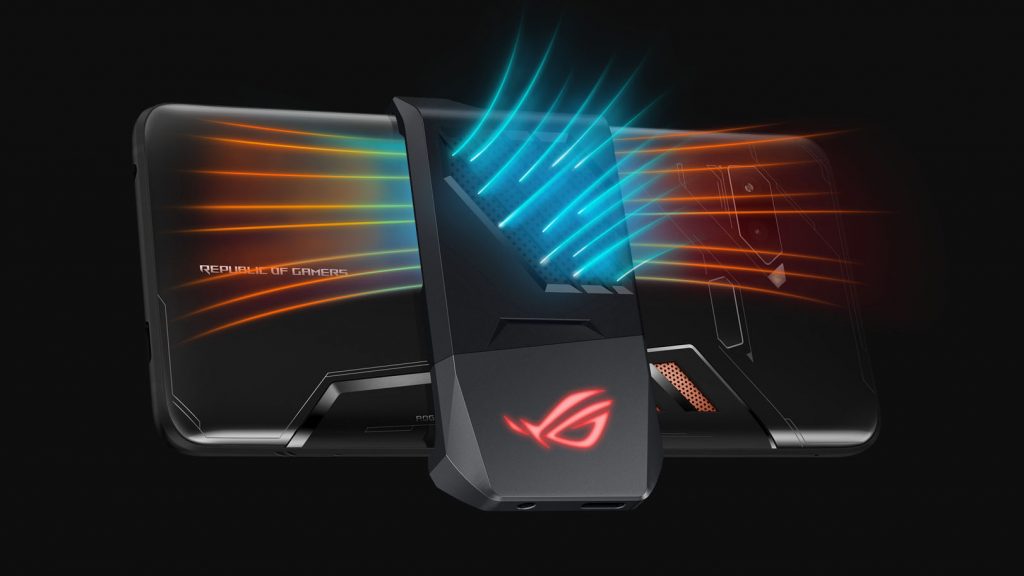
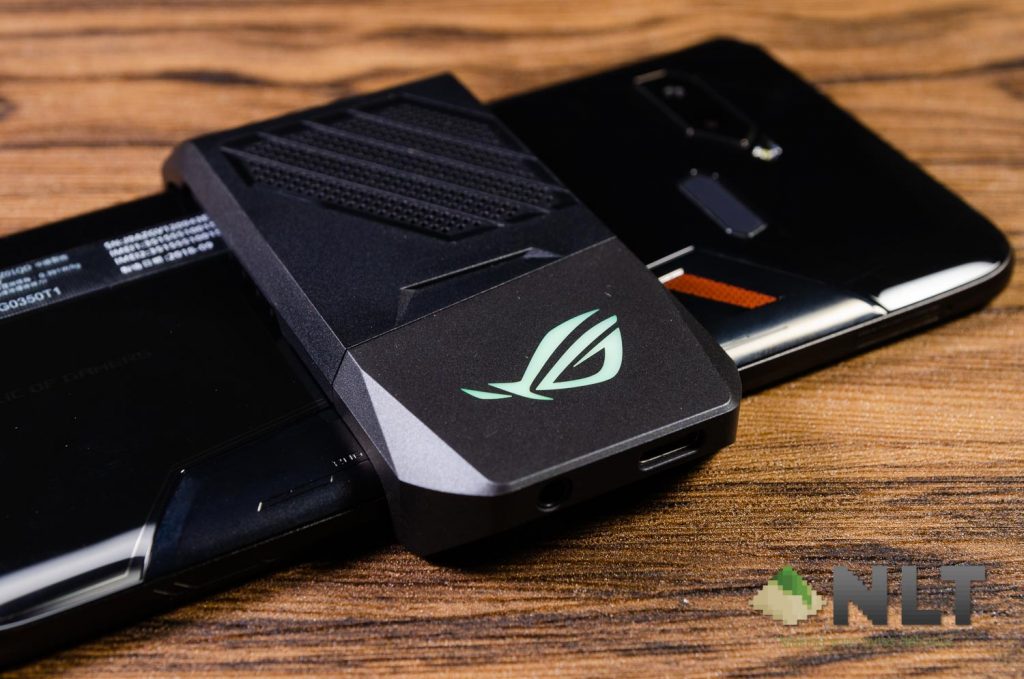
Let’s not forget about the included AeroActive Cooler here. It’s literally a thin, external fan that attaches to the ROG Phone with its clamping mechanism. To my surprise, ASUS paid attention and decorated the little space when the clamp is opened. Take a look below.
It also has a ROG logo on it and has RGB as well since it’s covering the ROG logo at the back of the phone.
[nextpage title=”Connectivity & Ports”]
In terms of WiFi connectivity, the ASUS ROG Phone is definitely the best right now. It’s the first ever smartphone to be compatible with 802.11ad WiFi that uses the 60GHz part of the spectrum and has 2×2 MIMO support as well. One of the accessories – the GameVice controller with WiGig Dock – utilizes the AD WiFi to cast the game to the TV. More info about it here.
If you don’t use AD WiFi then fret not, the ASUS ROG Phone also supports 802.11ac WiFi.
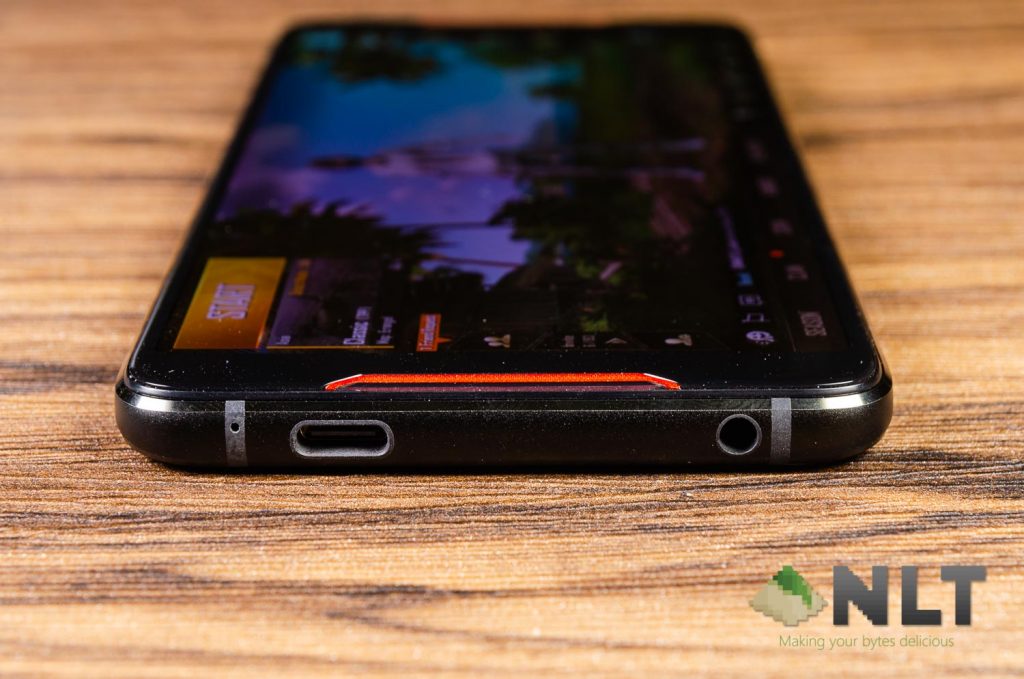
At the bottom, the ASUS ROG Phone has a microphone, off-centered USB-C and a 3.5mm audio jack.
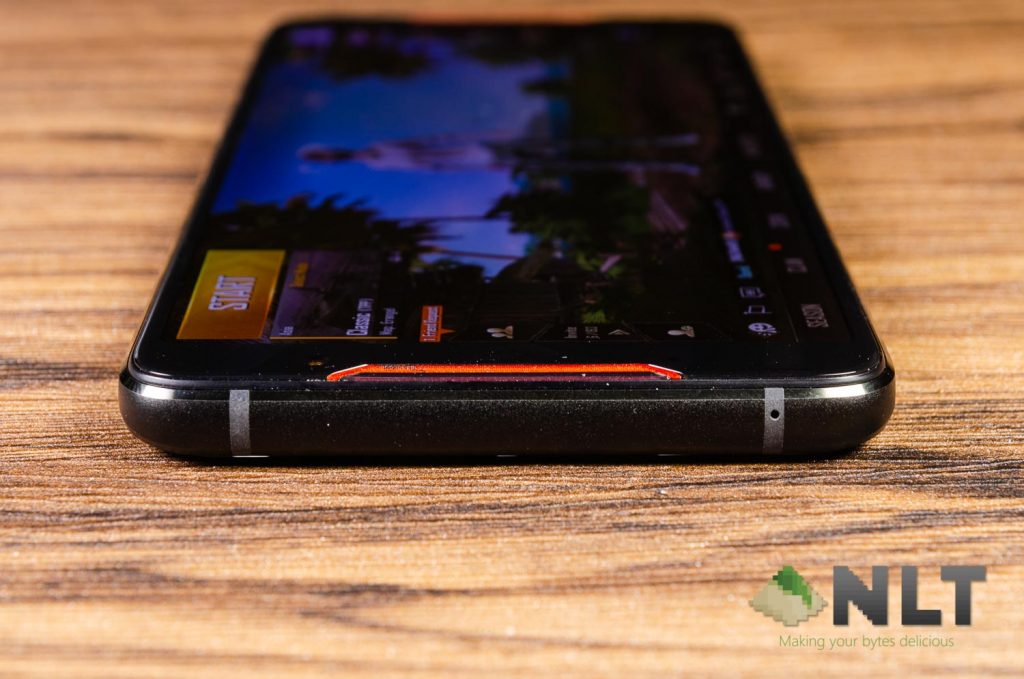
At the top, there’s nothing except for one microphone. This is the second microphone.
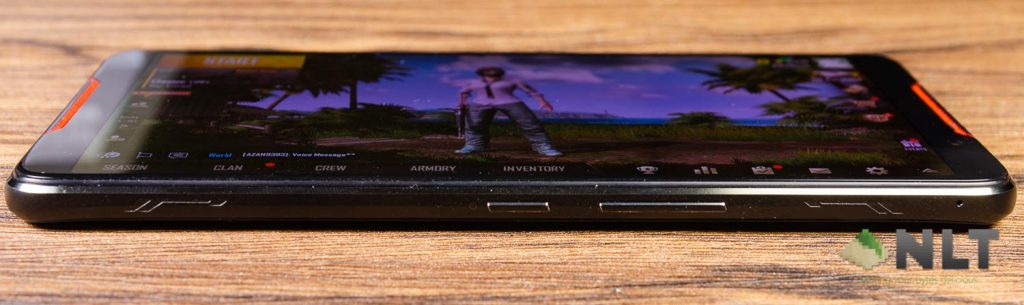
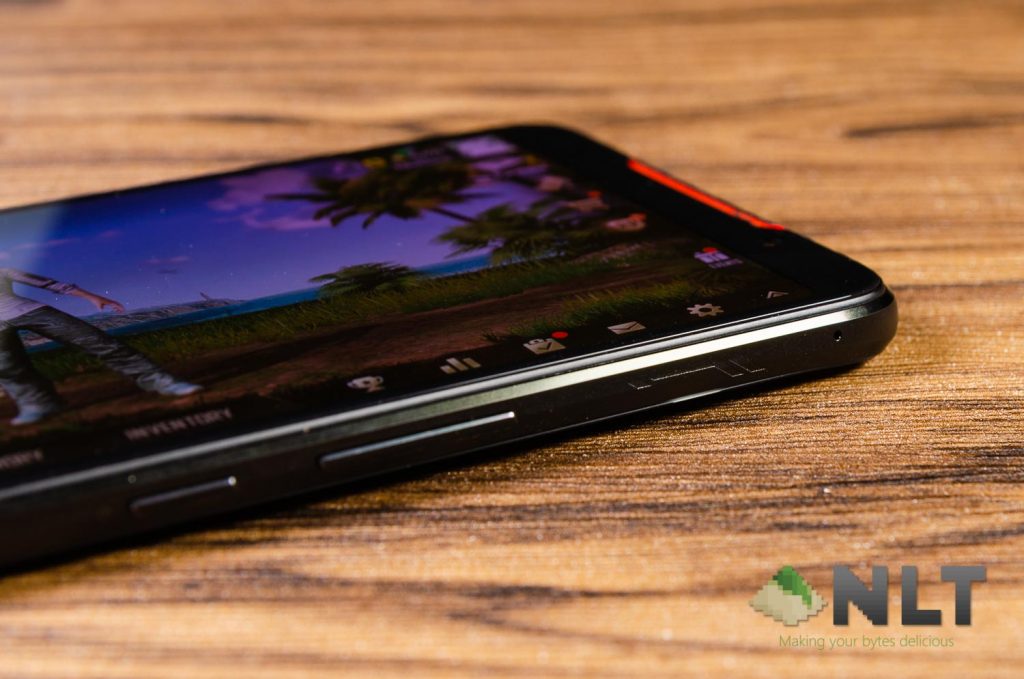
At the right side, there’s the power button and volume rocker. Looking at it closer, we can see the AirTriggers on both ends as well. But that’s not all.
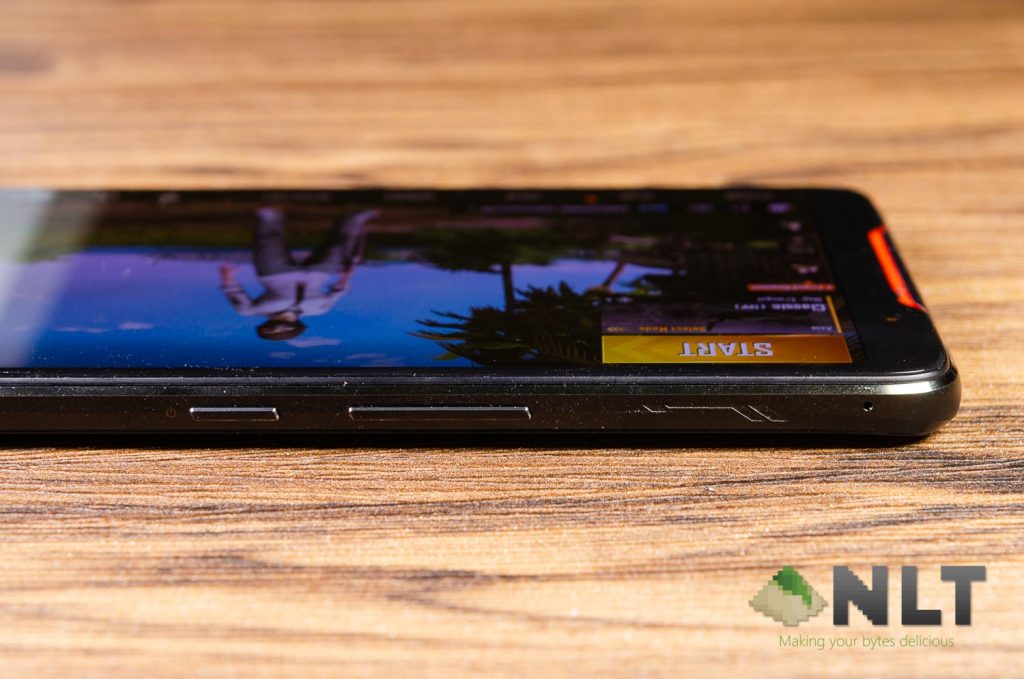
The ASUS ROG Phone also has a triple microphone setup like the ZenFone 5 and ZenFone 5z. Unlike those phones however, the ROG Phone has optimized the position of these 3 microphones. When we played PUBG Mobile, I covered the top and bottom microphone and yet my teammates can hear my clearly since there’s another microphone beside the AirTrigger.
At the left side, this is where we can find the proprietary 48-pin connector that is custom-made for the ROG Phone itself. It’s a standard USB 3.0 Type-C port + special-speced port.
Speaking of the two USB-C ports, they’re actually made differently. Back at Computex 2018 when we were first shown the ROG Phone, we were told that the bottom USB-C is actually inferior to the side USB-C port.
- Side: Custom 48-pin connector; USB-C with USB 3.1 Gen 1/DisplayPort 1.4 (4K resolution)/Quick Charge 3.0/4.0 and PD3.0 (15W)/Direct Charge
- Bottom: USB-C with USB 2.0/Quick Charge 3.0 and PD3.0 (20W)/Direct Charge
We can confirm that this is true since the Pioneer USB-C PD Dock (APS-DKPD001) dock that we reviewed here only worked with the side port.
Why did ASUS do this? Well, for the accessories of course.
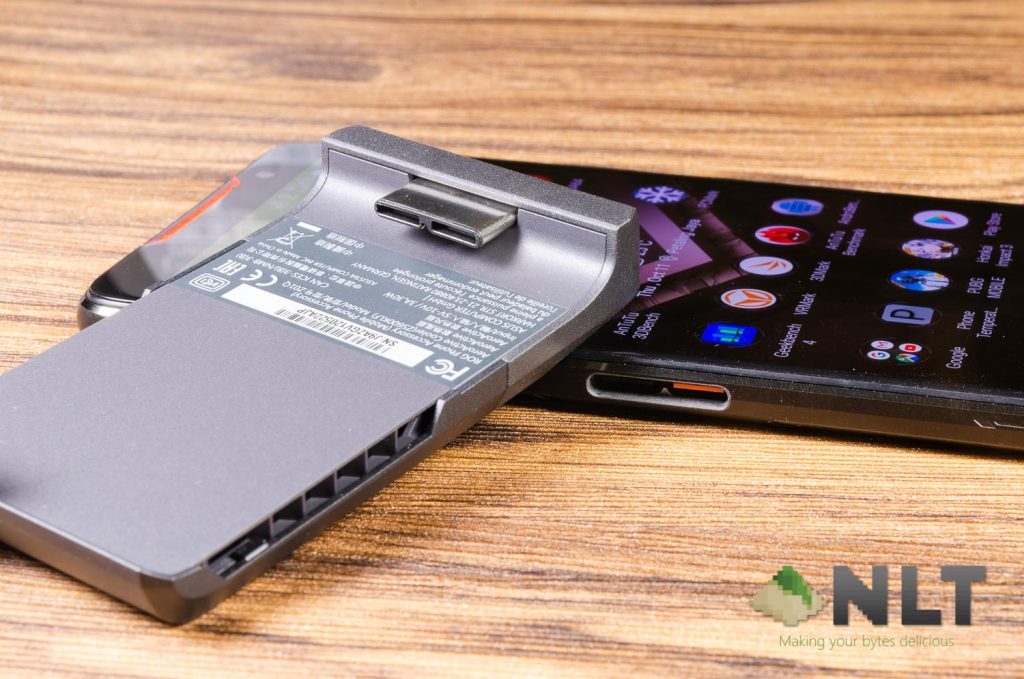
The included AeroActive Cooler plugs into this proprietary 48-pin port and the AeroActive Cooler itself is not just a cooling fan. It converts the proprietary 48-pin port to a standard USB-C port and also a 3.5mm audio jack.
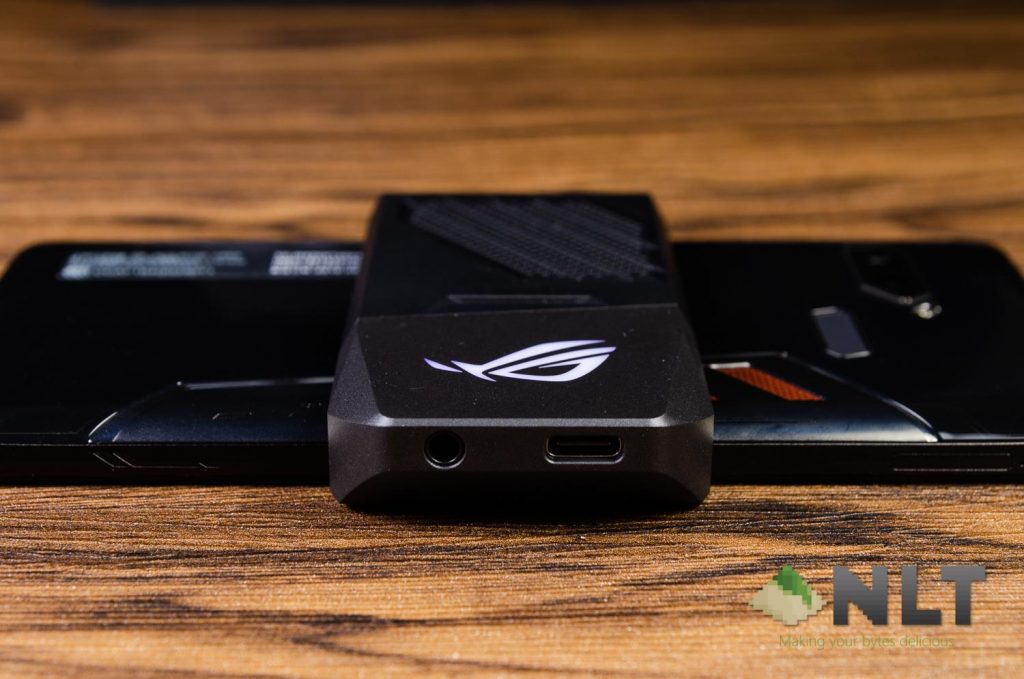
Why did ASUS do this? So that you can play games using your 3.5mm audio jack while charging the phone at the same time without the cables getting in the way of your hand. This is a brilliant design, yet ASUS didn’t force users to use the AeroActive Cooler for the 3.5mm audio jack and USB-C.
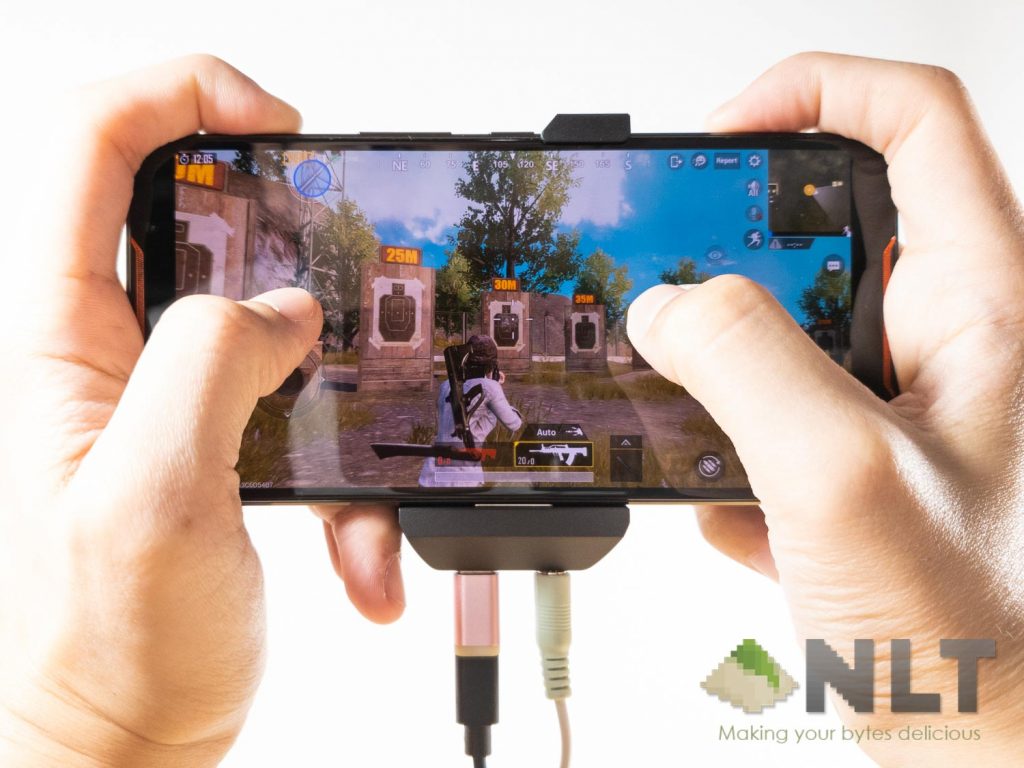
Though, I do wish that ASUS had a better implementation for the rubber plugs for this 48-pin port. It’s quite difficult to remove and the rubber plug can only fit in one direction. Also, the rubber plug can be misplaced easily. I already lost one of it!
To ASUS’s credit, they know about this and that’s why they’ve provided two more extra rubber plugs for this 48-pin port.
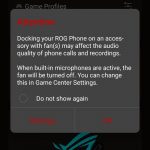
When we first plugged in the AeroActive cooler, we were notified that the fan noise might hinder the microphone and asks us if we want to configure it to automatically disable the microphones while the AeroActive Cooler is plugged in.
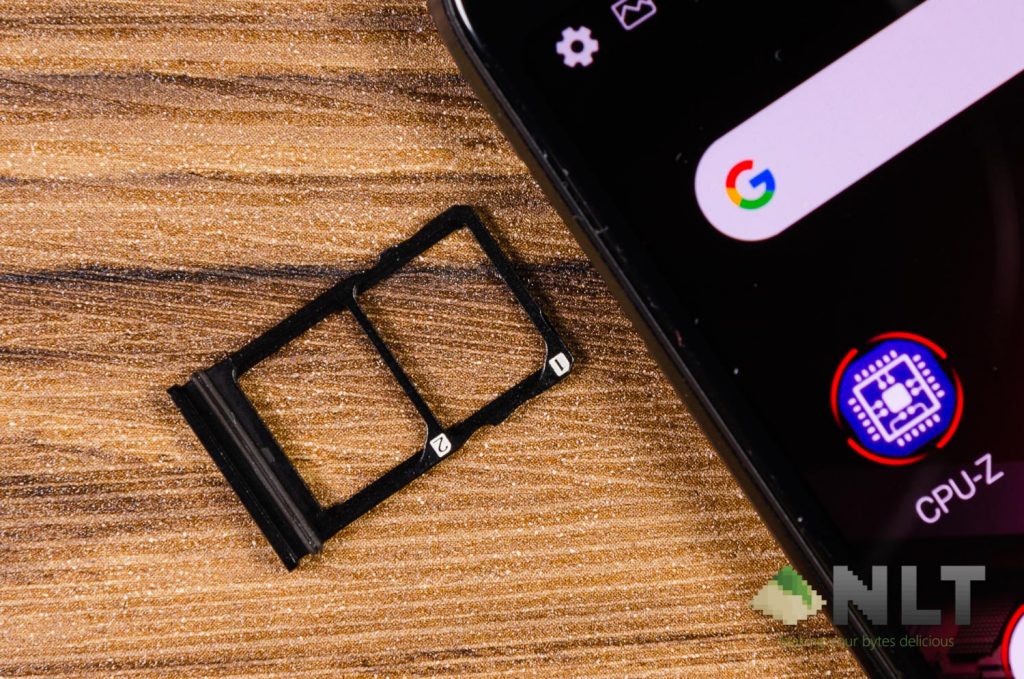
On the left side of the ROG Phone is also where we can find the card tray and another AirTrigger at the bottom. The card tray here only has slots for two Nano SIM cards – and the reason here is that microSD cards cannot match the speed of internal UFS 2.1 storage chips.
Interestingly, the card tray actually has a rubber lining but the ROG Phone is not IP-certified. Unsurprisingly, I can get 4G+ network on both SIM 1 and SIM 2 as well.
The AirTrigger on the left side of the phone is not for gaming, but instead for squeeze functionality like the HTC U-series of smartphones. More on this later at the software part of the review.
At the front is where we can find the two front-facing speakers. These speakers are loud and they’re just fantastic for gaming. I found myself not needing earphones and I can still get my chicken dinner in PUBG Mobile.
[nextpage title=”Display”]
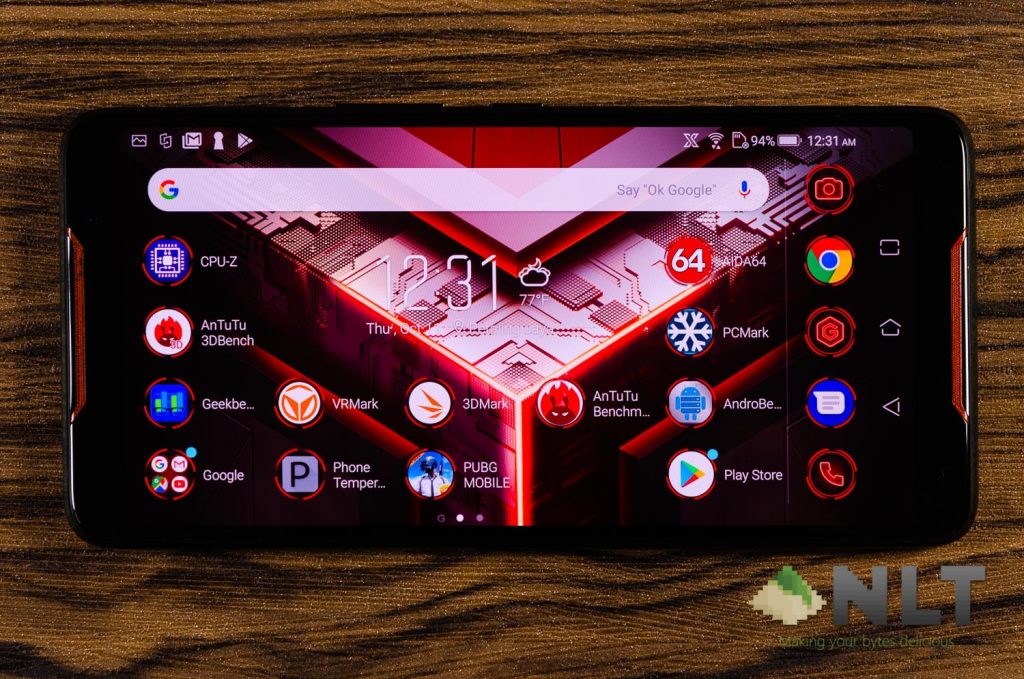
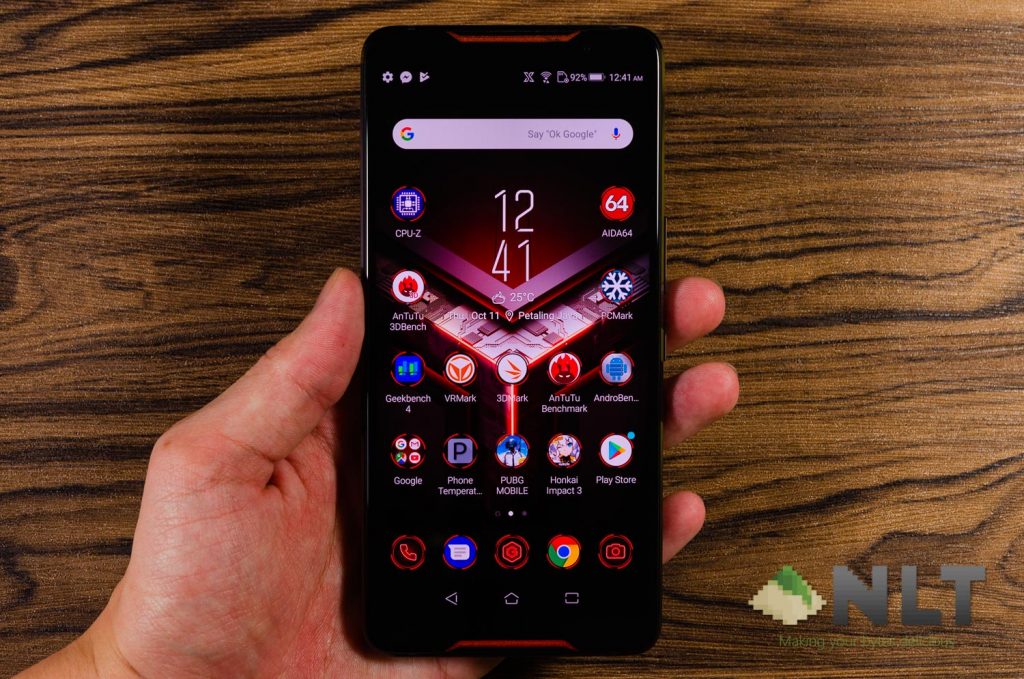
For the display, the ASUS ROG Phone has a notchless 6-inch AMOLED display with 18:9 aspect ratio and 2160×1080 pixels in resolution. That’s not all – this AMOLED display can run at 90Hz and has 1ms response time. It also has HDR with its dedicated hardware display chip.
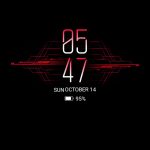
With the nature of AMOLED displays that only turns on pixels which are needed, the ASUS ROG Phone has “always-on display” as well. Once again, the interface is made to look very “gamer-like”.

Overall color saturation and white balance is nice and sharp – as expected from an AMOLED panel. Without the notch, it makes the scaling of games much easier too as we don’t have to worry about the game elements getting cropped off by the notch.
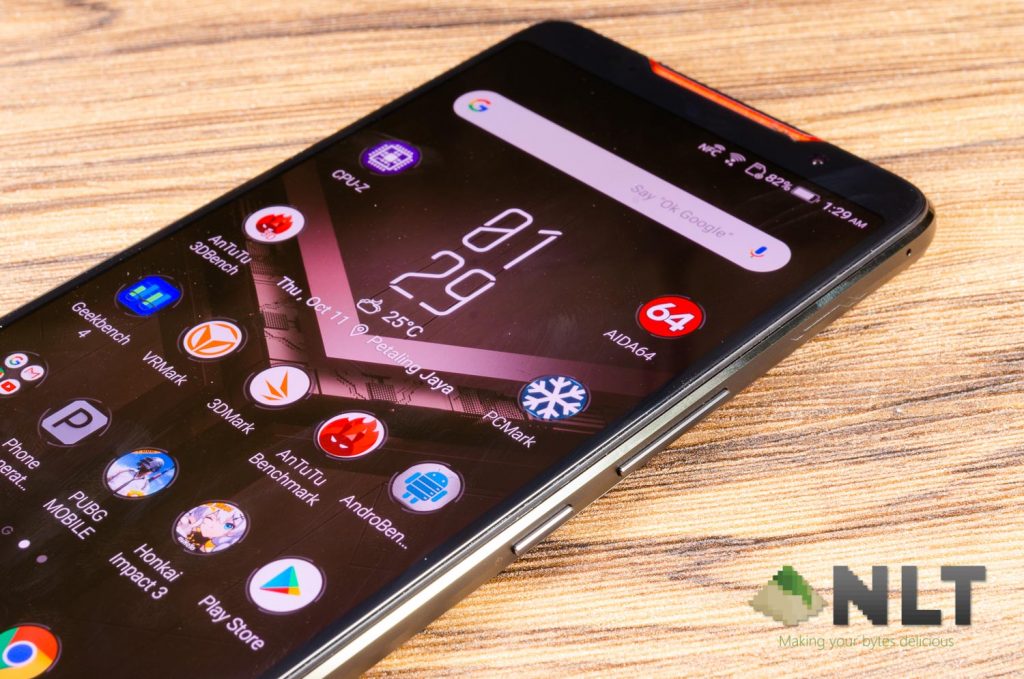
I do realize that when X Mode (more on this later) is activated, the screen gets brighter. Not only that, but the overall theme of the phone changes from orange to red too.
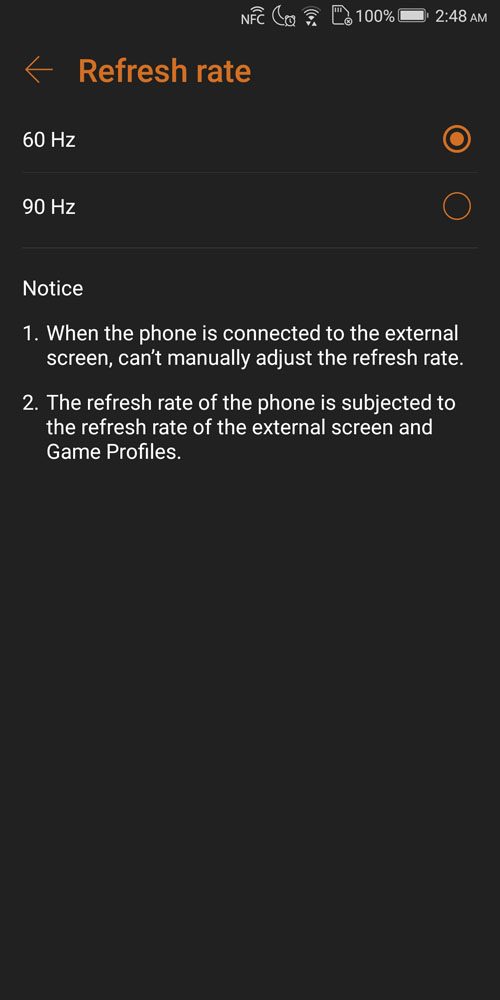
While the ASUS ROG Phone is indeed rated for 90Hz refresh rate, it runs on 60Hz by default. To utilize the 90Hz refresh rate, you’ll have to manually change it in the settings menu.
Or, you can set it to run at 60Hz for all apps except for games. Game Center has the option for games to automatically switch to 90Hz automatically and seamlessly. More on this later in the software section.
[nextpage title=”Cameras”]
Alright, I don’t think the camera is the main focus of the ROG Phone. It has a dual rear-facing camera like many other smartphones these days, and unsurprisingly – the ROG Phone cameras are very similar to the ZenFone 5 and ZenFone 5z. They use the same sensors but slightly different lenses.
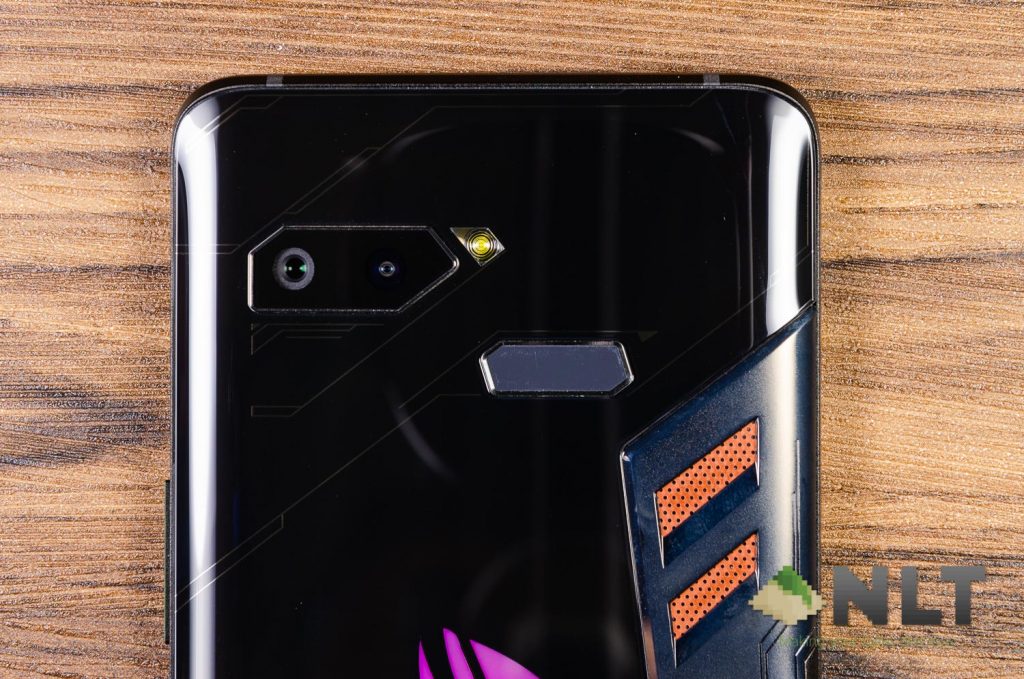
The cameras on the ZenFone 5 and ZenFone 5z is actually quite good – and since the cameras aren’t the main focus of the ROG Phone, then might as well reuse the existing technology. This can reduce the price of the phone as not much additional R&D is needed. Learn more about it here.
You can also learn more about dual-cameras in this post here.
As a refresher, these are the specs for the cameras found in the ASUS ROG Phone:
- Rear-cameras
- Main camera: Sony IMX363 12MP sensor; f/1.7 26.6mm with PDAF, 4-axis OIS and EIS
- Ultra-wide camera: 8MP sensor; f/2.0 12mm fixed focus with 120° wide-angle
- Selfie camera
- 8MP sensor; f/2.0 24mm fixed focus
AI photography makes a return to the ROG Phone as well as it also has the 16 types of scenes that will be detected. So how exactly is the ROG Phone’s cameras?
As usual, all pictures shown here will be uploaded to our Flickr album together will the full EXIF data.
Rear-facing cameras
With a larger aperture and some time has passed for the camera software to mature, I do realize some change from the original ZenFone 5 and ZenFone 5z’s cameras.

They’re not the best when it comes to cameras, and indoor conditions – even with relatively bright light from outside – has a relatively slow shutter speed and causes blurry pictures. The same issue appears in night photography as well.


Night shots are okay to be used for social media and the pictures are just noisy and very susceptible to shaky hands.

The colors, however, are very natural and the white balance is on point in daylight, but shifts to become a little reddish at night.



The one thing I like the most about the ASUS ZenFone 5 and ZenFone 5z’s cameras is the HDR mode. The ROG Phone is no different as well as its HDR mode is very well done. The difference between HDR off and on is day and night – figuratively. Take a look at the comparison below.

HDR off.

HDR on.
Then comes the secondary camera. Depending on who you ask, some people like to have a main camera + telephoto whereas another group of people likes a wide-angle camera instead. The ROG Phone comes with a wide-angle camera which is good for sceneries – also partly because the wide-angle lens doesn’t have autofocus.

The manual mode on the ROG Phone’s camera can obviously take great pictures, and we know that since we’ve already experienced the capabilities of this camera module with the ZenFone 5 and ZenFone 5z.
Both the main and wide-angle camera can be used in manual mode too, in case you’re wondering.

Main camera.

Wide-angle camera.
Here’s a little bonus for content creators who wants some serious gaming on the go. I took the ASUS ROG Phone to Desa Park City and used it with the DJI Osmo Mobile 2. The footage that I obtained as looking very good as well.
Selfie camera
The selfie camera however, is obviously nothing special. An 8MP camera without autofocus is pretty basic in the world of smartphones. The ROG Phone takes pretty okay selfies indoors, so I suppose it’s okay for social media use.

Camera UI
Compared to the UI that was on the ASUS ZenFone 5 and ZenFone 5z, nothing has changed.
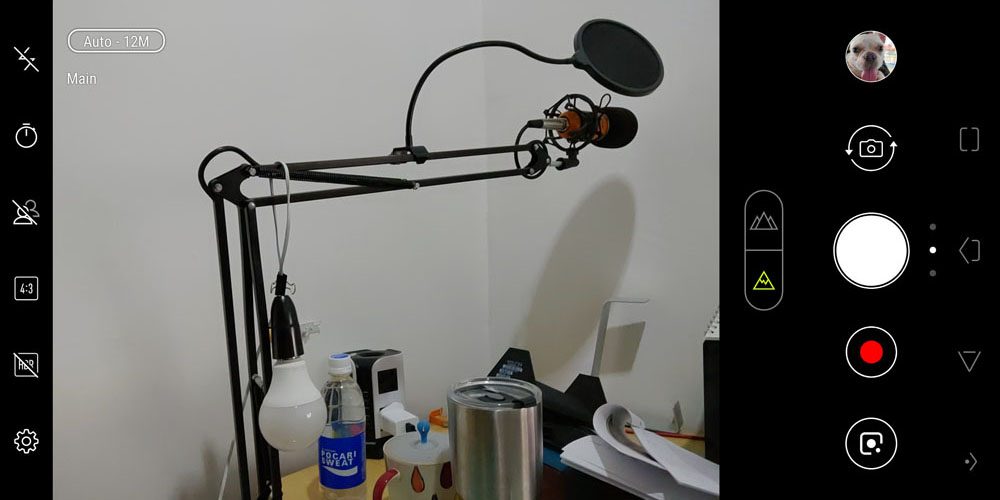
Some might realize that the “Pro” button is now replaced with Google Lens – at least by default. For me, I use the Pro mode (manual mode) a lot, and I can change it by holding the Pro mode in the list of modes menu, and automatically changed the button at the corner.
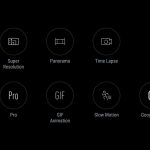
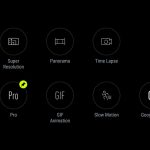

The UI is still the same as before but I do hope that ASUS did make some additional enhancements to the overall user experience. Those AirTriggers? They can be repurposed to become shutter buttons and suddenly, taking pictures with the ROG Phone becomes something more ergonomic.
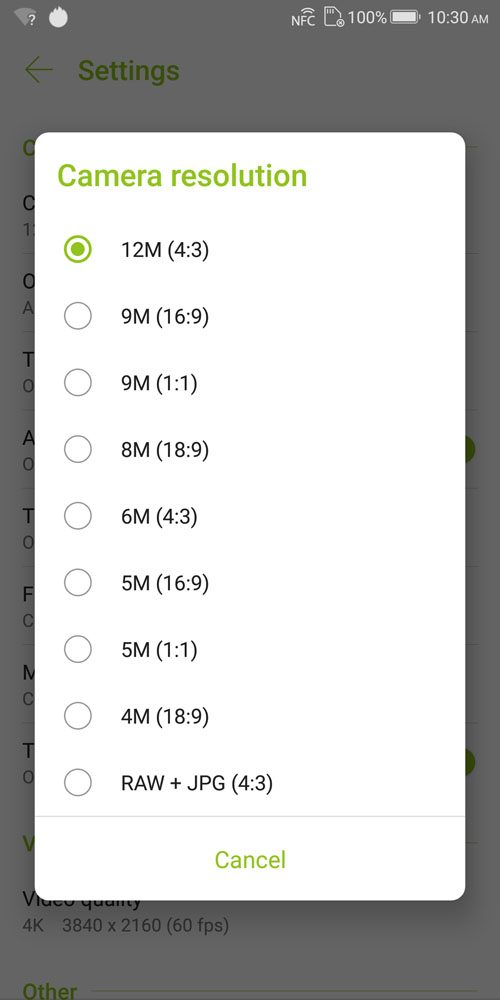
You can still take RAW pictures which is hidden here, by the way. You have to first switch over to Pro mode, then head over to settings –> resolution. Then you’ll find the option to change it to take in RAW format.
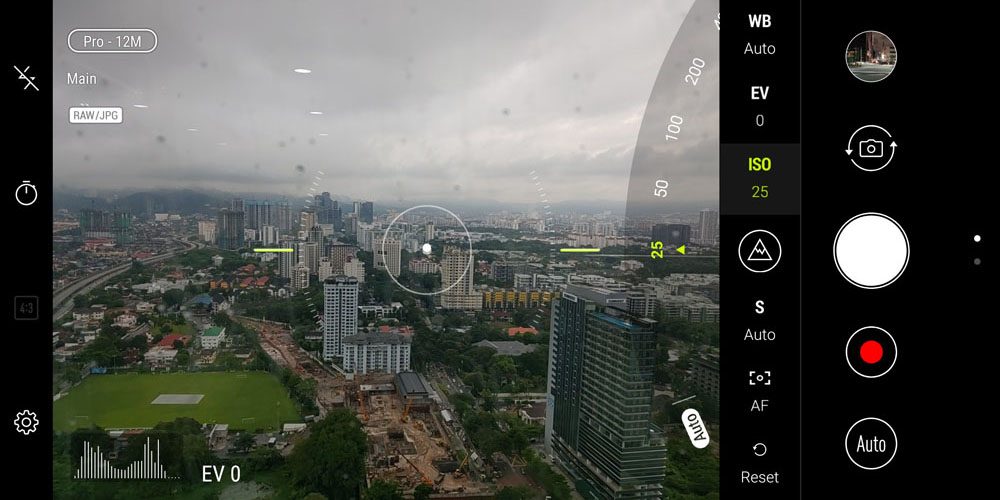
The manual mode UI is still the same before, and the ISO can go as low as 25.
[nextpage title=”Software – Android Oreo 8.1 with ROG UI”]
Honestly speaking, the ASUS ROG Phone comes with a re-skinned version of ZenUI 5.0 that’s already found in the ASUS ZenFone 5 and ZenFone 5z. We know this because there is a method to make your ZenFone 5 and 5z to look like the ROG Phone by installing the ROG theme. Of course, the ROG UI has some additional features as well.
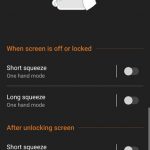
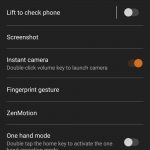
Remember that there are a total of 3 AirTriggers – two at the right side, and one more at the bottom left side of the phone. That’s because you can squeeze the phone to activate some shortcuts a la HTC U11. You can customize them, actually. By default, a long squeeze will toggle X Mode on or off.


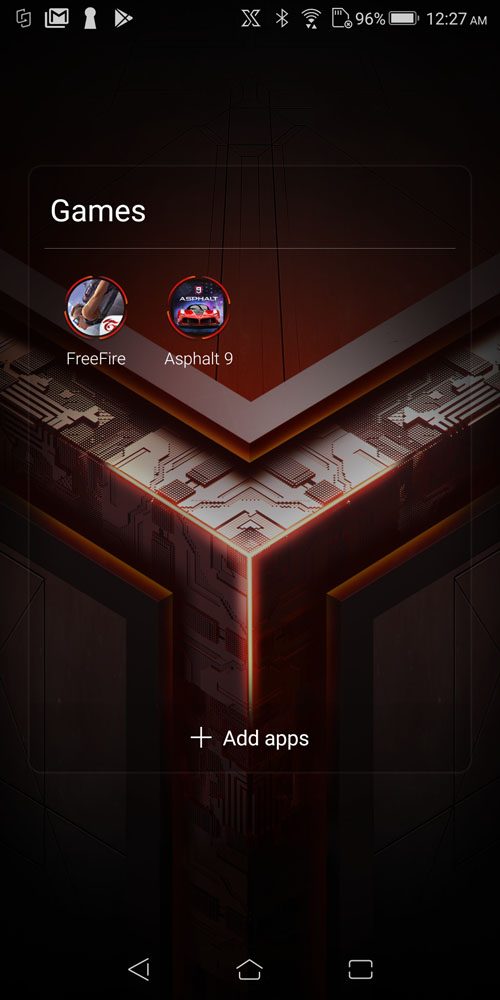
Being a gaming phone that it is, the ROG Phone already came with two games pre-installed – Free Fire and Asphalt 9. You can uninstall them, obviously.
We’ll be focusing on the three main features that is found only in the ROG Phone – X Mode, Game Center, and also Game Genie. Both Game Center and Game Genie works hand in hand.
X Mode
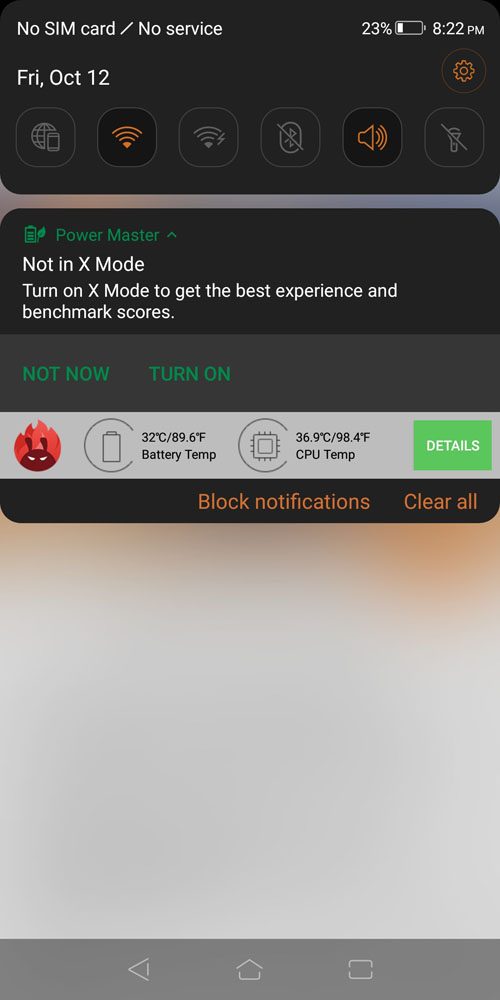
So what is X Mode anyway? Like we mentioned earlier, activating X Mode will change the UI from orange to red color. According to ASUS, activating the X Mode will also “raise the CPU frequency and optimizes the memory for gaming.” Through our findings, the X Mode is a rebranded version of the AI Boost from the ASUS ZenFone 5 and ZenFone 5z.
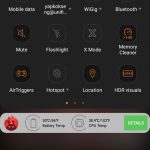
They behave the same as well, since any benchmark apps launched and a notification will pop up telling us that we can enable X Mode to get better scores. More on this in the performance benchmarks later.
Game Center
Then comes Game Center. Just like the desktop version of the Gaming Center, this is where real-time information about the ROG Phone’s stats are displayed. Scrolling down, we can see Game Profiles, fan speed, and Aura lighting.
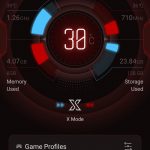
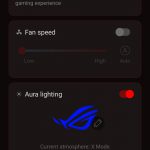
The fan speed is self-explanatory as it is setting the fan speed for the AeroActive Cooler. Whenever you attach the AeroActive Cooler, there’s a popup message saying that the fan might hinder the microphone’s audio quality. Even though you can actually hear it when it’s running at 100% fan speed, my teammates say that they actually can’t hear the fan.
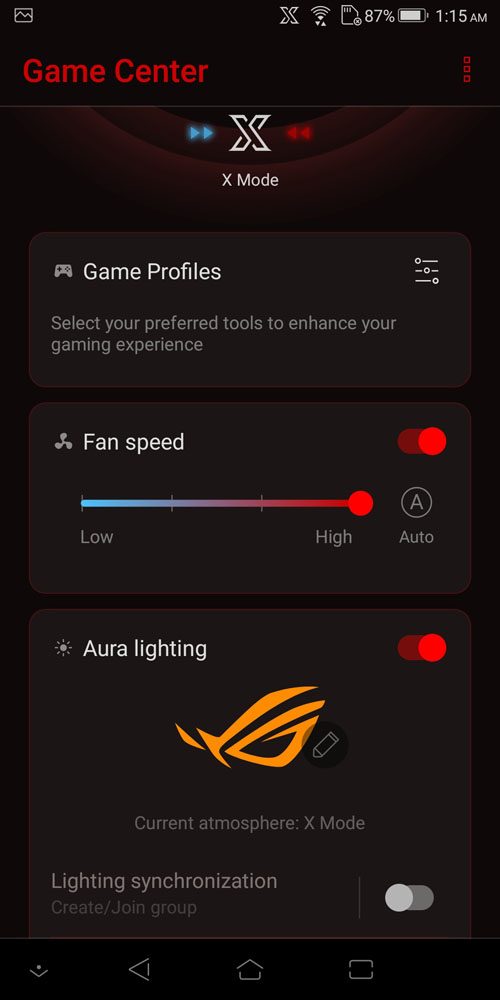
As for the Aura lighting, you can enable or disable it when X Mode is on or off independently. Obviously, the RGB lights do affect battery life. More on this later in the battery test in this review.
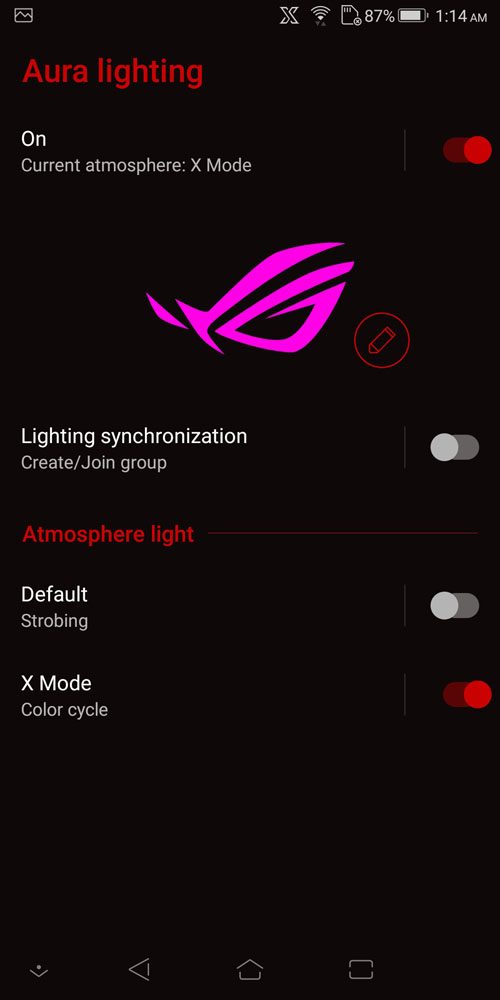
You have a total of 4 different lighting modes to select from – static, breathing, strobing, and cycling. There are two sliders at the bottom as well – which are brightness and speed. However, these 2 sliders aren’t usable for all lighting modes. Take a look at the table below.
| Adjustable Brightness? | Adjustable rate? | |
| Static | ✔ | ❌ |
| Breathing | ✔ | ✔ |
| Strobing | ✔ | ✔ |
| Color cycle | ❌ | ✔ |
It baffles me that cycling mode can’t have its brightness adjusted.


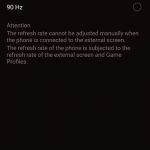
The Game Profiles here gives you the option to manually select what sort of settings you want for each and every app. You can manually add in other apps yourself as well. Maybe you want Facebook to run at 2.96GHz with 90Hz for some reason. For me, I locked PUBG Mobile to run at 90Hz refresh rate and max CPU clock speed at 2.96GHz and Contra at 60Hz refresh rate.
There’s also an option to enable anti-aliasing as well. However, because of the high pixel density of a smartphone, it doesn’t really doesn’t make a difference if anti-aliasing is enabled or disabled. We’ll talk about the performance hit with and without anti-aliasing later.
If you manually add other apps into the Game Center profiles, then you’ll see an additional button on the bottom right side of the navigation bar – the gamepad which signifies Game Genie.
Game Genie
In Game Genie, there are a few buttons for you to toggle right away:
- Lock Mode which disables all on-screen navigation.
- No alerts which silences all notifications and calls.
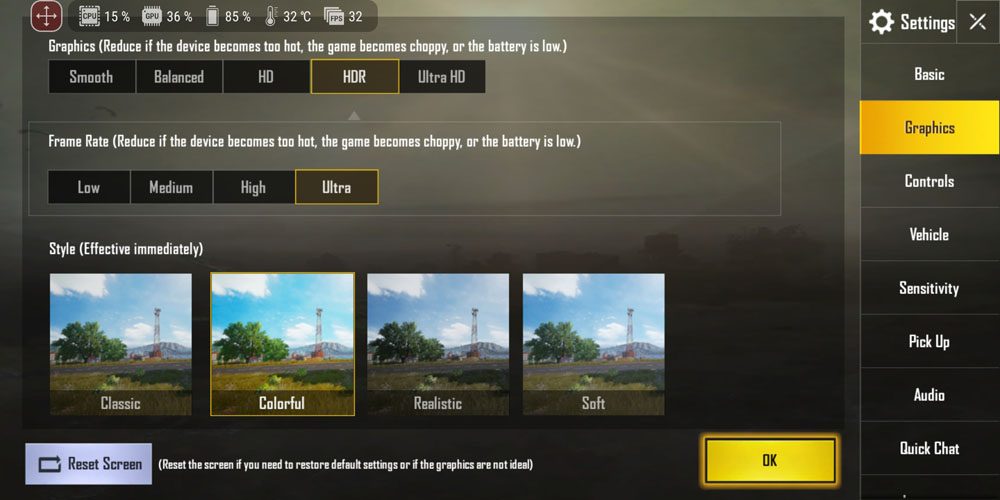
- Real-time info which adds a floating status bar that tells you real-time CPU and GPU usage, alongside with its temperatures, battery level, and FPS.
- Lock brightness which is self-explanatory.
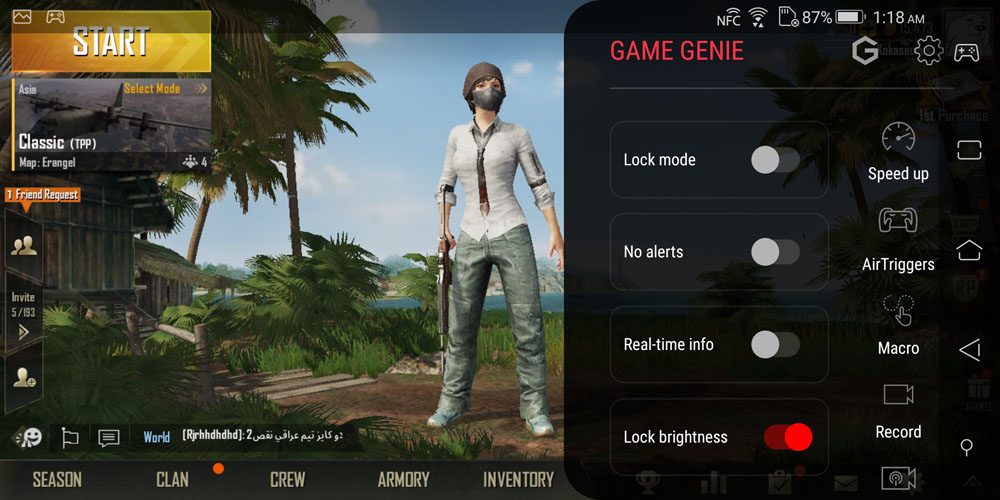
For me, I find the “no alerts”, “lock brightness” and “real-time info” most useful. I can monitor the status of the ROG Phone while playing at a fixed brightness to hunt for enemies in PUBG Mobile. And definitely no messages since I get many messages and calls daily.
While the real-time info is indeed useful, I do wish that it offers more information like per-core utilization and the current clock speed that each core is running.
Then right beside these toggles are a whole column of buttons. These buttons are:
- Speed up which clears your RAM.
- AirTriggers where you can enable/disable it and remap where the AirTriggers should press on the screen.
- Macro where you can record your own set of key presses and replay them with a hotkey.
- Record which records the gameplay footage.
- Live where you can show off your gameplay on YouTube or Twitch. No Facebook, though.
- Search which opens up a smaller browser for you to find videos or websites.
- Display Scaling which lets you rescale the app if the automatic scaling has any issues.
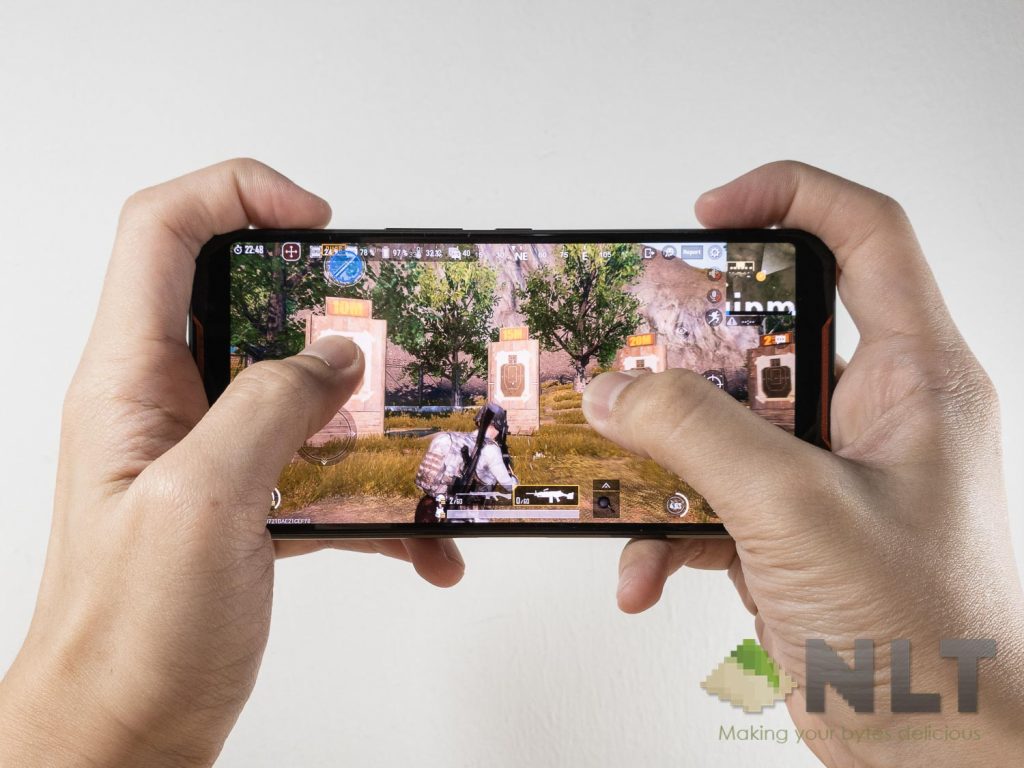
Obviously, the biggest, most useful feature here is AirTriggers. I played PUBG Mobile so much while using the AirTriggers, I felt like I’m legally cheating. I can pan the camera while moving about and shooting at the same time!

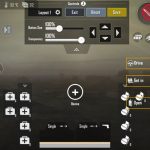

AirTriggers is easy to set up. You enable AirTriggers after tapping on “enable” for the game, then you can move the left trigger (blue color) and right trigger (red color) to wherever you want to press on the screen.
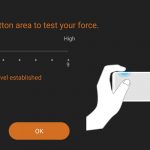
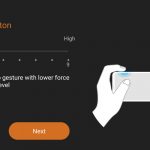
You can also adjust the sensitivity of the AirTriggers to suit your needs. I set mine to the most sensitive since I’m a trigger happy guy in PUBG Mobile.
Take a look at these footages of me playing PUBG Mobile (I’m a noob) using AirTriggers. I mapped the left trigger to shoot and the right trigger to jump. Of course, it’s recorded using the Record option in Game Genie as well.
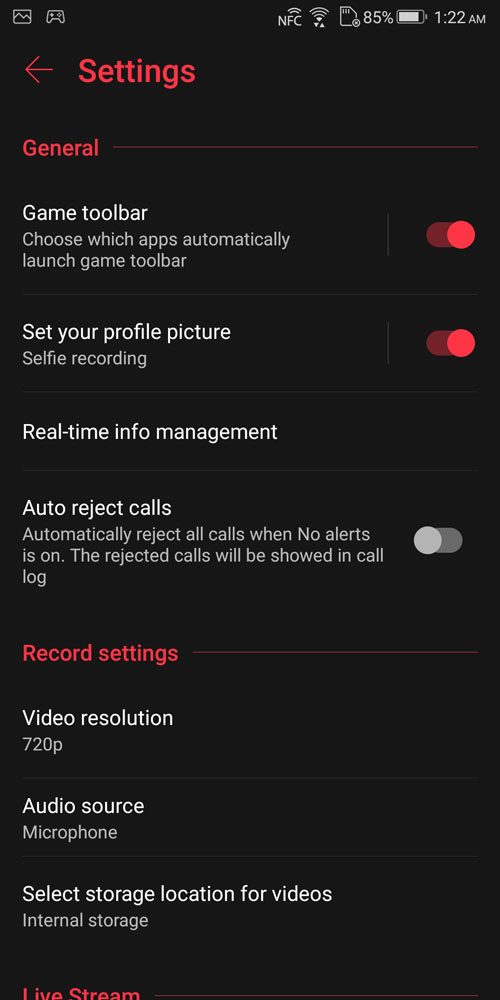
Speaking of the record option, I can select the resolution and audio source of the gameplay. Obviously, the footage above is recorded in 1080p – which you can tune in the Game Genie settings as well.
[nextpage title=”Performance & Gaming”]
The ASUS ROG Phone is the first ever smartphone to have a speed-binned 2.96GHz Snapdragon 845 chipset. The base Snapdragon 845 version only runs at 2.8GHz, and the ROG Phone is the one and only smartphone with the factory overclocked chip.
Let’s take a look at the full list of specs on the ROG Phone once more.
- 6-inch 18:9 AMOLED display with 2160×1080 resolution
- 90Hz refresh rate with 1ms pixel response time
- 108.6% DCI-P3 color gamut
- Discrete image processing chip that supports HDR display
- Qualcomm Snapdragon 845
- 4x 2.96GHz Kryo 385 Gold (binned) + 4x 1.7GHz Kryo 385 Silver
- Adreno 630 graphics
- 8GB LPDDR4 RAM
- 128GB UFS 2.1 internal storage (available in 512GB as well)
- no microSD card slot
- 4,000mAh battery
Does the extra 0.16GHz make a difference, though? Let’s take a look at the benchmarks here.
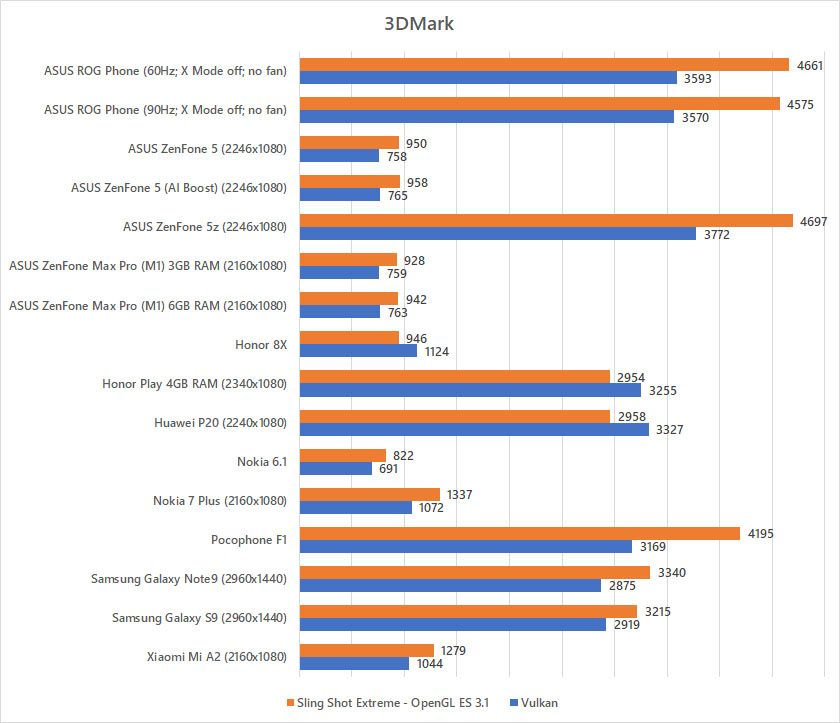
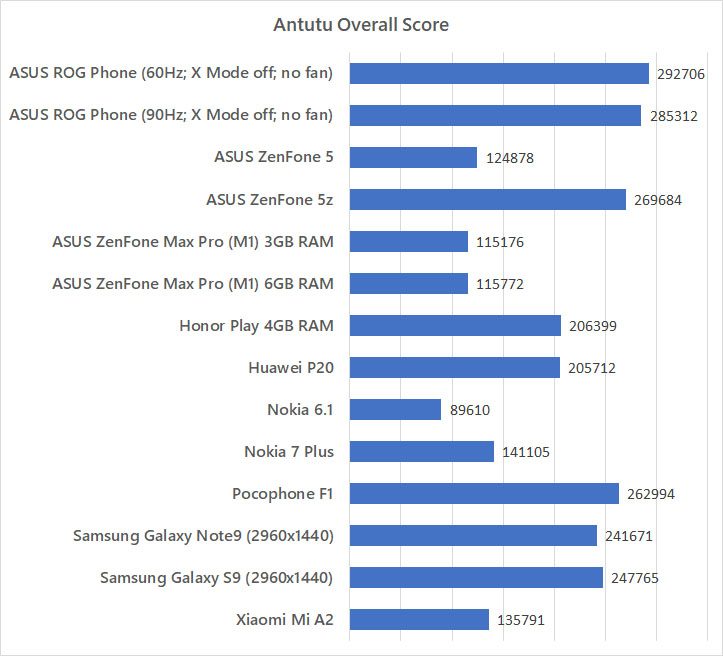
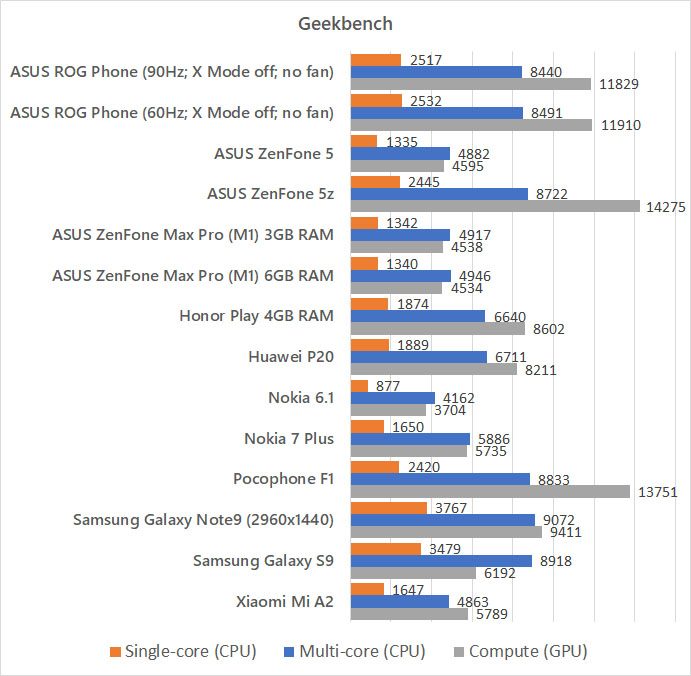
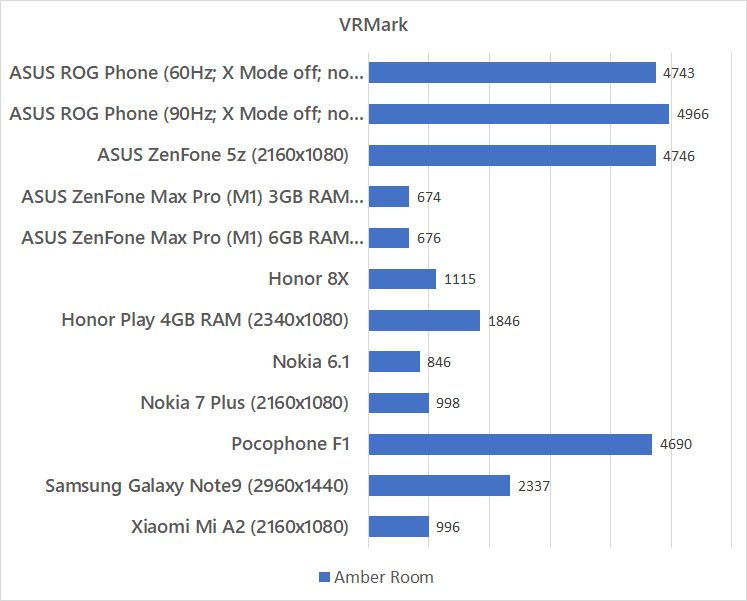
In pure CPU tests, yes. Remember – the architecture for Snapdragon 845 chipsets are 4 cores + 4 cores. This is called “big.LITTLE” where one quad-core is higher powered and more power hungry, while another quad-core is with slower speed but better energy conservation. The ROG Phone only has the higher powered quad-core to be speed-binned and factory overclocked to 2.96GHz.
For GPU-dependent tests like 3DMark, we don’t see much of a difference from other smartphones with Snapdragon 845 chipset. That’s because the ROG Phone’s GPU is the same as any other Snapdragon 845 smartphones in the market.
But what about X Mode and the AeroActive Cooler? Does those help?
Here are more benchmarks for comparison. Whenever we mention “with fan”, it means the AeroActive Cooler is plugged in and manually set to 100% fan speed.
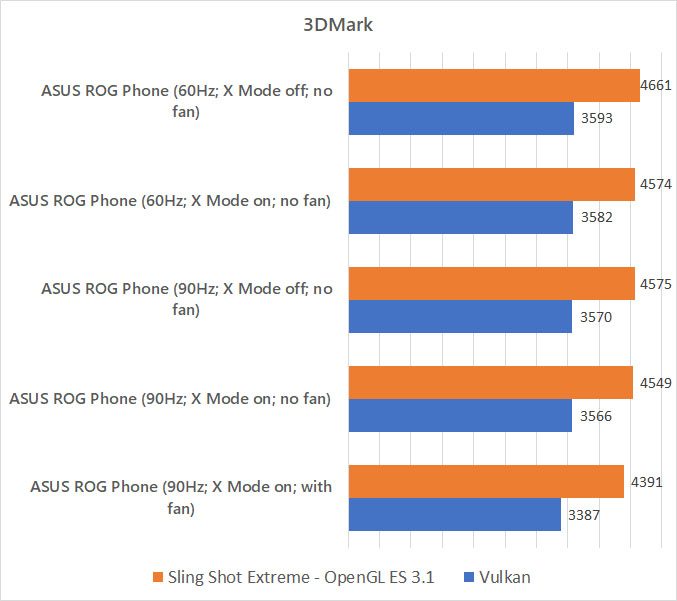
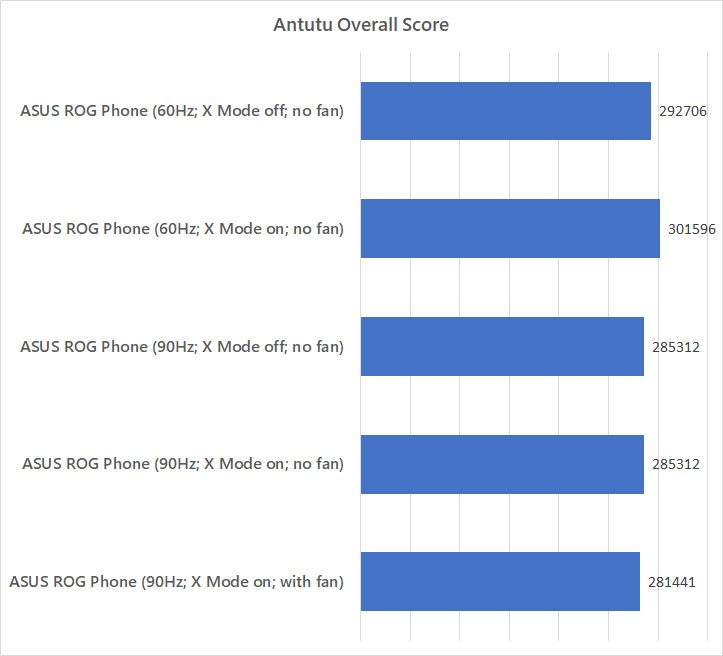
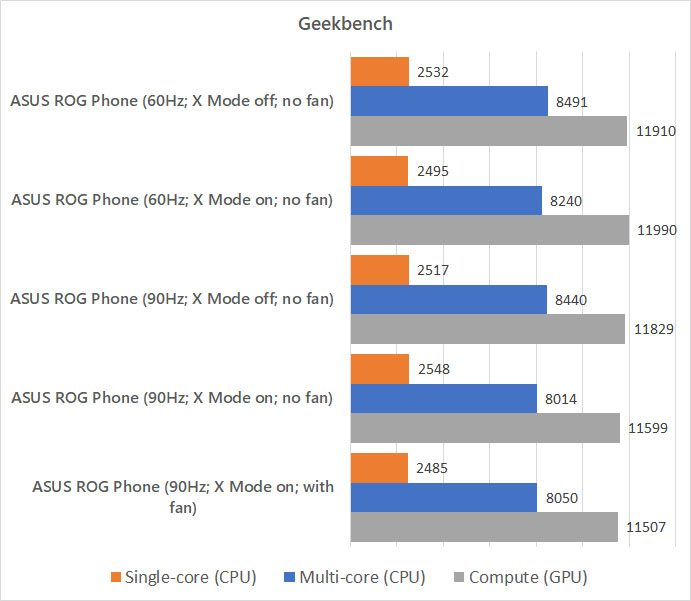
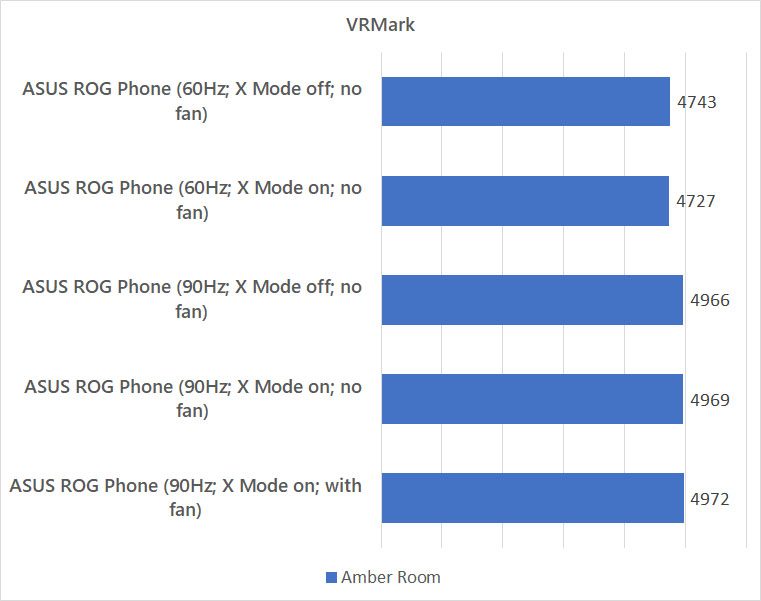
There’s not much difference, really. But for some reason, VRMark seems to consistently get a higher score if we set the ROG Phone to run at 90Hz refresh rate. Not by a huge amount, but a tangible, repeatable result.
Like we mentioned before, the X Mode is actually a rebrand of the existing AI Boost in the ZenFone 5 and ZenFone 5z. For those two phones… the AI Boost did absolutely nothing. As for the ROG Phone? X Mode did nothing as well.
What about the AeroActive Cooler? Does that help in boosting the performance? Not really. It did reduce the temperature while gaming – and cooled my fingers too. Speaking of that, let’s jump to the next section.
Gaming
We are big fans of the utilities that the ROG Phone offers – notchless 90Hz AMOLED screen with 1ms response time, dual front-facing stereo speakers, AirTriggers, and Game Genie specifically.
Throughout our gaming test, we tried with a total of 4 games – Asphalt 9, Honkai Impact 3, and PUBG Mobile. Unfortunately, not all games are able to make use of the hardware that the ROG Phone has to offer. We also used the “real-time info” toolbar in Game Genie to gather the data.
Asphalt 9 for example, is able to run at 90Hz but the Snapdragon 845’s GPU failed to keep up with the demanding graphics. The game is already using 99% of the GPU before reaching 90Hz! Asphalt 9 can only reach about 46FPS in the highest graphical setting.
From here, we can actually tell that the Snapdragon 845’s GPU is not powerful enough for this kind of technology. We also hope that ASUS speed-binned the GPU instead of the CPU, since the CPU isn’t used that much while gaming anyway.
Then comes Honkai Impact 3. It’s a beautiful game but the CPU and GPU utilization is so low that it didn’t even scratch the 90% usage mark. Also, the game is locked at 60Hz only.
Last but not least, PUBG Mobile. This one game alone is the reason why ROG Phone is conceived this way. We also gathered the most data from PUBG Mobile, as it is the most demanding title in our list.
We tried and tested PUBG Mobile in multiple different configurations – with and without X Mode, with and without the AeroActive Cooler. We compiled all the data below.
| After a long time of playing PUBG Mobile | ||||
| X Mode off; no fan | X Mode & Aura on; no fan | X Mode off; fan at 100% |
X Mode & Aura on; fan at 100% |
|
| FPS | 41 | 41 | 41 | 41 |
| Temperature (°C) | 39 | 39 | 37 | 37 |
PUBG Mobile in itself is a pretty demanding game but ironically, the game is only using about ~30% of the CPU and ~80% of the GPU. We cannot confirm if the PUBG Mobile is not optimized or there’s another reason behind not utilizing the GPU entirely.
We did realize one thing – when the ROG Phone’s battery drops to 10%, performance throttling starts to happen and the FPS drops to sub-30FPS.
Depending on the game you’re playing and the graphical settings that you’re comfortable with, you can adjust the accordingly to prolong your battery life. Here are a few recommendations that we have for you:
- PUBG Mobile – locked at 60FPS
- Highest graphical settings with the screen set to 60Hz (since the game can only run at 41FPS)
- Lower settings to run at a consistently smooth
- Honkai Impact 3 – locked at 60FPS
- Highest settings, no issues
- Asphalt 9 – can go up to 90Hz
- Highest graphical settings with the screen set to 60Hz (since the game can’t reach >70Hz consistently)
Setting the screen to 90Hz at “default” graphical settings in Asphalt 9 doesn’t help, by the way. It still can’t maintain >70Hz.
[nextpage title=”Battery & Charger”]
Speaking of the battery, the ASUS ROG Phone is equipped with a 4,000mAh battery. It’s the same as some other big smartphones in the market right now – but with the speed-binned Snapdragon 845, 90Hz display, Aura RGB light, and AeroActive Cooler, how long can the 4,000mAh actually last?
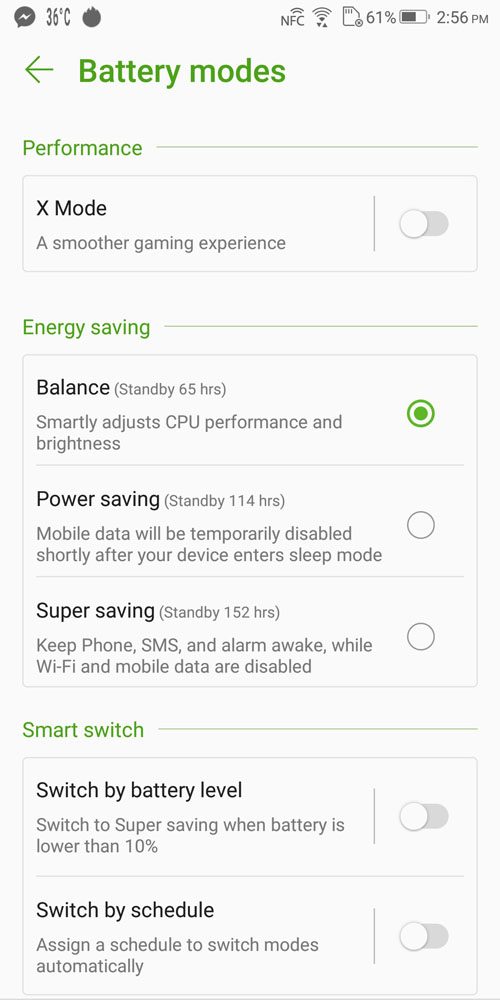
ASUS actually separated a few different battery modes in the settings menu. The X Mode here is supposed to be the “high performance” mode. Here we compare the ASUS ROG Phone with other smartphones in the market using “balance” only, since X Mode doesn’t improve performance at all.
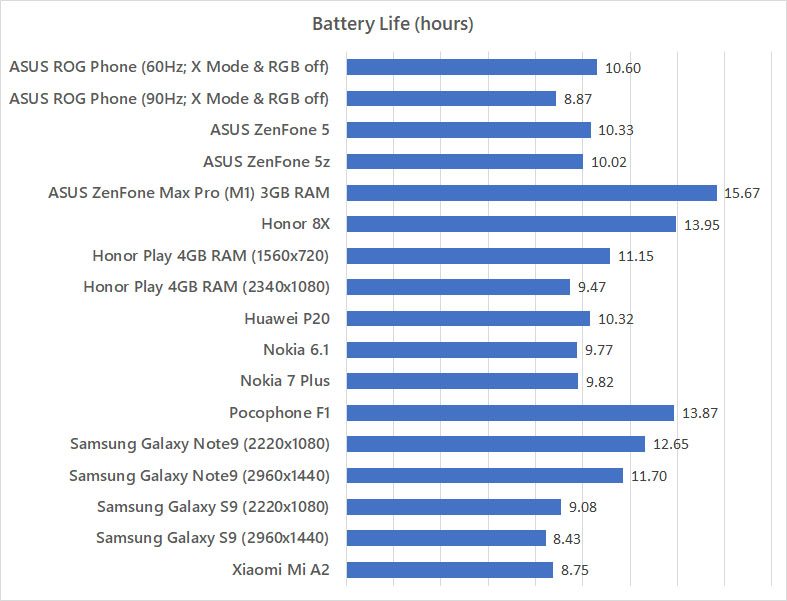
From our benchmarks and gaming tests, we think that it’s best to stick with 60FPS with X Mode and Aura lighting turned off so that you can game for a longer time, while you can enable 90FPS and lower the graphical settings to enjoy a smoother but uglier graphics.
But since the ROG Phone has so many different settings to play with, what magnitude of an impact will settings and accessories bring to the ROG Phone? Take a look at the comparisons below.
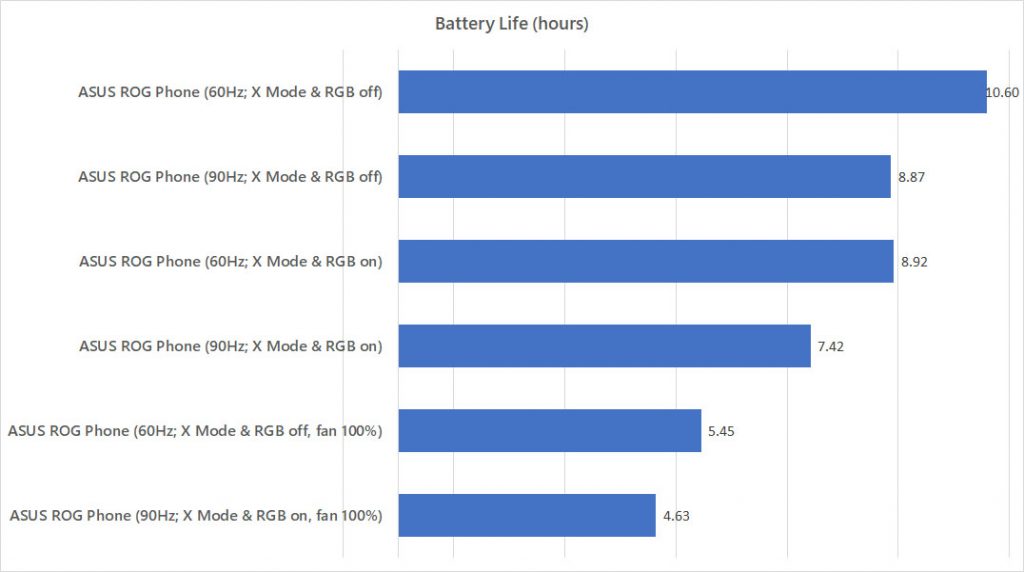
We actually went on and tested a myriad of different settings turned on and off – Aura RGB, 90Hz and 60Hz, X Mode turned on and off, with and without AeroActive Cooler at 100% – while we fixed the brightness and performed the same test. The results we got were astonishing.
That tells us one thing – every setting of the ROG Phone matters. If you want to go all-out baller mode with the fan at 100% and RGB lighting turned on, then you’re in for a treat. The battery lasted for less than 5 hours. Five hours.
Depending on what settings you want to use, the ASUS ROG Phone’s battery can last you a few hours of gaming before depleting entirely.
Charger
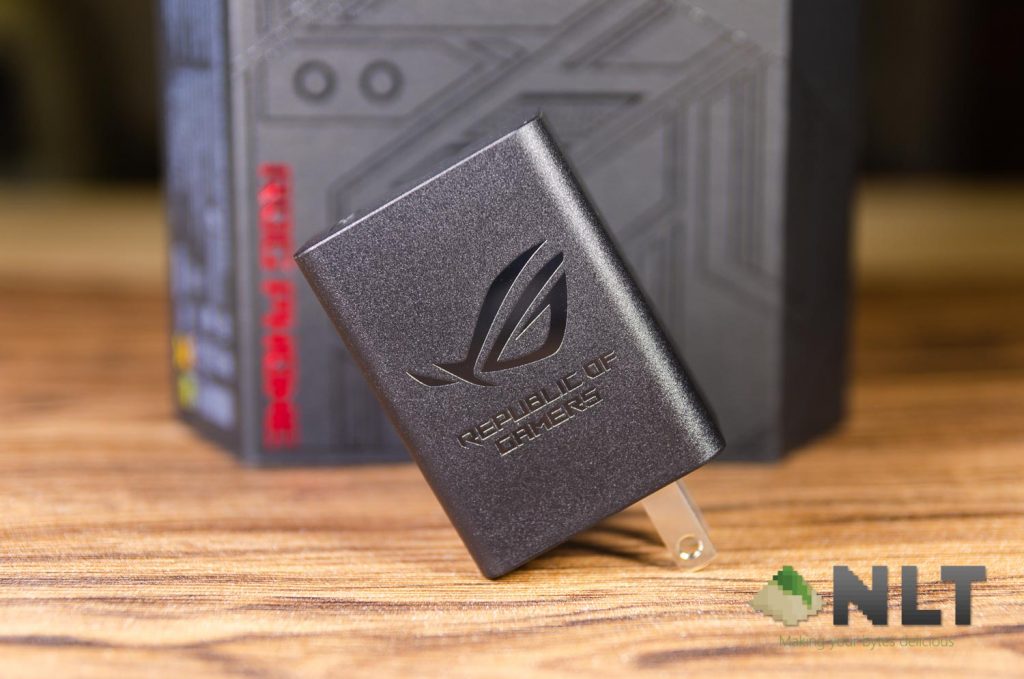
This is also one of the confusing thing with the ASUS ROG Phone. In the box itself we have the brand new HyperCharge – a charger that’s capable of outputting a total of 30W max. But hey – didn’t the official specs of the ASUS ROG Phone listed that the side USB-C port can support higher power and faster charging?
Then, we also repeated the test by using a 5V 2A charger which we used in this experiment. We used the bottom USB-C port at first.
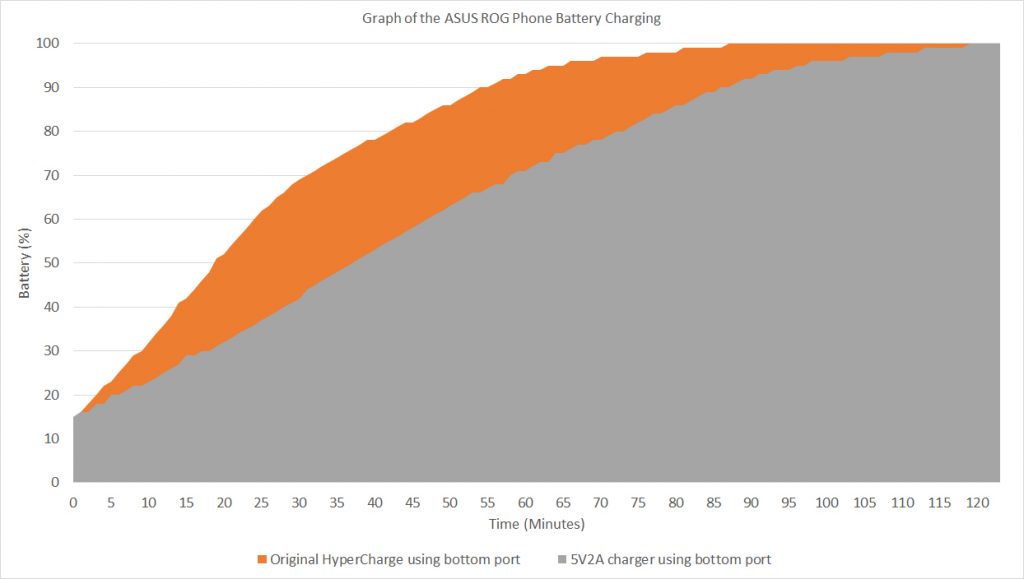
Overall, using the HyperCharge to charge from 15% onwards, the ROG Phone takes around 18 minutes to reach 50%, and takes a total of 36 minutes to reach 75%. A total of 87 minutes is needed to reach 100% full charge. Still, it’s a really fast charger.
Once this basic charging test was done, we thought to ourselves – didn’t ASUS ROG mentioned that the side port is actually more powerful than the one at the bottom?
Hence we also did another myriad of charging test where we charged with and without the AeroActive Cooler while using the HyperCharge charger, then redid the entire test with the 5V2A charger.
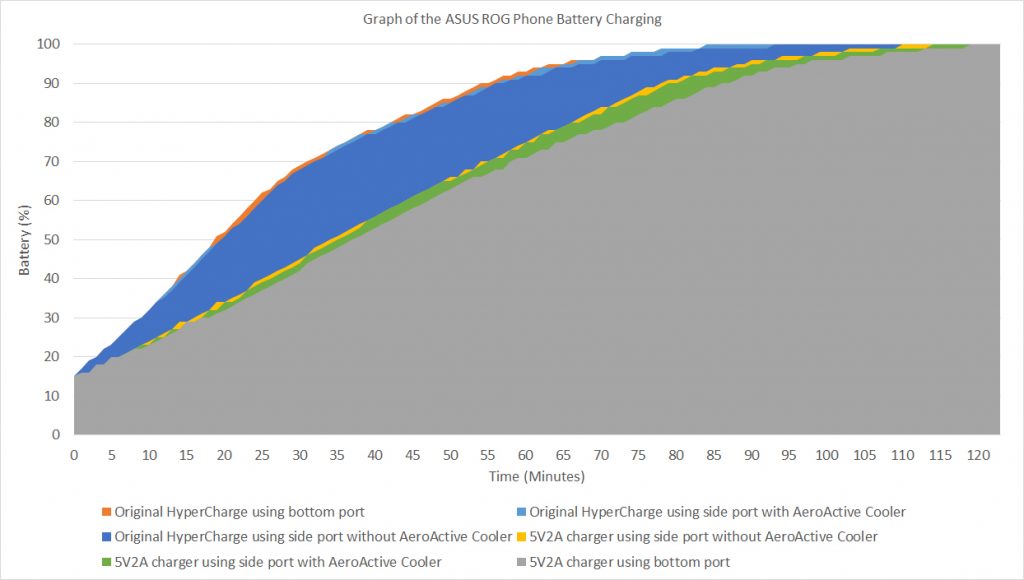
When we superimpose everything together, we see no significant difference in terms of charging with or without the AeroActive Cooler on the side port, or using the bottom port. That’s one mystery solved.
[nextpage title=”Wrapping up the ASUS ROG Phone review”]
Okay, alright. This smartphone has its arrival rumored and predicted for months prior to its release. Ever since its debut back at Computex 2018, I consistently received the question of “when will the ASUS ROG Phone be released?”
After more than 4 months – it’s finally here. It’s a smartphone made specifically for gaming – and ASUS did it so right, that the ROG Phone is miles ahead of its competitions. The AirTriggers is something truly useful for gamers and I find myself using it way too often. Imagine playing Asphalt 9 without touching the screen.
The utilities are useful as well. Game Center and Game Genie are the companion that made the ROG Phone become the ultimate gaming phone to date. It can record macros, record game footages, broadcast the gameplay via live stream – just to name a few.
However, the X Mode seems more like a secondary profile with different brightness level only. The AeroActive Cooler didn’t help much in terms of cooling the phone and functions more like an adapter to convert the custom 48-pin connector to become a USB-C + 3.5mm audio jack at the side.
In terms of charging and data transfer, a slower USB-C port at the bottom and a speedier USB-C at the side is rather confusing as well. It wouldn’t hurt to make both of them the same, would it?
While 90Hz did make the entire usage experience buttery smooth, there are many games that are locked in 30FPS or 60FPS only. While Asphalt 9 does run at 90Hz, you’ll have to play it in lower graphical settings as the Snapdragon 845 GPU just isn’t powerful enough. Perhaps speed-bin the GPU instead of CPU next time?
Overall, I’ll still say that the ROG Phone is indeed the one smartphone to get if you are serious about mobile gaming. Other than that, it has a decent camera which does take decent shots. The ROG Phone is available in two storage variants, and you’ll have to be the judge whether it is worth it or not. Remember – the ROG Phone does not have microSD card slot.
- 8GB RAM + 128GB internal storage – RM3,499 (the one we reviewed)
- 8GB RAM + 512GB internal storage – RM3,999
From ZenFones to an ROG Phone, it’s a pretty big leap for ASUS and it’s a totally different perspective for us consumers as well. ZenFones have polished the ZenUI throughout the years, and ROG Phone builds upon it to create the best smartphone gaming experience to date. ASUS knows what mobile gamers want, and they did a good job integrated these demands into the ROG Phone. AirTriggers, especially. Now, I can’t use other phones to play PUBG Mobile anymore because I got used to AirTriggers. 🤪
Like our Facebook Page here at NasiLemakTech.com for more news and in-depth reviews! Also, join our Facebook Group for insightful information and memes!
Subscribe to our YouTube channel too!